Manage the risk library
Note: Content in this topic is intended for Enterprise Authors.
Introduction
A risk library is a centralized collection of risks and procedures from which users can select applicable items to include in their engagements.
In Caseware, risk libraries help your organization:
-
Support consistent and effective risk assessment.
-
Reduce the duplication of effort across teams.
-
Maintain quality and consistency across your firms or networks.
-
Ensure compliance with professional standards and internal policies.
Types of risk libraries
Default risk libraries are created and maintained by Caseware. They are delivered through the default product template and provide a foundation of industry-standard risks and procedures.
Enterprise-level risk libraries are customized by enterprise authors and layered on top of the default risk libraries. These reflect network-wide standards and practices.
Firm-level risk libraries are the risks and procedures provided by Caseware including customization by the enterprise author, if applicable. These libraries are accessed through the Caseware user interface and provide the final set of risks and procedures available to engagement teams.
Who uses risk libraries in Caseware?
Risk libraries are used by several types of Caseware users, each with distinct roles and responsibilities:
Caseware
-
Who they are: Caseware product and content specialists.
-
What they do: Create and maintain the default risk libraries that serve as the foundation for all users.
Enterprise authors
-
Who they are: Users with permissions to manage content at the network level (often part of a central or head office team).
-
What they do: Customize risk libraries for all firms in their network which includes the ability to:
-
Add network-specific risks and procedures.
-
Modify the name, description or associated procedures of default risks.
-
Suppress risks that are not relevant to the network.
-
Export the current published risk library for review.
-
-
For more information about the role of the enterprise author, refer to: Get started - enterprise authors.
Engagement teams
-
Who they are: Staff, managers, and partners working on client engagements.
-
What they do: Use the risk library content provided by Caseware and/or customized by network authors to perform risk assessments as part of their engagement workflow.
Anatomy of the risk library
The risk library is made up of multiple parts, each defining how risks and procedures are organized, categorized and used in engagements.
Default risk library (Caseware)
The main parts of the Caseware default risk library:
-
Risk Groups: Clusters of similar risks, each with a unique ID and descriptive name.
-
Cycles: Business processes (e.g., Revenue, Inventory) to which risk groups are mapped.
-
Areas: Financial statement sections (e.g., Cash, Receivables) mapped to risks and risk groups.
-
Components: Industry or engagement type tags for tailoring risks to specific contexts.
-
Financial Categories: Groupings by financial statement categories (Assets, Liabilities, etc.).
-
Control Objectives: Standardized goals for internal controls, linked to risks and procedures.
-
Procedures: Audit or control steps mapped to risks or risk groups, guiding risk response.
-
Risks: The core list of significant risks, each with detailed attributes.
-
Assertions: Audit assertions mapped to risks, areas and cycles to ensure coverage of all key financial reporting objectives.
Enterprise-level risk library (customized)
Enterprise-level risk libraries use the same structural components as the default library, but allow enterprise authors to tailor them to their network’s needs:
-
New risks: Risks created by the enterprise author to address network-specific concerns not covered in the default library.
-
Customized risks: Modifications to existing risks, such as updated titles, descriptions, or attributes (e.g., significance, fraud risk, related procedures)
-
Suppressed risks: Default risks hidden from engagement teams if they are not relevant to the enterprise.
-
New procedures: Additional audit procedures authored at the enterprise level to support new or existing risks.
-
Customized procedures: Updates to the titles or descriptions of procedures inherited from the default library.
These custom components are uploaded using the enterprise import template and are layered on top of the default risk library. To learn more about how to create a customized risk library, refer to the section below: Create a customized risk library.
How customizations are applied
When a valid customization file is uploaded:
-
Changes apply to the enterprise author firm and all firms in the same enterprise.
-
Customizations affect old and new engagements.
-
Firms receiving these changes cannot opt out or further customize the risk library.
At the upload step, the system checks for:
-
Duplicated risk/procedure references
-
Conflicting entries (e.g., same object modified and suppressed)
-
Invalid references (e.g., modifying a risk that doesn’t exist)
If all checks pass:
-
The customization replaces the existing EA-defined version for that risk library.
-
No version history is kept for previous uploads.
-
Invalid references or conflicting changes are handled with error messages at upload.
Access the risk libraries
As an enterprise author, you access the risk library from the template management settings:
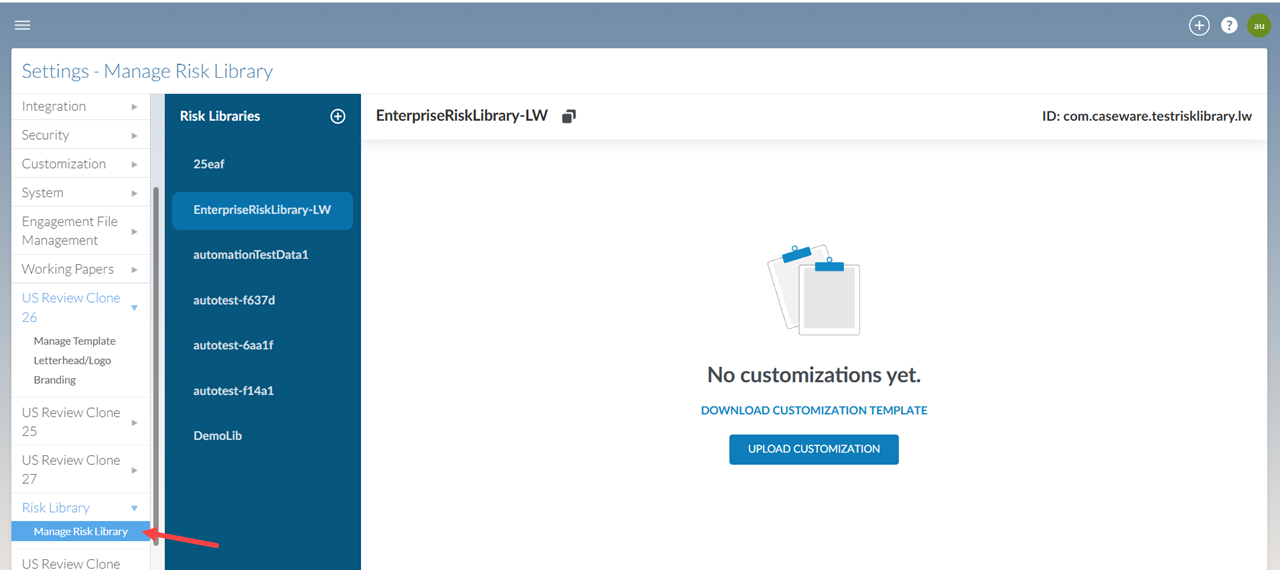
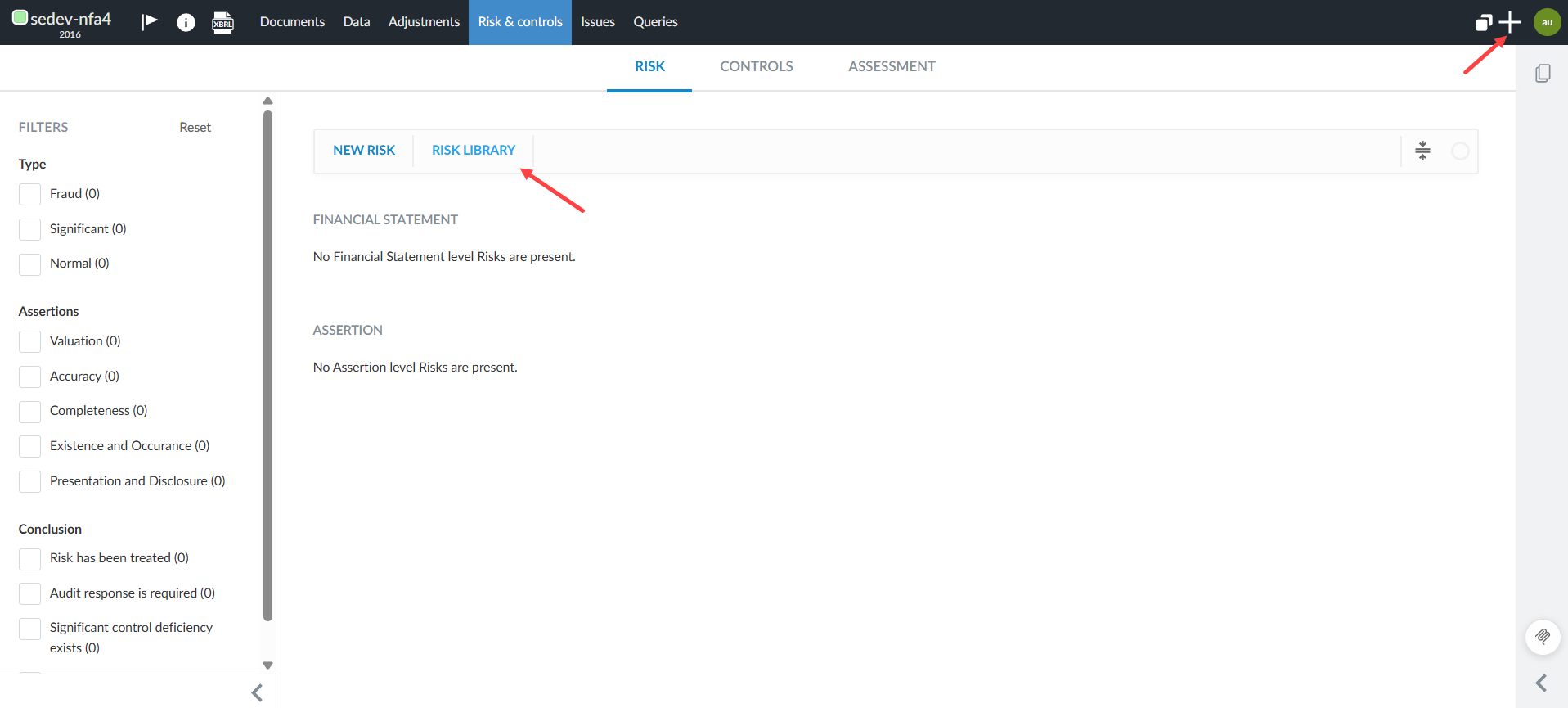
Your users will access the risk library from within their engagements from these two areas:
-
The Risks and Controls page.
-
The Add icon
 ] at the top right of the screen.
Access the risk library from within an engagement:
To learn more about how your users will add risks from the library on the user interface, refer to: Add a risk from the risk library.
Enterprise author workflows for risk library management
Update the default risk library
Caseware creates and maintains the risk libraries used in your enterprise-level product template. When a new or updated risk library is available, you will need to accept the changes to ensure your product reflects the most current industry-standard risks and procedures.
If you have customized the default risk library, you will need to reapply those customizations after updating the template.
You will be notified of any available updates via a message on your Manage Template page, from your template settings, prompting you to update the template:
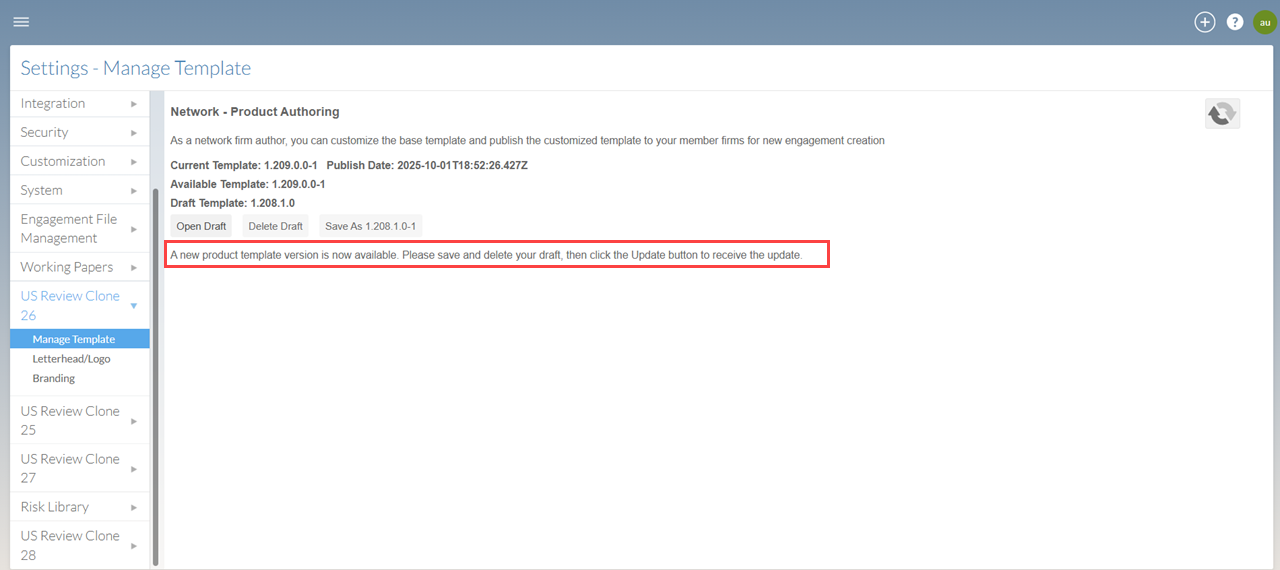
To update the default risk library:
-
Publish or delete any drafts in your Manage Template page.
-
Click Update to accept the changes to the Caseware template, including risk libraries.
-
Click Open Draft.
-
Click the Information icon [
 ], and click Settings.
 -
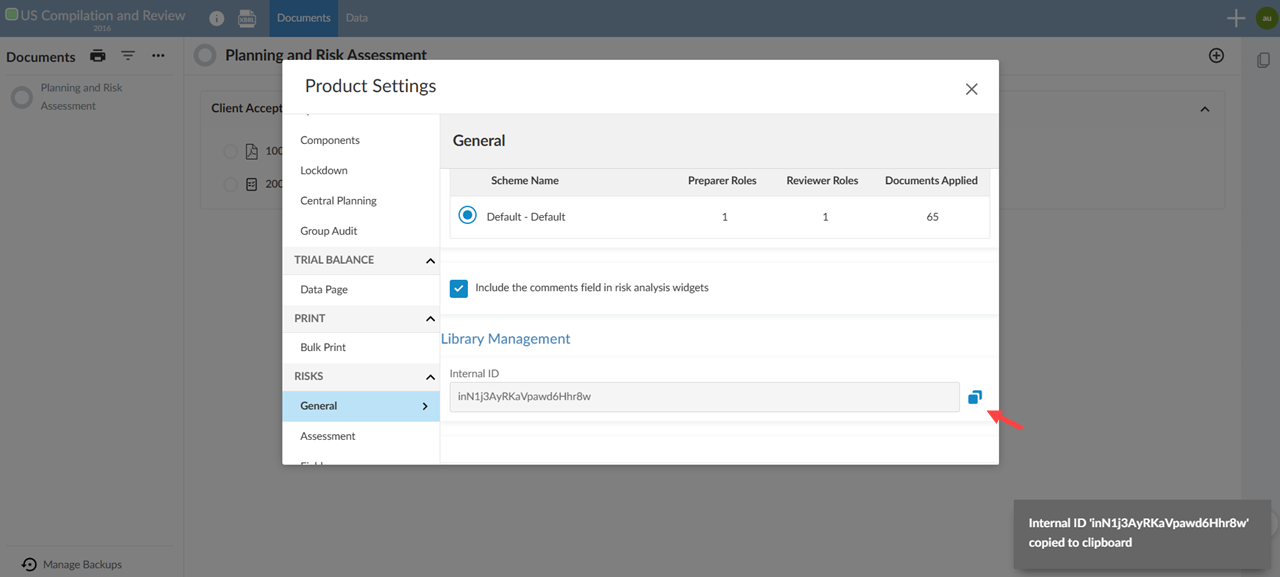
Click General, under Risks, and scroll down to Library Management.
-
Click the Copy icon [
 ] to copy the ID of the current risk library:
-
Go back to the Manage Template page and Save As, then Publish As.
-
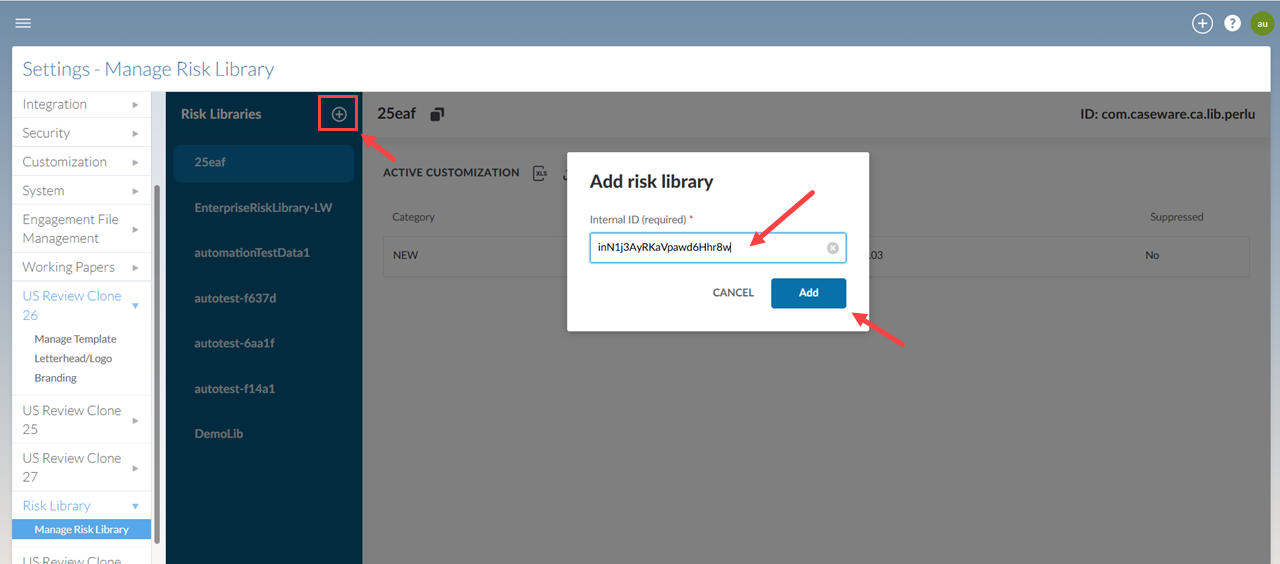
Click the Manage Risk Library in the Risk Library section of the left-side menu.
-
Click the Add icon [
 ] and paste the risk library ID into the empty field.
 -
Click the Add button to confirm:
Create a customized risk library
As an enterprise author, you can customize the default risk library for your network of firms.
Risk library customization import template:
Caseware provides a template for you to add new risks and procedures, customize existing ones and suppress irrelevant risks based on the default risk library. The template includes guidance in the form of red indicators in cells, which provide tips to help you complete each section.
To create a customized risk library:
-
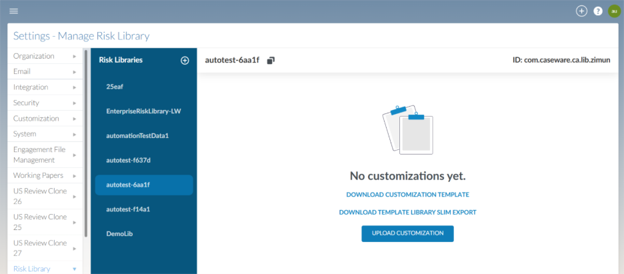
Open the Risk Library from your template settings and select the current library used in your current template. To find this library, refer back to Update the default risk library.
-
Click DOWNLOAD CUSTOMIZATION TEMPLATE and fill in the template according to your enterprise needs.
-
For a detailed summary of the Risk library customization import template, refer to: Summary of the customizable risk library template.
-
You can also customize individual risks from the user interface. For more details about individual risks, refer to: Customize risks.
-
To enter Areas, Cycles and Components into your customized library:
-
Access the template management page from the Cloud menu [
 ] .
] . -
Click
 Settings | <your product name> | Manage Template.
 -
Click Open Draft.
- Click the Information icon [
 ].
]. - Click Settings to open the Product Settings dialog box.
- Click the relevant section (Areas, Cycles or Components) under Features.
- Copy the number ID for the relevant item that you want to add to your risk library
- For Areas and Cycles, the number ID will be in the column, Number (for internal usage).
- For Components, the number ID will be visible when you click the component you wish to add.
- Paste the ID into the relevant cell of your customized risk library template.
Upload the customized risk library
Once you create a customized risk library, you need to upload it to your default risk library.
To upload the customized risk library:
-
Click Manage Risk Library from the Risk Library section in your template settings and select the current library used in your template. To find this library, refer back to Access the risk libraries.
-
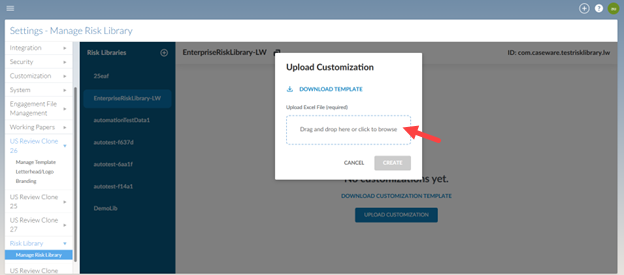
Click UPLOAD CUSTOMIZATION.
-
Click the Drag and drop here window.
-
Find and select the customized risk library that you created using the Caseware template.
-
Click CREATE to confirm the upload.
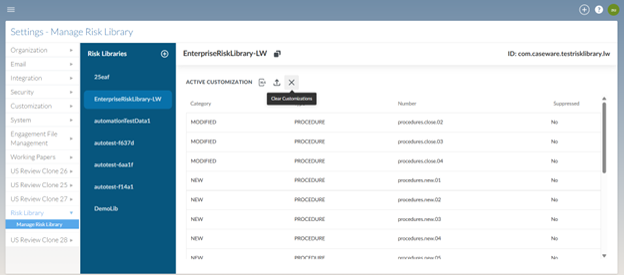
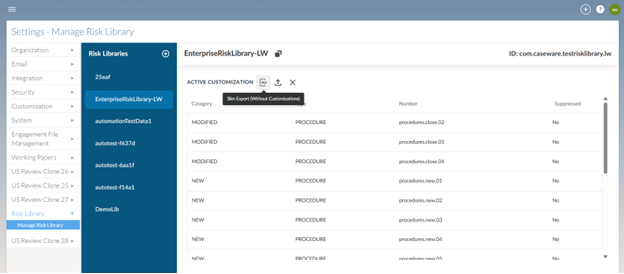
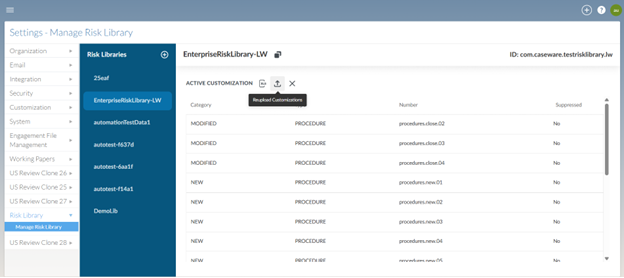
Your customizations will be listed under the default risk library. This page also includes the following options:
-
Download the default risk library as a slim export. A slim export is a data export that contains only the essential or minimal information needed, rather than the full set of detailed data. This typically includes just the key identifiers and core attributes.
-
Upload further customizations.
-
Delete all customizations from the default risk library.
The slim export:
Upload more changes:
Clear customizations: