
New in Caseware Cloud Engagements 2026-02
Welcome to Cloud Engagements 2026-02! This update introduces dynamic page references, automatic download of the reference copy and more.
On this page, you can view the new features included in this release that apply to both authors and end users.
To learn more about the Caseware Cloud Engagements platform, refer to What is Caseware Cloud Engagements?
Use report signing and release dates in data links
#firmauthor #enterpriseauthor #enduser
Note: If enabled, this feature applies to new and existing engagements.
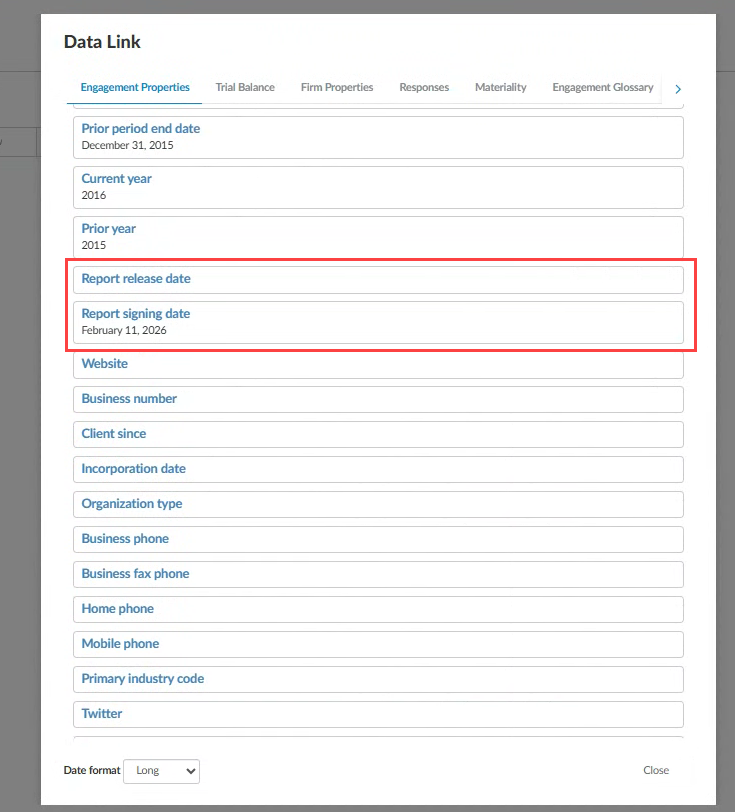
You can now link two new date options, the Report signing date and the Report release date, directly into engagement letters, memos and other documents using the Insert Formula icon [ ] from any text field in your documents.
The dates behave like other date data link formulas, including formatting and carryforward behavior, so you can reuse them consistently without manual updates.
The new date options from Engagement Properties:
To learn more about linking data within your documents, refer to Add data links in text areas in financial statements.
Dynamic page number references in financial statements
#firmauthor #enterpriseauthor #enduser
Note: If enabled, this feature applies to new and existing engagements.
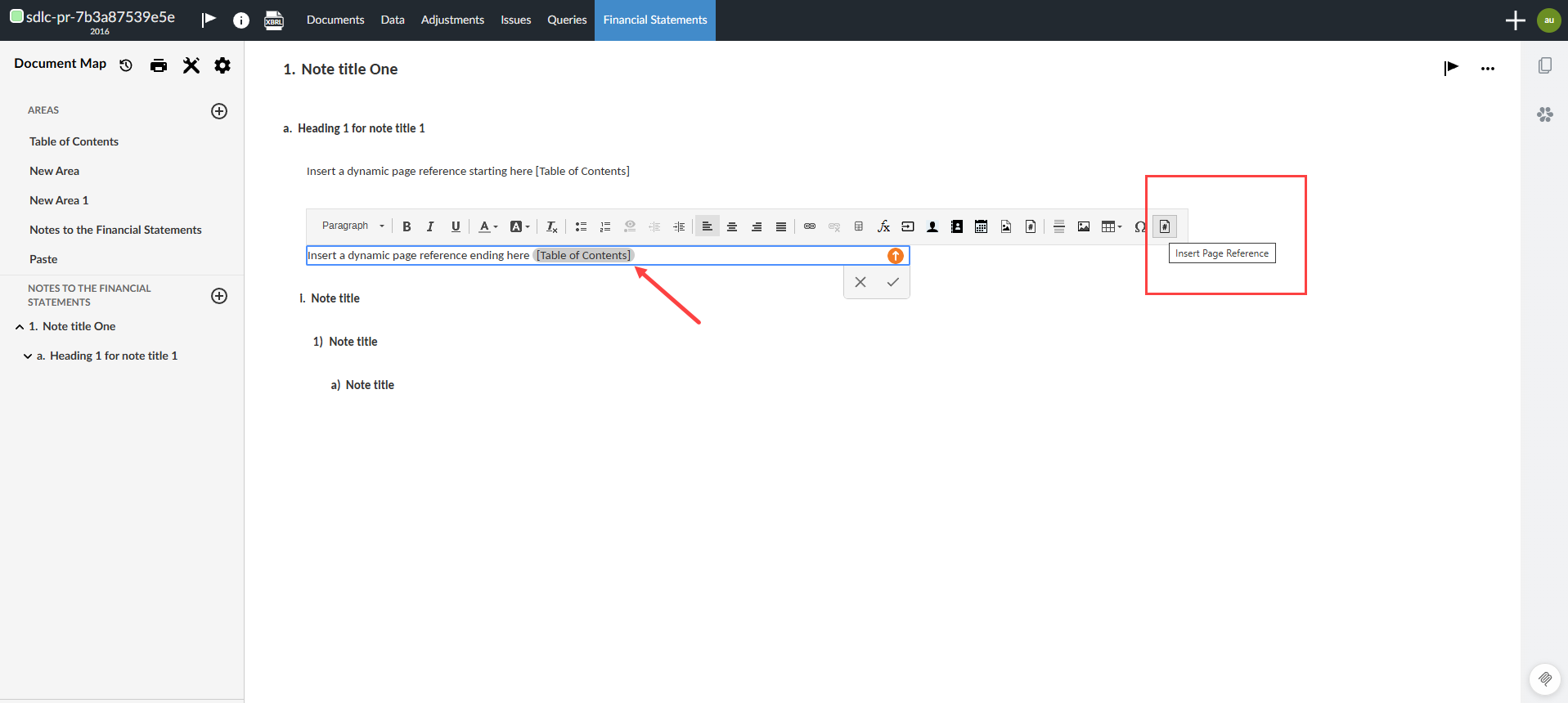
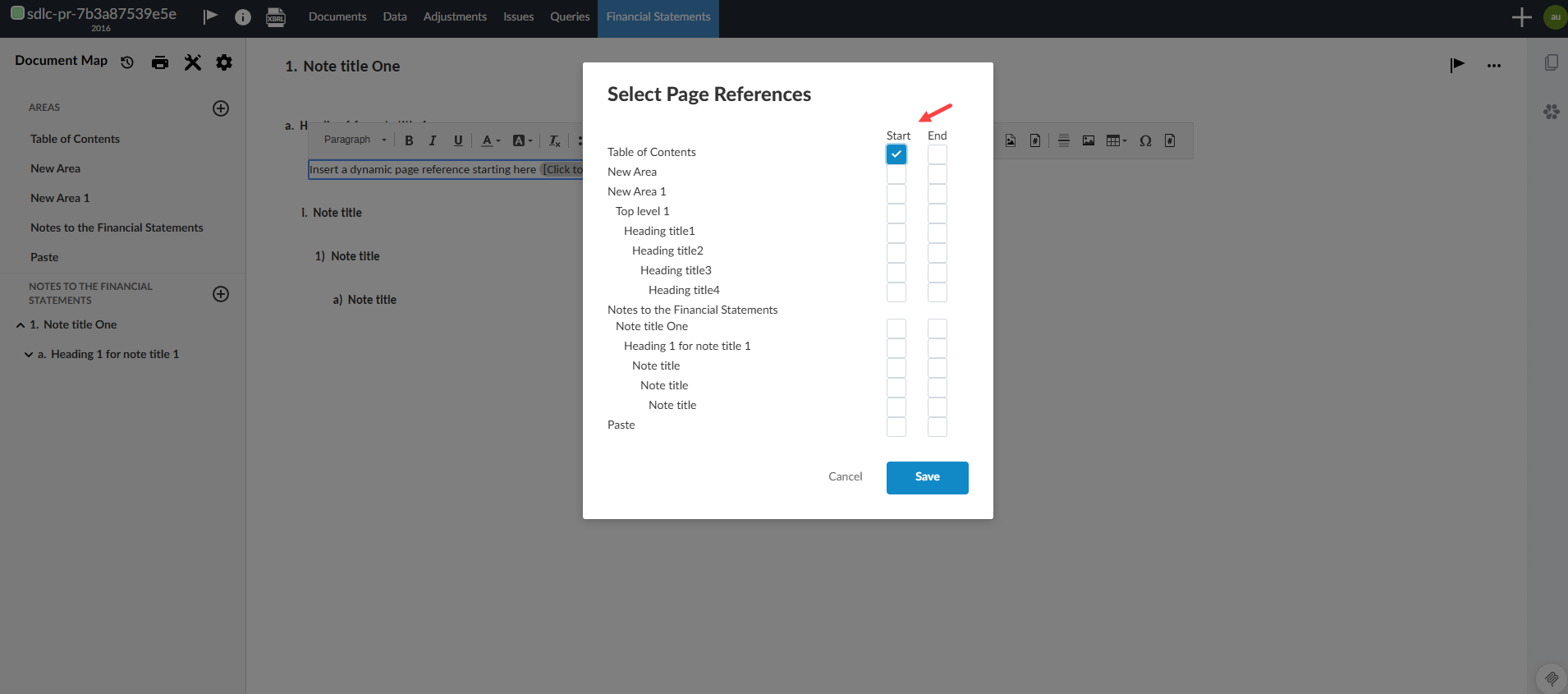
You can now insert dynamic page number references into your financial statements that update automatically as the document changes. A reference can tag a section’s starting or ending page, such as Notes to the financial statements. You no longer need to track page numbers manually or use static placeholders for the beginning or end of a section, reducing the risk of incorrect references.
Key features:
-
When the financial statements are rendered and paginated, the system replaces the reference with the correct page number.
-
If pages are added, removed or content is reflowed, the references update with the correct page numbers.
The Insert Page Reference button on the formatting toolbar:
The Select Page References dialog:
To learn more about page references, refer to Add, edit or remove page references in the financial statements.
Downloaded documents keep the name displayed in the Documents page
#enduser
Note: This feature is automatically available and applies to new engagements and existing engagements when documents are renamed.
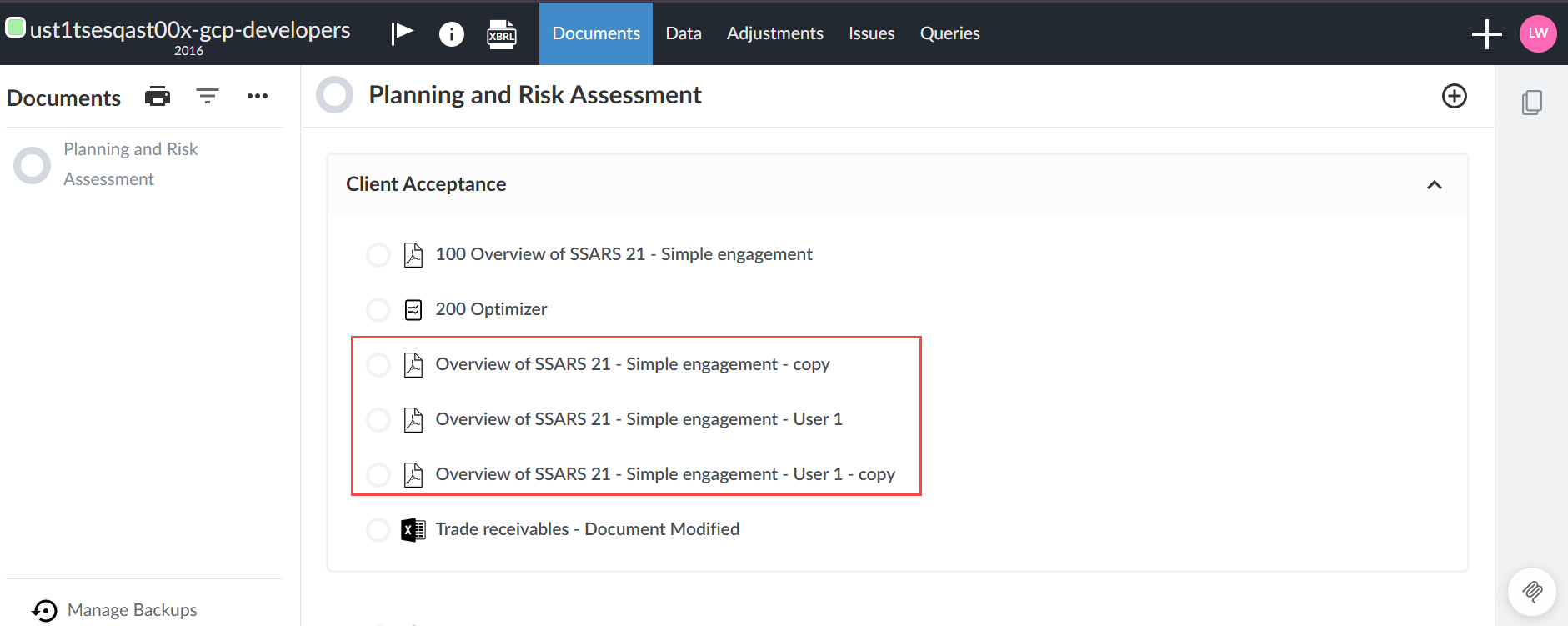
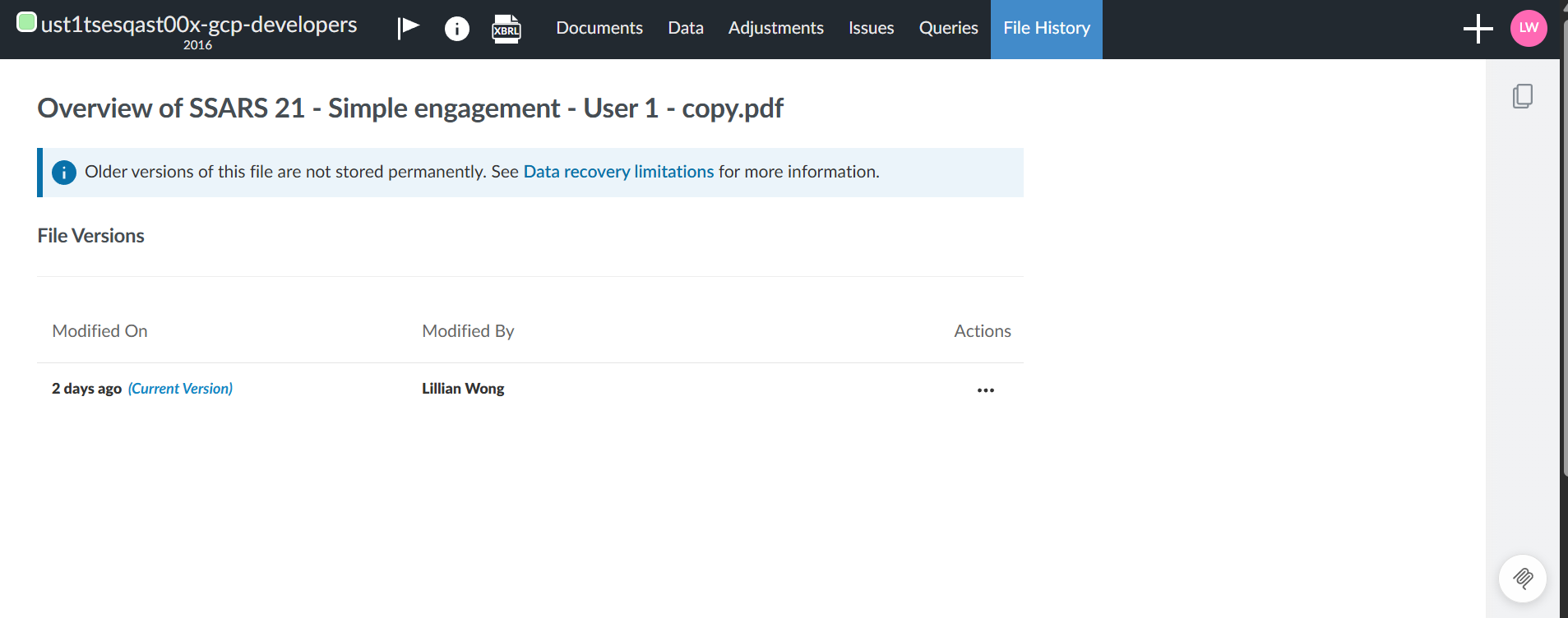
When you download a document from the Documents page in Caseware Cloud, the downloaded file name now matches the name shown on the Documents page, even if the file was renamed after upload.
This update makes it easier for you to identify your files and avoid confusion from multiple files sharing the same original name (for example, original-name (1).xlsx, original-name (2).xlsx). This feature is especially useful if you did not upload the original file.
A document copied and renamed in Documents:
The file history showing modification details:
For more information about document management options, refer to Manage the engagement documents.
Remove assigned group audit documents from components
#enduser
Note: This feature does not apply to DAS.
Note: This feature is available automatically and applies to both new and existing engagements.
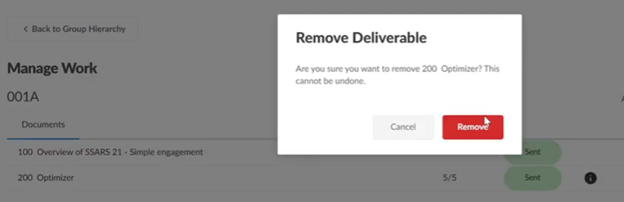
You can now remove documents, risks or controls that are assigned to components. This appears as a Delete icon [ ] on each row of the group audit work. This feature is only available if you have edit permissions. The action is irreversible and a dialog will require you to confirm your deletion before proceeding. In addition, the Group Hierarchy tab now reflects the actual state of the assignment options.
For more information about group audit features, refer to Group audit overview.
Reference copy automatically downloads when you lock down an engagement
#enduser
Note: If enabled, this feature applies to new and existing engagements.
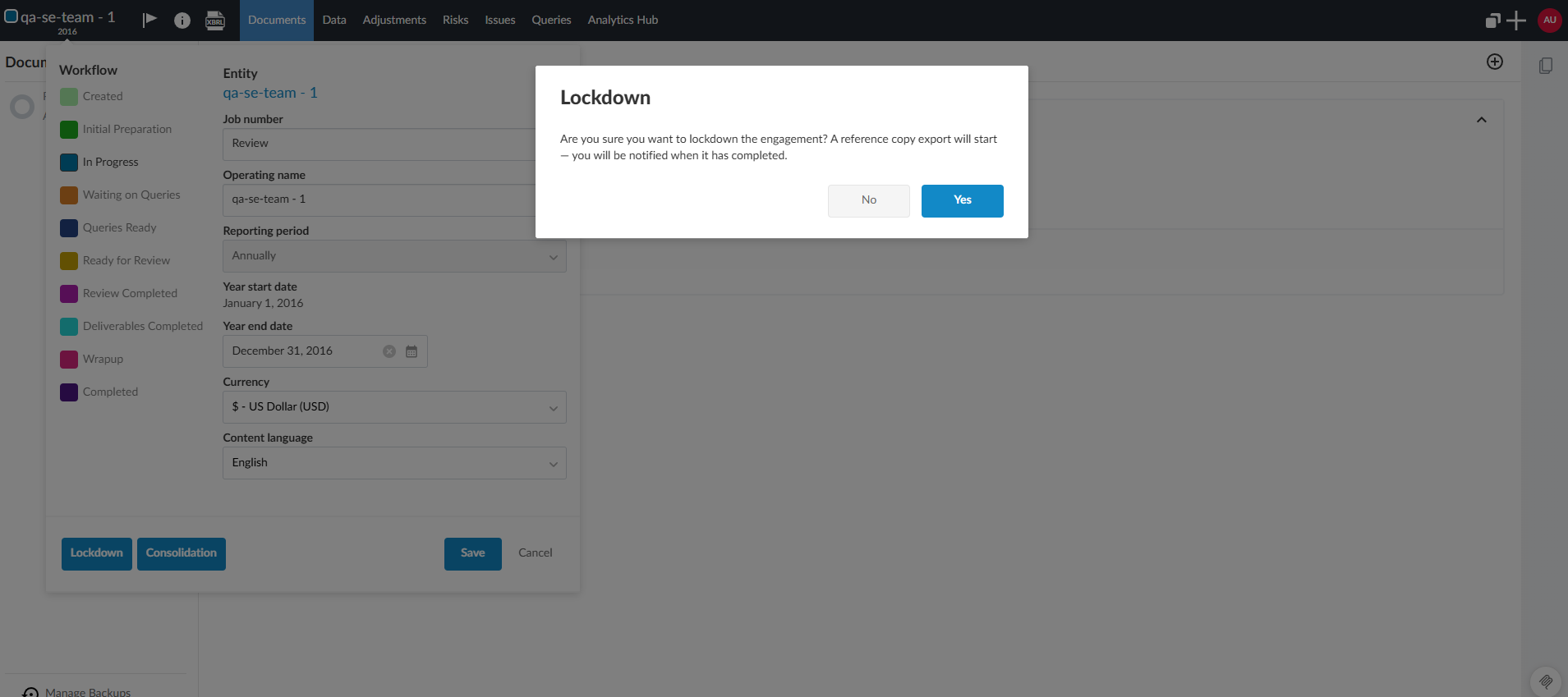
When you manually lock down an engagement, Caseware Cloud will automatically download the reference copy for you. This makes the lockdown workflow more consistent and reduces the chance that lockdown completes without producing the reference copy of the engagement. You will receive the same notifications that you would see when manually downloading the copy.
The dialog to confirm locking down an engagement and downloading the reference copy:
For more information about the downloaded reference copy, refer to Download a reference copy of an engagement.
Unlink a synced trial balance from an engagement
#enduser
Note: If enabled, this feature applies to new and existing engagements.
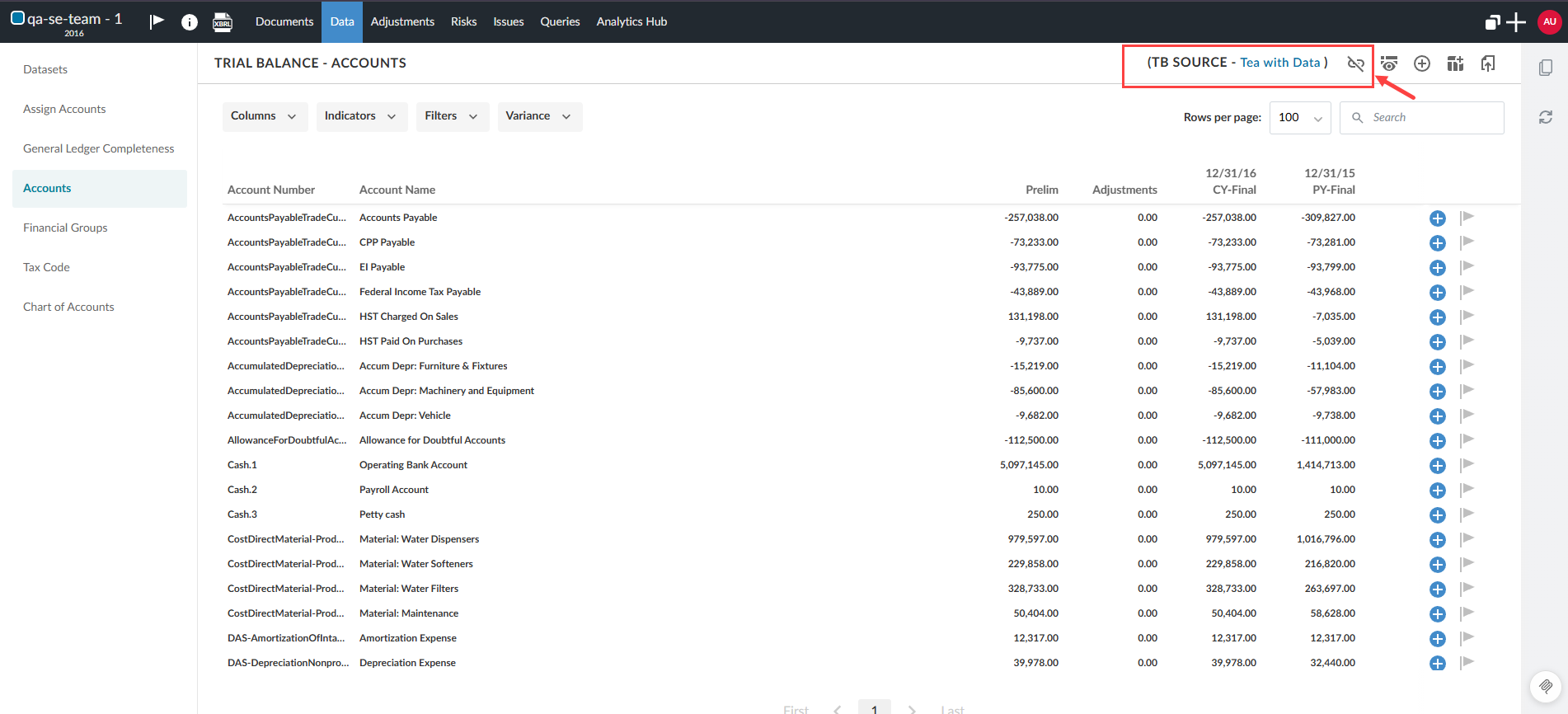
You can remove the sync between a trial balance and an engagement. This allows you to stop syncing data from the trial balance when the link is no longer needed or was linked in error. A new Unlink button [ ] is now available at the top of your trial balance header. Selecting the option opens a confirmation dialog before proceeding.
Unlink the trial balance from the engagement:
To learn more about syncing the trial balance, refer to Sync the trial balance.
Support multiple grouping structures in Cloud Connector
#enduser firmauthor #enterpriseauthor
Note: If enabled, this feature applies to new and existing engagements.
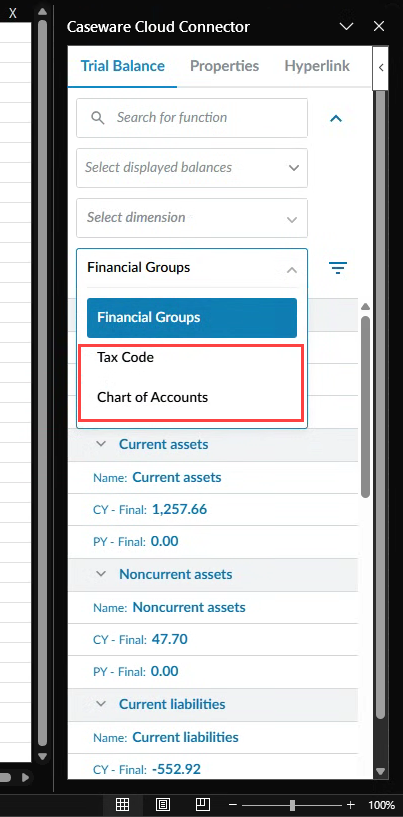
Cloud Connector can now pull financial data across all grouping structures, beyond the primary financial group structure – including tax groupings and chart of accounts.
You can select the grouping structure that best matches your workflow when working with Cloud Connector data. This helps you view, map and consolidate trial balance data using either a tax-focused view or a chart-of-accounts view, in addition to the financial statement groupings you already use.
To learn more about groupings, refer to Define groupings.
New in Caseware Cloud Engagements 2026-02
Welcome to Cloud Engagements 2026-02! This update introduces dynamic page references, automatic download of the reference copy and more.
On this page, you can view the new features included in this release that apply to both authors and end users.
To learn more about the Caseware Cloud Engagements platform, refer to What is Caseware Cloud Engagements?
Use report signing and release dates in data links
#firmauthor #enterpriseauthor #enduser
Note: If enabled, this feature applies to new and existing engagements.
You can now link two new date options, the Report signing date and the Report release date, directly into engagement letters, memos and other documents using the Insert Formula icon [] from any text field in your documents.
The dates behave like other date data link formulas, including formatting and carryforward behavior, so you can reuse them consistently without manual updates.
The new date options from Engagement Properties:
To learn more about linking data within your documents, refer to Add data links in text areas in financial statements.
Dynamic page number references in financial statements
#firmauthor #enterpriseauthor #enduser
Note: If enabled, this feature applies to new and existing engagements.
You can now insert dynamic page number references into your financial statements that update automatically as the document changes. A reference can tag a section’s starting or ending page, such as Notes to the financial statements. You no longer need to track page numbers manually or use static placeholders for the beginning or end of a section, reducing the risk of incorrect references.
Key features:
-
When the financial statements are rendered and paginated, the system replaces the reference with the correct page number.
-
If pages are added, removed or content is reflowed, the references update with the correct page numbers.
The Insert Page Reference button on the formatting toolbar:
The Select Page References dialog:
To learn more about page references, refer to Add, edit or remove page references in the financial statements.
Downloaded documents keep the name displayed in the Documents page
#enduser
Note: This feature is automatically available and applies to new engagements and existing engagements when documents are renamed.
When you download a document from the Documents page in Caseware Cloud, the downloaded file name now matches the name shown on the Documents page, even if the file was renamed after upload.
This update makes it easier for you to identify your files and avoid confusion from multiple files sharing the same original name (for example, original-name (1).xlsx, original-name (2).xlsx). This feature is especially useful if you did not upload the original file.
A document copied and renamed in Documents:
The file history showing modification details:
For more information about document management options, refer to Manage the engagement documents.
Remove assigned group audit documents from components
#enduser
Note: This feature does not apply to DAS.
Note: This feature is available automatically and applies to both new and existing engagements.
You can now remove documents, risks or controls that are assigned to components. This appears as a Delete icon [] on each row of the group audit work. This feature is only available if you have edit permissions. The action is irreversible and a dialog will require you to confirm your deletion before proceeding. In addition, the Group Hierarchy tab now reflects the actual state of the assignment options.
For more information about group audit features, refer to Group audit overview.
Reference copy automatically downloads when you lock down an engagement
#enduser
Note: If enabled, this feature applies to new and existing engagements.
When you manually lock down an engagement, Caseware Cloud will automatically download the reference copy for you. This makes the lockdown workflow more consistent and reduces the chance that lockdown completes without producing the reference copy of the engagement. You will receive the same notifications that you would see when manually downloading the copy.
The dialog to confirm locking down an engagement and downloading the reference copy:
For more information about the downloaded reference copy, refer to Download a reference copy of an engagement.
Unlink a synced trial balance from an engagement
#enduser
Note: If enabled, this feature applies to new and existing engagements.
You can remove the sync between a trial balance and an engagement. This allows you to stop syncing data from the trial balance when the link is no longer needed or was linked in error. A new Unlink button [] is now available at the top of your trial balance header. Selecting the option opens a confirmation dialog before proceeding.
Unlink the trial balance from the engagement:
To learn more about syncing the trial balance, refer to Sync the trial balance.
Support multiple grouping structures in Cloud Connector
#enduser firmauthor #enterpriseauthor
Note: If enabled, this feature applies to new and existing engagements.
Cloud Connector can now pull financial data across all grouping structures, beyond the primary financial group structure – including tax groupings and chart of accounts.
You can select the grouping structure that best matches your workflow when working with Cloud Connector data. This helps you view, map and consolidate trial balance data using either a tax-focused view or a chart-of-accounts view, in addition to the financial statement groupings you already use.
To learn more about groupings, refer to Define groupings.
