
Get started with central planning
Note: This feature is only available if it has been enabled in your product.
Central planning allows you to sync risks, controls and selected checklists across engagements so the work doesn’t need to be duplicated in multiple engagements. When you set an engagement as a central planning engagement, all risks, controls, and selected checklists are synced to the destination engagements.
Centrally planned content helps you:
-
Maintain consistency across files and teams.
-
Avoid duplication, outdated procedures, and inconsistencies
-
Set up new engagements faster by pulling from a central source
-
Ensure all engagements follow the same firm standards
-
Work with up-to-date content without making manual updates
Summary of central planning:
-
Changes are made in the central planning engagement.
-
Updated content syncs automatically, but engagement users must accept the changes in the destination engagements.
-
Synced content appears as locked and read-only in destination files.
-
Checklists retain their structure, but formulas and visibility logic adapt to destination engagement data.
-
Destination users can’t edit synced content or push changes back to the source.
-
Once a document is used in a destination file, its central planning status is locked and retained across years.
-
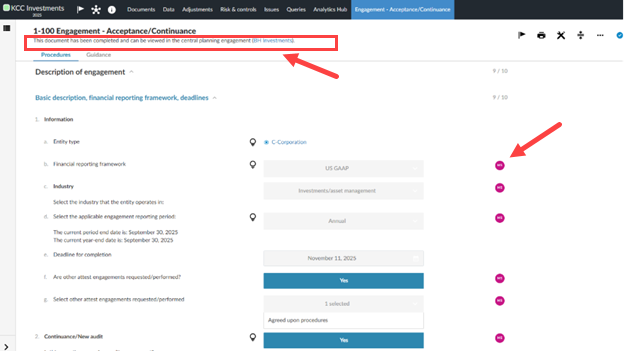
Signoffs on synced content appear in the destination engagement providing a consistent review experience for users. While actual signoff data is not transferred, synced signoffs are displayed as if present. This applies to risks, controls, documents, and procedures.
-
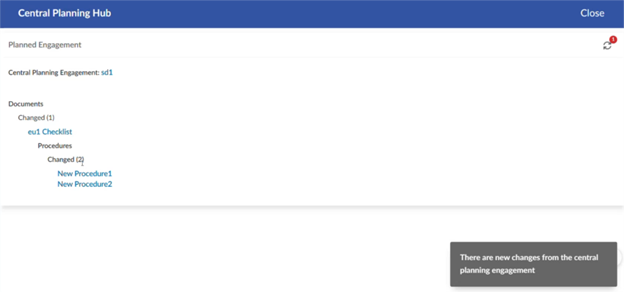
Changes to centrally planned content can be tracked through the changelog in the Central planning hub. This includes changes to procedure details within checklists providing a more granular view of changes across centrally planned engagements.
Synced signoffs:
Central planning changelog:
Create a central planning engagement
To create a central planning engagement, you must first designate an engagement to use as the central planning engagement.
To create an engagement as a central planning engagement:
-
Open the engagement you want to set as the source.
-
Select the Information icon [
 ].
]. -
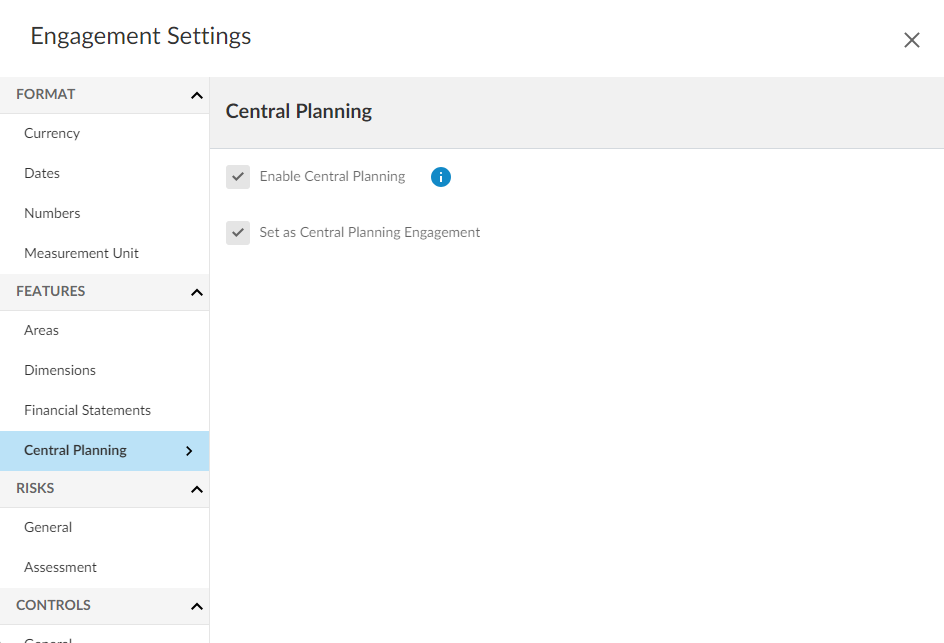
Select Settings to open the Engagement Settings.
-
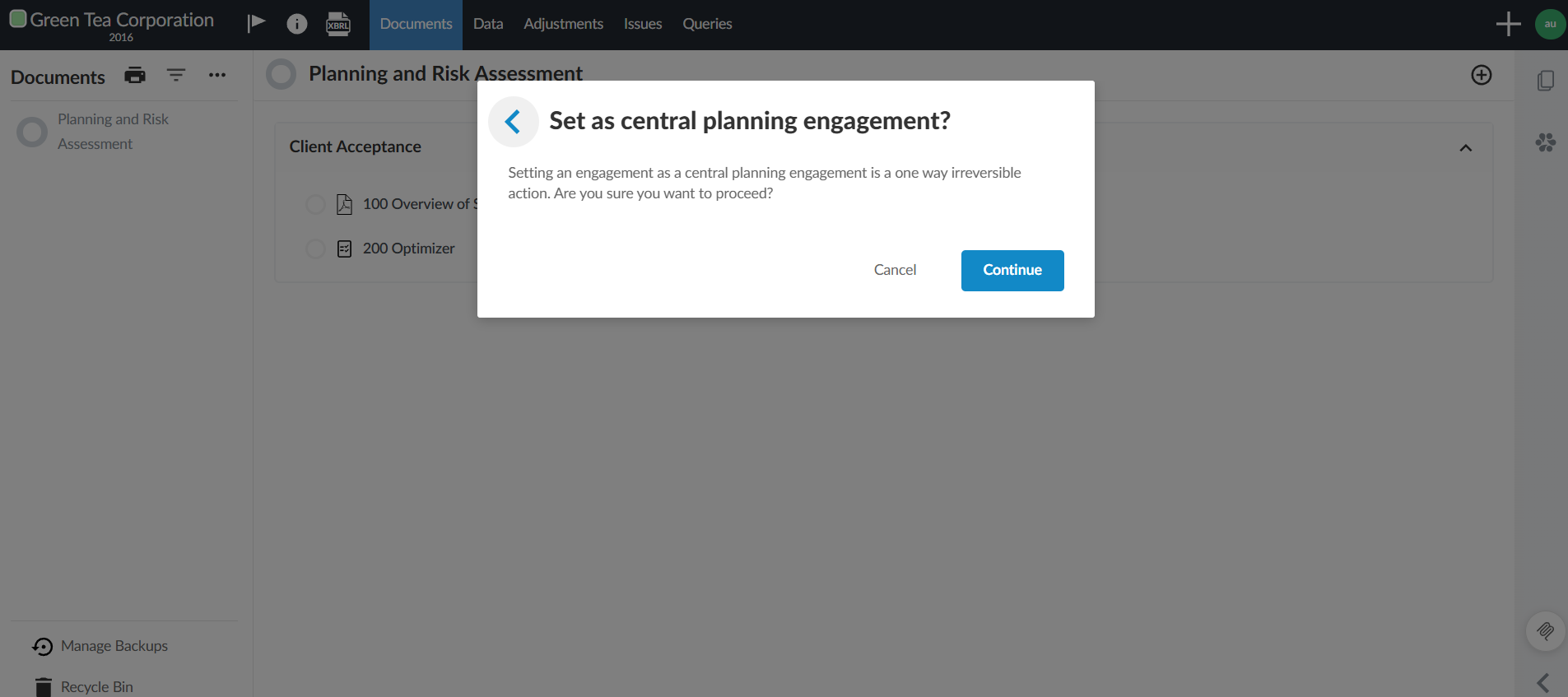
Select Set as Central Planning Engagement on the Central Planning tab. A dialog box will open noting that this action is irreversible.
-
Select Continue. Once you set a central planning engagement:
-
This action is irreversible.
-
You can select further checklists for central planning.
-
Use the Central Planning Hub
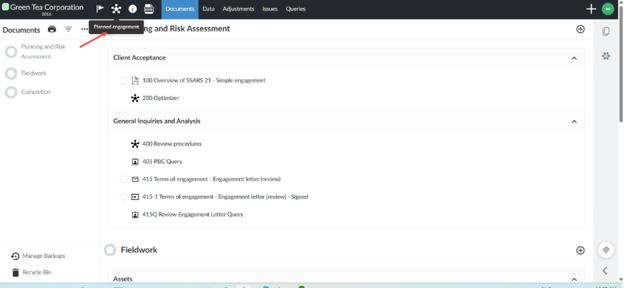
After an engagement is set as the source, the Central Planning icon [ ] appears in the top menu and beside synced checklists. From here, you can:
-
Click the icon to open the Central Planning Hub.
-
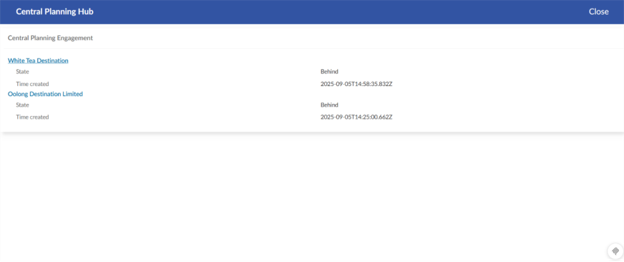
View destination engagements linked to the source.
-
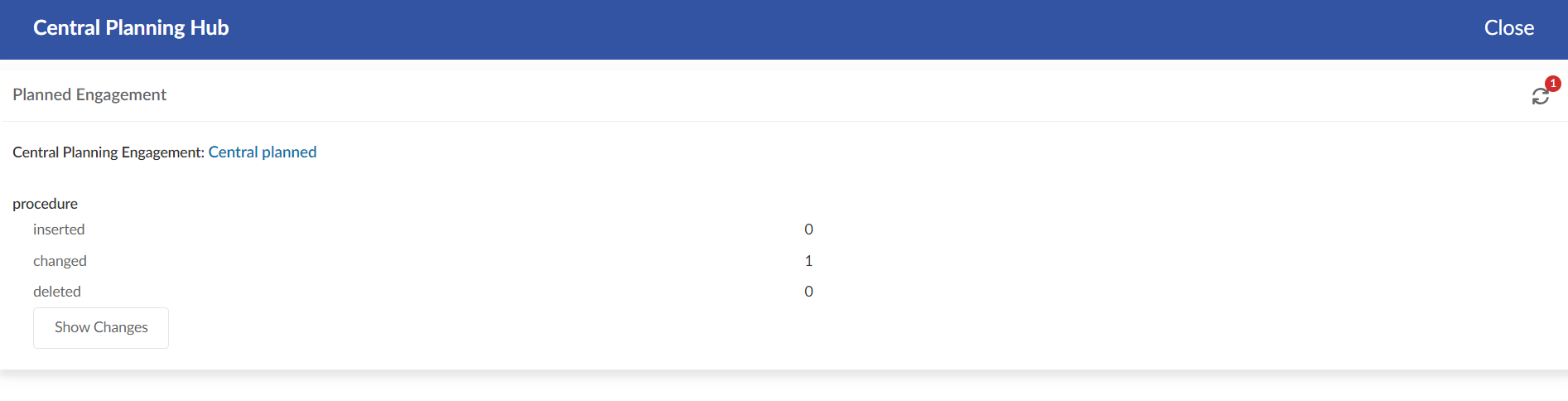
See whether each engagement is up to date.
-
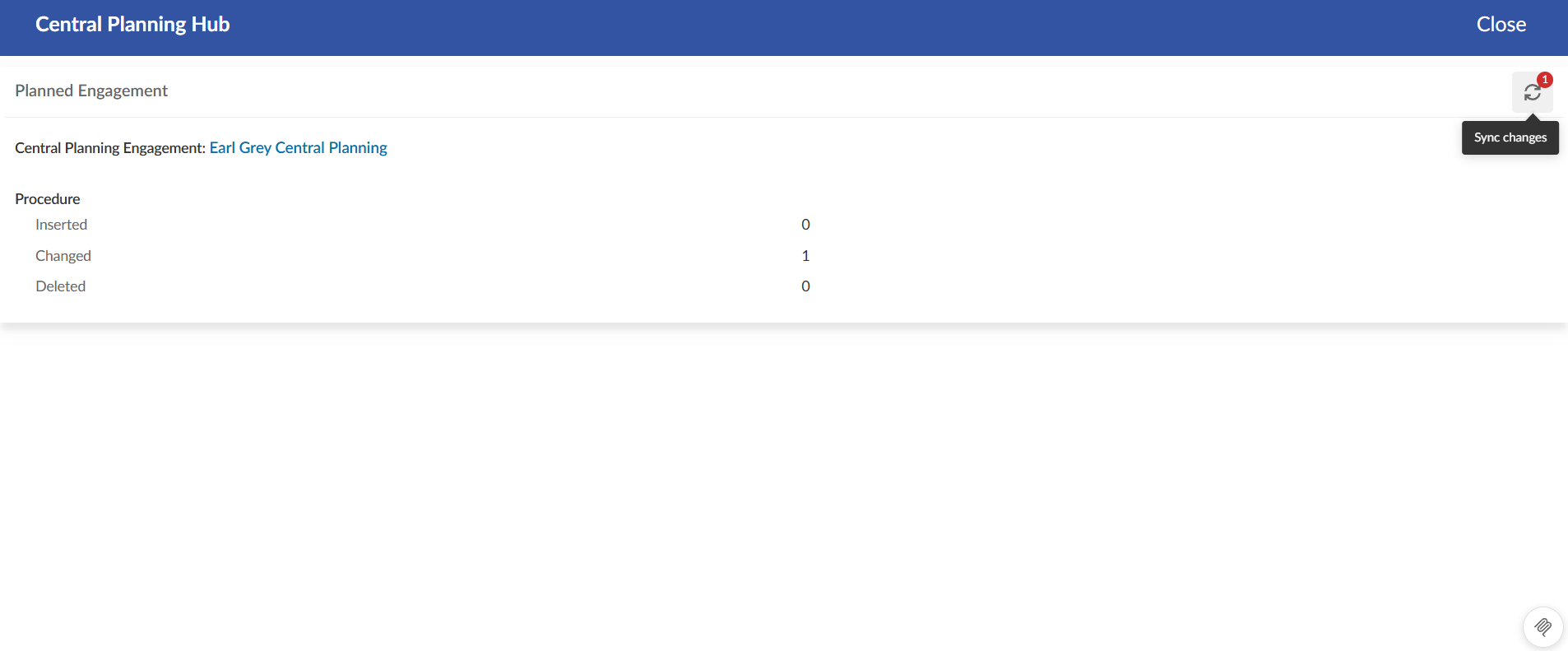
A Sync icon [
 ] within destination engagements will apply updates made in the central planning engagement.
Key features
-
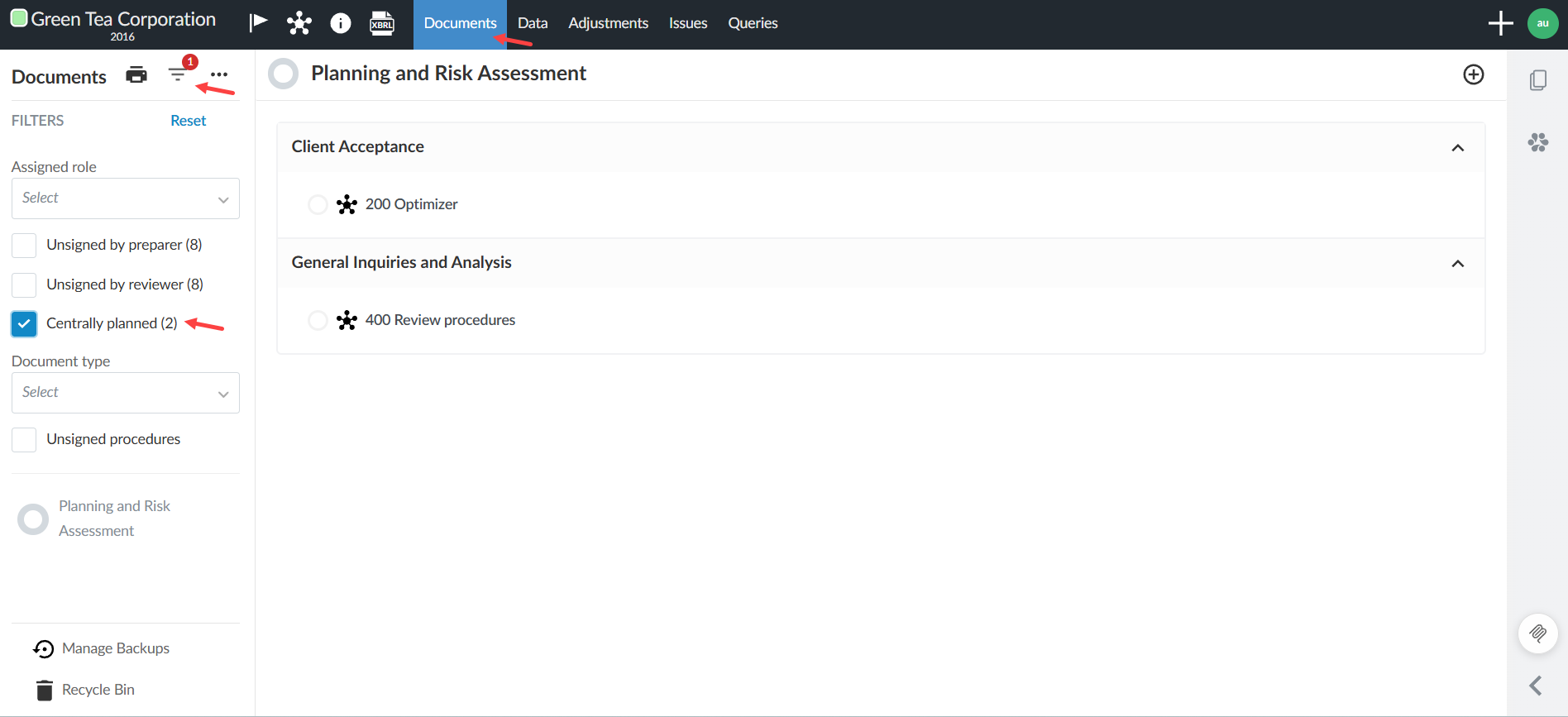
Centrally planned document filter: Use a checkbox in the Document Manager to show only centrally planned documents, marked with theCentral Planning icon [
 ]. This makes it easier to find shared content which is useful in large engagements.
Central Planning Hub from the central planning engagement:
Central Planning Hub from the destination engagement:
Central planning documents filter:
Add documents and checklists for central planning
You can add documents and checklists for central planning in the central planning engagement.
To add documents and checklists for central planning:
-
Open the central planning engagement.
-
Click the Information icon [
]. -
Click Settings to open the Engagement Settings.
-
Select the documents or checklists from the Central planning section.
-
Selected items sync to destination engagements as locked, read-only versions.
-
Documents added by firm authors appear greyed out and cannot be removed.
-
Once a document or checklist is used in a destination file, its central planning status is locked and retained across years. Only documents that have not yet been locked or previously selected can be modified.
-
After a destination engagement is created, engagement users cannot assign additional documents as centrally planned due to potential conflicts such as document numbering.
-
Create a destination engagement
After you set an engagement as your central planning engagement, you can then create destination engagements.
To create a destination engagement:
-
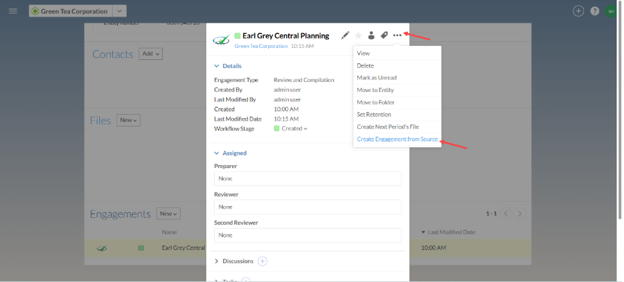
Open the Entity Details page that hosts the centrally planned engagement.
-
Click the grey area of the central planning engagement to open the Entity Details.
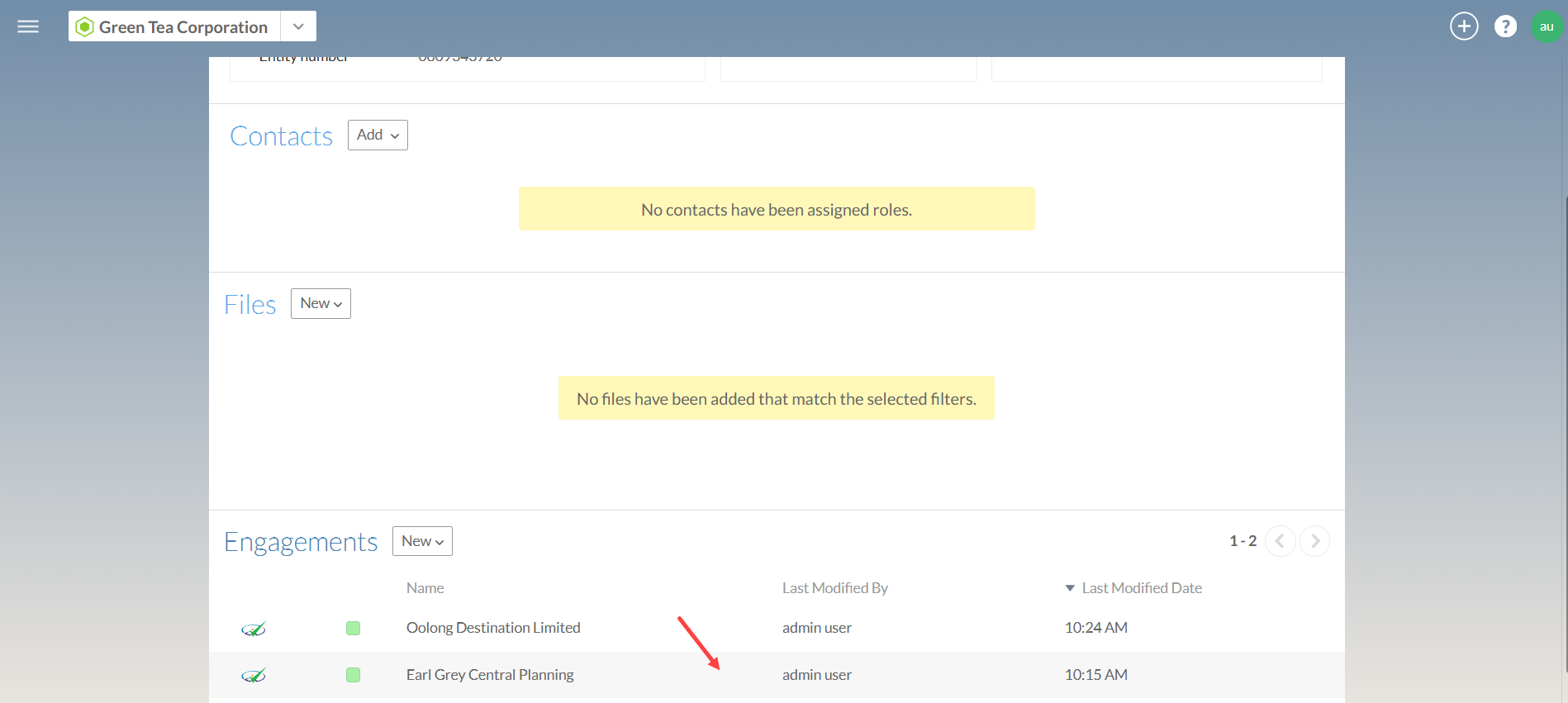
-
Click More actions icon [
 ] in the central planning engagement.
 -
Click the Create Engagement from Source option.
-
The new engagement will automatically include centrally planned content (risks, controls, documents, and checklists)
-
When you open a synced checklist in a destination engagement, a message displays informing you that the document has been completed in the central planning engagement with a link to the checklist in that engagement.
-
Synced risks and controls appear in read-only mode
-
You can open the Central Planning Hub to sync changes from the source at any time using theSync icon [
] .
Unlink a destination engagement
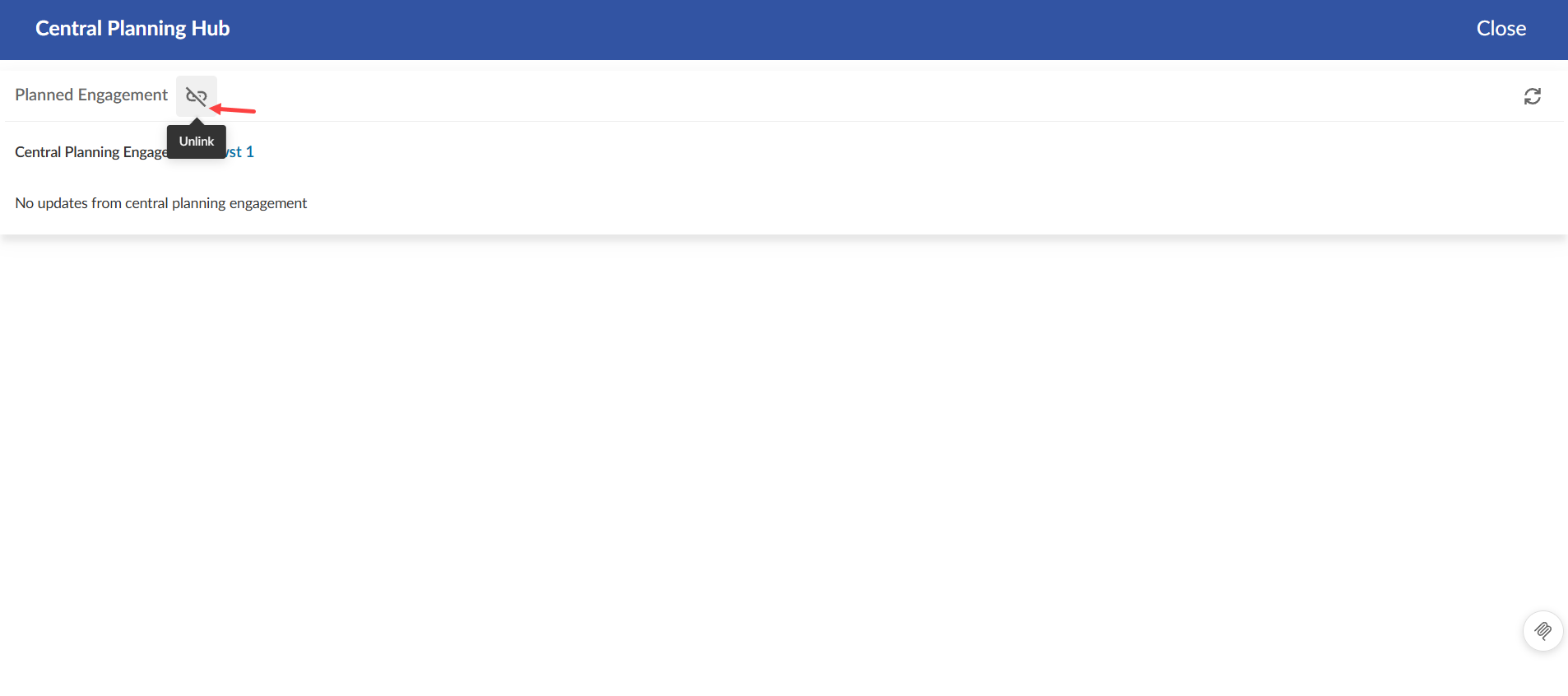
You can unlink a destination engagement from central planning. This update adds an Unlink button [ ] to the central planning hub in destination engagements. You can use this button to remove the link when it is no longer appropriate to keep the engagement centrally planned, such as after a carry forward.
Note: Unlinking is irreversible and disables central planning for the engagement. When you unlink a destination engagement, any documents that were read-only due to central planning become fully editable. After unlinking, the engagement functions as a normal, independent engagement.
An example of the Unlink button in the central planning hub:
Carry forward for central planning
You can carry forward central planning and destination engagements the same way you carry forward any other engagement. However, the new engagements will not automatically be linked for syncing. You must manually link each destination engagement to the central planning engagement.
If you start making changes in the central planning engagement before you link it to the destination engagements, these changes will be synced to the destination engagements once you link them.
To link a destination engagement created from carry forward to the central planning engagement:
-
Ensure both the destination engagements and the central planning engagement have been carried forward.
-
In a destination engagement created from carry forward, select the Central planning icon (
) in the top menu. -
In the Central Planning Hub, select the Sync icon (
 ) to link the destination engagement to the current year central planning engagement.
Note: There may be a small delay before newly linked destination engagements are visible in the Central Planning Hub of the central planning engagement.
