
Generate a sample from Analytics Hub
Each analytic test in the Analytics Hub includes a sample calculator in the Test Parameters tab. This tool lets you generate Random, Attribute, Monetary unit or Controls samples. You can also apply Systematic sampling manually without the calculator. Sampling helps you quickly gain insights from large datasets by analyzing a smaller, representative portion, whether you're working with structured data like client transactions or unstructured inputs such as natural language descriptions.
You can use sampling within an analytic test or as a standalone tool.
Sampling methods
The following sampling methods are available:
Attribute sampling
Attribute sampling is a statistical method used to evaluate the frequency of a specific attribute within a dataset. Each attribute is binary, having only two possible outcomes: true or false, and is commonly used for testing controls or compliance.
Monetary unit sampling
Monetary unit sampling (MUS) selects records based on the monetary value of a specified column. Each monetary unit (for example, each dollar) is treated as a sampling unit, giving larger transactions a higher probability of selection compared to smaller ones. The sample size is determined by parameters, such as risk tolerances and confidence levels. This method is especially useful in financial auditing, as it focuses on transactions with greater monetary impact. MUS is applicable to both the general ledger and subledgers, offering a reliable way to prioritize high-value transactions for review.
Random sampling
Random sampling selects a randomly chosen subset of records from a dataset. This approach is useful for unbiased testing or validation processes, ensuring each record has an equal probability of being included in the sample. It can be applied to both the general ledger and subledgers.
Control sampling
Controls sampling is a sampling method used for tests of controls. It selects a sample of control occurrences from a defined population to evaluate the operating effectiveness of controls. You can include parameters such as:
-
Controls type
-
Controls frequency
-
Planned deviations
Systematic sampling
Systematic sampling selects records at regular intervals based on a predefined frequency (for example, every 10th record). This method ensures an evenly distributed sample across the dataset and can uncover patterns or anomalies within a dataset. It is particularly effective for structured financial reviews and can be applied to both the general ledger and subledgers for identifying irregularities in transaction posting or trends in financial data.
Generate a sample from analytic test results
To generate a sample from analytic test results:
-
Open the Analytics Hub. This can be done in two ways:
-
From the Documents page, click the Analytics icon (
 ) next to any checklist procedure where an analytic test is available. The Analytics tab will open providing a list of tests available for that checklist item.
 -
Select Analytics Hub at the top of the screen to display all checklist procedures that are available for an analytic test. Data must already be imported, or no data will be displayed.
-
Select an analytic test from the left panel. Results appear on the right. If there are no results, then run the analytic test first..
-
Select the Test parameters tab and scroll down to Sampling.
-
Select a Sampling method to apply to the selected analytic test results:
-
Attribute Sampling
-
Monetary Unit Sampling
-
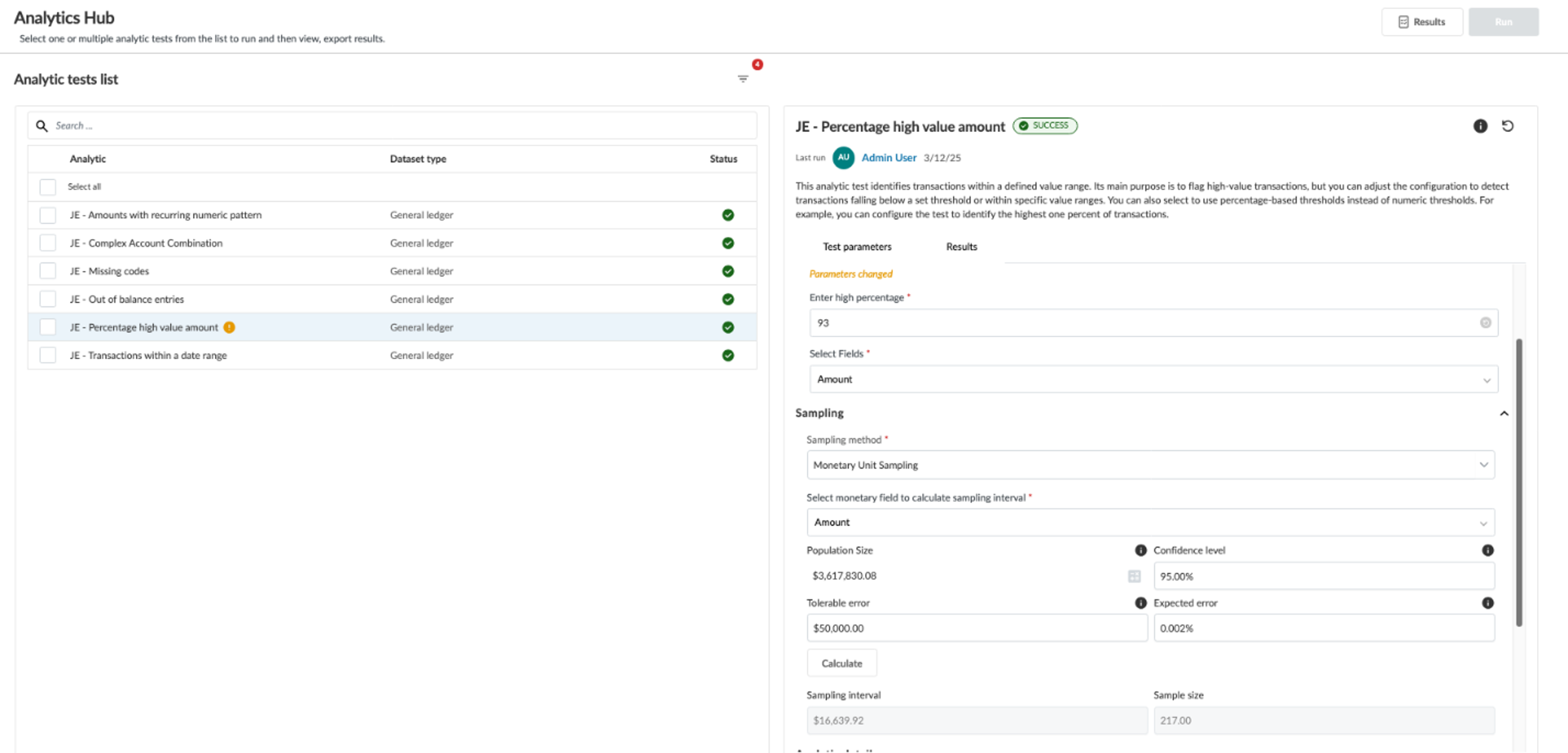
On the right panel, in Select monetary field to calculate sampling interval select Amount.
-
-
Random Sampling
-
Controls Sampling
-
Systematic Sampling
-
Adjust your parameters as needed. See the Calculator parameters table below. Click Calculate.
Calculator parameters
| Calculator parameter | Description |
|---|---|
| Population size | The total number of records available for sampling, based on the full dataset defined by the analytic tests selected and previously run. Select the Calculate Population Size icon ( This is required when:
|
| Confidence level | Specify the percentage certainty (for example, 90%, 95%) that you want to achieve in concluding that the control is effective. |
| Tolerable error | Enter the maximum percentage of control failures (for example, 5%) you are willing to accept while still considering the control effective. |
| Expected error | Estimate and enter the percentage of control failures (for example, 4%) you expect to find in the population based on prior audits or professional judgment. |
 ) (when it appears black) to recalculate the population size.
 Tip: You can adjust the parameters of the analytic test in the Configuration section to influence the sample results.
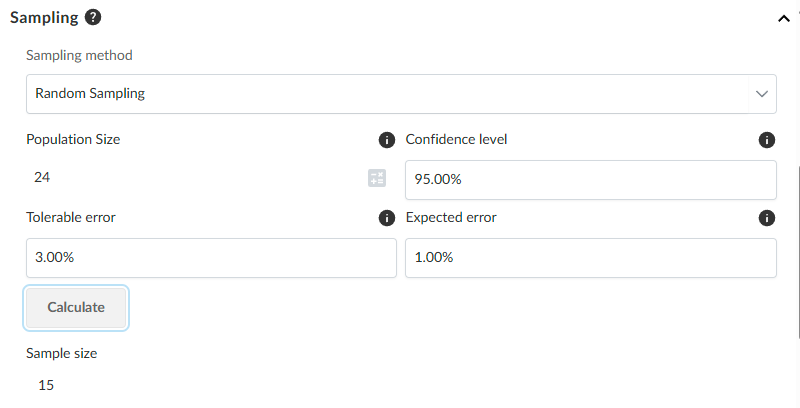
The Sample size will generate in the fields below the Calculate button based on the selected analytic test results.
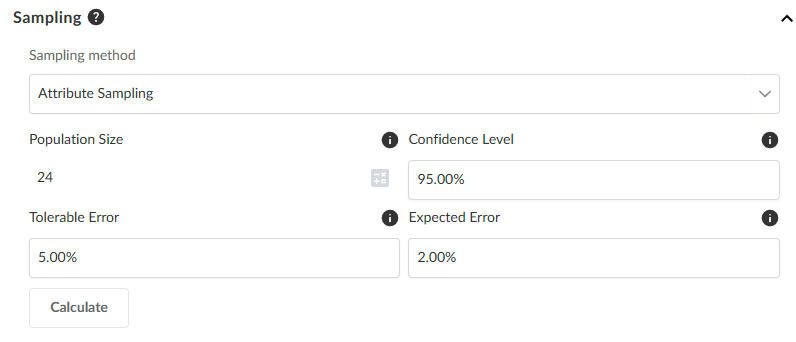
An attribute sample:
A monetary unit sample:
A random sample:
Generate a standalone sample
You can generate a standalone sample from Analytics Hub. The Sampling test can generate a sample from any dataset type that you have imported into your engagement. This includes schemaless data that is not designated as a trial balance or general ledger.
To perform a standalone sample test:
-
Select Sampling from the left panel in the Analytics Hub.
-
Select the Test parameters tab on the right panel.
-
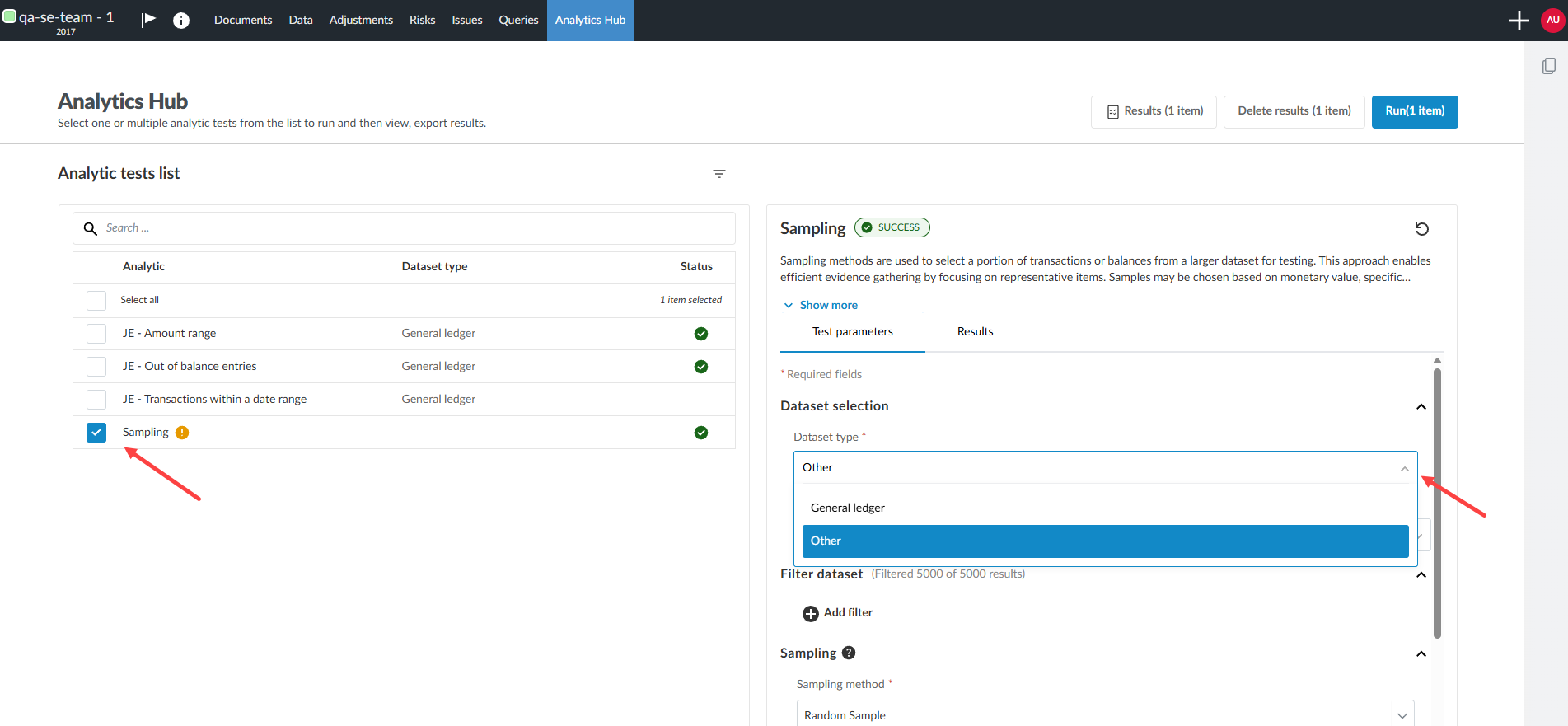
Select a dataset type from the Select dataset type drop-down menu.
-
You can select any dataset that you have imported into the Data page.
-
Schemaless data appears as Other in the drop-down menu. If you wish to use schemaless data, select Other and select an available schemaless dataset type from the additional drop-down menu.
-
-
Apply any filters you wish to include in the sample test.
-
Select the dropdown menu under Sampling method and choose the sample method you wish to apply to the dataset type. The test will automatically generate.
Note: If you wish to generate another sample method and keep the results of the current test, export the results before performing the next sampling. Be sure you have imported the dataset required before calculating a standalone sample. The type of dataset required is listed under Dataset type. See Import the client's data from a CSV or Excel file for more information.
Select a dataset type:
Select a sampling method: 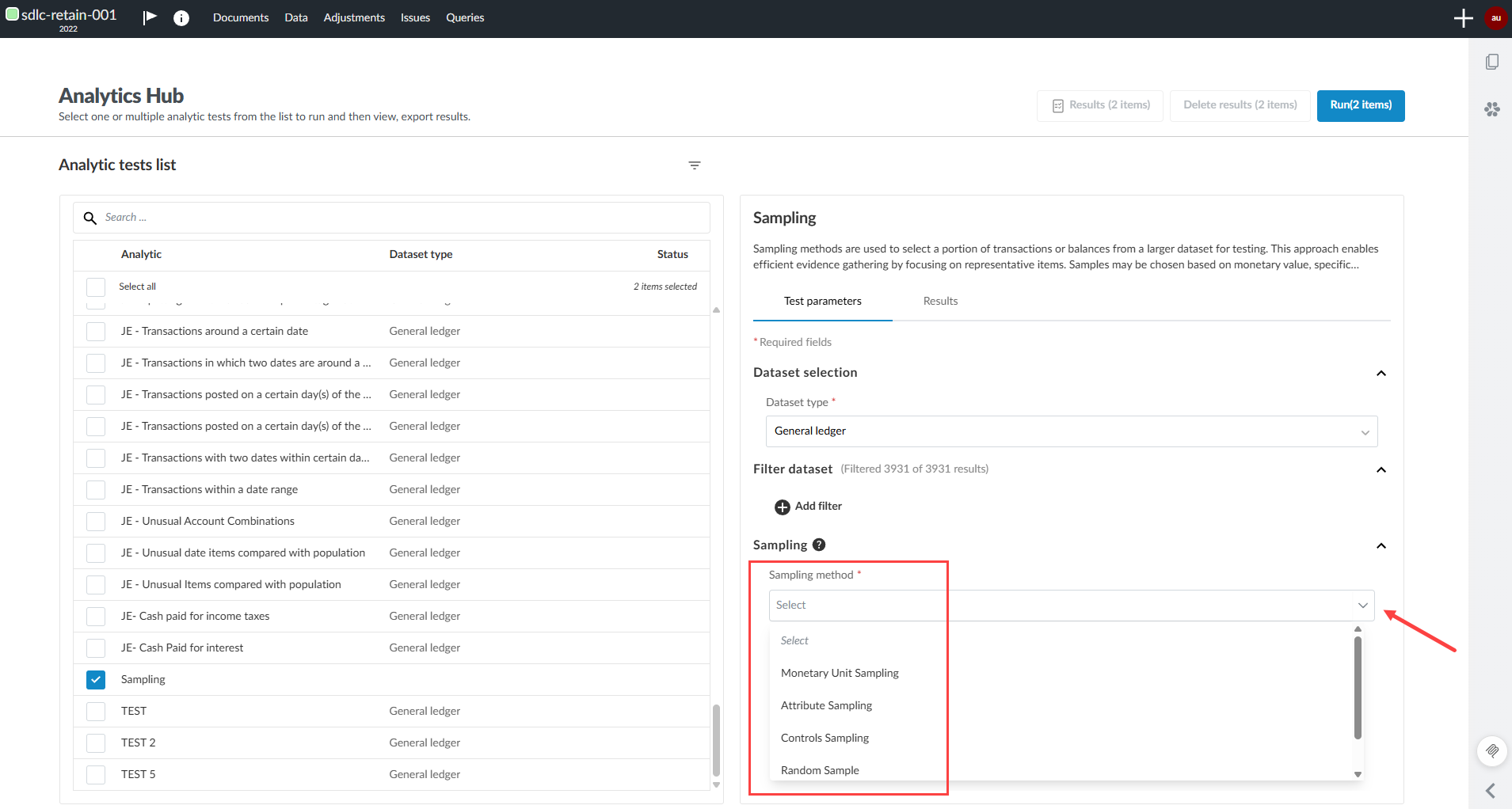
Export a sample
After you generate a data sample, you can export the sample to a CSV file by using the Export icon [ ] on the right-side of the analytic test in Analytics Hub.
