
Enable access to Caseware AiDA
During initial setup, if your firm has purchased licenses on a per user basis, staff members will be automatically assigned to available apps in Cloud. If necessary, firm administrators can manually reassign app access for groups or individual users. In most cases, enabling apps for groups is the most efficient way to manage access. When you enable an app for a group, each member of that group uses a license for that app. For example, you can enable an app for the All Staff group, immediately giving every member access to that app. You still need a license for each group member.
You can also manage app access and permissions on an individual basis. You might do this if you want to enable certain apps for a single user. For example, if your organization hires consultants, you might want to grant them full access to some apps, read-only access to others, and restrict their access to some apps entirely.
Note: You can only reassign staff once. If you assign staff incorrectly and require assistance with reassignment, contact our Support team.
You can enable access to Caseware AiDA for an individual user or group.
To enable access to AiDA for a user or group:
-
Ensure you have the Staff Admin role or equivalent privileges.
-
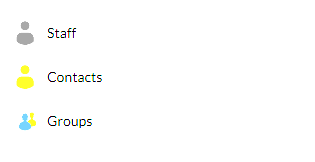
From the Cloud menu (
 ), select Groups or Staff.
-
Select the user or group for whom you want to enable AiDA.
-
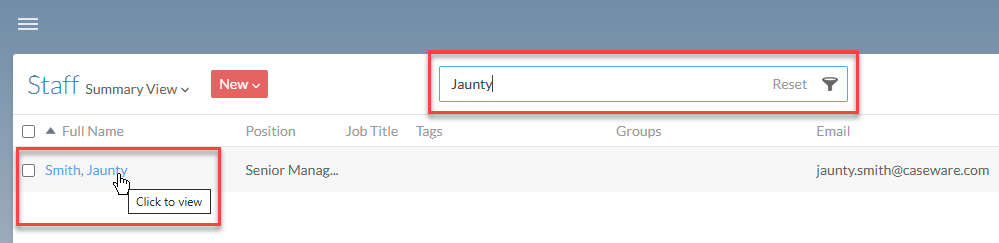
If you do not see the user or group, specify part or all of the user or group name in Search.
-
Under the Full Name column, select the user or group.
-
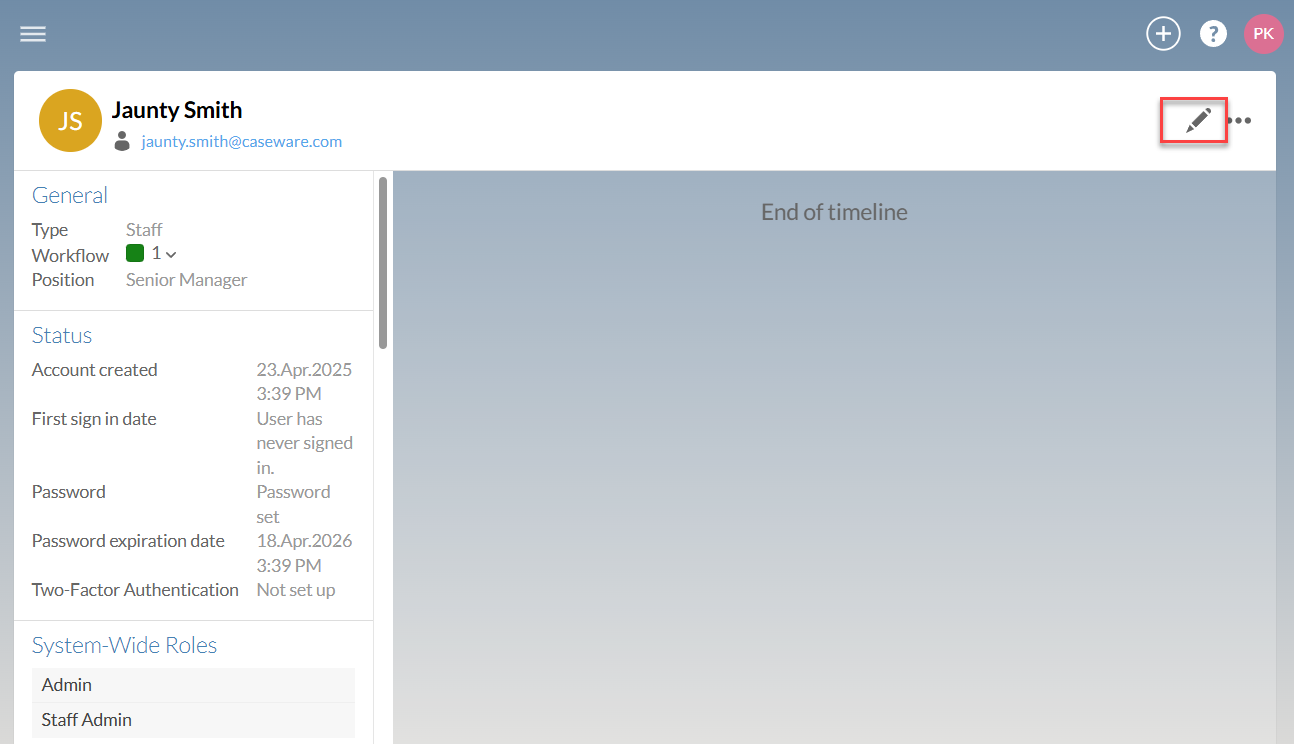
Select Edit (
 ) in the top left.
-
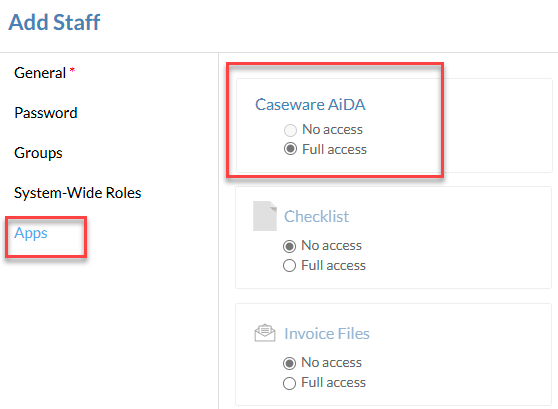
Select Apps, then choose the appropriate access type.
-
No access: Do not enable access to the app for the user or group. This is the default option and does not use any licenses.
-
Full access: Enable the app for the user or group. This option uses a license for each user that receives app access.
-
Click Save.
Note: After enabling or disabling access to an app, affected users or group members must refresh Cloud in their browser to make the changes visible in the Cloud menu.
