Customize border style options for dynamic tables
You can customize border styles in dynamic tables. This includes underlines, overlines, column lines and setting defaults for undeline and overline borders. This allows you to:
-
Apply different border styles to tables within the same document.
-
Match table formatting styles to firm or client preferences, such as only underlining numeric, currency, or percentage columns for clearer financial reporting.
-
Retain settings when tables are carried forward, copied, or when a page break occurs.
To set default underline and overline options for dynamic tables:
-
In the financial statements, select Document settings (
 ) | Table Borders.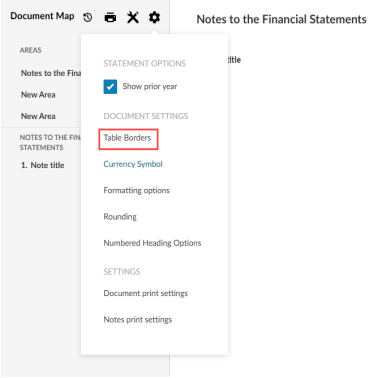
-
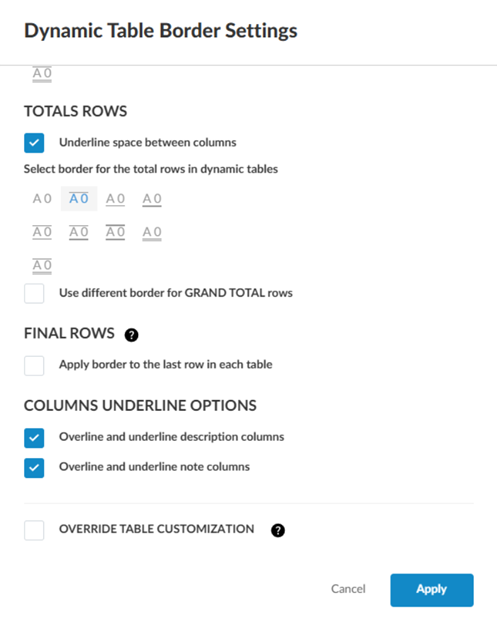
In the Dynamic Table Border settings dialog, select your desired border for header and total rows in the HEADER ROWS and TOTAL ROWS sections.
-
Select the Underline space between columns check box in the HEADER ROWS and TOTALS ROWS sections if you want the underline and overline options to extend between columns.
-
If you want to use a different border for grand total rows, select the Use different border for GRAND TOTAL rows check box and select your desired border.
-
Under FINAL ROWS, if you want to apply a border to the last row in dynamic tables, select the Apply border to the last row in each table check box and select your desired border.
Note that this border only applies to last rows that are not total rows. If the last row in a dynamic table is a total row, the border selected under TOTAL ROWS is applied instead.
-
Under COLUMNS UNDERLINE OPTIONS, If you do not want underlines and overlines to apply to description or note columns, deselect Overline and underline description columns or Overline and underline note columns.
-
If you want to remove any custom underline and overline options you have applied previously to individual dynamic tables, select the OVERRIDE TABLE CUSTOMIZATION check box.
Note that selecting this check box only removes prior customizations. You can still apply custom borders to individual dynamic table rows in the future.
-
Select APPLY.
Customize header border styles for individual dynamic tables
You can select and customize the header border styles for individual tables within the Edit dynamic table dialog box.
To customize header border styles for individual dynamic tables:
-
Click the More actions icon [
.png) ] from a dynamic table in your financial statement,
] from a dynamic table in your financial statement, -
Click Edit dynamic table. The Edit dynamic table dialog box will open.
-
Click the More actions [
] beside the headers. -
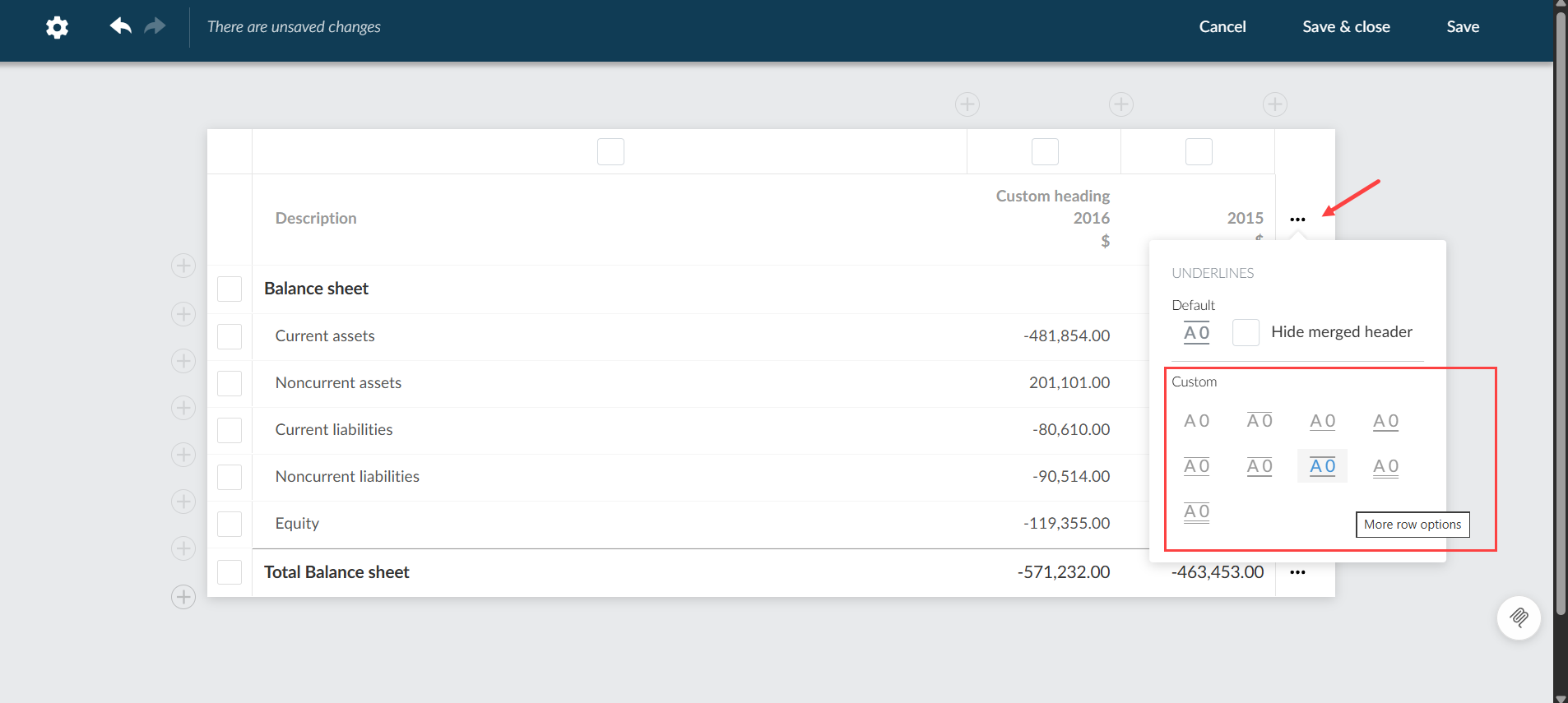
Select a border style under the Custom heading.
-
Click Save and Close.
-
Changes are reflected immediately in the document and print preview.
-
Settings are retained when engagements are carried forward.
-
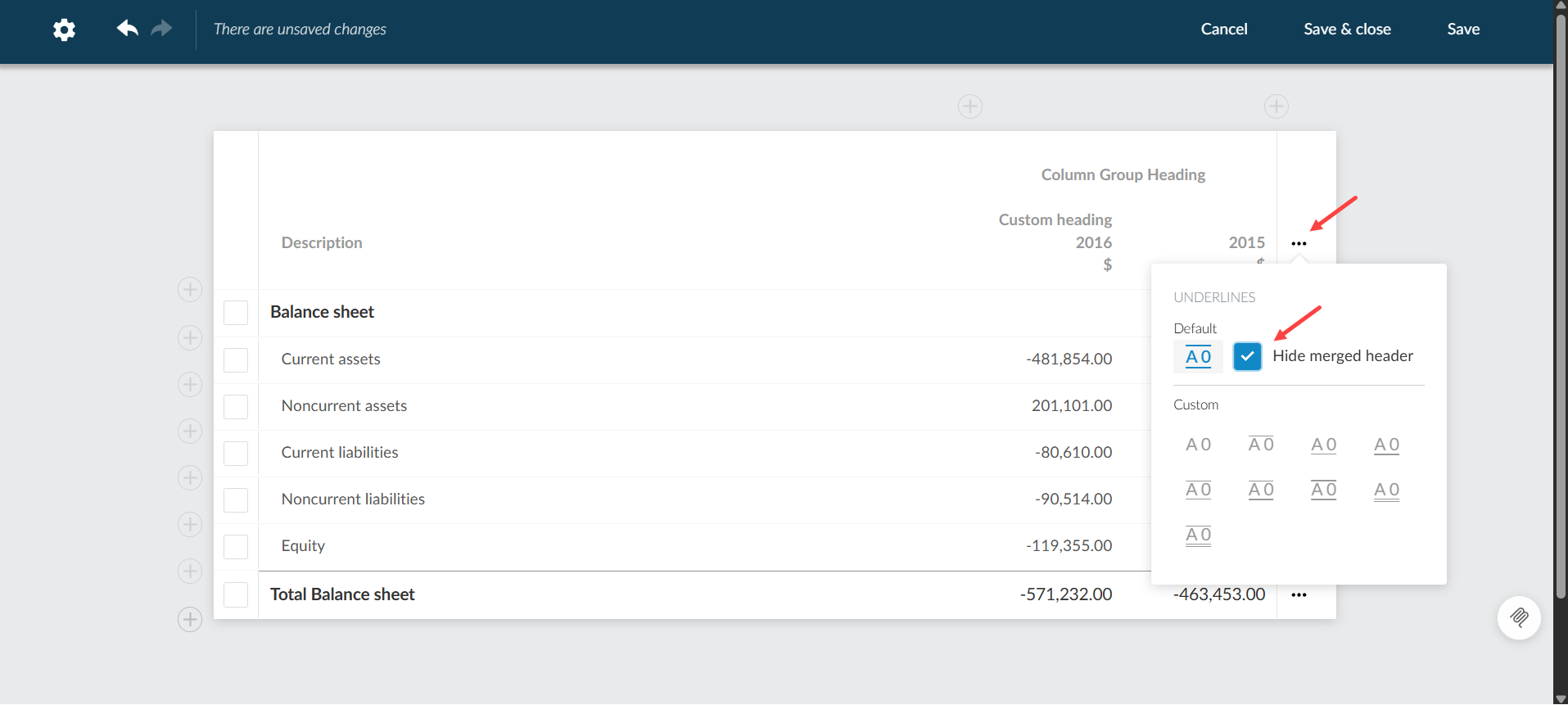
Show or hide underlines in merged header
You can show or hide the underline for merged headers in individual dynamic tables.
To show / hide underlines in merged header:
-
Click the More actions icon [
] from a dynamic table in your financial statement, -
Click Edit dynamic table. The Edit dynamic table dialog box will open.
-
Click the More actions icon [
] beside the headers. -
Click the Hide merged header checkbox.
-
Click Save and Close.
-
When checked, the merged header underline is hidden for the selected table.
-
When unchecked, the underline follows the document’s table border setting.
-
Settings are retained when engagements are carried forward.
-
Enable / disable underline and overline options in dynamic tables
You can now enable or disable underlines and overlines for individual columns in dynamic tables. This feature appears as a new checkbox in the Edit Dynamic Table dialog box.
To enable / disable underlines and overlines in individual columns:
-
Click the More actions icon [
] from a dynamic table in your financial statement, -
Click Edit dynamic table. The Edit dynamic table dialog box will open.
-
Click the column that you wish to customize to open more options for that column.
-
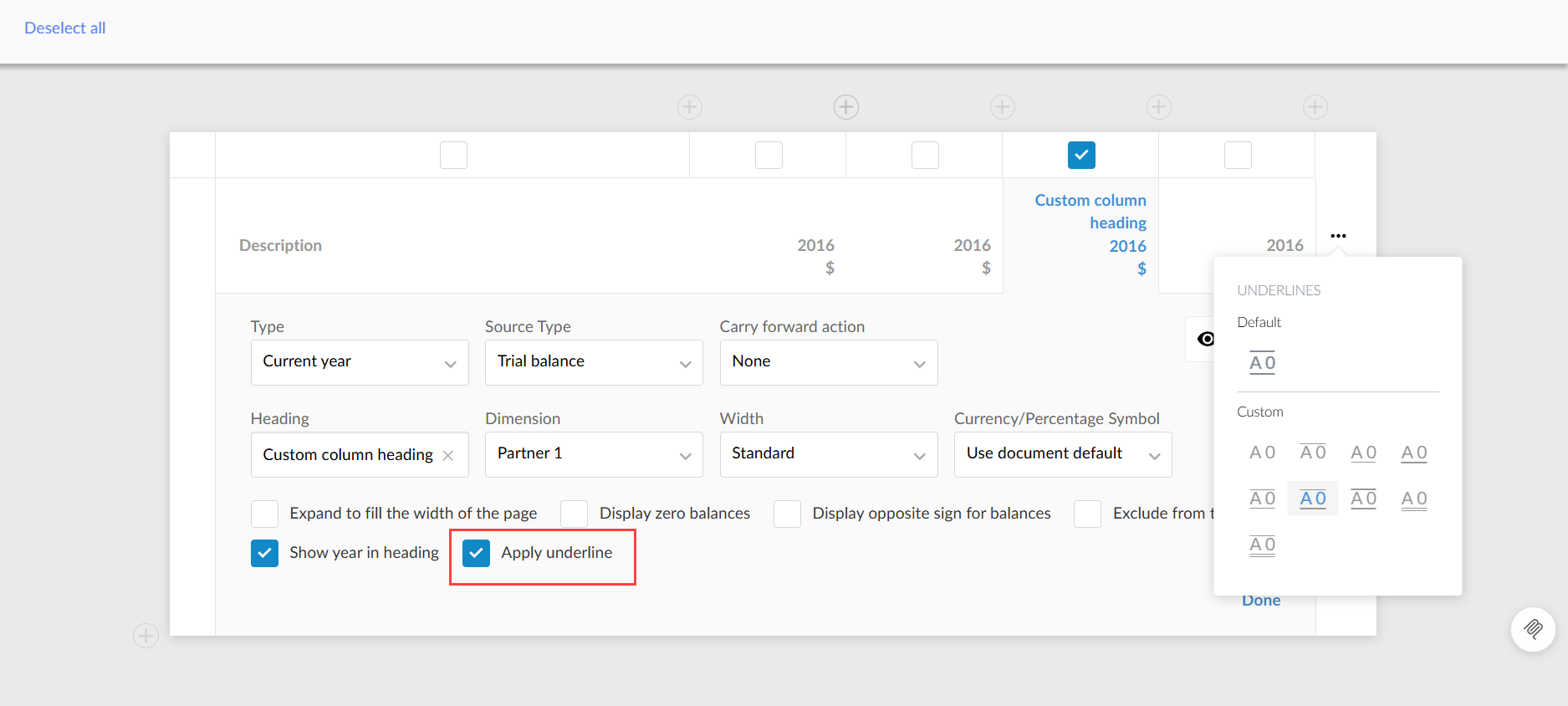
Click the Apply underline checkbox.
-
Click Save and Close.
-
The checkbox is checked by default, displaying underlines and overlines on relevant rows.
-
Unchecking the box removes underlines and overlines from the entire column for rows such as Total, Grand Total, or Final Rows.
-
The setting is retained when tables are carried forward, copied, or when a page break occurs.
-
The checkbox for enabling or disabling the underline in the header column: