Work with Review Tools
Review tools apply visual markup to the document, making potential issues that may require additional attention stand out on the page so you can complete your review more efficiently.
Review tools are available in checklists, letters and financial statements.
Note: Changes made to guidance information are not tracked by review tools.
Review content changes in a letter
The following review tools are available in letters:
-
New content ( ) - Content that has been added by staff members.
-
Excluded content ( ) - Content that's been excluded by staff members.
-
Text area changes ( ) - Modifications made by staff members in text sections that are part of the default content that comes with the product.
-
Dynamic table changes ( ) - Modifications made by staff members to dynamic tables that are part of the default content that comes with the product.
-
Overwritten balances () - marks rows with overridden balances.
-
Balance check ( ) - marks rows that have been compared to each other.
For each area in the letter, rows with disagreeing balances are marked with a stop sign () while rows with agreeing balances are marked with a green checkmark ( ).
).
To review changes in a letter:
-
In the Document Map, select the Review Tools ( ) icon and then select the Review Tools toggle.
-
You can display different review content by selecting the appropriate check boxes for each review tool in the popup. Select the number next to the check box to automatically jump to the next flagged item for that review tool.
Review content changes in a checklist
The following review tools are available in checklists:
| Tool |
Description |
|
Added predefined content
|
Content that had been manually forced visible by staff members.
|
| Added engagement created content
|
Content that was created by staff members. |
|
Modified
|
Changes made to the default product content by staff members.
|
| Deleted
|
Content that was added by staff members before review and then deleted after review. This review tool is only available when using the Changes since last review option. |
|
Overridden to exclude
|
Content that has been manually hidden by staff members.
|
|
Optimized to exclude
|
Content that has been automatically hidden based on its visibility conditions.
|
|
Non optimal answers
|
Responses that may require further investigation as they are not the expected response to the procedure. This review tool is only available when using the Changes since engagement creation option.
|
|
Modified responses
|
When using the Changes since last review option, this tool indicates responses that were changed after reviewer signoff.
When using the Changes since engagement creation option, this tool indicates responses carried forward from the prior year's file that were modified in the current year's file.
|
|
Not signed off
|
Steps that have not been signed off by staff members. This review tool is only available when using the Changes since engagement creation option.
|
To review changes in a checklist:
-
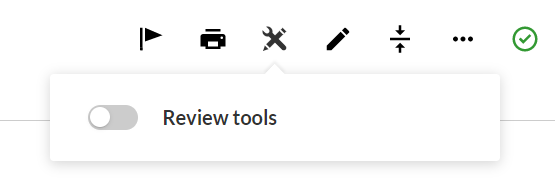
At the top right of the document, select the Review icon ( ).
).
Note: If the Modified since last review option is turned on in the Documents page and you open a checklist that has been modified after reviewer signoff, the Review tools dialog opens automatically, unless you have previously toggled off review tools.
-
Select the Review tools toggle to turn on review tools.
-
If the checklist was modified after reviewer signoff, select whether to view Changes since last review or Changes since engagement creation from the dropdown.
Note: If no modifications were made to the checklist to the checklist after reviewer signoff, the review tools dialog automatically displays the changes made since engagement creation and the dropdown is not available.
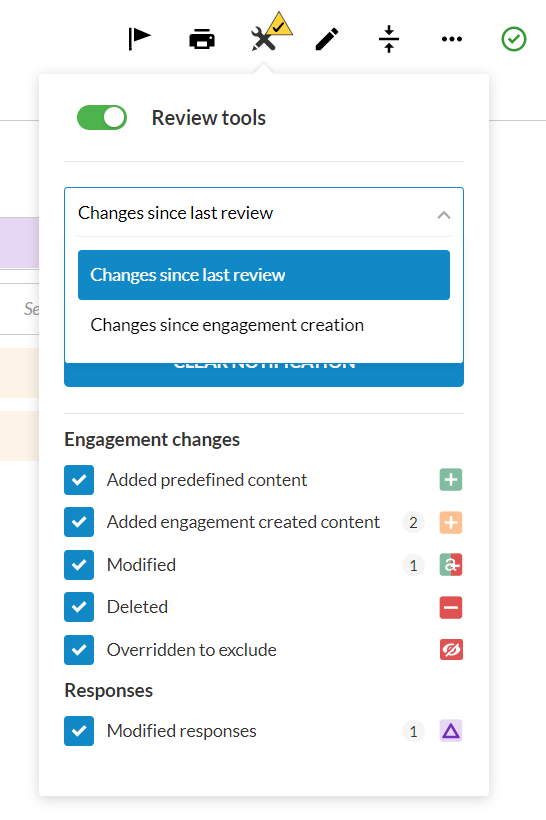
You can display different review content by selecting the appropriate check boxes in review tools dialog. Select the number next to the check box to automatically jump to the next flagged item for that review tool.
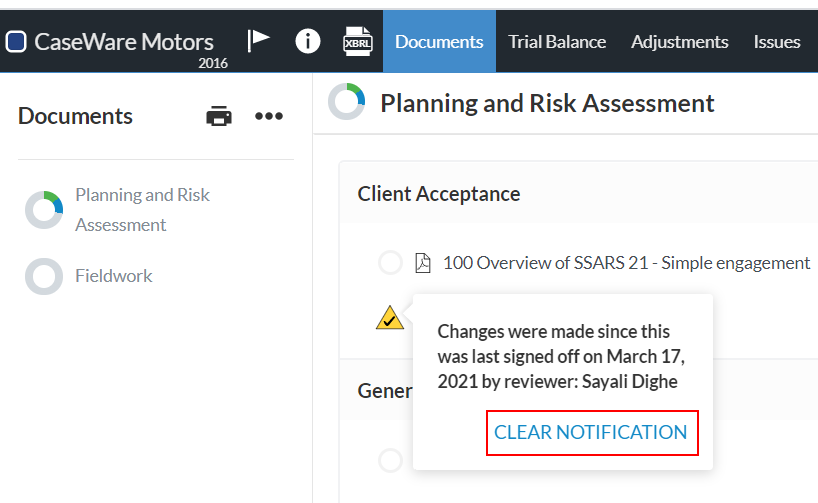
If changes were made to the checklist after reviewer signoff, the reviewer can clear the Modified since last review notification, once they have reviewed the modifications.
When you clear the notification, the Changes since last review option is no longer available in the review tools and information about changes made since the last review is permanently deleted.
To clear the notification, select CLEAR NOTIFICATION in either the Documents page or the checklist review tools.
Review content changes in the financial statements document
The following review tools are available in the financial statements document: