You can review group and account balances in the financial statements document to understand how the numbers are calculated. Information about rounding and balance discrepancies is marked in the tables to help you produce reliable, accurate and high-quality financial statements.
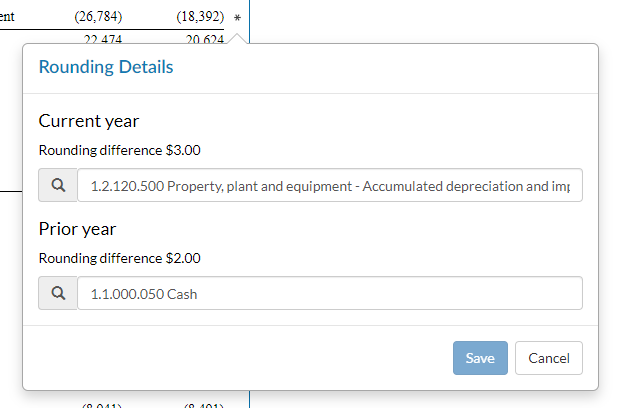
To view rounding details in a table row, select the asterisk (*) next to the row. A popup displays showing:
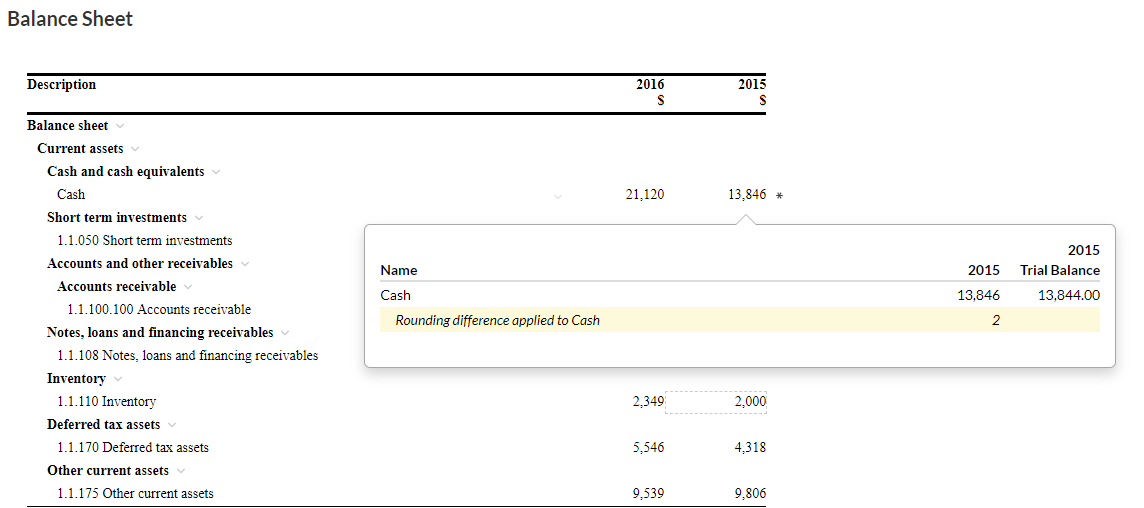
In this example, a total rounding difference of $3 is added to the balance of 1.2.120.500 Property, Plant and equipment - Accumulated depreciation and impairment for the current year. For the prior year, a total rounding difference of $2 is added to the balance of 1.1.000.050 Cash.
If you select the balance of the account where rounding differences apply, the Account Details popup displays a highlighted line showing the rounding details.
Note: If a trial balance value is rounded to zero, the table row displays in gray in the financial statements and is not included in print preview or in the PDF print copy. Note that this does not apply to parent level rows which always display in the financial statements and are included in the print preview and the PDF print copy.
To learn more about rounding logic in financial statements, see Rounding in financial statements.
You can change the account where rounding differences apply to have them added to a financial statements line item that's frequently used in your market, for instance.
To change the account where rounding difference are applied:
Select the row with an asterisk (*).
The Rounding Details popup opens.
Tip: If the row is an account, then the asterisk (*) denotes that rounding differences are applied in this account. If the row is a group, then it denotes that rounding differences are applied to an account in this group.
Select the account name at Current year.
A list showing the trial balance groups and accounts displays.
Select the desired account from the list.
Select the account name at Prior year then select the desired account from the list.
Rounding differences for the current and prior years are now applied to the balances of the selected accounts respectively.
Note: This feature is only available if it's set up in your product.
To help you reconcile account balances, table rows can be compared to each other in the financial statements. For example, to assist accountants in reconciling statement line items with totals in the notes section.
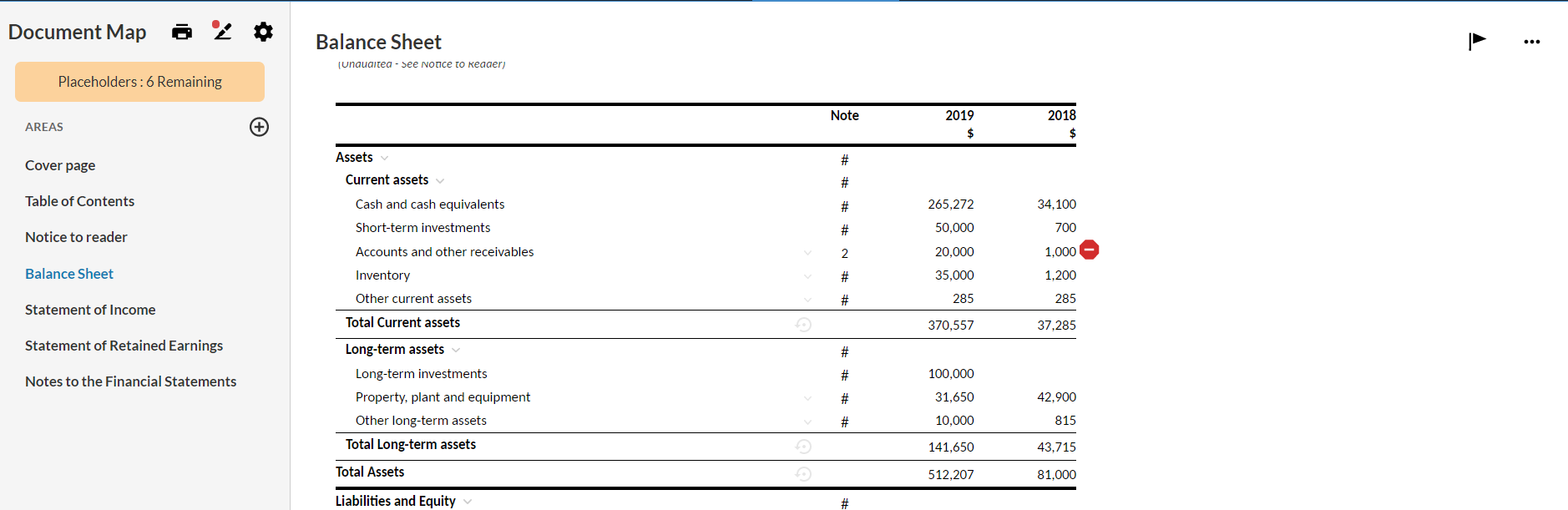
Upon comparison, a stop sign icon ( ) is available at each row where balance discrepancies have been identified.
Note that:
You cannot choose the rows that the application compares. They are predefined in your product.
The application compares the absolute values of the applicable rows. Sign differences are not flagged as balance discrepancies.
To view balance discrepancies, select the stop sign icon (). A popup displays showing:
Tip: You can also select the View Row icon ( ) to go to the specific row of each listed account and view its data.
As you review the balances in the financial statements document, you might need to override trial balance values in the tables. For example, to modify a certain balance in the financial statements to reflect the exact balance that your clients had in their prior year financials.
Note: If you override a trial balance value to zero, the table row displays in gray in the financial statements and is not included in print preview or in the PDF print copy. Note that this does not apply to parent level rows which always display in the financial statements and are included in the print preview and the PDF print copy.
To override an account balance:
Select the balance that you want to change.
Enter the new amount.
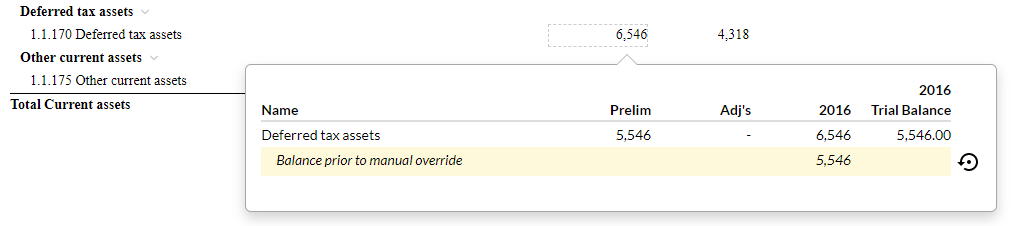
A dashed border displays to mark the cell as Balance Overridden.

To override a group total:
Select the group total that you want to change.
Enter the new amount.
If there is one account in the group, the difference automatically applies to this account.
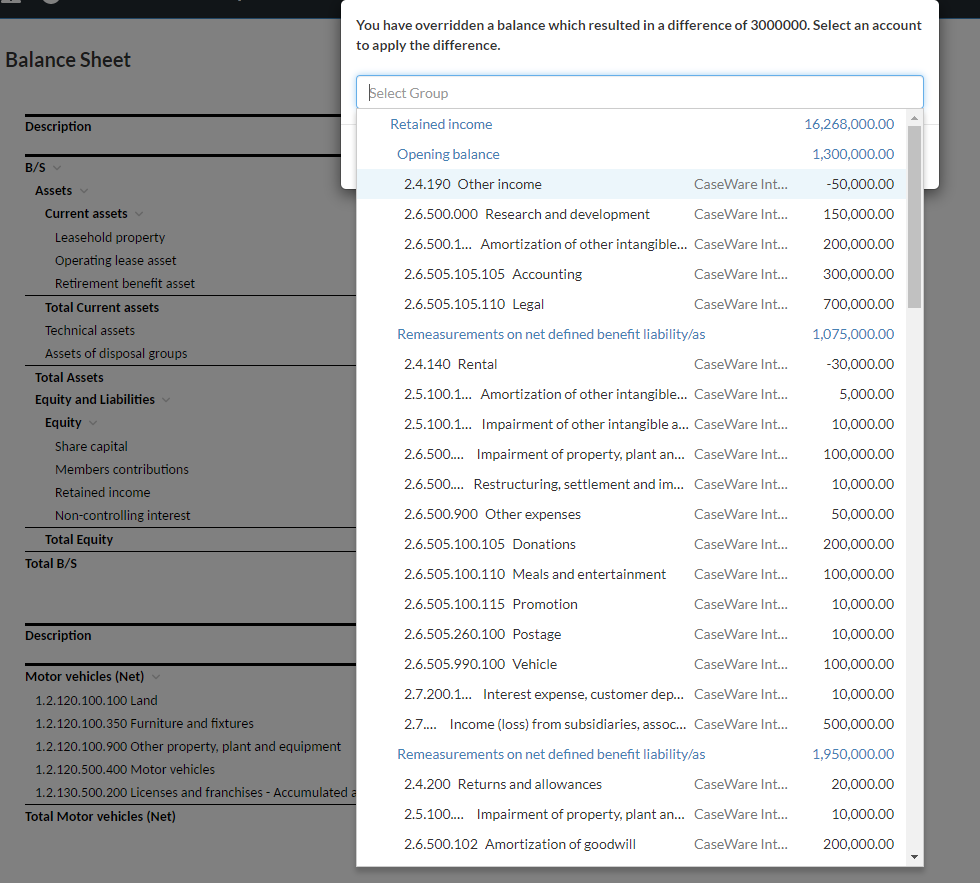
If there is more than one account in the group, a dialog displays showing the difference (between the new amount and the old amount). It also prompts you to select the account where you want the difference to apply.
Note that if you select a cell with overridden balance, the Account Details popup displays a highlighted line showing the original balance for that cell (the trial balance amount).
Tip: To revert to the original amount, select Revert ( ).
).