Select the desired table.
Icons for table options display on the right.
Select More actions ( ), then choose Edit Dynamic Table.
The table opens in edit mode.
Select the desired column and select the Entity drop down.
In the Entity drop-down, select the desired option.
Available options:
- Total consolidated - Includes additional columns in the table. It includes columns that display the balances of each entity (parent and its subsidiaries), a Total column that displays the consolidated balances and a column that displays eliminating entries.
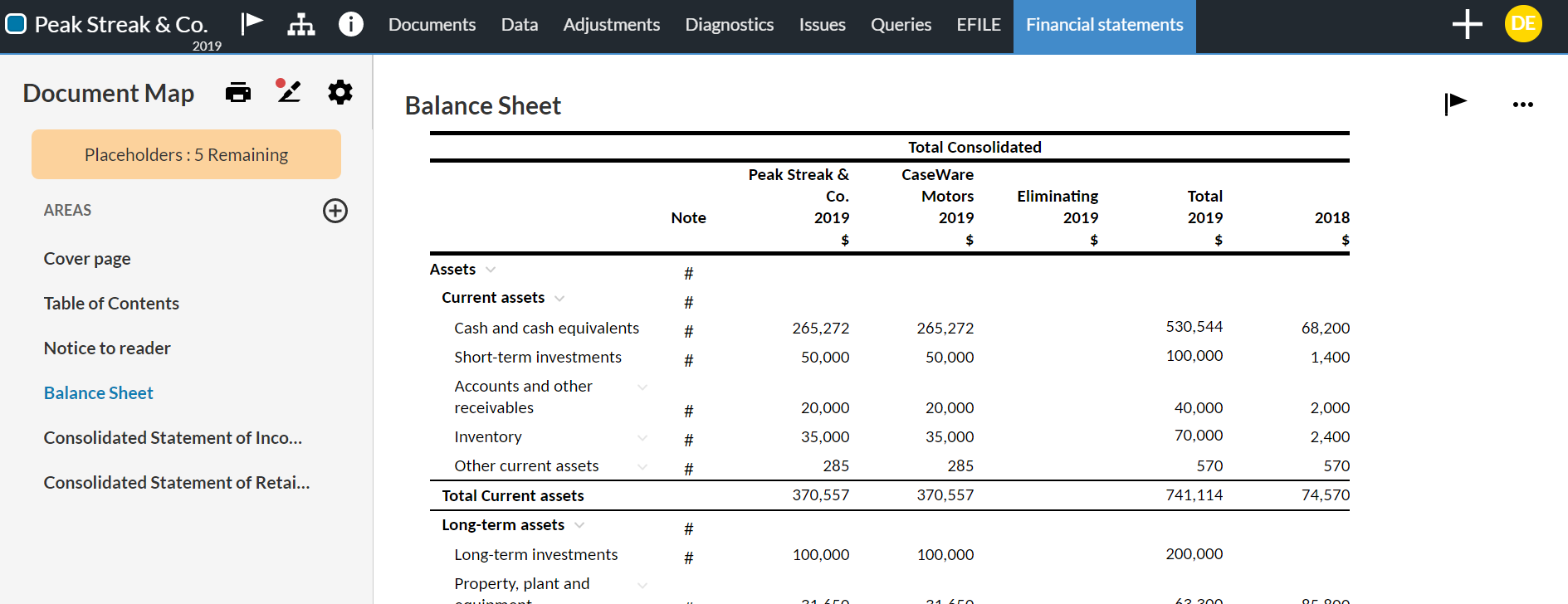
-
Consolidated - Displays the consolidated balances (total of parent and subsidiaries balances). This is the default option.
-
The parent entity - Displays the balances for the parent entity.
-
The subsidiaries - Displays the balances for the selected subsidiary.
Select SAVE or SAVE & CLOSE.