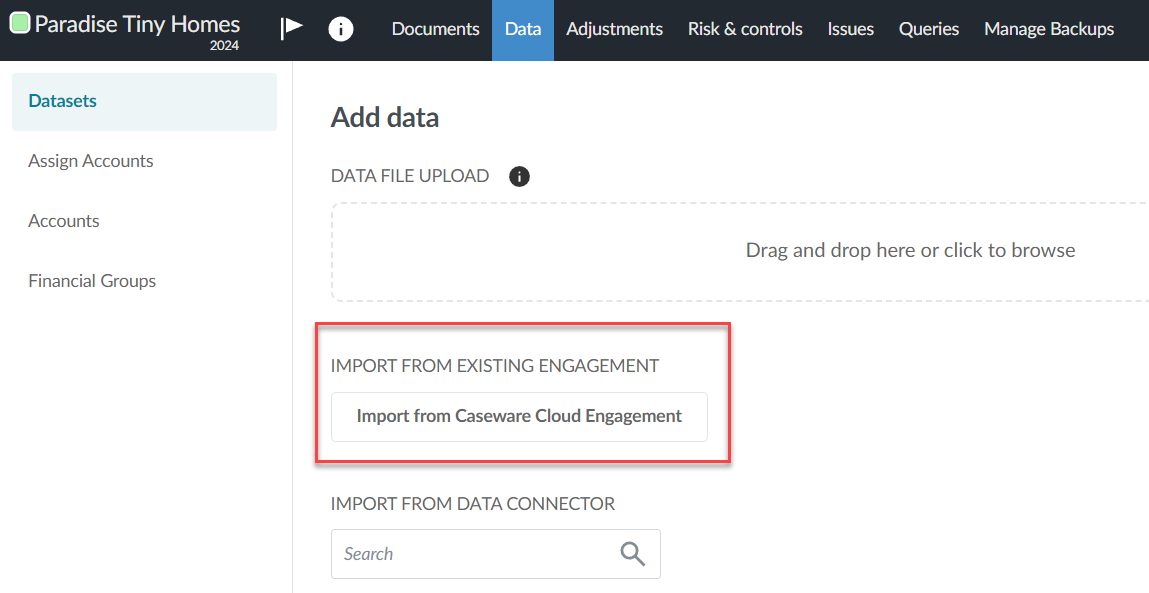
You can import the trial balance from another engagement file if the Import from Caseware Cloud Engagement option is enabled in your product.
To import from an engagement file that belongs to a different Cloud app, you must have access to that app and the entity that the file belongs to. To learn more, see Set staff access levels. See also Sync a trial balance across engagements in different Cloud apps.
When you import data from another engagement, you have the option to turn on the Sync Trial Balance toggle. If you turn this option on, data from the source engagement is automatically synced with the destination engagement. This allows you to make changes to the data in the source engagement and automatically share those changes with synced engagements. Note that you cannot select consolidated engagements as source engagements.
To import the trial balance from another engagement file:
Go to the Data page. The Data pages opens to the Datasets tab.
Select the Import from Caseware Cloud Engagement option
In the Select engagement section, select the engagement that you want to import the trial balance from.
Note that you can only select one engagement.
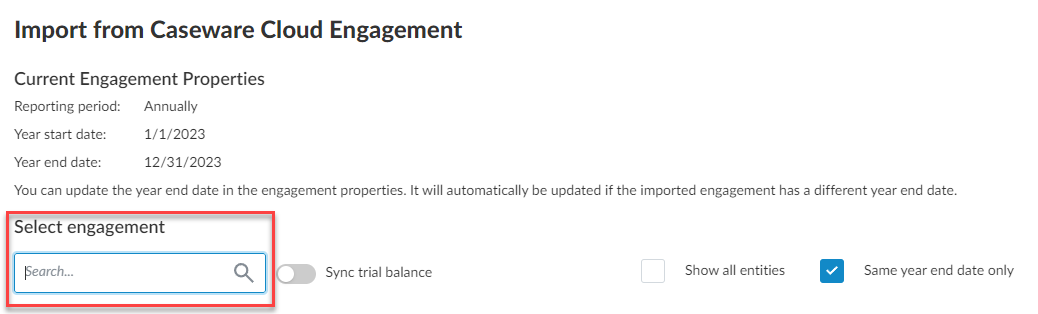
Tip: To select an engagement that belongs to a different entity, select the Show all entities check box.
If you want to automatically sync updates to the trial balance data from the source engagement to the destination engagement, select the Sync Trial Balance option.
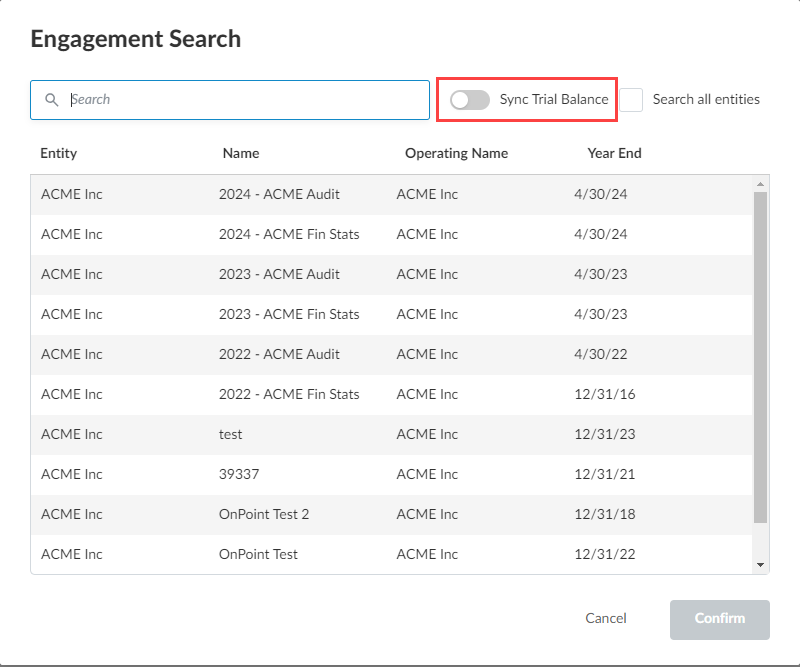
Select CONFIRM.