You can use the same trial balance across multiple engagements in different Caseware Cloud apps. This feature is particularly useful for serving the same client in various engagements, such as auditing and financial reporting. For example, an audit team can seamlessly pass client data to a financial reporting team working in a different app and engagement.
Two different Cloud apps: There should be at least two different Cloud apps, one as the source and the other as the destination. For example, Financials and Audit engagements apps. To import from an engagement file that belongs to a different Cloud app, you must have access to that app and the entity that the file belongs to. To learn more, refer to Set staff access levels.
Source engagement: The trial balance must be prepared and uploaded in the source engagement. Note that you cannot select consolidated engagements as source engagements.
Destination engagement: An engagement must exist in the Cloud app where you want to import data from a source engagement in a different Cloud app.
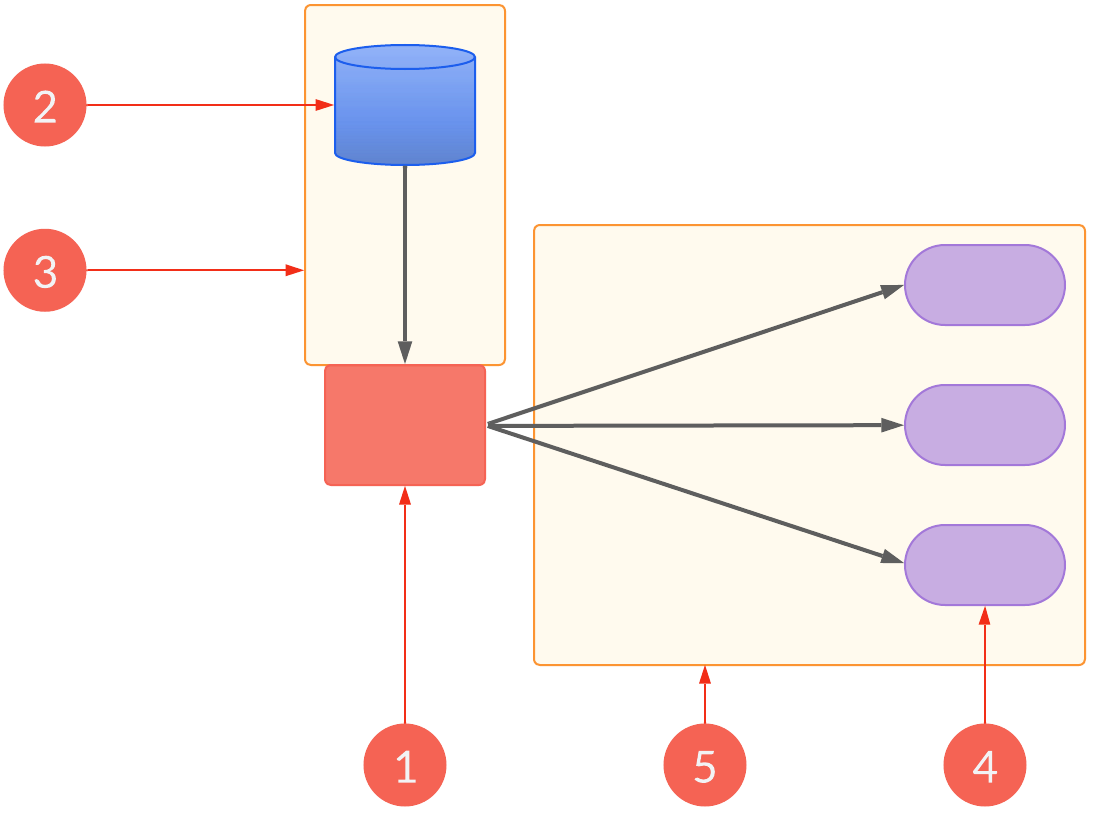
| Workflow element | Description |
|---|---|
| 1 | Create the source engagement in Cloud app A. |
| 2 | Trial balance. |
| 3 | Import the trial balance into the source engagement. |
| 4 | Create the destination engagement in Cloud app B. |
| 5 |
In the destination engagement in Cloud app B, import the source engagement trial balance.
|
To import the trial balance from another engagement file:
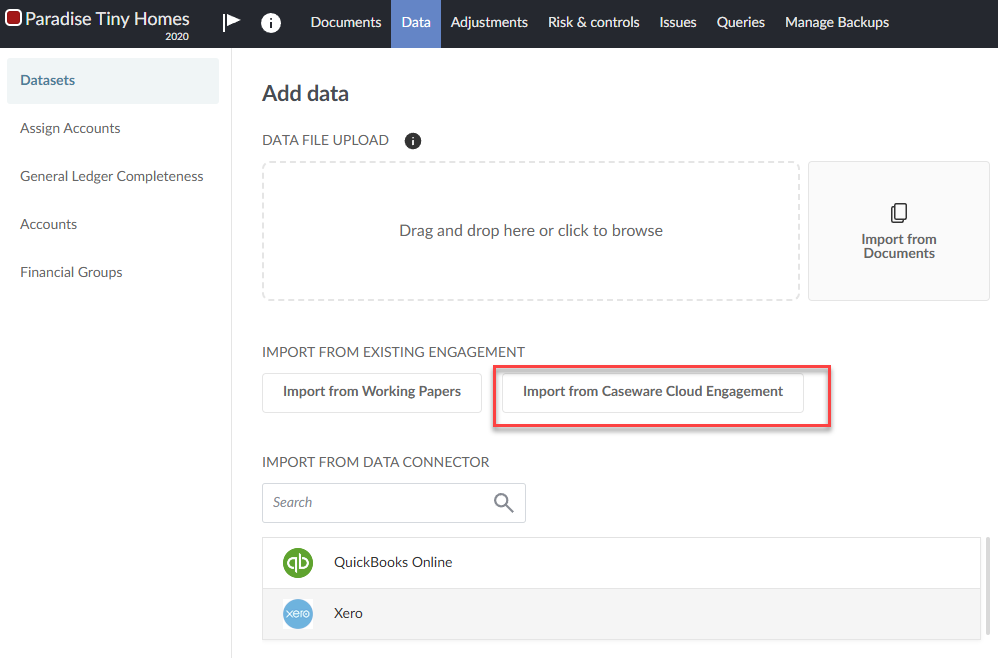
Open the destination engagement. Go to the Data page. The Data page opens to the Datasets tab.
Select the Import from Caseware Cloud Engagement option
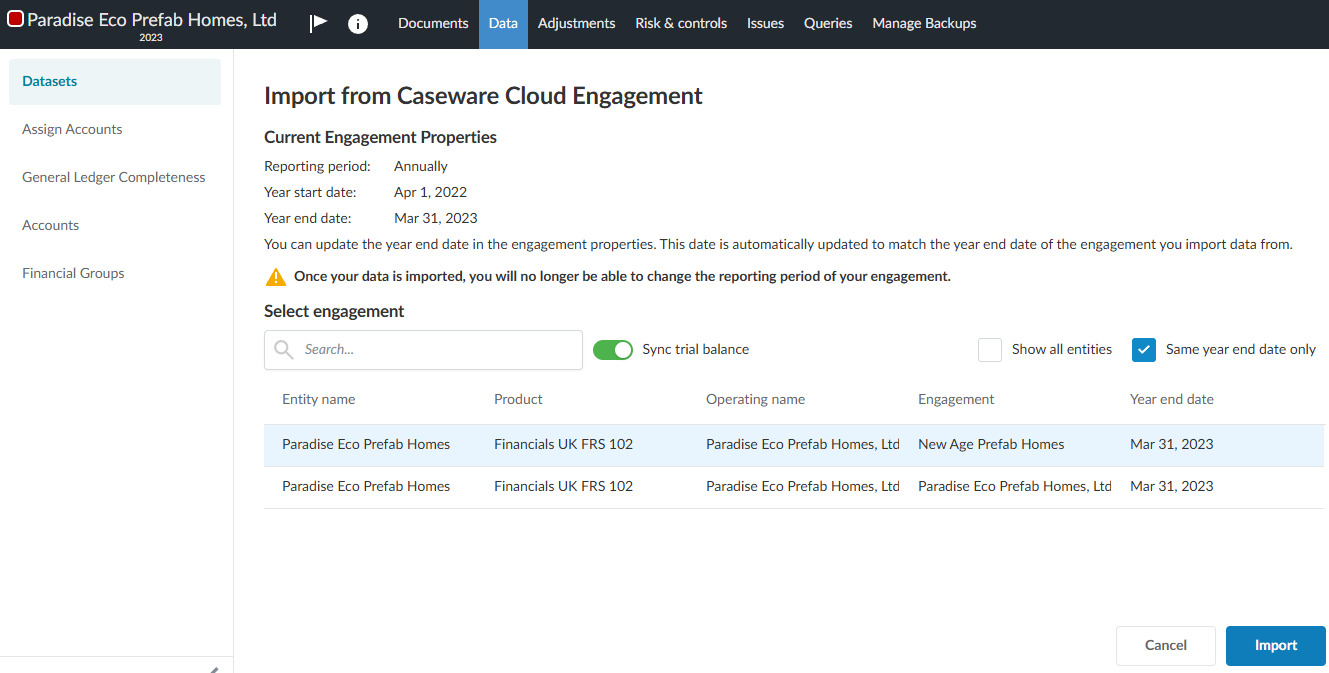
The Import from Caseware Cloud Engagement dialog appears.
The engagements you have access to are listed.
Select an engagement from the list or search for one in the Search box using values from any of the following engagement fields:
Entity name
Product
Operating name
Engagement
Year end date
Select the Sync trial balance toggle.
By default, the Same year end date only option is selected. Deselect it to see source engagements whose year end date is not the same as the current engagement.
What happens at this point depends on whether the financial grouping structures between the two apps (source and destination) are the same or if different can be aligned through predefined logic:
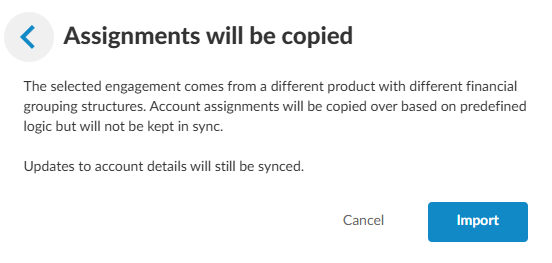
The following dialog appears:
Select Import. The Accounts tab appears showing the trial balance. Notice the TB SOURCE indicator shows the source engagement from where the trial balance originates.
An initial sync aligns the financial grouping structures between the source and destination engagements. Subsequent syncs will only occur at the account level, not the financial grouping structure level.
Any subsequent changes to accounts in the source engagement will be synced to this destination engagement and will appear as unassigned on the Assign Accounts tab.
You can unassign and reassign accounts in the destination engagement, but these changes will not affect the source engagement.
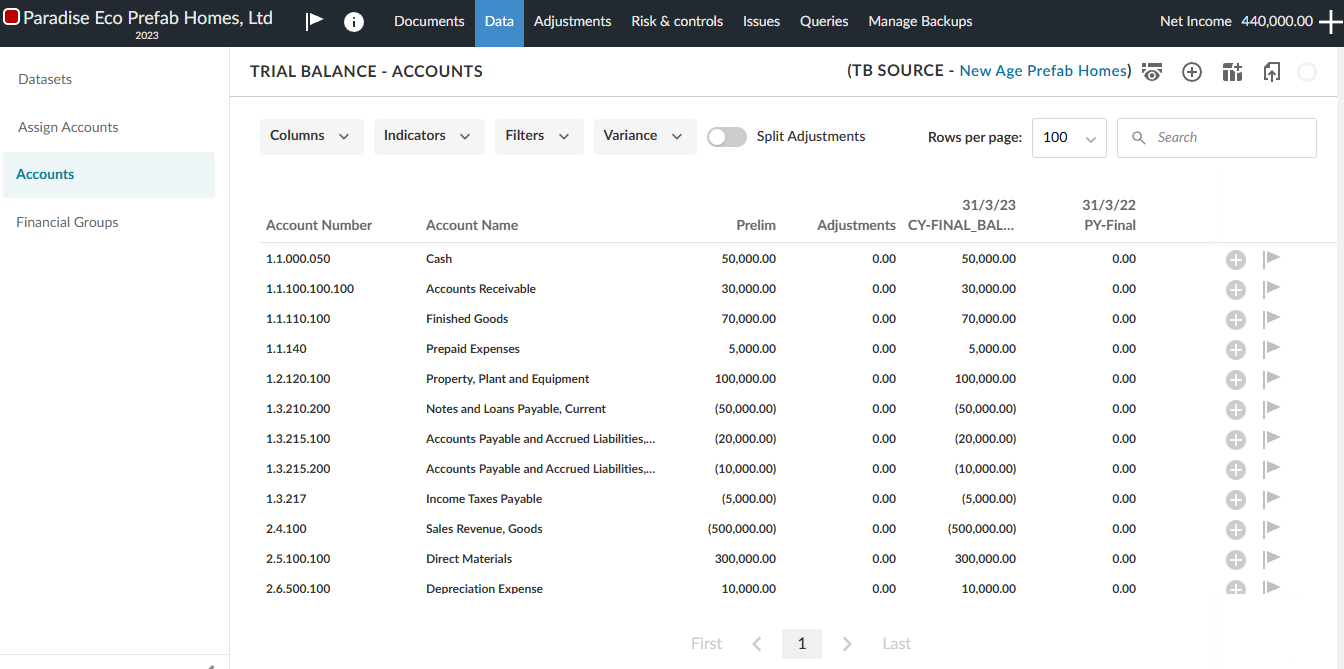
Select the Assign Accounts tab. Hover over the Accounts partially synced with field.
You cannot make any changes to account details in the destination engagement because the accounts in the source and destination engagements remain synced.
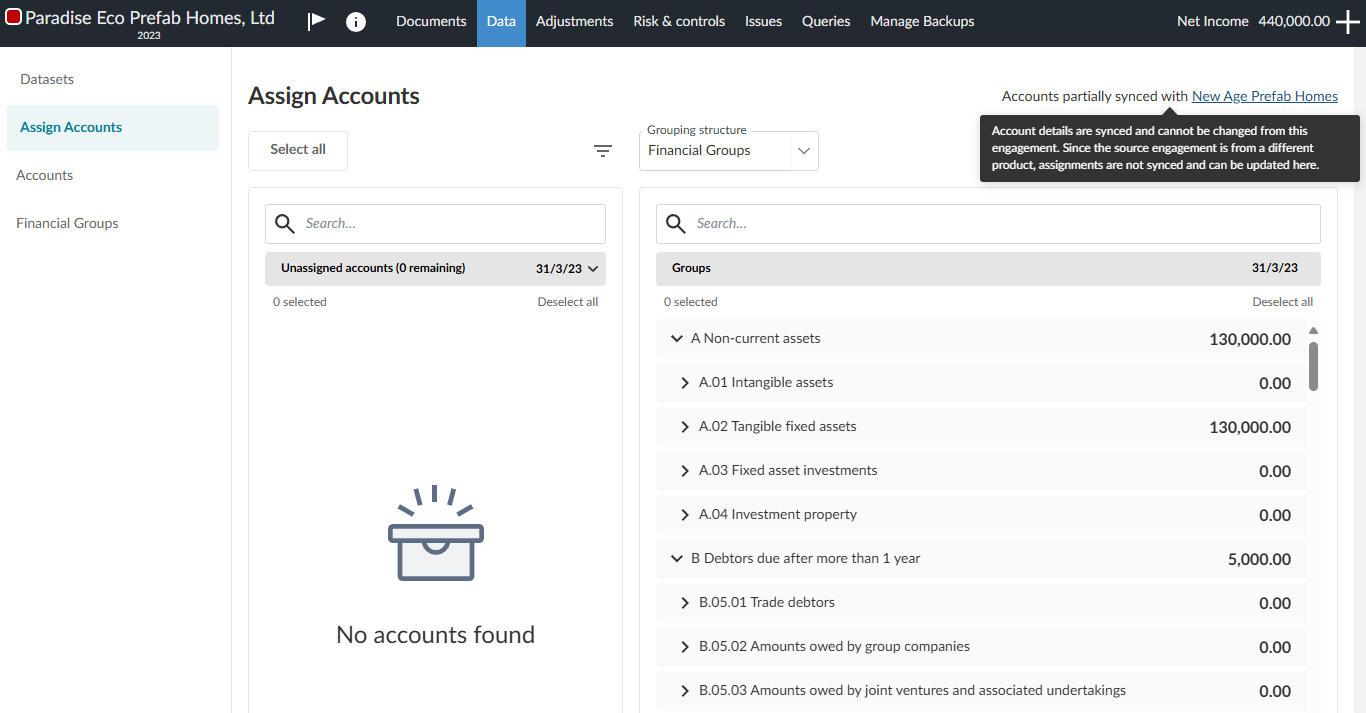
The following dialog appears. Wherever possible accounts and their assignment to financial groups are copied to the destination engagement. Where financial groups and accounts cannot be matched, accounts appear as unassigned in the destination engagement. Any unassigned accounts will become locked, and you will not be able to assign them to financial groups. Any assigned accounts will not be reassignable.
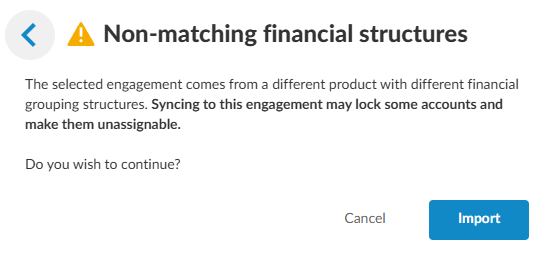
In this example we will select Import to see the effect.
The Accounts tab appears. Select the Assign Accounts tab to view the account assignments. You are unable to change the account assignments that have been locked. See the example below.
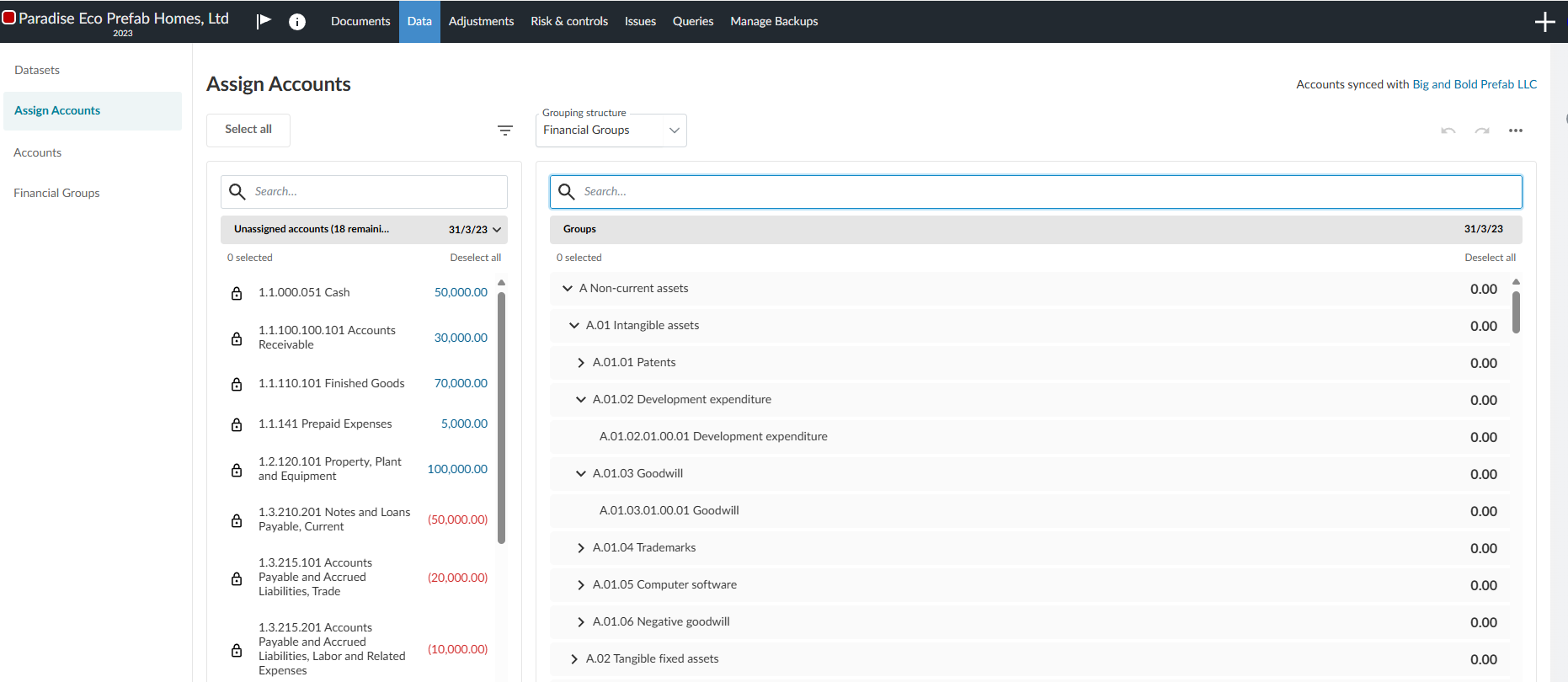
In the event there are unassigned accounts, you will not be able to assign or reassign accounts in the destination engagement.