
Print the financial statements and other supported document types
You can print the financial statements and other supported document types (such as worksheets, memos and letters) as a PDF or Word (.docx) file. The export uses a third-party conversion service to generate the document into one of these formats.
For the financial statements:
-
Rows and columns that will not be included in the printout display in gray. To learn more, see Change the display option for table rows and Edit table columns in the financial statements.
-
Empty or zero-balance rows and columns are automatically hidden in the print preview, the downloaded PDF and printed document.
To print a financial statements or supported document type:
-
Open your document.
-
Select the print icon (
 ) from the Document Map on the left side of the document screen.
 -
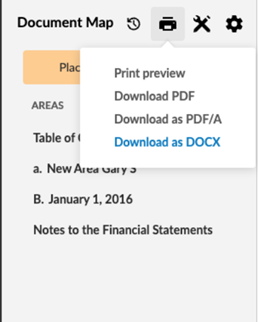
Choose one of the following print option or Print preview. Once you select a print options, a dialog appears to confirm progress. Another dialog will appear when the export is complete or fails.
-
Download as PDF
-
Download as PDF/A
-
Download as DOCX
-
Print preview options
You can choose Print preview to see how your document will look once printed.
Select Print preview:
The Print preview page opens in a new browser tab displaying the section of the financial statements you are currently viewing.
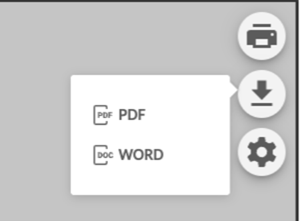
You can perform actions directly from the Print preview page, such as:
-
Open Print Settings (
 ) to make changes in settings and view them
 -
Select Print (
) to print the document or select the downward arrow ( ) to download into one of the available formats (PDF or Word).
Options in Print preview:
Customize your print settings
You can apply various print settings to your documents.
To customize print settings:
-
Select Settings (
) | Document Print Settingsto review the print settings for your document.
-
The following options provide custom print settings for different areas of your document:
-
Select Settings (
) | Notes Print Settings to review the notes area settings. -
Select More actions (
 ) | Edit Print Settings to review the settings for a document area.
 -
Select More actions (
) | Print Settings to review the settings for a page break.
-
-
Select Save.
Notes:
-
If a bulk print option is available, the drop-down at the Print icon (
 ) also displays the available documents groups.
-
If you have applied a watermark, when exporting to PDF, this option will display as Download PDF (WMK) and Download PDF/A (WMK).
-
If there are text or field placeholders that have not been replaced, you get a warning once you select Print.
Controls and limitations for export to Word (.docx)
Controls
Caseware can disable Export to Word by document category:
-
Financial statements
-
Other document types (worksheets, memos, and letters)
-
Both financial statements and other document types
Limitations
When exporting to Word (DOCX), the following limitations may occur. Results can vary depending on document structure and formatting:
-
Some fonts may be substituted, which can affect layout and cause inconsistent text formatting.
-
The table of contents is converted during export, but editing headings may not automatically update it, and page number references may not work when page ranges are used.
-
Page headers may convert inconsistently, with some header content appearing outside the Word header area.
-
Bracketed negative amounts may not align correctly in tables.
-
Tables that are close together may be merged and treated as a single table.
-
Merged header rows may become detached or not be recognized correctly.
-
Totals and subtotals styling may not fully match the source document for some fonts.
-
Single-row tables may not be recognized as tables after export.
