
Add guidance information for staff members
You can include guidance information for staff members in a checklist, a letter or memo, or the financial statements document. Guidance information can be instructions or references to other documents.
Best Practice: We recommend that firm authors add guidance information for users in the firm template. Firm authors are staff members with the Settings Admin role or similar. See Manage the firm template for more information. See also Built-in roles and Assign security roles for information on roles.
Add guidance information in a checklist
You can include general guidance information in a checklist.
Note: General guidance information can only be added in the firm template in a checklist that the firm author has added.
To add general guidance information:
-
Ensure that you have the Settings Admin role or similar. For more information, see Built-in roles and Assign security roles.
-
From the Cloud menu (
 ), select Settings (
 ) | <your product name> | Manage Template.
 -
Open the firm template.
See Manage the firm template for more information.
-
Open the checklist and select Edit (
 ).
). -
Go to the Guidance tab.
-
Select the text field to start adding content.
The formatting toolbar displays. Use the toolbar to make the following changes.
You can also include guidance information in each group and procedure in a checklist.
Note: You can only add group or procedure guidance information in a checklist that you have added. You can't add guidance information in a checklist that's part of the default content that comes with your product.
To add guidance information in a group, a subgroup or a procedure:
-
Open the checklist and select Edit (
). -
Go to the item where you want to add guidance information.
-
Select the lightbulb icon (
 ) next to the item.
 -
Select the text field to start adding content. The formatting toolbar displays. Use the toolbar to make the following changes.
The item can be a group, a subgroup or a procedure.
The Guidance section opens in the left side panel.
The following table describes the formatting toolbar for guidance sections in a checklist:
| Toolbar icon | Description |
| | Bold, italicize or underline selected text. |
| | Add a bullet or number list. |
| | Indent selected text or paragraph. |
| | Align selected text or paragraph. |
| | Add a table. |
| | |
| | Insert a reference to a visible or hidden document in the engagement file. |
| | |
| | Remove all formatting for a selected text or a paragraph and revert to the default. |


Add guidance information in a letter or memo
You can include guidance information in a letter or a memo. Guidance information can be assumptions, instructions or a reference to another document.
You can a guidance area at the top of the document to include information for the whole letter or memo. You can also add a guidance area anywhere in the body of the document to include guidance information related to specific sections in the document.
To add guidance information:
-
Select +Add section | Guidance.
-
Select the text field to start adding content. The formatting toolbar displays. Use the toolbar to make the following changes:
A text field displays with a lightbulb () indicator that marks the area as guidance information.
The default title of the guidance section is Guidance. You can select the default title to change it. Note that this title is not part of the document content.
Note: You can also add guidance sections within grouping areas in a letter or memo.
| Toolbar icon | Description |
| | Apply a style to selected text or paragraph. |
| | Bold, italicize or underline selected text. |
| | Add a bullet or number list. |
| | Indent selected text or paragraph. |
| | Align selected text or paragraph. |
| | Add a table. |
| | Insert a reference to a visible or hidden document in the engagement file. |
| | |
| | |
| | Remove all formatting for a selected text or a paragraph and revert to the default. |

To delete the guidance section, select Settings ( ) | Delete.
Add a document reference in guidance sections
You can add a document reference in guidance sections to insert a link to an existing document in the engagement file.
To add a document reference in a guidance section:
-
In the guidance section, select the text field to display the formatting toolbar.
-
Select Insert Document Reference (
 ).
). -
Select the document you want to reference from the list.
A list of the available documents in the engagement file displays. You can select Show hidden documents to select a hidden document if needed.
A reference to the selected document is created and added in the Guidance tab.
Add data links in guidance information
You can insert data links into guidance sections to dynamically display engagement-specific information, such as entity properties, trial balance values, checklist responses, or conditional text. This enables authors to provide context-sensitive guidance that updates automatically based on the engagement data.
To add a data link in a guidance section:
-
Ensure that you have the Settings Admin role or similar. For more information, see Built-in roles and Assign security roles.
-
From the Cloud menu (
 ), select Settings (
 ) | <your product name> | Manage Template.
 -
Open the product template. See Manage the firm template for more information.
-
Select the Documents page.
-
Open the checklist.
-
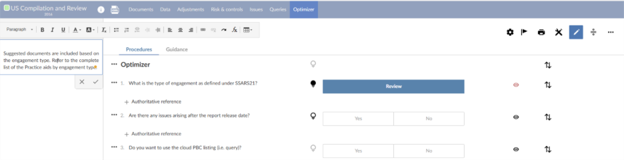
Go to the guidance section where you want to dynamically display engagement-specific information, and select the Toggle edit view icon (
 ).
). -
Select the lightbulb icon (
 ) next to the item.
The Guidance section opens in the left side panel.
-
Select the guidance text field where you want to insert the data link.
-
Click the Insert Formula (
 ) icon in the formatting toolbar.
-
In the Data Link dialog, choose the type of data link you want to insert:
-
Engagement Properties (for example, entity name, year-end date)
-
Trial Balance (for example, account balances, group totals)
-
Firm Properties (for example, firm name, address)
-
Responses (for example, checklist procedure responses)
-
Materiality (for example, overall or performance materiality)
-
Engagement Glossary (for example, insert a glossary term)
-
Dynamic Text (for example, conditional text based on engagement context)
-
Forms Value (for example, values from custom forms, if available)
-
Configure any conditions or fallback text as needed (for example, show different guidance for Review vs Compilation engagements).
-
Click Save to insert the data link.
Note: Data links in guidance sections follow the same visibility logic as the content they are attached to. For example, if a checklist procedure is only visible in certain engagement types, any guidance with data links attached to that procedure will also follow that visibility rule. Examples of data link usage in guidance:
-
Show different instructions for different engagement types.
-
Insert trial balance values or materiality thresholds directly into guidance.
-
Display glossary terms or authoritative references based on engagement context.
-
Reference responses from checklists to tailor guidance dynamically.
