
Add, edit or remove page number references in financial statements
You can insert dynamic page number references into financial statements that update automatically as the document changes. A dynamic page reference can point to the starting or ending page of a section. Page references update automatically if pages are added, edited or removed.
To add a dynamic page reference:
-
Click within a text area in your financial statement where you want to insert the page reference. The formatting toolbar opens.
-
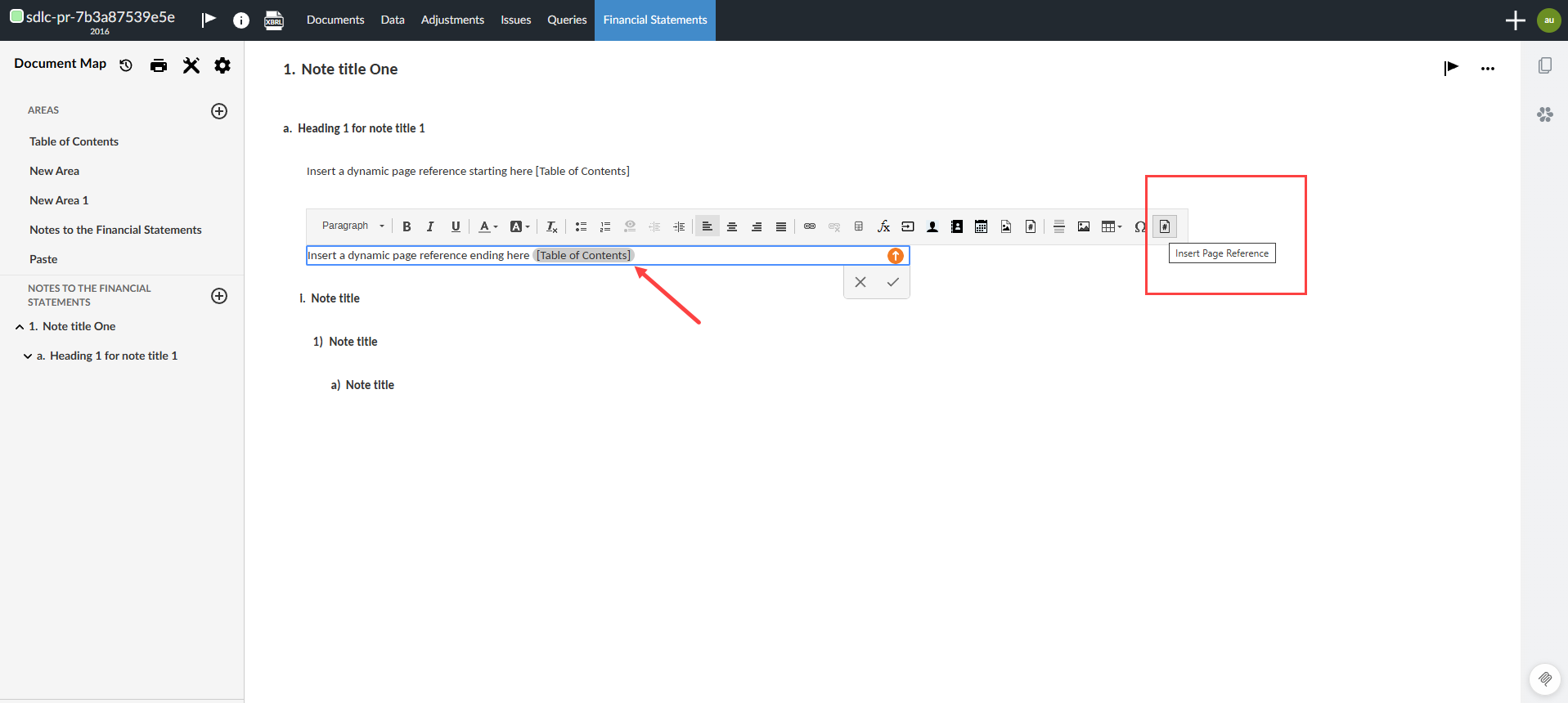
Click Insert Page Reference [
 ]. A dynamic page reference field labeled Click to set appears in the text.
 -
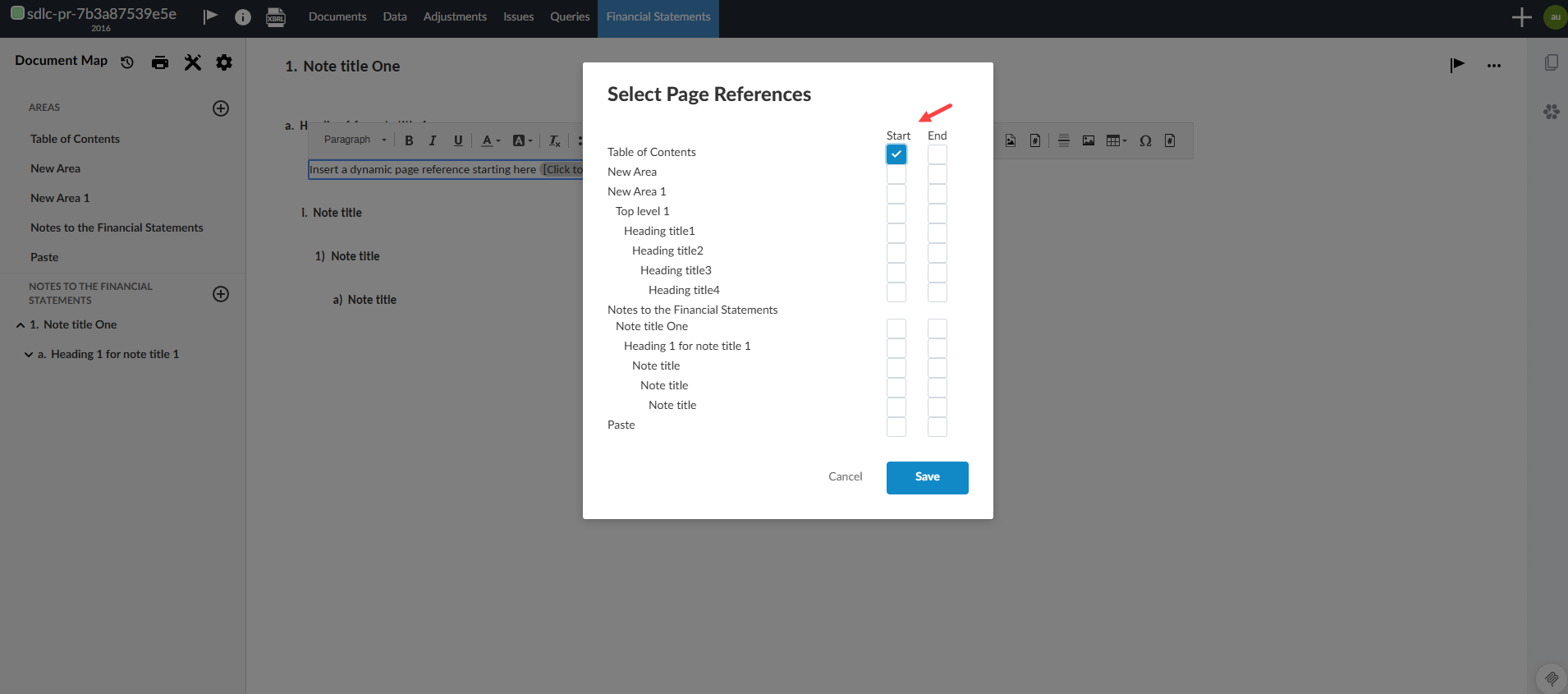
Click the Click to set field. The Select Page References dialog opens and displays the document map.
-
Select a section in the document map, then choose whether to reference the starting page or ending page.
-
Click Save.
The dynamic page reference field resolves to the correct page number when the financial statements are rendered.
The Insert Page Reference button on the formatting toolbar:
The Select Page References dialog:
To edit a dynamic page reference:
-
Select the dynamic page reference field in the text. The Select Page References dialog opens and displays the document map.
-
In the Select Page References dialog, choose a different section or change whether the reference points to the starting or ending page.
-
Click Save.
To remove a dynamic page reference:
-
Place the cursor at the end of the dynamic page reference field.
-
Backspace until the field is removed.
