
Copy risks, controls or checklists from other engagements
Notes:
-
This feature may not be available in all products.
-
This is a one-time copy action.
-
Copied content does not update automatically if the original changes.
You can streamline engagement setup by copying risks, controls, or checklists from other engagements, or from a component within a group audit, into your current engagement. This feature supports reuse across entities and engagement types, helping you save time and maintain consistency.
Risks and controls
-
Any content that is part of the risk or control is also copied.
-
Any copied risks and controls appear on the Risks & controls page or wherever risk and controls are stored in your product.
-
Risks and controls can be copied from any engagement, even if they belong to a different entity.
Checklists
-
Any checklists you choose to copy are copied as PDFs to your current engagement and appear on the Documents page.
-
Checklists can only be copied from engagements that belong to the same entity as the current engagement.
To copy content from other engagements:
-
Open your engagement.
-
In the top right corner, select the Copy external engagement items icon (
 ) .
) . -
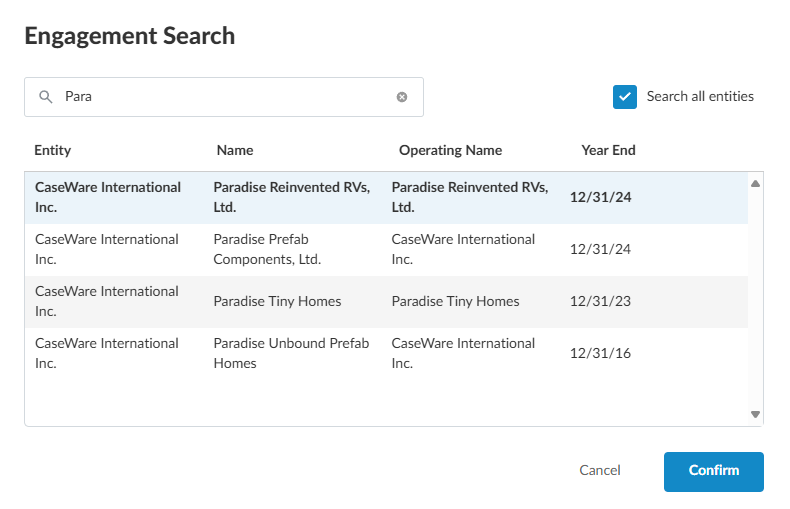
Select the engagement from which you want to copy risks, controls or checklists.
-
If the engagement belongs to a different entity, select Search all entities.
-
You can copy risks and controls from engagements that do not belong to the same entity as your current engagement.
- Checklists must belong to the same entity as the current engagement.
-
-
In the Search, specify the partial or full name of the engagement.
-
Select the engagement in the list and click Confirm.
-
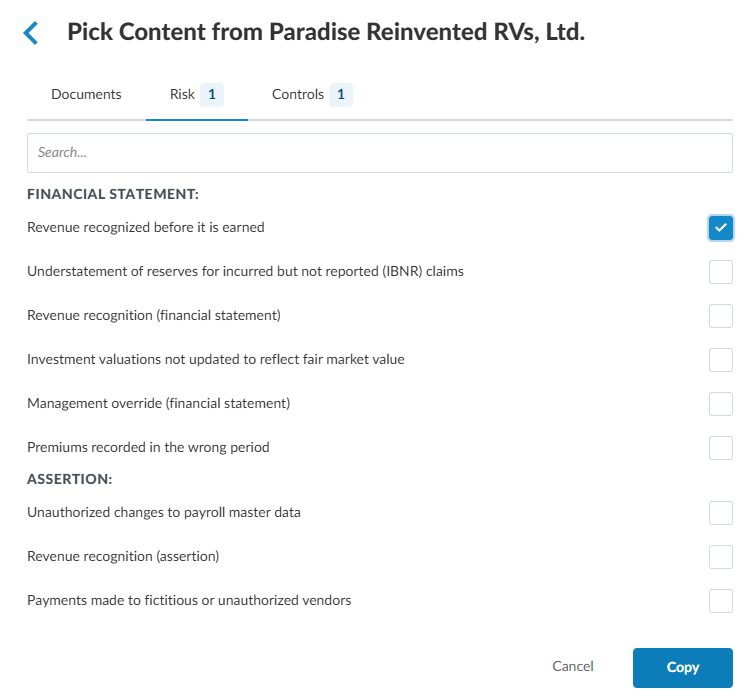
Select the Documents, Risk or Controls tab according to what you want to copy. Select the Documents tab to copy any checklists.
-
In the Risk tab, if you select a risk to copy, any controls associated with that risk are also automatically selected to be copied.
-
The reverse is also true, if you select a control on the Controls tab, any associated risks are also selected to be copied.
-
-
Click Copy. The copy operation takes a few moments.
