
Edit firm-managed knowledge bases
Edit and maintain your firm’s knowledge bases directly in Caseware Cloud. Keep information accurate and accessible without extra tooling. To learn more about best practices, refer to Best practices for firm-managed knowledge bases.
To edit a firm-managed knowledge base:
-
Confirm you have the Settings Admin or Admin role. For more information, see Built-in roles and Assign security roles.
-
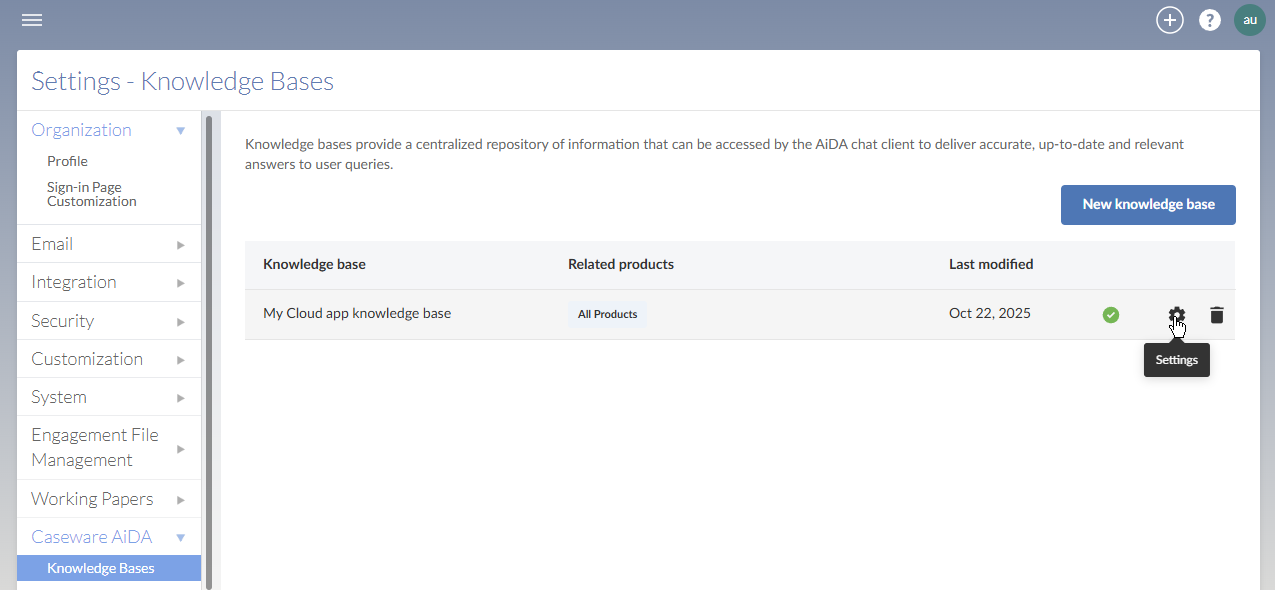
From the Cloud menu (
 ), select Settings (
 ) | Caseware AiDA | Knowledge Bases.
 -
In the Knowledge base list, locate the knowledge base you want to edit and select Settings
 .
.
-
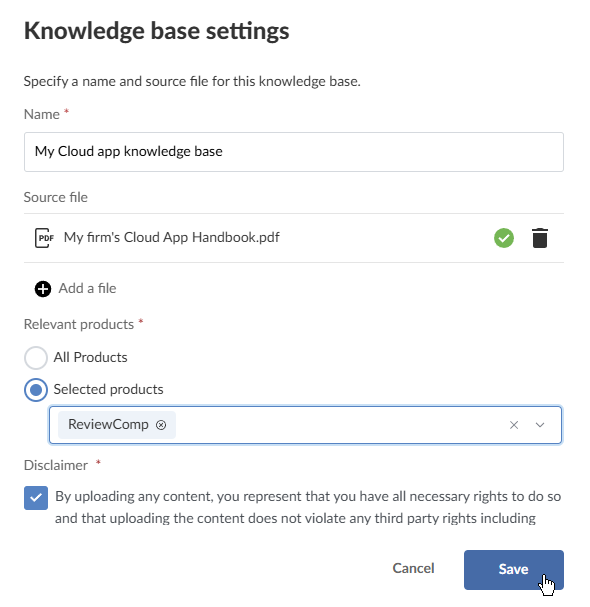
On the Knowledge base settings dialog, make any modifications as needed:
-
In Name, you can modify the name of the knowledge base.
-
Select the delete icon (
 ) to remove an existing PDF from the knowledge base.
 -
Select +Add file to select additional PDFs to add to the current knowledge base. You can select multiple files to be added, all forming part of the same knowledge base.
-
In Relevant products, make any modifications as necessary to the list of Caseware Cloud apps where this knowledge base is available.
Note: You must either select All products or specify Working Papers or IDEA as a relevant product to make the knowledge bases available in those desktop applications.
-
Select Disclaimer so you can save your changes.
-
-
Select Save.
