Customize controls
Note: Content in this topic is intended for Enterprise Authors.
To start, select the Information icon ( ) at the top menu, then choose Settings. The Product Settings dialog opens, where you can view and customize settings if needed.
Under the Controls drop-down, select Fields.
The Controls fields are organized into four categories that can be expanded and collapsed using the up and down arrows:
-
Identification
-
Attributes
-
Design and implementation
-
Operating effectiveness evaluation
Note that the Identification category and the Title field in that category cannot be disabled.
To add and customize control fields:
-
Select a field to include it in the controls report.
-
For example, select
 to enable it in the controls report.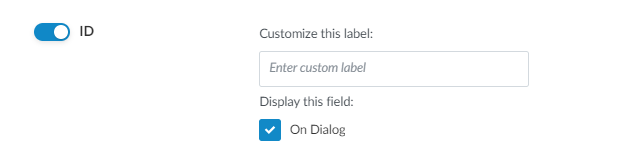
-
In the Customize this label field, enter your custom term.
-
For each field, select the On Dialog checkbox to make the field available to users in the Create New Control dialog.
-
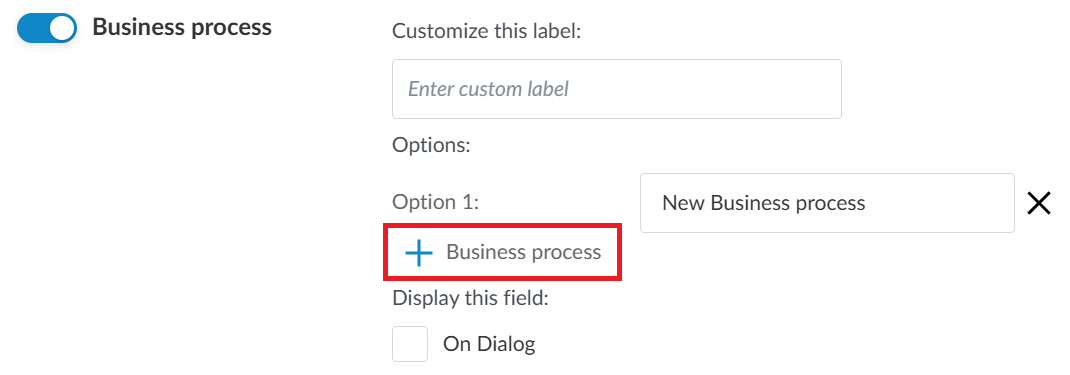
If the field has multiple options, enter your custom term for each option.
For some fields, you can use the Add (
 ) button to add more custom options.