Add custom calculations in text sections
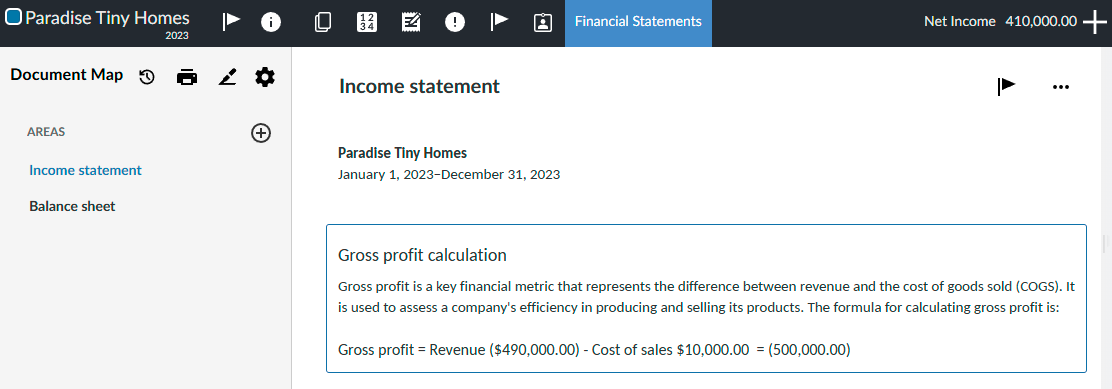
You can add custom calculations to text areas in the financial statements.
Best Practice: In Engagement Settings, where you have rounding set up in Format | Numbers, there are recommendations to follow for settings in Features | Financial Statements. See Rounding setup recommendations for more information.
To add custom calculations:
-
Select the text section where you want to add the custom calculation.
-
The formatting toolbar displays at the top of the text section. Select the Insert Calculation icon (
 ).
). -
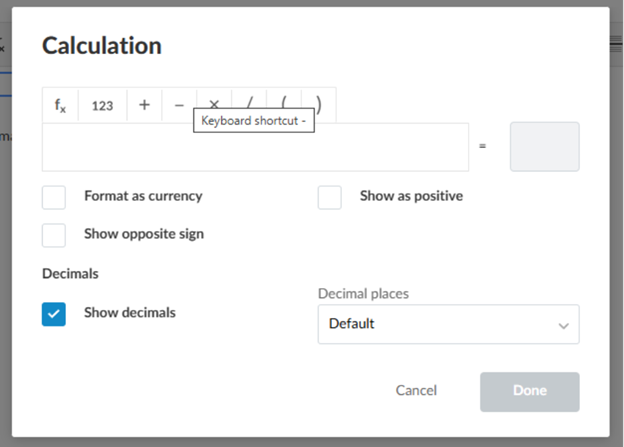
In the Calculation dialog, select Insert data (fx).
-
The Data Link dialog opens. Select the Cell Reference tab.
-
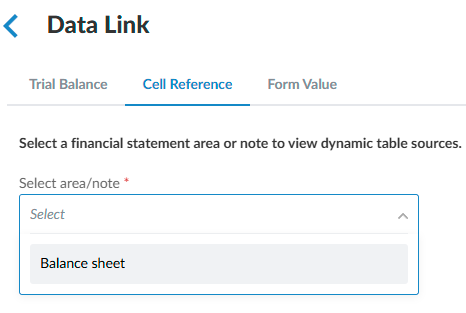
In the Select area/note drop-down, select from the list of available areas or notes to reference.
-
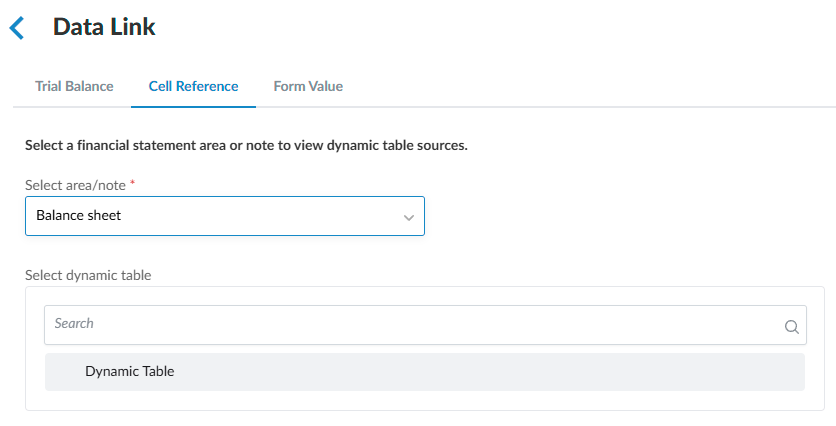
In the Select dynamic table field, search for a table in the financial statement area or note, or select a table from the list below.
-
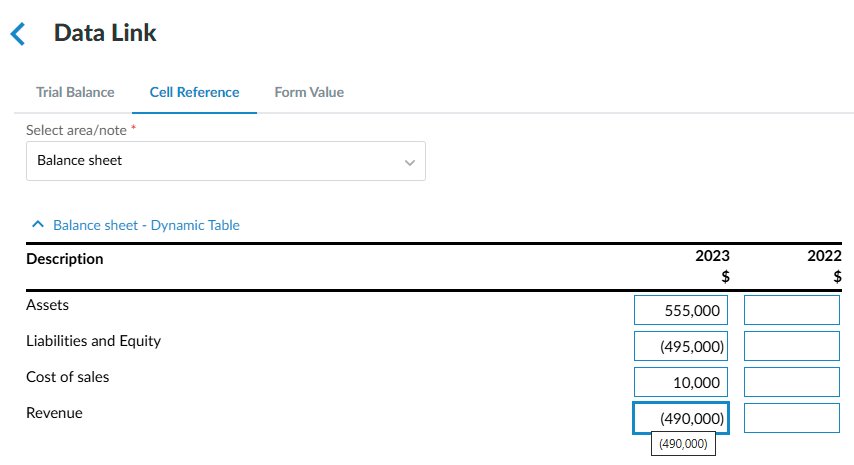
In the dynamic table preview, select the applicable cell to reference it.
-
Back in the Calculation dialog, enter the desired calculation. Continue to insert any additional cell references to complete the calculation.
-
Select the formatting options for the result of the calculation as necessary:
-
Show decimals—the result is displayed with the number of decimal places as indicated in the Numbers, in Engagement Settings.
-
Show as positive—the result is shown as a positive number.
-
Format as currency—the result is shown as an amount of currency.
-
Show opposite sign—the result is shown as in the opposite sign (negative or positive). For example, if a value is positive, it will be displayed as negative, and vice versa.
-
Decimal places—is a dropdown menu that allows you to select up to 4 decimal places.
-
The setting applies only to that calculation and is saved with the document.
-
Results in the text section display with the specified precision.
-
By default, calculations use the engagement’s global settings unless overridden.
-
-
When finished, select Done.
The custom calculation is added to the text section.