
Save and compare financial statement versions
You can save and compare previous versions of the financial statements to keep better track of what changes are made to the document and by whom.
Each type of change is marked with a color: green for new content, orange for modified content and red for removed content.
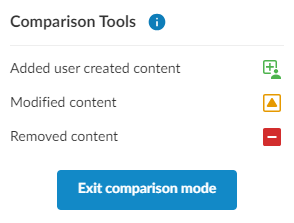
To view some examples of how changes are displayed in the Comparison tool, see Examples.
Notes:
-
Individual formatting changes aren't highlighted, but if a section contains formatting changes, it will display the orange 'modified' marker.
-
Rearranged content may be tracked as removed (red) from the original location and added (green) to the new location, even though the content has not been added or removed.
-
Changes to the following items are not tracked:
-
Analysis charts
-
Embedded images
-
Embedded PDFs
-
Document settings
-
To save a new version:
-
Open the financial statement and go to the Document Map.
-
Select the Version control icon (
 ).
). -
Select Show version history.
-
In the Saved Versions panel, select New.
-
Enter a name and description for the saved version. Select Save.
The financial statement version is saved.
To compare the current version with a previous version:
-
In the Saved Versions panel, select the checkbox of the two versions you wish to compare..
-
Select Compare.
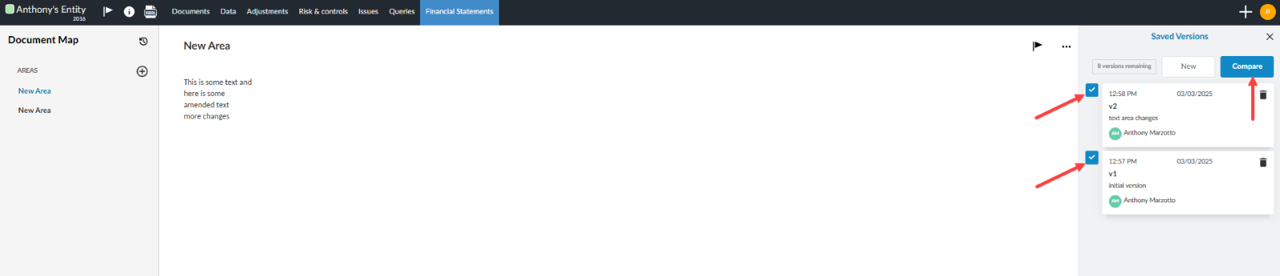
A comparison is displayed that highlights the added and deleted content since the previous version.
You can delete previous versions by selecting the Delete icon ( ) next to the version.
Examples
The following images provide examples of how changes are displayed in the Comparison tool.
Example 1: Table of Contents
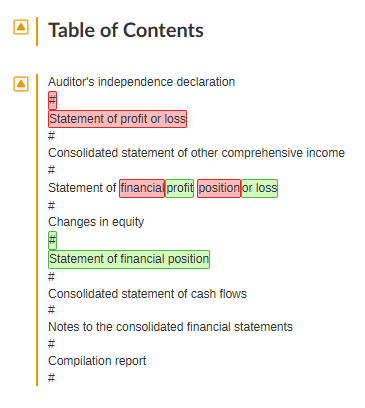
Changes in the sort order of financial areas will be reflected as changes in the Table of Contents.
This example includes the following comparison markup:
-
Statement of profit or loss changed from the second position to the third. This change is displayed as the removal of 'financial' and 'position' (red) and the addition of 'profit' and 'or loss' (green) due to similarities in the name of the TOC entry (i.e. 'Statement of').
-
Statement of financial position changed from the third position to the fifth. This change is displayed an addition (green) despite the fact that the TOC entry was moved.
-
The table of contents was modified, therefore the title and body display a modified marker (orange).
Example 2: Financial statement
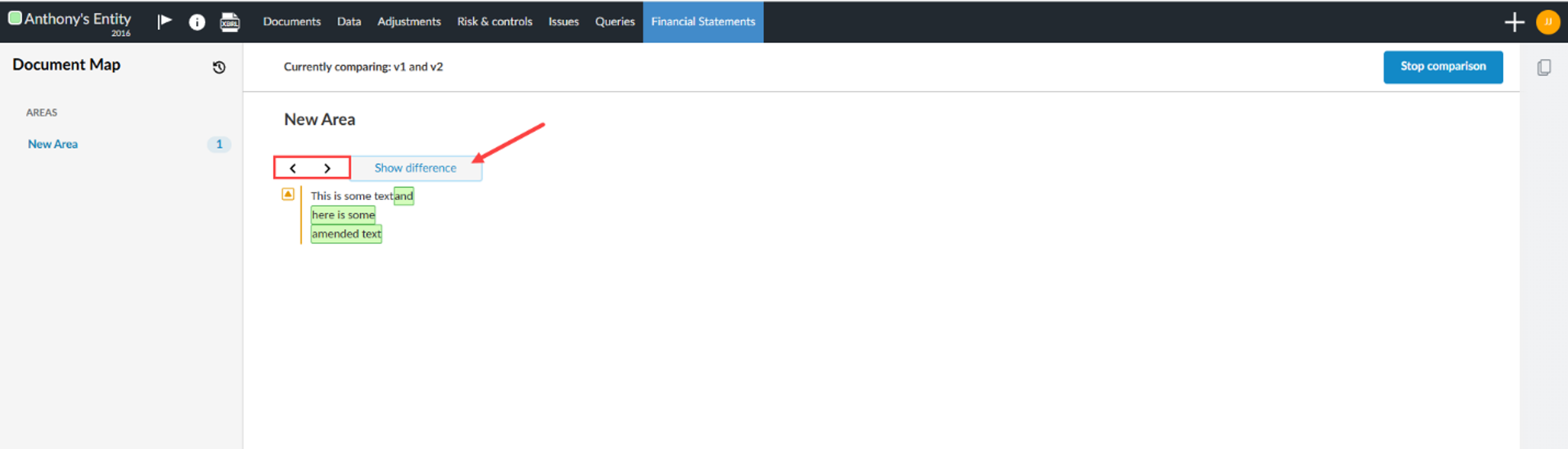
You can switch between versions of content in Areas of the financial statement using back and forth navigation buttons. Clicking the Show difference button will compare the two versions.
Example 3: Tables and Balances
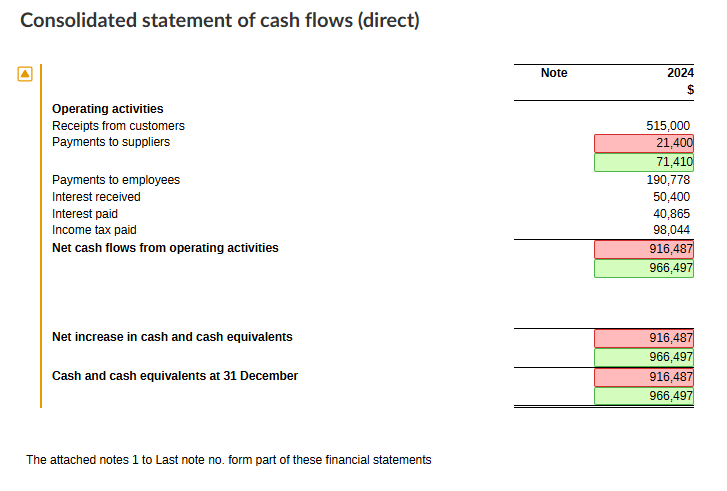
Changes to balances will be reflected in tables and text areas where the balances are present.
This example includes the following comparison markup:
-
The balance for Payments to suppliers changed from 21,400 to 71,410.
-
Net cash flows from operating activities recalculated from 916,487 to 966,497.
-
Net increase in cash and cash equivalents recalculated from 916,487 to 966,497.
-
Cash and cash equivalents at 31 December recalculated from 916,487 to 966,497.
-
The table was modified, therefore it displays a modified marker (orange).
In text areas, the individual digits that changed are highlighted, rather than the entire table cell.

Manage issues in financial statement versions
You can create and resolve issues while using version control comparison mode in financial statements. The feature ensures that all existing issue management actions (create, reply, resolve, clear, edit and delete) are available during comparison. This helps you track and resolve questions or concerns without leaving the comparison view. Issues remain visible and accessible even if sections are deleted or moved. For dynamic tables, issues are displayed at the table level.
To manage issues in financial statement version control
-
Open the financial statement and go to the Document Map.
-
Select the Version control icon [
 ].
]. -
Select Show version history.
-
Choose two versions to compare and click the Compare button.
-
Click the Issue flag icon [
 ] beside any section of the financial statement to open the Issue dialog box.
-
To learn more about adding issues and notes to the financial statement, refer to: Add review notes (issues).
-
-
Select any of the following functions to manage the issue:
-
Reply = to enter a text response to the issue.
-
Resolve = to complete an issue as fixed.
-
Resolve cannot be undone.
-
-
Clear = to remove the current response in the issue.
-
Edit [
 ] = to edit the issue.
 -
Delete [
 ] = to delete the issue, including responses within.
 -
Add [
 ] = to add a response to the issue.
-
Notes:
-
If a section with an issue is deleted during comparison, the issue moves to the document level and stays visible in the Issues tab.
-
If a section is moved, its issue moves with it.
-
To view all issues, open the Issues page from the top menu. Issues created during version comparison remain accessible here, even if their original section was deleted or moved.
-
Issues are not tied to a specific version. They remain visible in the same section when not in comparison mode.
-
For dynamic tables, issues can only be created at the table level. Row-level issues are not supported in this mode.
-
No changes are made to existing issue functionality outside version control comparison.
Was this helpful?
