
Data match
Data Match lets you compare workbook values against supporting files, such as invoices, purchase orders or statements. By linking cell ranges to file content, you can quickly confirm whether data is present, consistent and complete. This reduces manual review effort and helps ensure accuracy across large sets of documents.
-
On the ribbon, select Data Match.
-
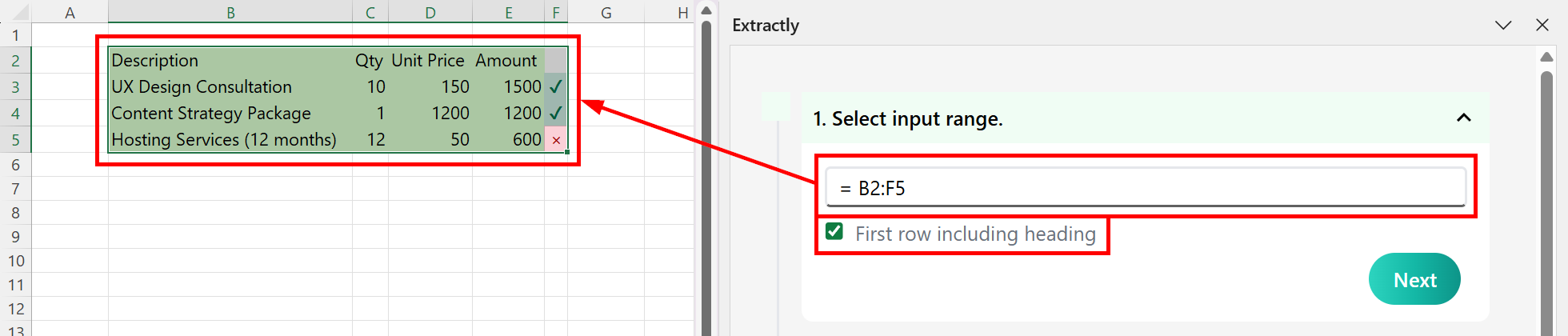
On the sidebar, select the input range in your worksheet by first clicking on the input box, then highlighting the relevant cells in your worksheet. You can also enter the range manually.
If your input range includes headers, select First row including heading.
-
Select Next.
-
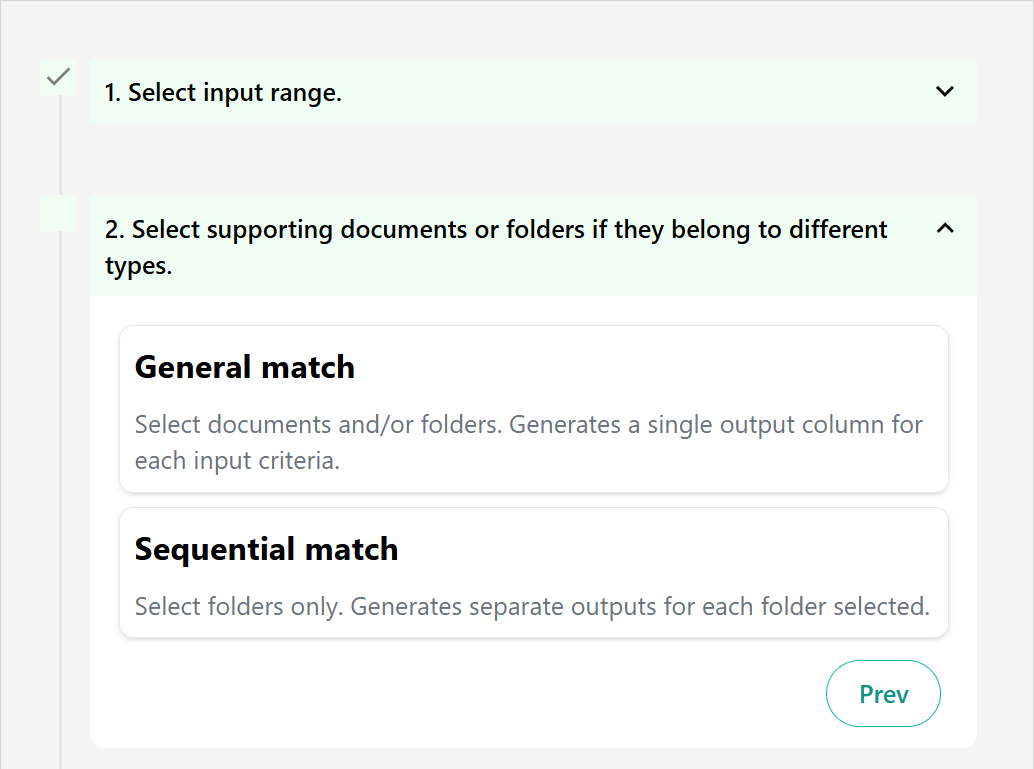
Select either a general or sequential match, and then the files or folders to perform the match against.
-
General Match: Select this matching option for scenarios where you expect to find sample data only once within a collection of files. You can select individual files and/or entire folders. Extractly performs a single data match across all selected files.
-
Sequential Match: Select this matching option for scenarios where you need to find the same data multiple times across different types of files (e.g. purchase orders, invoices, delivery notes, bank statements). You can only select folders. Extractly runs the data match feature separately for each folder.
-
-
Select Next.
-
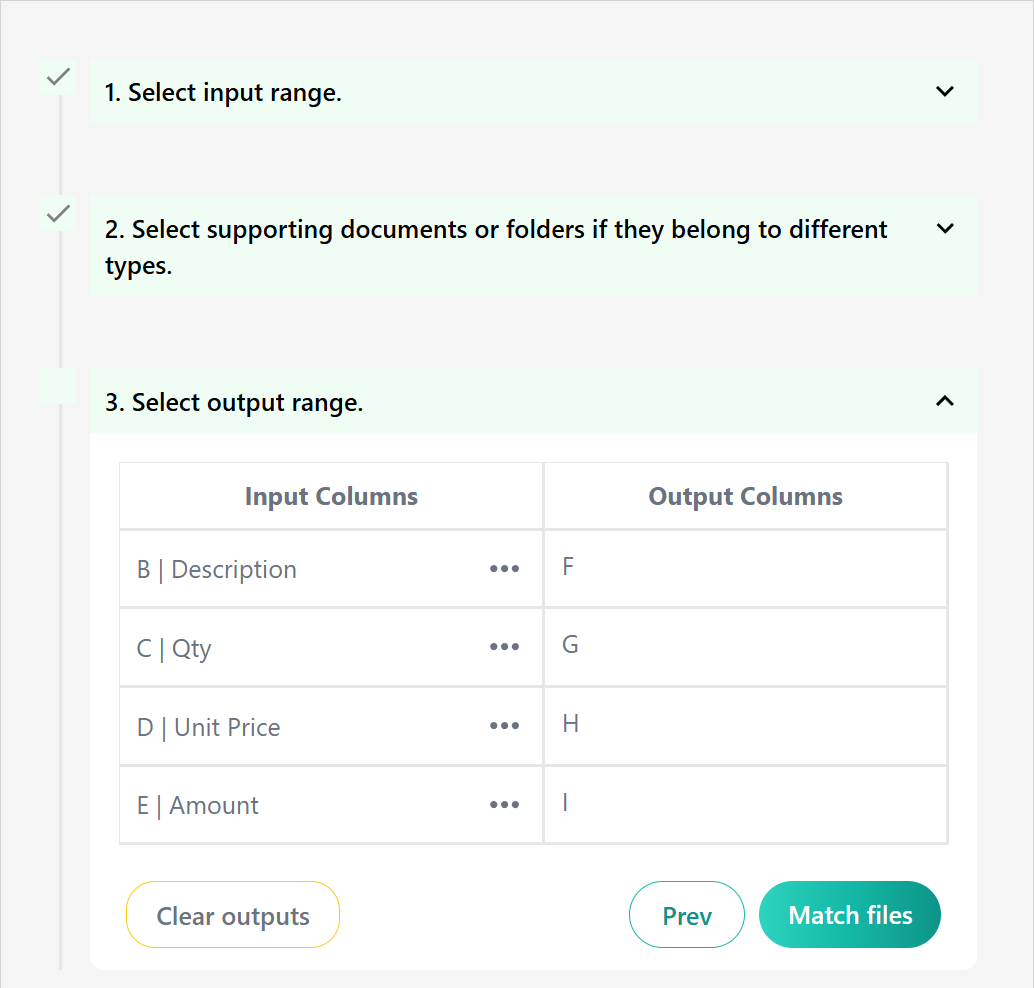
Map each input column to an output column in your worksheet. The matched data will be extracted into the selected output columns.
-
If required, apply additional rules for each column under the More actions (
 ) option:
-
Must find this data: Only continue matching data if this exact input data is found in the document.
-
Fuzzy text matching: Match text that is similar to the selected input data, but not identical. Fuzzy matches appear in a different color to help with identification.
-
-
Select Match files. Extracted data appears in the mapped output range.
