
Firm settings - Engagement File Management
Prior Engagement Rules
This setting lets you specify when to label engagements as ‘Prior engagements’ after a defined period elapses past the year-end date. ‘Prior engagements’ are automatically hidden from the file list in your engagement apps, accelerating page load times and file searches.
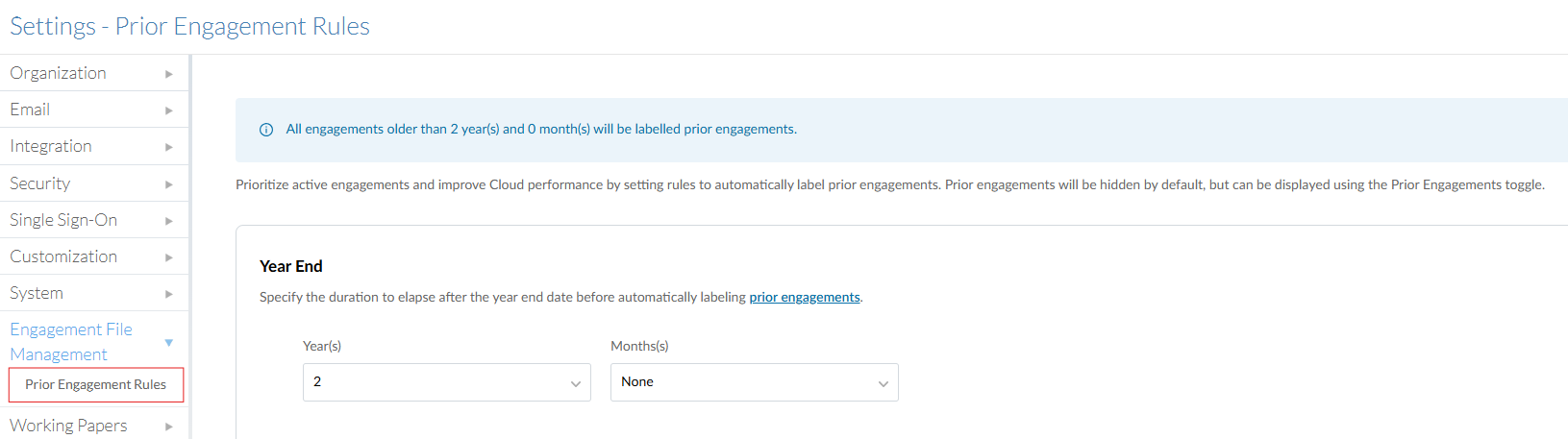
Once enabled, staff will only see the list of active engagements, but they can easily switch between active and prior using the Prior engagements toggle at the top of the file list.
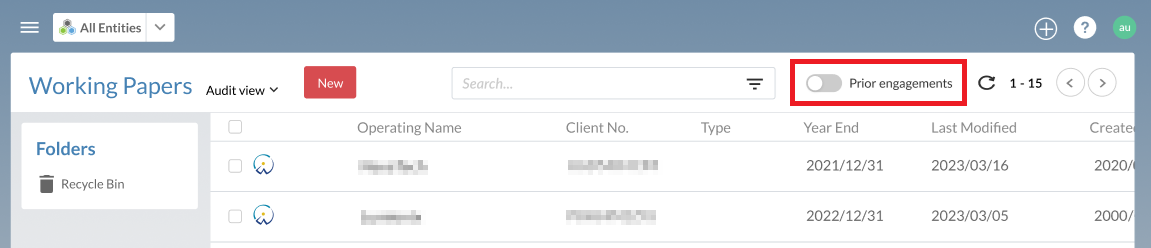
Note: This function does not affect the File | Open | Caseware Cloud menu in Working Papers. Prior engagements will remain visible.
File Retention Policy
Note: This feature will roll out throughout February 2026. If you are unable to access it at this time, please note that it will be available soon.
This setting enables administrators to define firm-wide retention policies for files across specified apps, replacing the manual process of defining retention policies at the individual file level. Accounting firms can take advantage of this feature to enforce standardization across teams and minimize manual effort on auditors.

After the retention period elapses for a file that falls under a firm-wide retention policy, it is permanently deleted (though a 90-day backup can be restored if necessary, or you can enable automatic backups).
Notes:
-
Files where individual policies have already been manually defined are not affected by firm-wide retention policies. They will continue to use their existing retention dates.
-
Once a firm-wide retention policy has been set and enabled, only administrators can set, edit or remove individual file retention policies. If an individual retention date is removed from a file, that file will defer to the firm-wide retention policy.
To define a new firm-wide retention policy:
-
Ensure that you have the Settings Admin role or equivalent privileges.
-
Open the Cloud menu (
 ) and select Settings.
 -
Select Engagement File Management | Retention Policies.
-
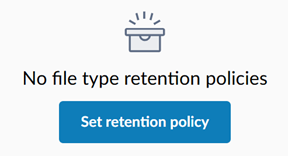
Select Set retention policy.
-
Under General information, select a file type. You have the option to set a retention policy for:
-
Uploaded files (stored in the Files app)
-
Working Papers files (stored in the Working Papers app)
-
Cloud engagement apps (licensed by your organization)
-
-
Select the primary retention criteria from the drop-down (e.g. Created date, Year end date, Lockdown date, etc.). The selections available are unique to the file type and will be used to determine the retention period.
-
If required, define one or more secondary criteria for files that do not have the primary criteria; for example, if your primary criteria is “Lockdown date” but there are files that have not been locked down, you could set “Year end date” as the secondary criteria to ensure that other files are within the policy’s scope.
-
Set the retention period in years and months. This is the duration that must elapse after the retention criteria date before files are deleted.
-
If required, add a comment describing the retention policy and its intended purpose.
-
Select Create.
-
If the retention policy looks correct, select Confirm.
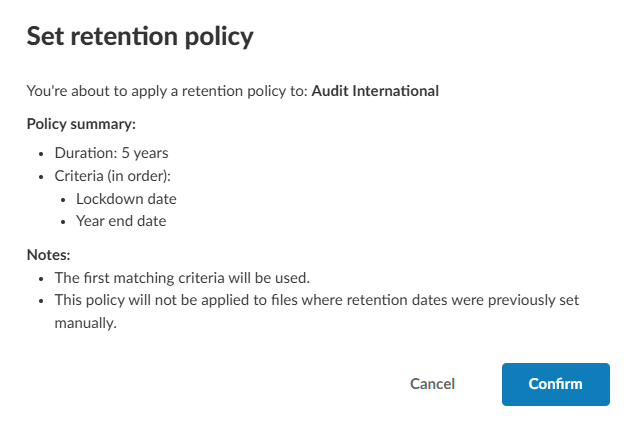
The retention policy is created. Note that it will not be activated immediately to prevent accidental file deletion. The activation process is described below.
Important: Prior to activating the retention policy, we strongly recommend creating a custom view for your app’s file list based on the selected retention criteria. This allows you to see which files will potentially be deleted once you activate the policy. See Create views for all users for instructions. The “Retention View” under Working Papers can be used as a reference. Once created, you may need to wait up to 24 hours for the retention data to populate.
Once you are ready to activate the policy, toggle Activate retention policies to the “On” position. Any files that meet the retention criteria and period will be deleted within 24 hours as part of a 24-hour retention cycle.
Notes:
-
Toggling Activate retention policies to the “Off” position will not restore deleted files, it simply pauses the retention policy.
-
If you edit a retention policy, the new retention criteria will be applied to all existing files, overwriting the previous criteria. Files deleted under the policy prior to modification will remain deleted.
-
If you delete a retention policy, all retention criteria will be cleared from existing files. Files deleted under the policy prior to deletion will remain deleted.
