Add table of contents in financial statements
The Document Map allows you to add a table of contents area to your financial statement. The table of contents will be automatically updated as you add more areas to the financial statement.
To add a table of contents to your financial statement:
-
In the Document Map, select the (
 ) icon next to AREAS.
 -
Select Table of Contents from the drop-down.
Table of content leader options
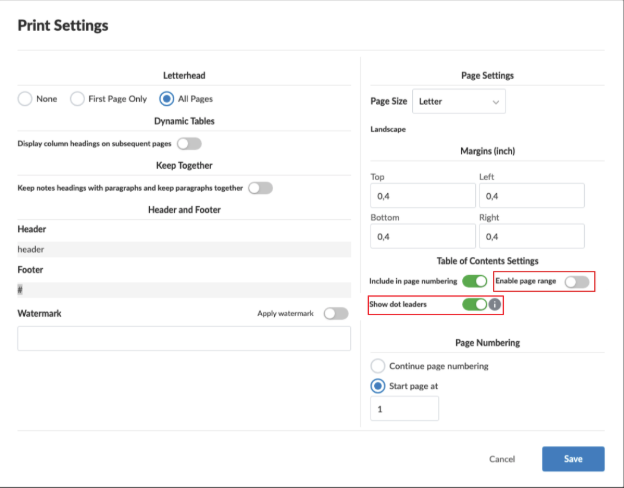
You can remove the dot leader from the table of contents of your Financial Statements. The default setting for the table of contents includes the dot leader. A toggle for showing or hiding the dot leader can be found in Document Settings | Table of Contents Settings. The dot leader will be removed from both the UI, the print preview and PDF output.
-
Authors can set the default toggle state at the template level.
-
Users can override author settings at the engagement level.
Page range display
You can choose to display full page ranges (for example: “5–6” instead of just “5”) in the table of contents of your Financial Statements. This feature is available when a section span 2 or more pages. Use the new toggle in Document Settings | Table of Contents Settings to enable this feature. When turned on:
-
Sections spanning multiple pages will show the full range.
-
Single-page sections will continue to show just one page number.
-
This change applies globally across the entire document (no need to set it individually for each section).