Sync a trial balance across engagements in different Cloud apps
You can use the same trial balance across multiple engagements in different Caseware Cloud apps. This feature is particularly useful for serving the same client in various engagements, such as auditing and financial reporting. For example, an audit team can seamlessly pass client data to a financial reporting team working in a different app and engagement.
Prerequisites
Two different Cloud apps: There should be at least two different Cloud apps, one as the source and the other as the destination. For example, Financials and Audit engagements apps. To import from an engagement file that belongs to a different Cloud app, you must have access to that app and the entity that the file belongs to. To learn more, refer to Set staff access levels.
Source engagement: The trial balance must be prepared and uploaded in the source engagement. Note that you cannot select consolidated engagements as source engagements.
Destination engagement: An engagement must exist in the Cloud app where you want to import data from a source engagement in a different Cloud app.
Workflow
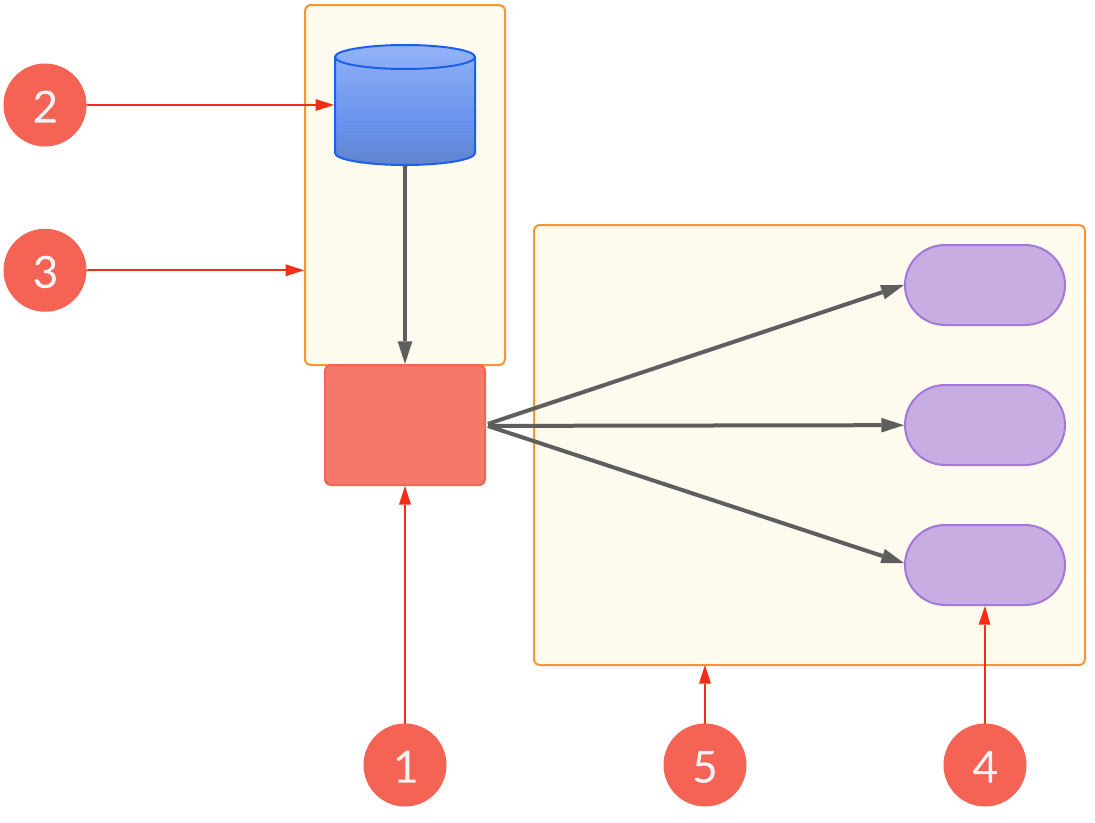
| Workflow element | Description |
|---|---|
| 1 | Create the source engagement in Cloud app A. |
| 2 | Trial balance. |
| 3 | Import the trial balance into the source engagement. |
| 4 | Create the destination engagement in Cloud app B. |
| 5 | In the destination engagement in Cloud app B, import the source engagement trial balance.
|
Initial setup of the destination trial balance
Period data
Period data between the source and destination engagements is automatically mapped. For example, the Current Year data column from the source engagement is automatically imported to the Current Year column in the destination engagement.
Year-end date synchronization
Once the data is imported, the year-end date for the destination engagement is automatically set to match the year-end date of the source engagement.
Annotations and issues
Annotations and issues are not imported from the source engagement.
Imports from a consolidation engagement
Importing from a consolidation engagement imports the parent entity data only into the destination engagement.
Manage synced data between source and destination engagements
-
A link to the source engagement displays on the Data page and for adjustments that are synced from the source engagement.
-
You cannot edit accounts, groups or adjustments synced from the source engagement.
-
You cannot assign accounts that have been synced from the source engagement.
-
You can create issues and annotations for synced accounts and groups but cannot create annotations for synced adjustments.
-
When changes are made to the source engagement, users in the destination engagement receive a notification to inform them that those changes have been applied to their file. Engagements are resynced every five minutes.
If changes have been made to the source engagement while a user was logged out of the destination engagement, they will receive a notification that there are changes pending when they next log in to the file, and then the pending changes will sync to the destination engagement on the usual five-minute cycle.
Note: Group names that are changed in the source engagement are not synced to the destination engagement.
-
When you make adjustments in the destination engagement, the adjustments are not synced back to the source engagement.
-
If you lock down an engagement that contains data synced from a source engagement, changes made in the source engagement are no longer synced.
-
If both the source and destination engagement are carried forward, the carried forward files are automatically linked so you can continue to sync data from the current year source engagement.
To import the trial balance from another engagement file:
-
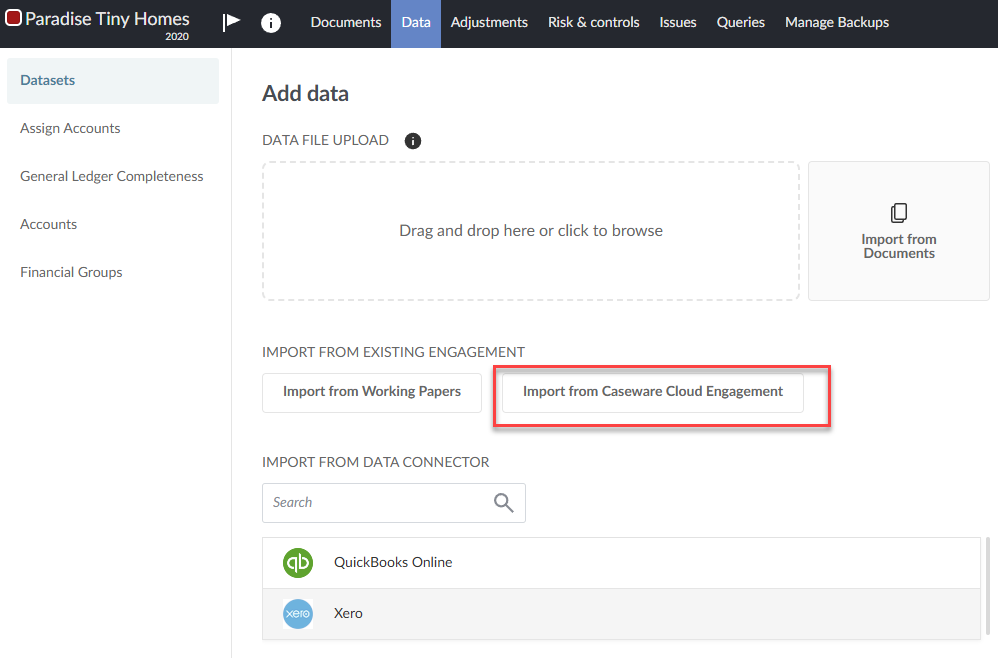
Open the destination engagement. Go to the Data page. The Data page opens to the Datasets tab.
-
Select the Import from Caseware Cloud Engagement option
-
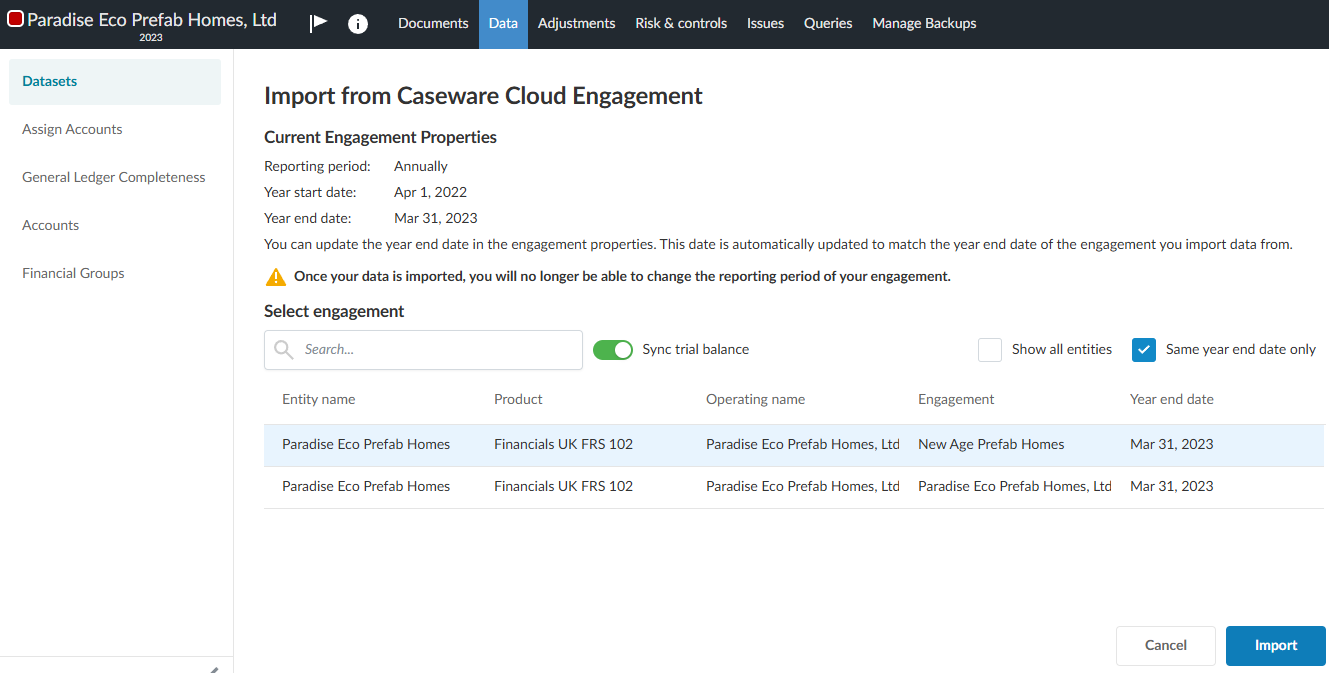
The Import from Caseware Cloud Engagement dialog appears.
-
The engagements you have access to are listed.
-
Select an engagement from the list or search for one in the Search box using values from any of the following engagement fields:
-
Entity name
-
Product
-
Operating name
-
Engagement
-
Year end date
-
Select the Sync trial balance toggle.
-
By default, the Same year end date only option is selected. Deselect it to see source engagements whose year end date is not the same as the current engagement.
- Select Import.
What happens at this point depends on whether the financial grouping structures between the two apps (source and destination) are the same or if different can be aligned through predefined logic:
Where the financial grouping structures are not the same, but predefined logic exists to align them
The following dialog appears:
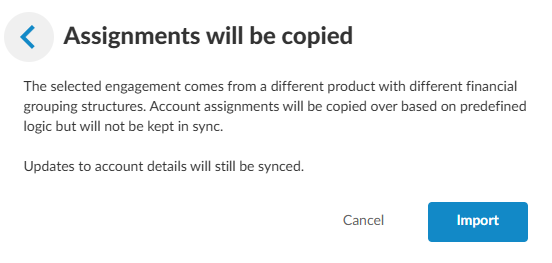
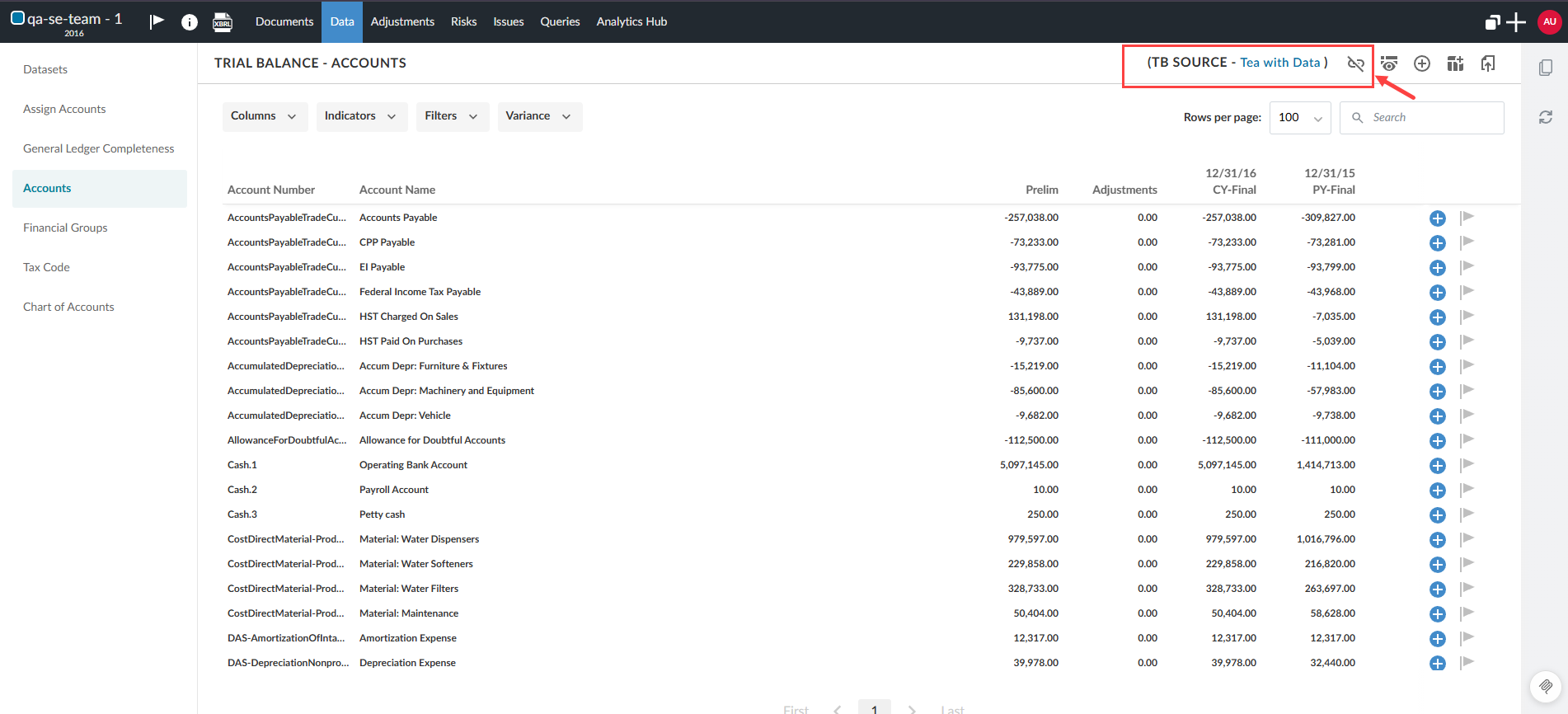
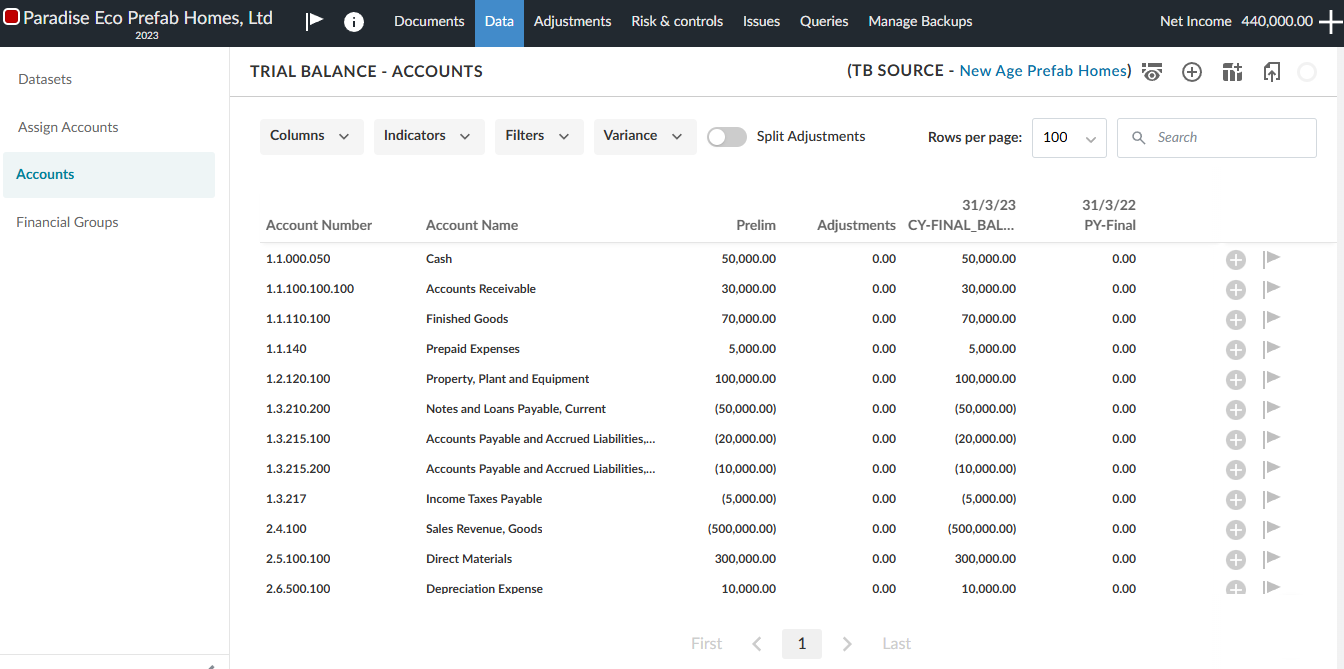
Select Import. The Accounts tab appears showing the trial balance. Notice the TB SOURCE indicator shows the source engagement from where the trial balance originates.
-
An initial sync aligns the financial grouping structures between the source and destination engagements. Subsequent syncs will only occur at the account level, not the financial grouping structure level.
-
Any subsequent changes to accounts in the source engagement will be synced to this destination engagement and will appear as unassigned on the Assign Accounts tab.
-
You can unassign and reassign accounts in the destination engagement, but these changes will not affect the source engagement.
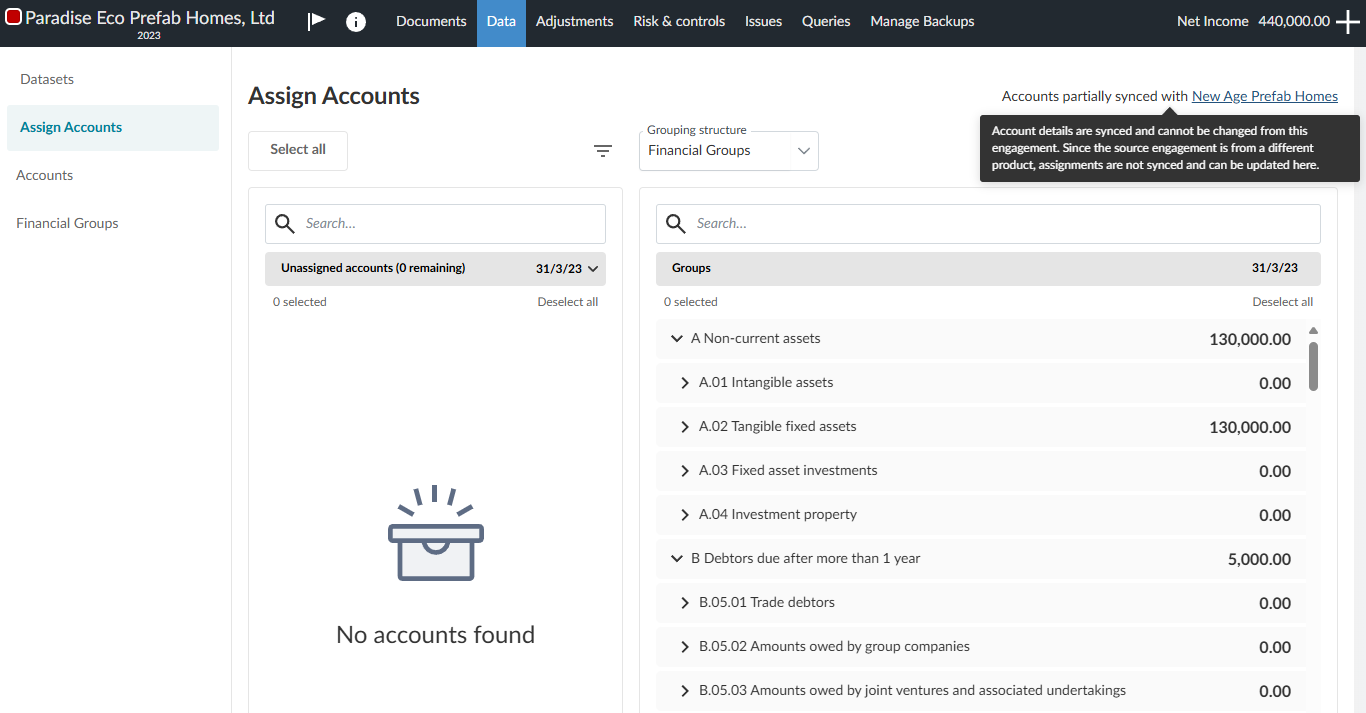
Select the Assign Accounts tab. Hover over the Accounts partially synced with field.
You cannot make any changes to account details in the destination engagement because the accounts in the source and destination engagements remain synced.
Where the financial grouping structures do not match, and no predefined logic exists to align them
The following dialog appears. Wherever possible accounts and their assignment to financial groups are copied to the destination engagement. Where financial groups and accounts cannot be matched, accounts appear as unassigned in the destination engagement. Any unassigned accounts will become locked, and you will not be able to assign them to financial groups. Any assigned accounts will not be reassignable.
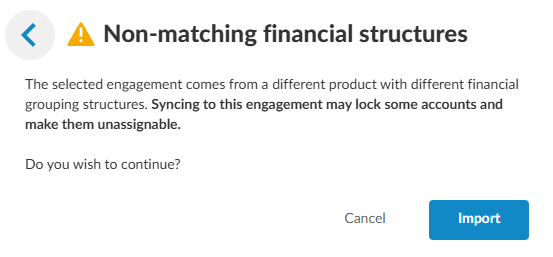
In this example we will select Import to see the effect.
The Accounts tab appears. Select the Assign Accounts tab to view the account assignments. You are unable to change the account assignments that have been locked. See the example below.
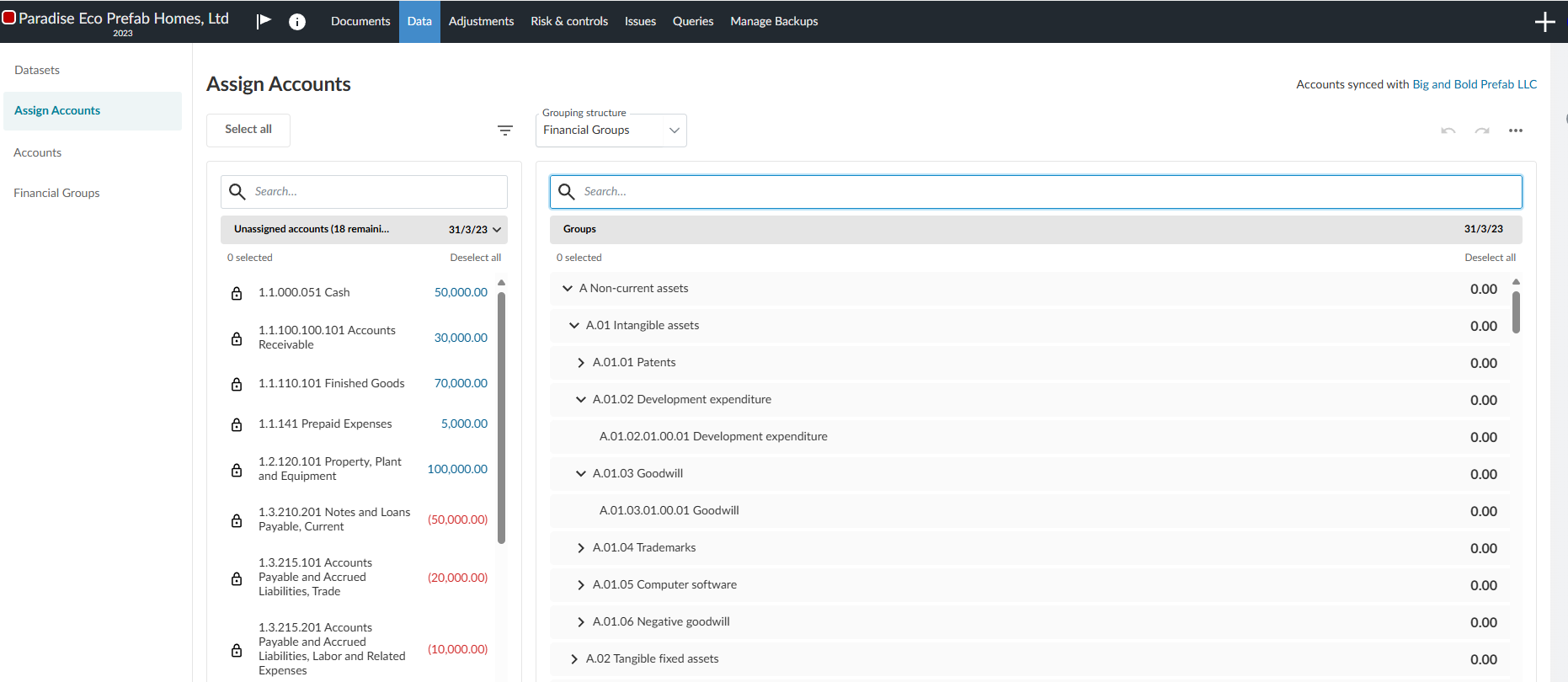
Where there is no predefined logic, but the financial grouping structures are the same
In the event there are unassigned accounts, you will not be able to assign or reassign accounts in the destination engagement.
Unlink synced trial balance data
You can remove the sync between a trial balance and an engagement. This allows you to stop syncing data from the trial balance when the link is no longer needed or was linked in error. A new Unlink button [ ] is now available at the top of your trial balance header. Selecting the option opens a confirmation dialog before proceeding.
Unlink the trial balance from the engagement: