
Set up bulk print
Note: These settings are only available to firm authors.
At Print | Bulk Print, you can configure bulk printing for some documents, where they are grouped in one PDF document.
To start, select the Information icon ( ) at the top menu, then choose Settings. The Product Settings dialog opens, where you can view and customize settings if needed.
To configure bulk print:
-
Create a document group.
-
Add documents to the group.
Select +ADD DOCUMENT GROUP and specify a name for the group.
Select +ADD DOCUMENT to choose the documents that you want to include in the group.
You can select and drag ( ) to reorganize documents in the group. You can also select (
 ) to remove documents from the group or (
 ) to delete the group itself.
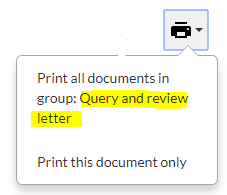
When the user attempts to print any of the documents in the group, a drop-down list displays at the print icon. The group name shows in the list as one of the print options.
Example:
Bulk print configured to include a query document and a letter. The group name Query and review letter displays in the print menu. If selected, the query document and the letter are combined into one PDF for printing.
Note: Your firm staff also have the option to set up bulk print in the engagement file. To learn more, see Manage the engagement documents.
