Extract a table
Use Table to pull structured data in rows and columns from a file into your worksheet for easier analysis.
-
On the ribbon, select Table.
-
In your worksheet, select the cell where you want to insert the upper-leftmost section of the extracted table.
-
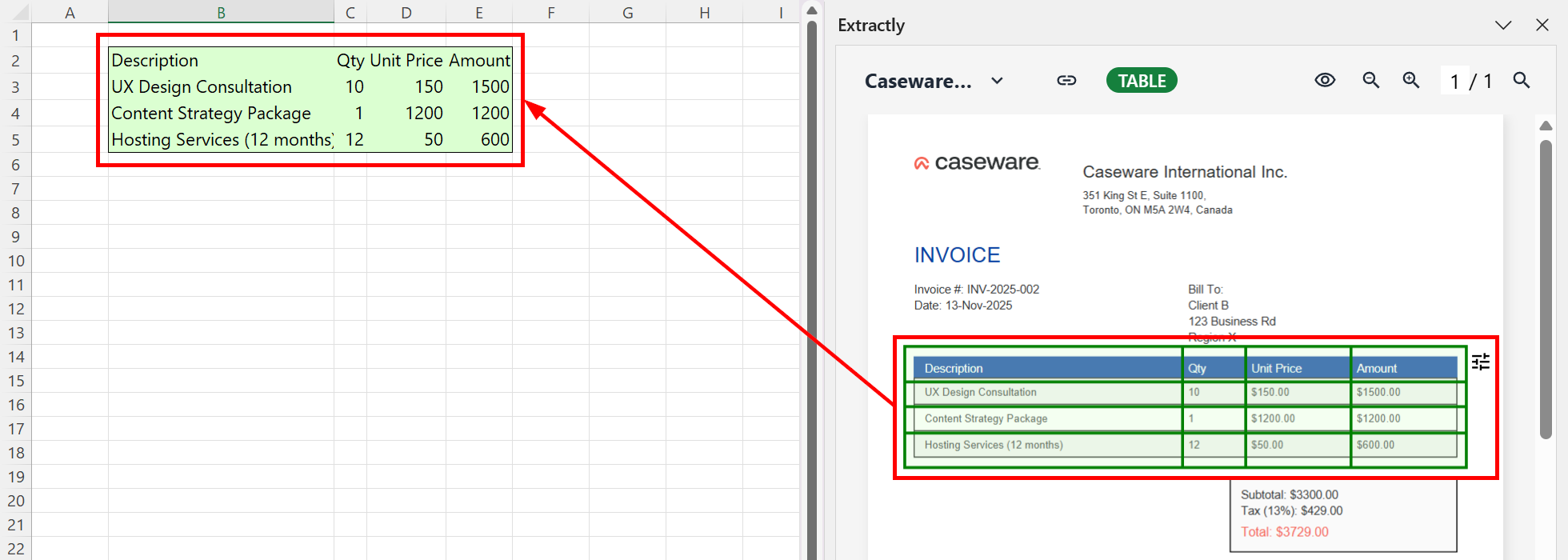
On the sidebar, draw a box around the table to extract.
-
The extracted table appears in the cells.
-
To edit the table, select Table settings (
 ) at the top-right of the extraction range. In these settings, you can:
-
Add or remove rows or columns.
-
Apply advanced formatting.
-
Delete the table.
-
Apply advanced table formatting
When working with more complex table structures, you may need to apply advanced formatting. Advanced formatting merges table rows based on criteria you define.
-
Select Table settings (
), then Advanced table formatting.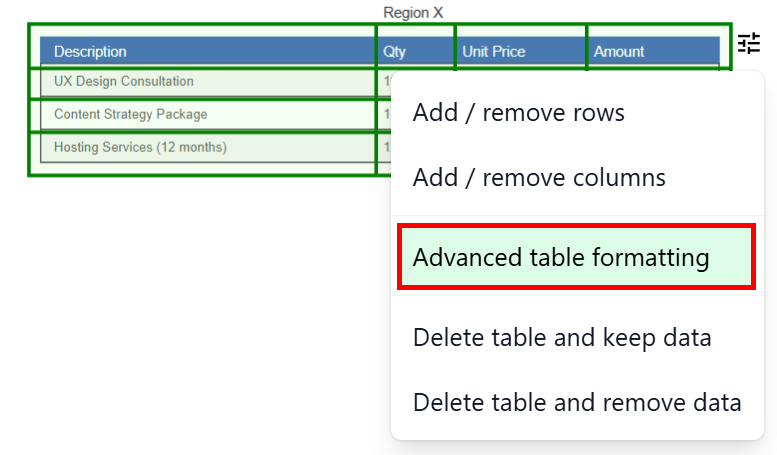
-
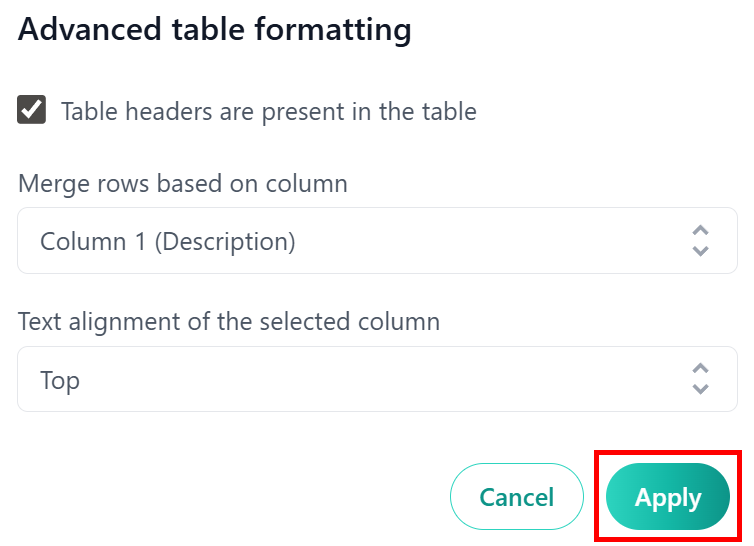
In the Advanced table formatting dialog, you can:
-
Specify whether table headers are present.
-
Specify whether to merge rows based on a column and select that column. Each unique value in this column creates one merged row in the formatted table.
-
Specify how the merged rows align text in relation to the column.
-
-
Select Apply to generate the formatted table.