Get started with Caseware Extractly - Staff
To get started, confirm whether you have Extractly. Open Excel and look for the Caseware Extractly ribbon. If Extractly is available, no action is needed. A firm administrator has already installed Extractly for you.

If an Extractly ribbon isn’t visible in Excel as in the example above, you may need to install it yourself. Follow your firm’s guidance or use the steps below to add Extractly from the Office Add-ins Store.
If you’re unsure, check with your firm administrator. Your firm administrator can preinstall the add-in for you. To learn more, refer to Install Extractly for your firm.
To install Extractly yourself:
-
Open Excel.
-
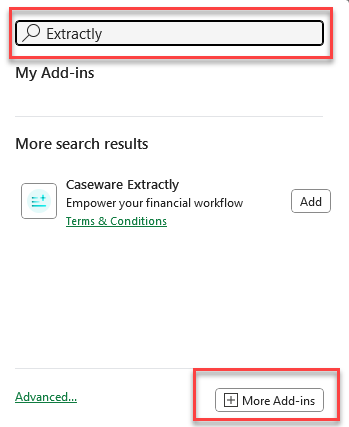
Go to Home | Add-ins.

-
Select More Add-ins.
-
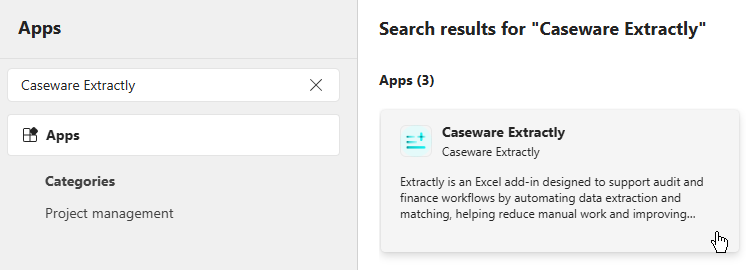
On the Apps window that appears, search for Caseware Extractly.
-
Select the Caseware Extractly tile.
-
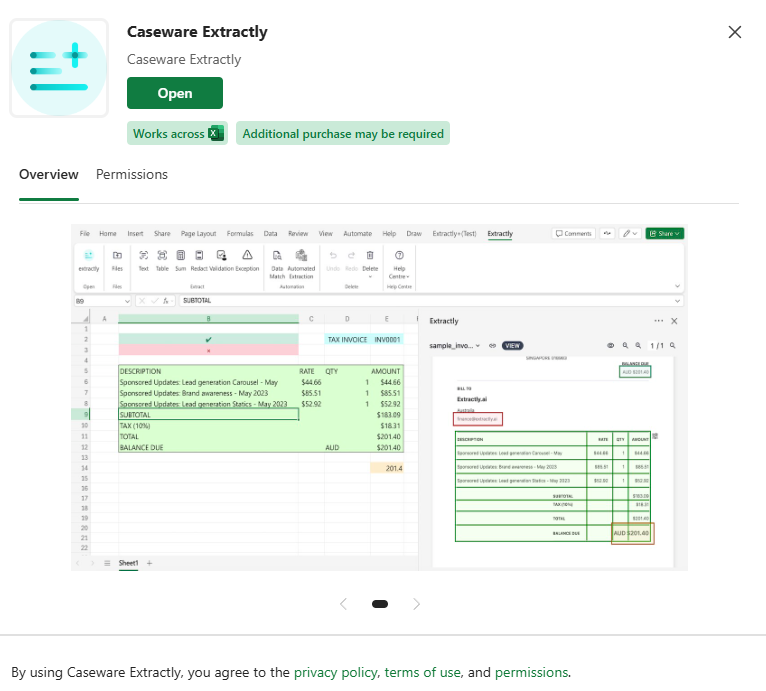
Select Open.
-
A Caseware Extractly ribbon is added to Excel.
Sign in with Microsoft single sign-on
You need a valid Extractly subscription and a Microsoft account to utilize the tool. If you haven’t already signed in to Excel, do so now.
-
Enter your email address in the Microsoft Sign in dialog and follow the prompts.
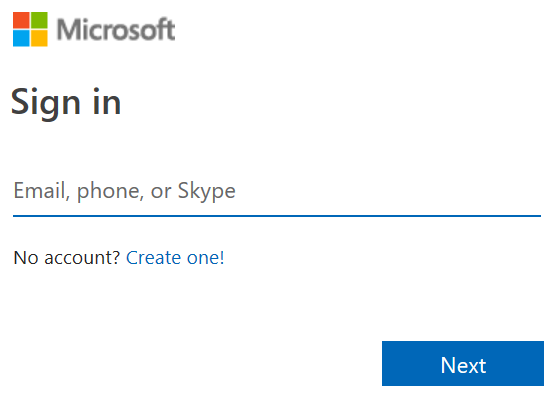
Note: If you don’t have a subscription, contact your IT administrator.
Launch Extractly
-
Open Excel.
-
On the ribbon, select Extractly | Open.
Note: If you don’t see Extractly in the ribbon, contact your IT administrator.
-
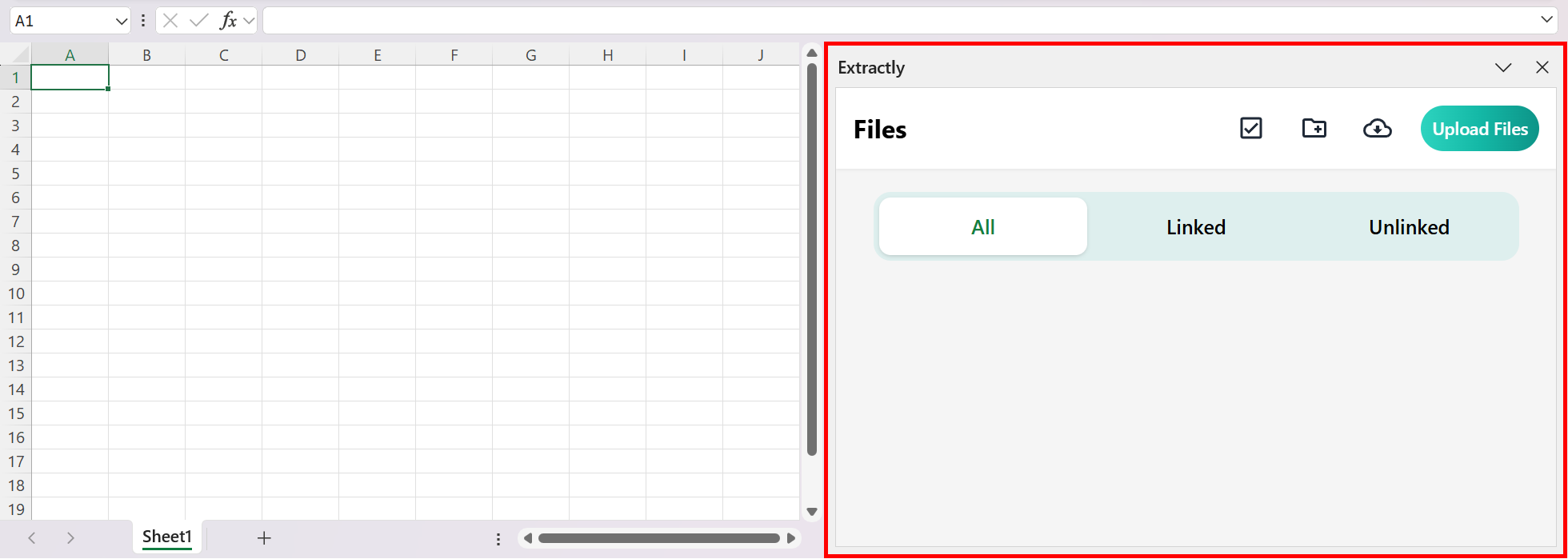
The Extractly sidebar opens, where you can start uploading and working with files.
Upload and access files
-
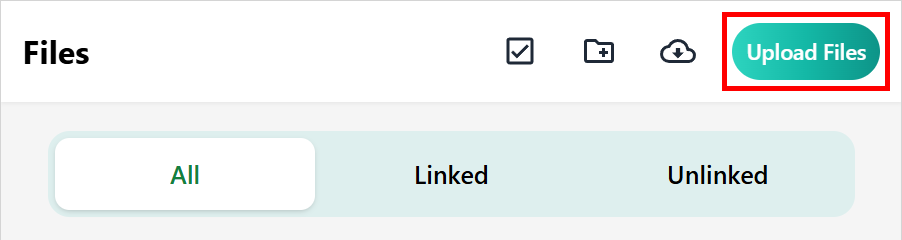
In the Extractly sidebar, select Upload Files.
-
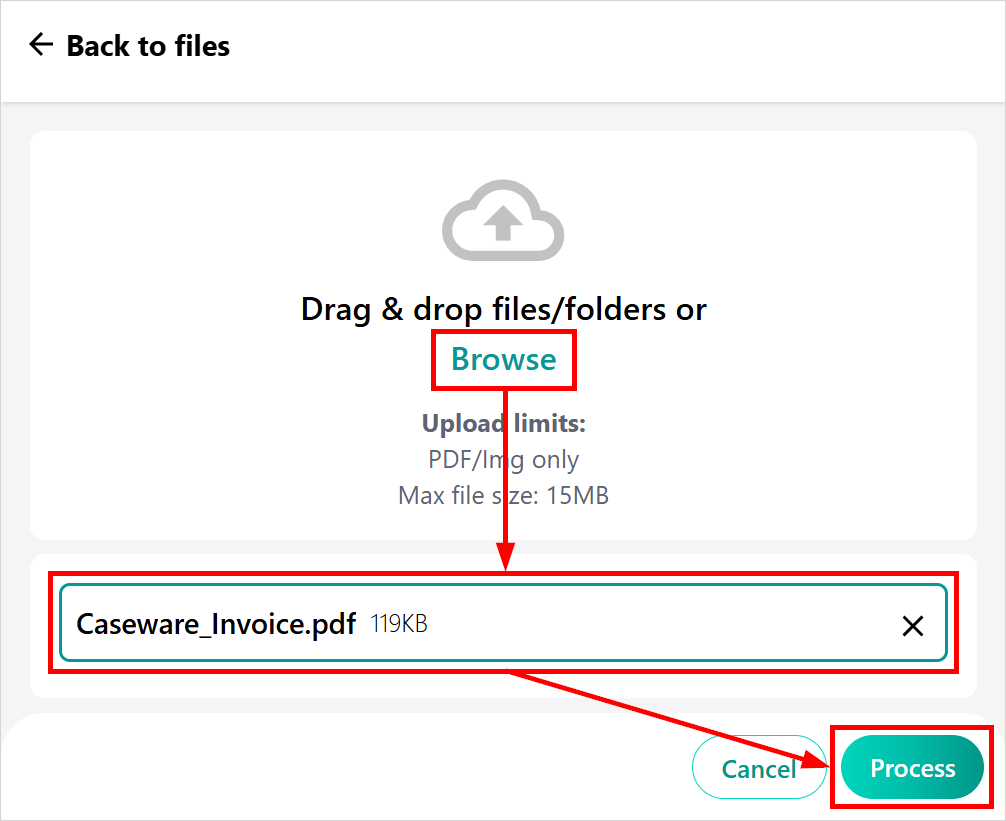
Drag and drop your files onto the sidebar or select Browse to upload them from your desktop. The maximum supported file size is 15 MB. A warning will appear if your file exceeds this limit.
Select Process to upload the file.
-
If you haven’t saved your Excel workbook, you’ll be prompted to do so. The file will then appear in the sidebar with a colored icon indicating its upload status.
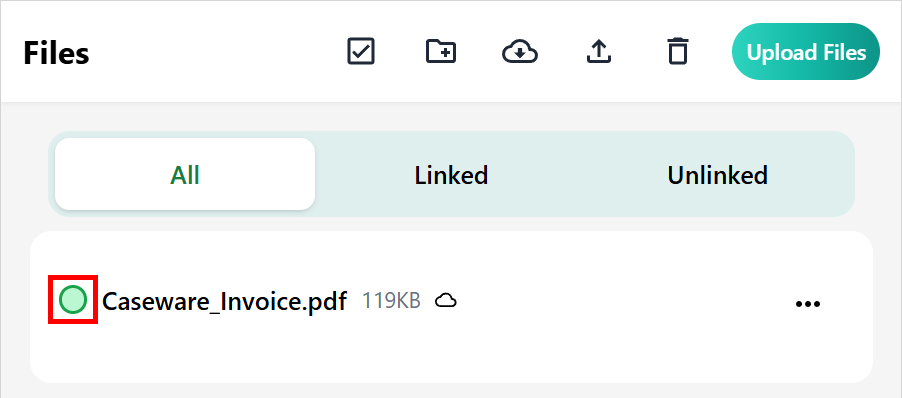
-
Select the file to view its contents in the sidebar.