
Import data from Xero
Xero is a supported online data import source in Caseware Cloud that allows you to seamlessly bring accounting data into Caseware Cloud engagements. Using this connector reduces manual data entry and supports consistent account mapping, grouping and financial reporting across engagements.
The Xero connector supports automated imports for:
-
Trial Balance data - A worksheet in which all ledgers are compiled into debit and credit columns in order to ensure a company's bookkeeping system is mathematically correct.
-
General Ledger data - Full transaction details for the selected reporting period.
To Import data from Xero:
-
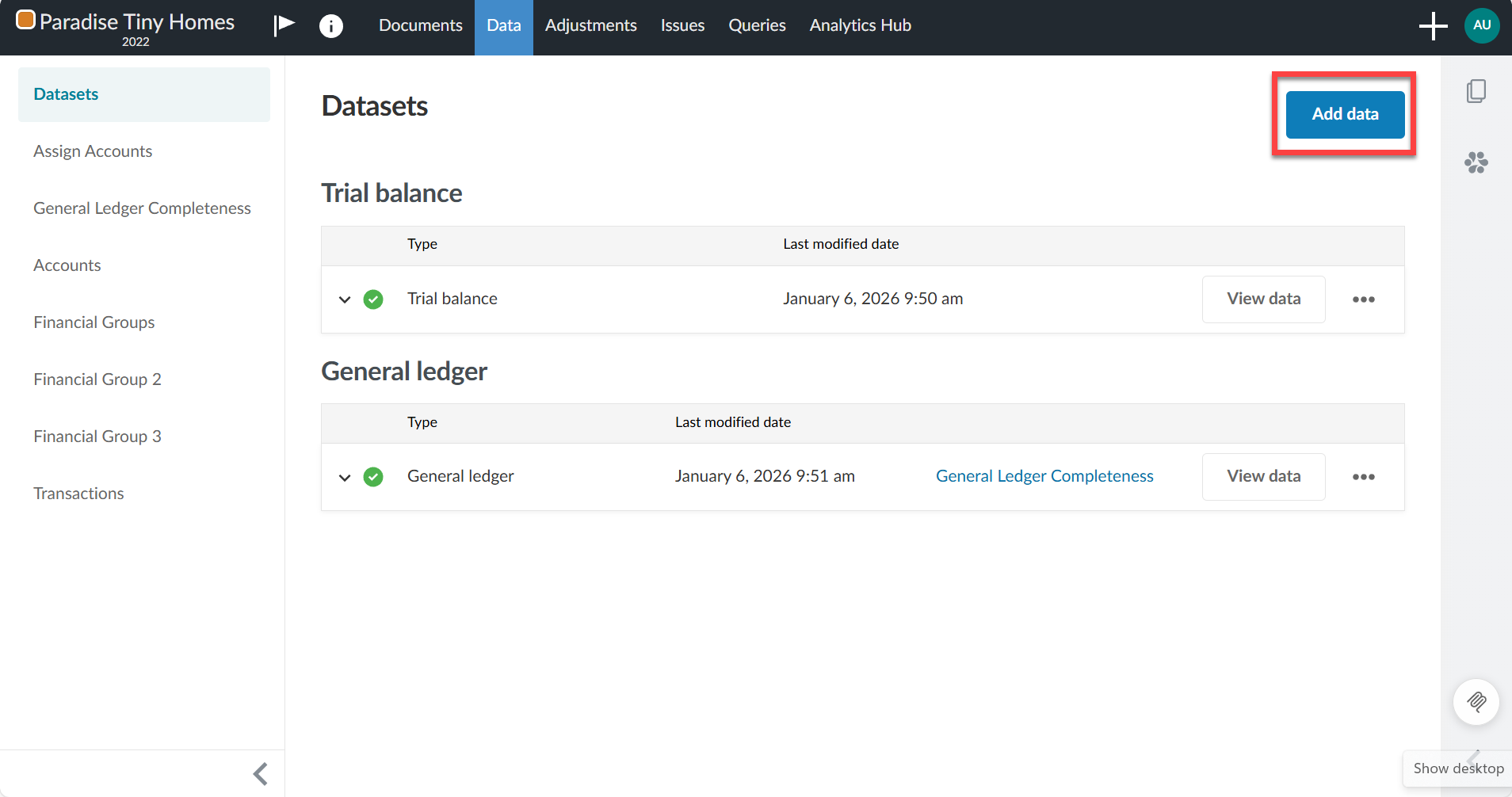
Navigate to the Data page and select the Datasets tab.
-
Select Add data.
-
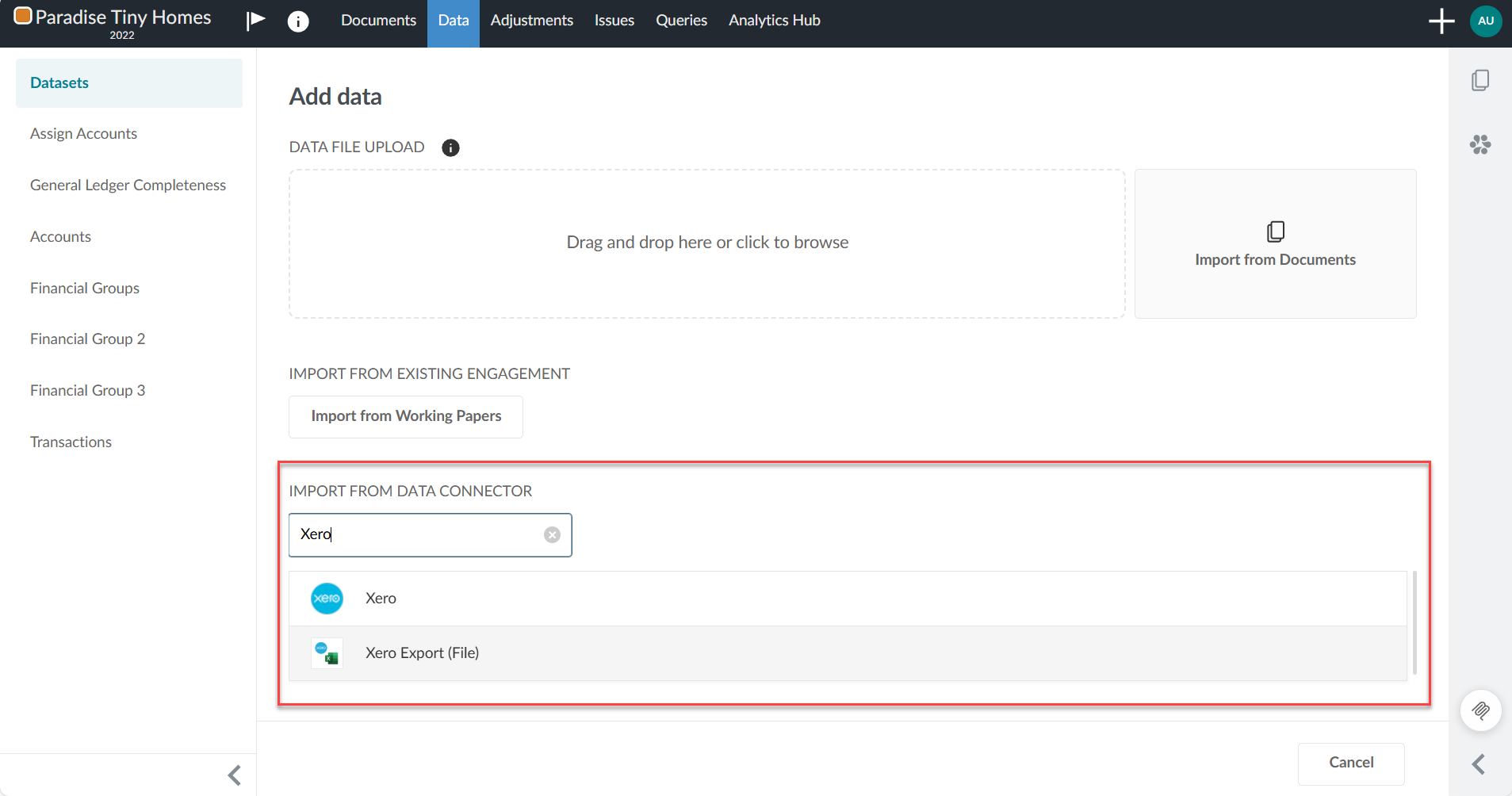
Under IMPORT FROM DATA CONNECTOR, select Xero from the list. If it is not visible, enter Xero into the Search box to find it.
-
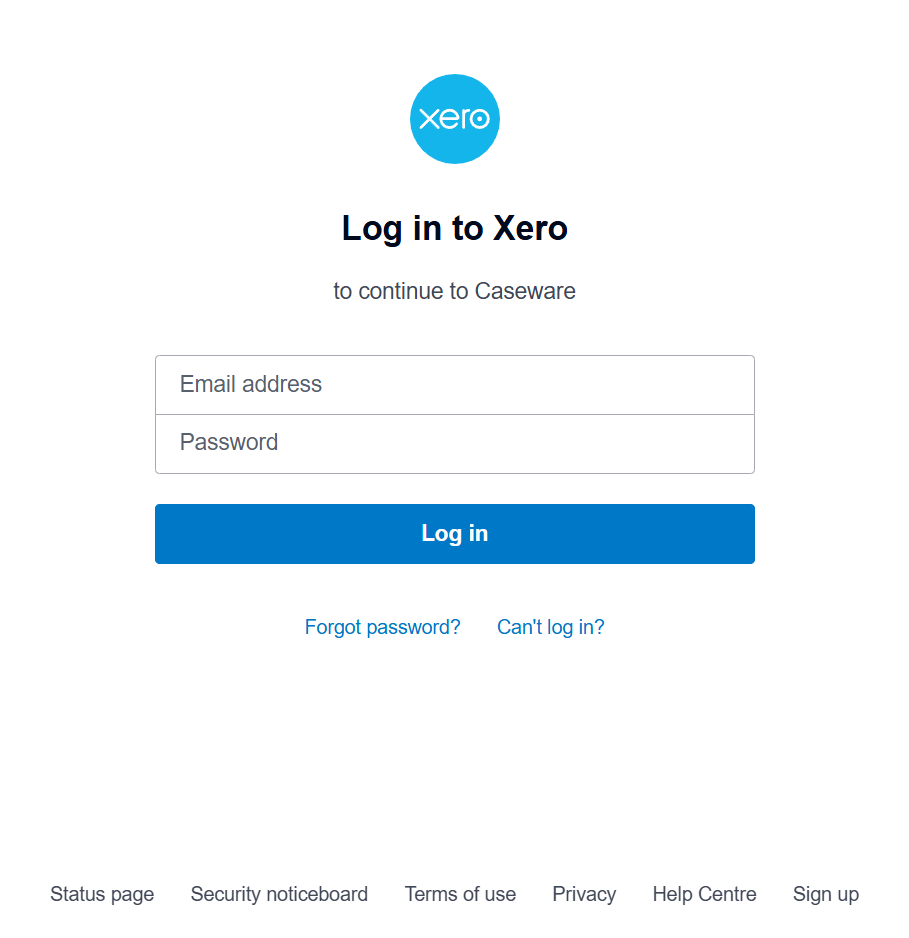
When prompted, sign into Xero using the OAuth log in page.
-
Grant the necessary permissions to allow access. The account you use to log in via OAuth for the data connector must also have the required permissions to import data.
-
In Select dataset type, choose the type of dataset you are importing. Xero supports the following datasets:
-
Trial balance
-
General ledger
These imported datasets follow standard Caseware forms and are compatible with automated
financial reporting, analytics and mapping workflows.
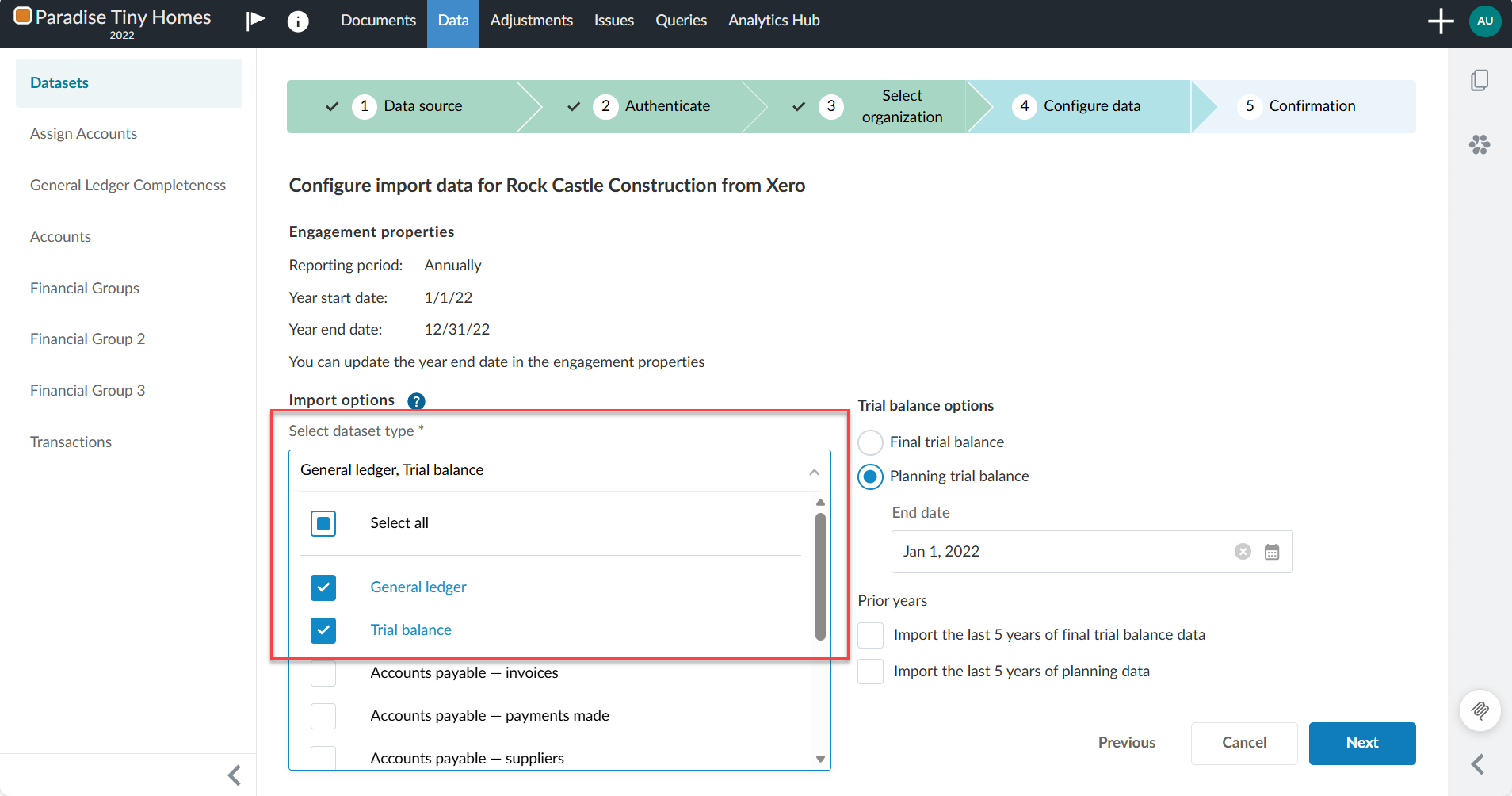
Ensure the End date is correct.
In Prior years, you have the option of importing data related to the last five years:
-
Select Import the last 5 years of final trial balance data to import final balances.
-
Select Import the last 5 years of planning trial balance data to import planning balances.
-
-
Select Next.
-
At the Confirmation stage, review the information and select Import.
Note:The import status displays on the Datasets tab while the data is loading. If you navigate away from the Datasets tab while the data is importing, the import will continue. When you return, you can view the status of the import.
Your import is now complete.
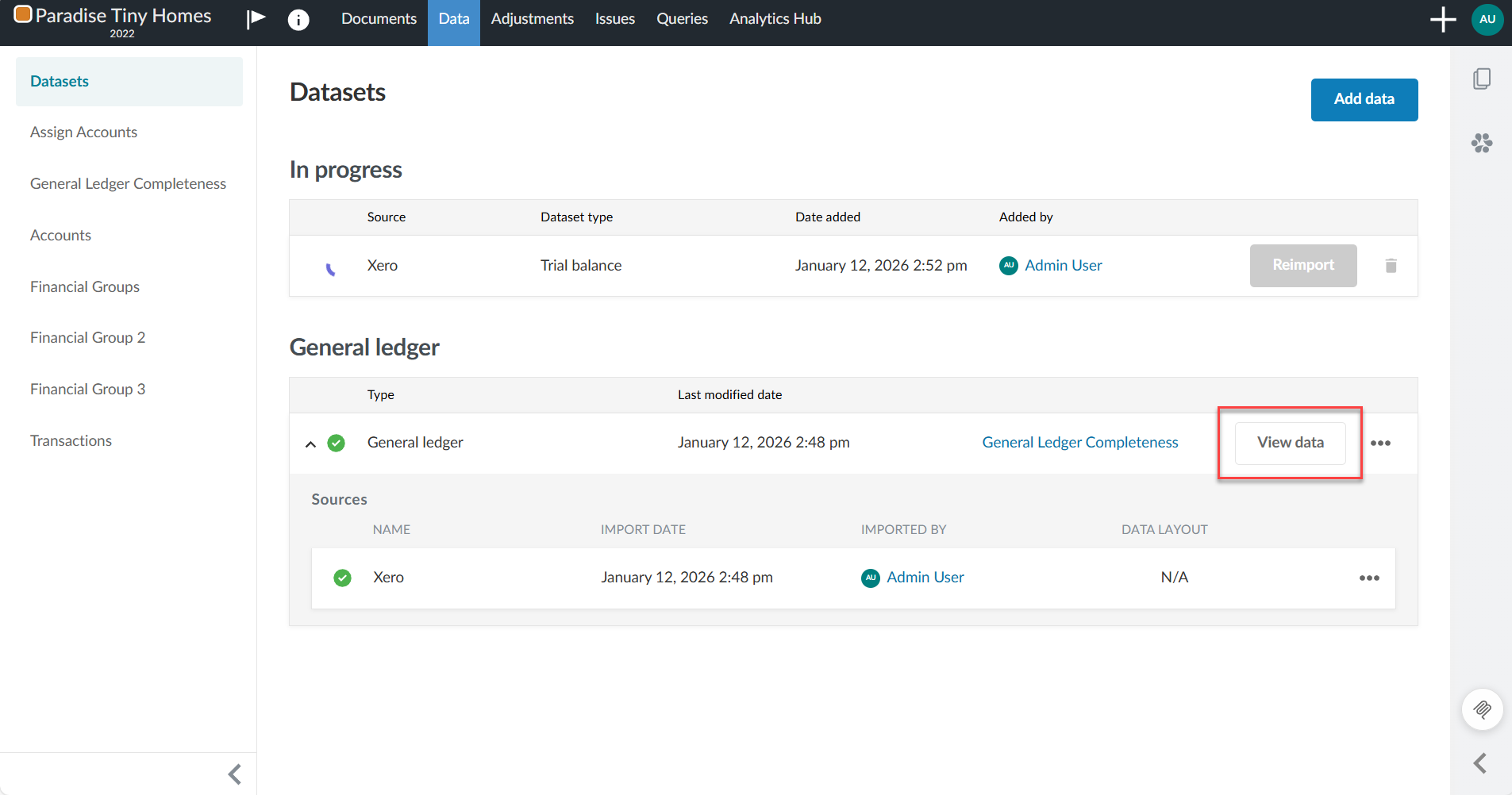
To view the imported data, click View data next to the dataset you imported. A new page appears displaying the data. By default, all the columns in your dataset display.
What data is mapped from Xero
When you import data from Xero into Caseware Cloud, specific account fields are mapped from Xero to the Caseware account model.
Xero to Caseware account model mapping
The following Xero fields are imported and used to populate account details in Caseware Cloud:
| Xero Field | Description |
|---|---|
| AccountID | Unique identifier in Xero |
| code | Account code |
| name / description | Account name or description |
| type | Xero account type (e.g., REVENUE, EXPENSE, ASSET) |
| bankAccountType | Used to determine bank-related classifications |
| _class | Xero’s high-level class (ASSET, LIABILITY, EQUITY, etc.) |
Account normalization behavior
During import, Caseware Cloud applies normalization rules to ensure all accounts have valid identifiers.
-
If an account ID is not provided, Caseware Cloud automatically generates a unique account ID (for example, XE00001, XE00002).
-
If an account code is not provided, Caseware Cloud generates a default account code based on the account ID (for example, XE-00001, XE-00002).
These generated values ensure accounts can be imported successfully and used in grouping, mapping, and reporting workflows.
Account classification behavior
When importing data from Xero, accounts are classified into financial statement types and assigned a sign based on their Xero classification, as follows:
| Xero ClassEnum | Statement Type | Sign Type |
|---|---|---|
| ASSET | balance_sheet | debit |
| LIABILITY | balance_sheet | credit |
| EQUITY | balance_sheet | credit |
| REVENUE | income_statement | credit |
| EXPENSE | income_statement | debit |
Xero AccountType mapping to Caseware Classification Code
When importing data from Xero, certain Xero account types are mapped to Caseware classification codes, as follows:
| Xero AccountType | Caseware Classification Code |
|---|---|
| CURRENT | asset.current |
| INVENTORY | asset.current.inventory |
| PREPAYMENT | asset.current.prepaid |
| FIXED | asset.fixed |
| NONCURRENT | asset.other |
| LIABILITY | liability |
| TERMLIAB | liability.long_term |
| CURRLIAB | liability.current |
| EQUITY | equity |
| REVENUE | revenue |
| SALES | revenue.primary.sales |
| OTHERINCOME | revenue.other |
| EXPENSE | expense |
| DEPRECIATN | expense.other.depreciation |
| DIRECTCOSTS | expense.cost_sales.direct |
| OVERHEADS | expense.cost_sales.overhead |
| BANK + BankAccountType=BANK | asset.bank |
| BANK + BankAccountType=CREDITCARD | liability.current.other |
Xero to Caseware account field mapping
When importing data from Xero, account information is mapped to the Caseware account model as follows:
| Caseware Field | Value from Xero | Notes |
|---|---|---|
| account_id | accountID or generated ID | Unique identifier |
| account_main_id | code or generated ID | Used for TB/GL imports |
| account_main_description | name / description | Primary label |
| metadata.accountTaggingInfo.description | same as name | Tagging metadata |
| metadata.accountTaggingInfo.classificationCode | derived using account type + bank type | Follows CWI taxonomy |
| metadata.accountTaggingInfo.statementType | derived from _class | BS or IS |
| metadata.accountTaggingInfo.signType | derived from _class | debit or credit |
Working with imported data
When you select Xero as a data source, the import wizard guides you through the import process, including:
-
Selecting the dataset type.
-
Confirming the year start and end dates.
-
Selecting prior-year import options, if applicable.
After the import is complete, the datasets appear on the Data | Datasets tab. You can then:
-
View Trial Balance and General Ledger data.
-
Assign financial groups.
-
Use the data in financials, analytics and collaboration workflows.
Reimport data
You can reimport data from Xero Online at any time. Caseware applies the standard reimport behavior.
When you reimport data:
-
Existing accounts are overwritten with the reimported data for accounts that already exist in the engagement.
-
New accounts in the reimported data are added to the engagement.
-
Accounts not included in the reimport data are removed unless they have prior-year balances, contain adjustments, or are linked to issues or annotations.
To learn more about reimport data, see Import data from online accounting software.
