
Import data from Dynamics 365 Business Central (File)
Dynamics 365 Business Central (File) is a supported file-based account data import source that allows you to seamlessly and securely bring exported client accounting data into Caseware Cloud engagements. This connector is intended for use in environments where direct API connectivity is not available and accounting data is provided through structured export files.
Dynamics 365 Business Central (File) supports file-based account data imports for:
-
Trial Balance data – A worksheet which all ledgers are compiled into debit and credit columns in order to ensure a company's bookkeeping system is mathematically correct.
-
General Ledger data – Full transaction details for the selected reporting period.
To import data from Dynamics 365 Business Central:
-
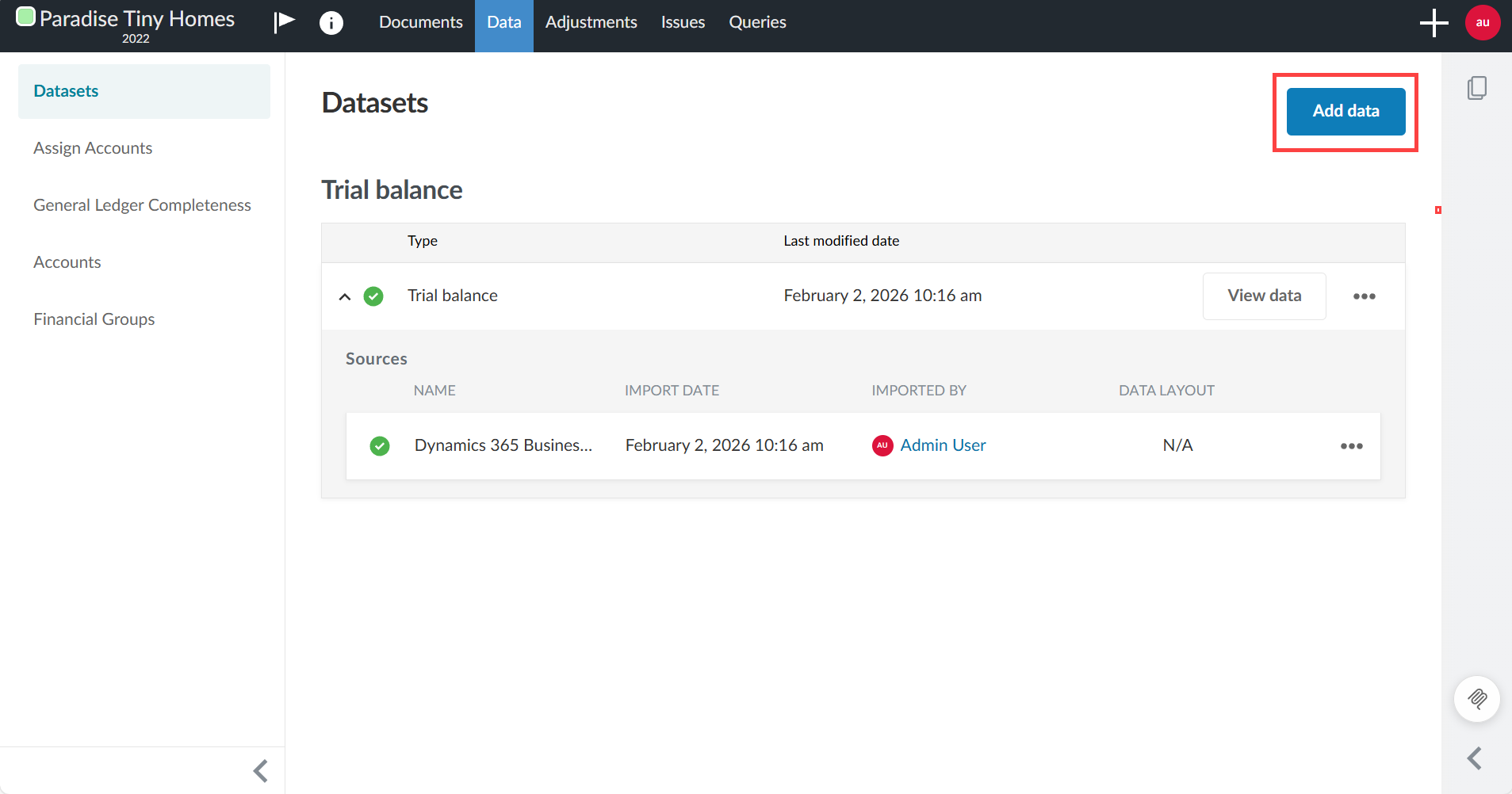
Navigate to the Data page and select Datasets.
-
Select Add data.
-
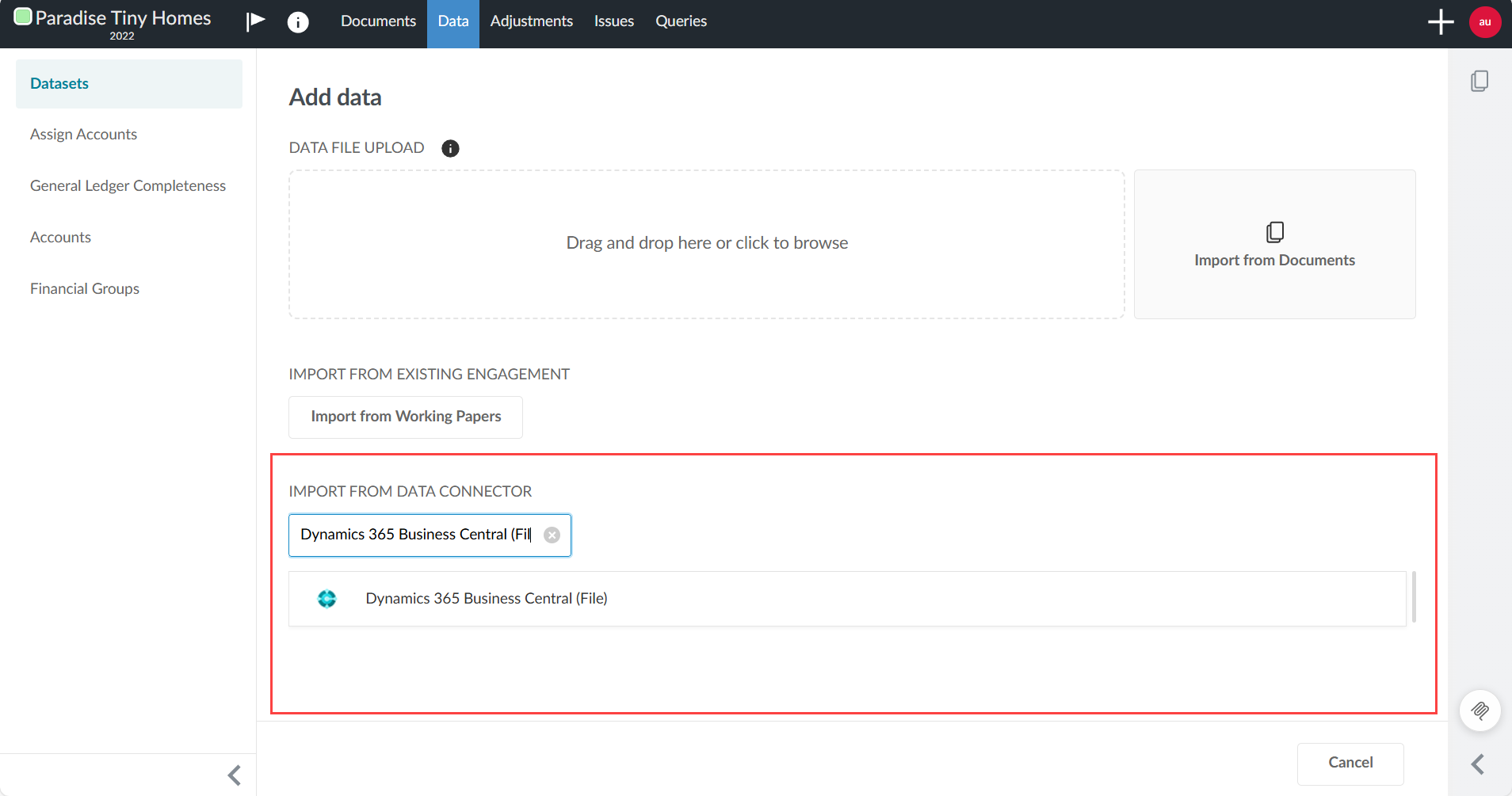
Under IMPORT FROM DATA CONNECTOR, select Dynamics 365 Business Central from the list. If it is not visible, enter Dynamics 365 Business Central into the Search box to find it.
-
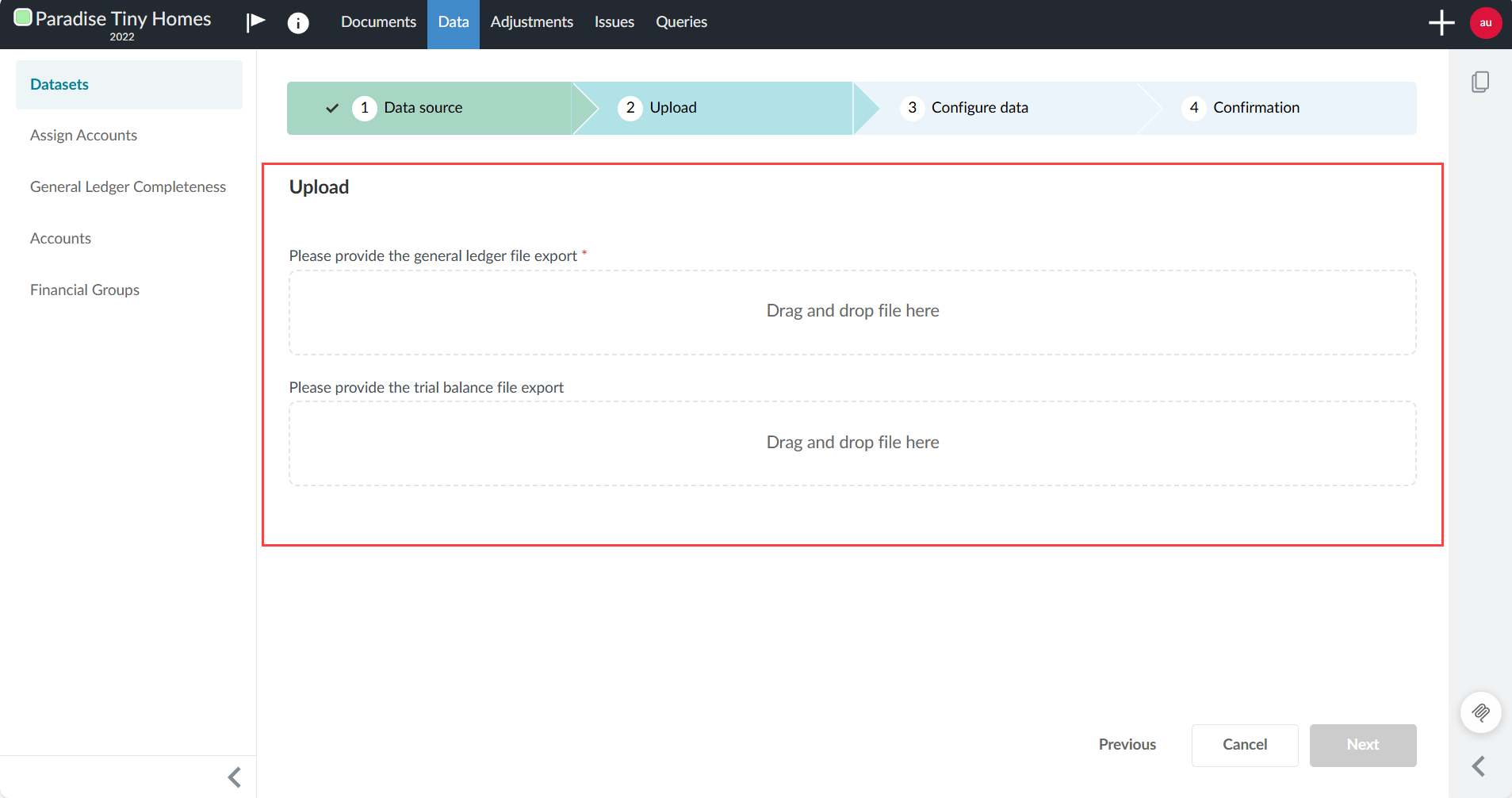
Upload the required export files from Dynamics 365 Business Central. Drag and drop the general ledger export and, if applicable, the trial balance export.
-
Select Next.
-
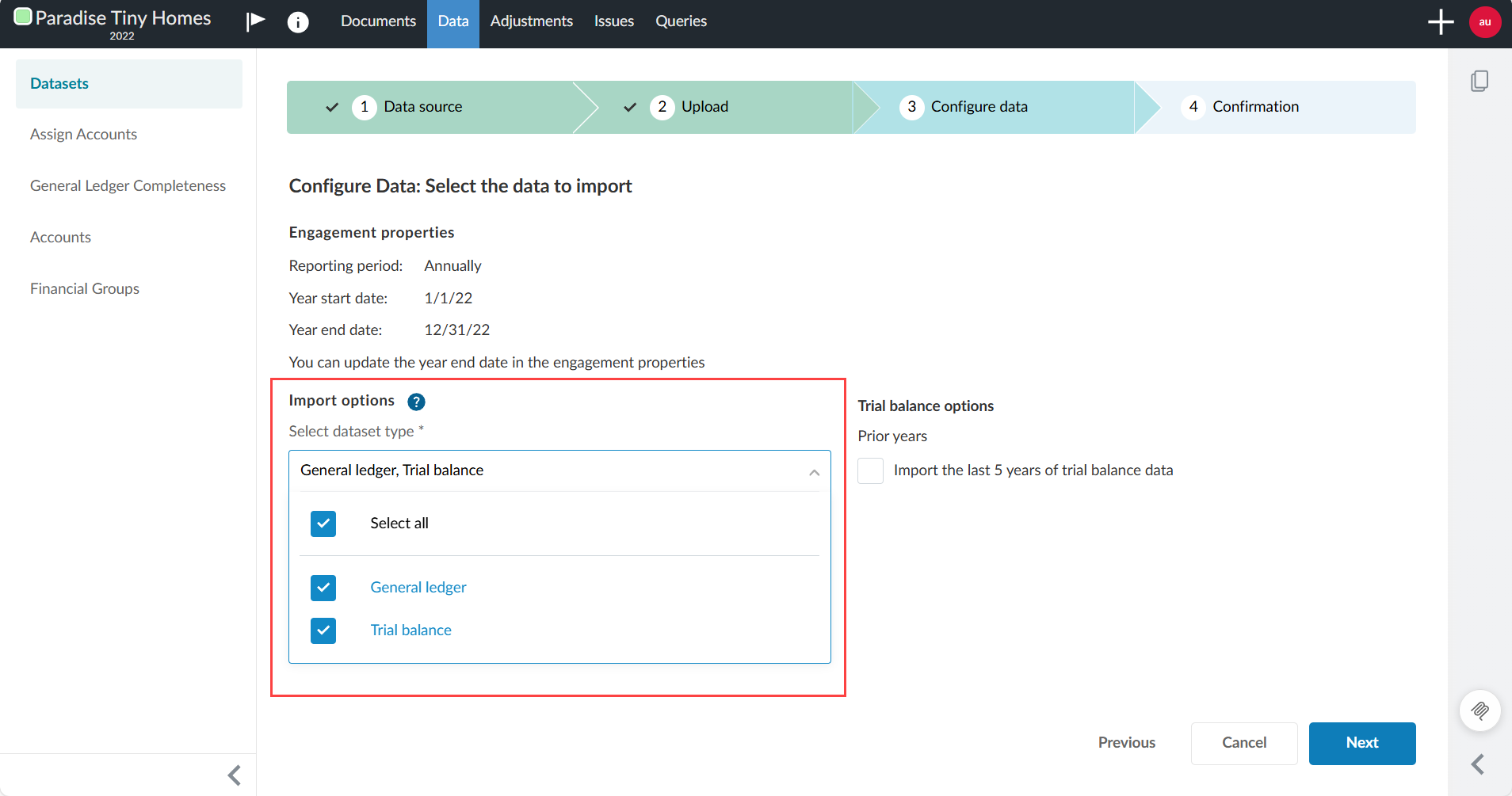
In Select dataset type, choose the type of dataset you are importing.
Dynamics 365 Business Central supports file-based account data for:
-
Trial balance
-
General ledger
These datasets follow standard Caseware formats and are compatible with automated financial reporting, analytics and mapping workflows.
In Prior years, you have the option to Import the last 5 years of trial balance data.
-
-
Select Next.
-
At the Confirmation stage, review the information and select Import.
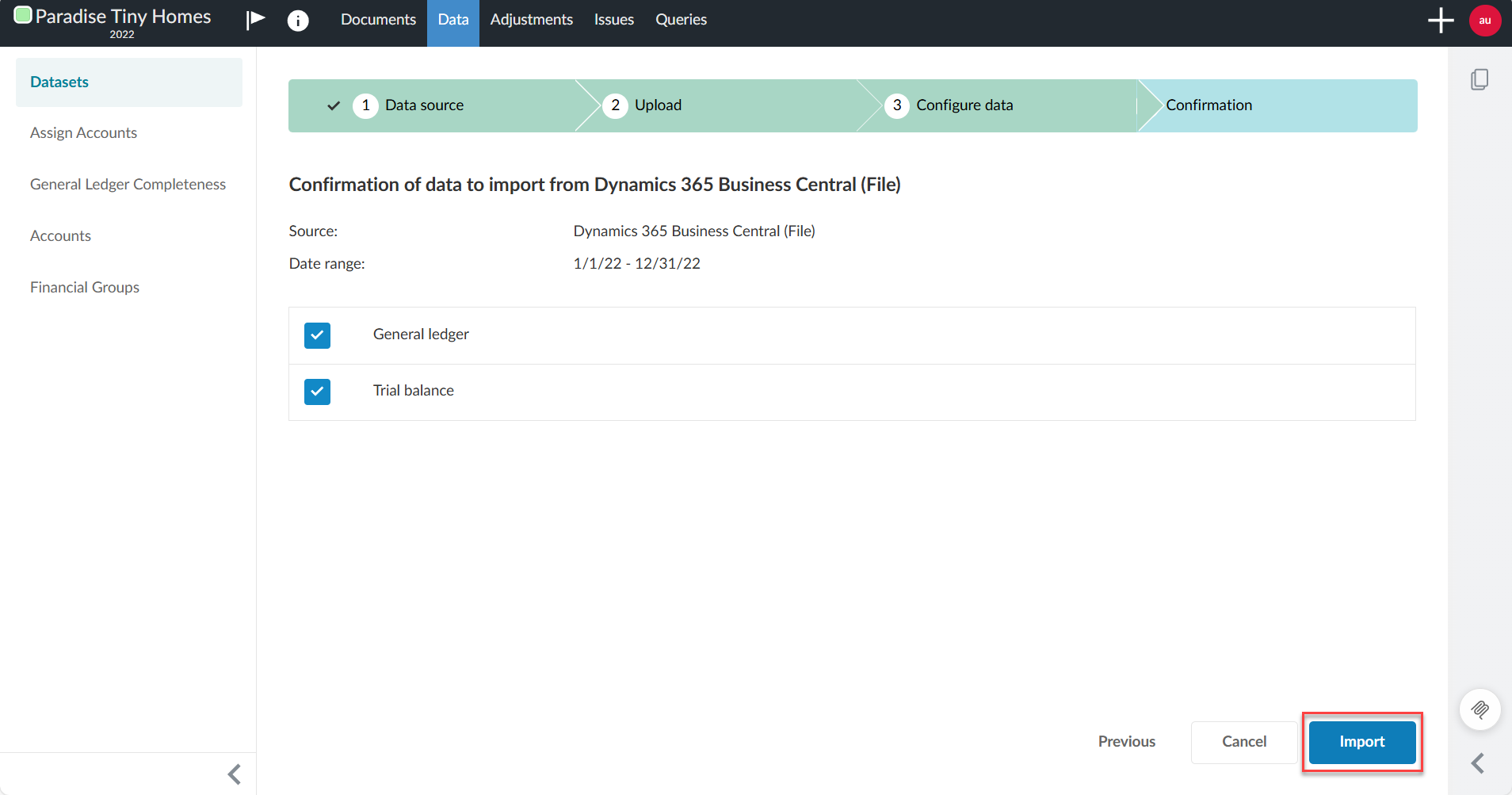
Note: The import status displays on the Datasets tab while the data is loading. If you navigate away from the Datasets tab while the data is importing, the import will continue. When you return, you can view the status of the import.
Your import is now complete.
To view the imported data, click View data next to the dataset you imported. A new page appears displaying the data. By default, all the columns in your dataset display.
Working with imported data
When you select Dynamics 365 Business Central (File) as an online input data source, the import wizard guides you through the import process, including:
-
Selecting the dataset type.
-
Organization selection.
-
Confirming the year start and end dates.
-
Selecting prior-year import options, if applicable.
After the import is complete, the datasets appear on the Data | Datasets tab. You can then:
-
View Trial balance and General ledger data.
-
Assign financial groups.
-
Use the data in financials, analytics and collaboration workflows.
Reimport data
You can reimport data from Dynamics 365 Business Central (File) at any time. Caseware applies the standard reimport behavior.
When you reimport data:
-
Existing accounts are overwritten with the reimported data for accounts that already exist in the engagement.
-
New accounts in the reimported data are added to the engagement.
-
Accounts not included in the reimport data are removed unless they have prior-year balances, contain adjustments, or are linked to issues or annotations.
To learn more about reimport data, see Import data from online accounting software.
