
New in Caseware Cloud Engagements 2026-03
Welcome to Cloud Engagements 2026-03! This update introduces additional lockdown options, enhanced carry forward features and more.
On this page, you can view the new features included in this release that apply to both authors and end users.
To learn more about the Caseware Cloud Engagements platform, refer to What is Caseware Cloud Engagements?
Add timestamp to draft watermark on PDF
#firmauthor #enduser
Note: If enabled, this feature applies to new and existing engagements.
You can now include a timestamp with the draft watermark when you print financial statements to PDF. You can clearly see when a draft set of financial statements was produced, which is especially useful if you generate multiple drafts in one day. The timestamp follows the regional settings while the date will now follow the short date format defined in the engagement’s Product Settings.
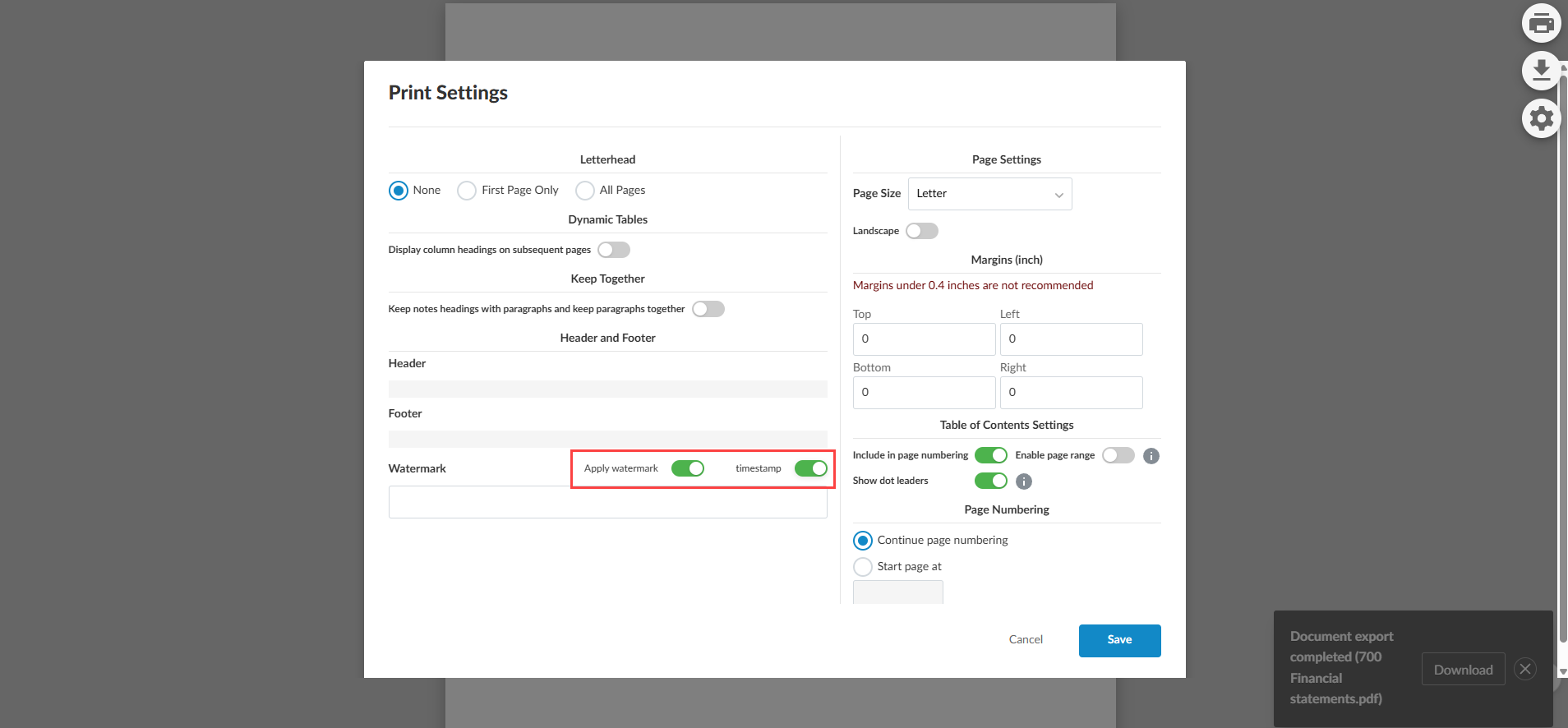
When you turn on Apply watermark for financial statements, a new timestamp toggle is available.
The timestamp appears consistently in:
-
Print preview
-
Download PDF (WMK)
-
Download as PDF/A (WMK)
Watermark settings, including the timestamp option, carry forward to future periods.
The feature behavior aligns with what firms are used to in desktop financials, easing transition and training.
The Apply watermark and timestamp toggle in Print Settings:
To learn more about print options for the financial statements, refer to Set up print options in the financial statements.
Carry forward includes issues flagged for consideration in the next year
#enduser
Note: If enabled, this feature applies to new and existing engagements.
When you carry forward issues, items raised in the prior-year risk assessment to be considered in the next year remain available in the current year. These items are flagged as Consideration for next year. This feature helps engagement teams maintain continuity across periods without manual entry.
Authors no longer need to add custom logic to preserve issues for risk assessment across years now that flagged issues carry forward automatically.
To learn more about carry forward features, refer to Carry forward an engagement.
Lockdown date aligns with product settings
#firmauthor #enterpriseauthor #enduser
Note: If enabled, this feature applies to new and existing engagements.
The automatic lockdown time for an engagement now aligns with the lockdown date set in the Product Settings and occurs at 11:59 p.m. on that day. The time is based on the time zone of the user who sets the date. The lockdown date is determined by the number of days configured in the Product Settings.
This change reduces confusion about when an engagement becomes read-only.
To learn more about lockdown options, refer to Lockdown the engagement.
Expanded date format options for date placeholders and data‑linked checklist dates
#firmauthor #enterpriseauthor #enduser
Note: If enabled, this feature applies to new and existing engagements.
You now have more date format options for date placeholders and data‑linked checklist dates.
Previously, date placeholders only supported the Long date type, and checklist Date responses inserted using Data Link (fx) always displayed in the Medium date type.
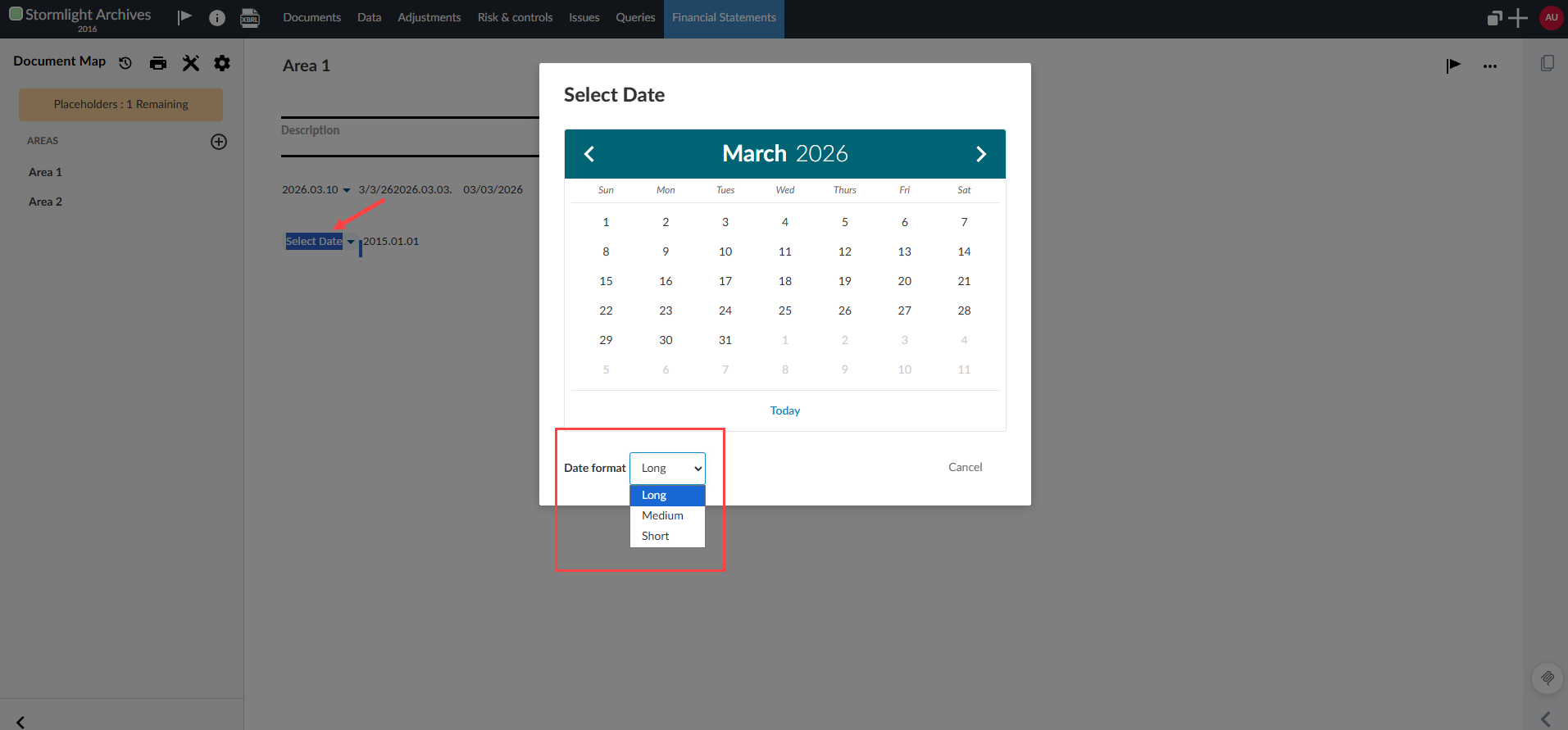
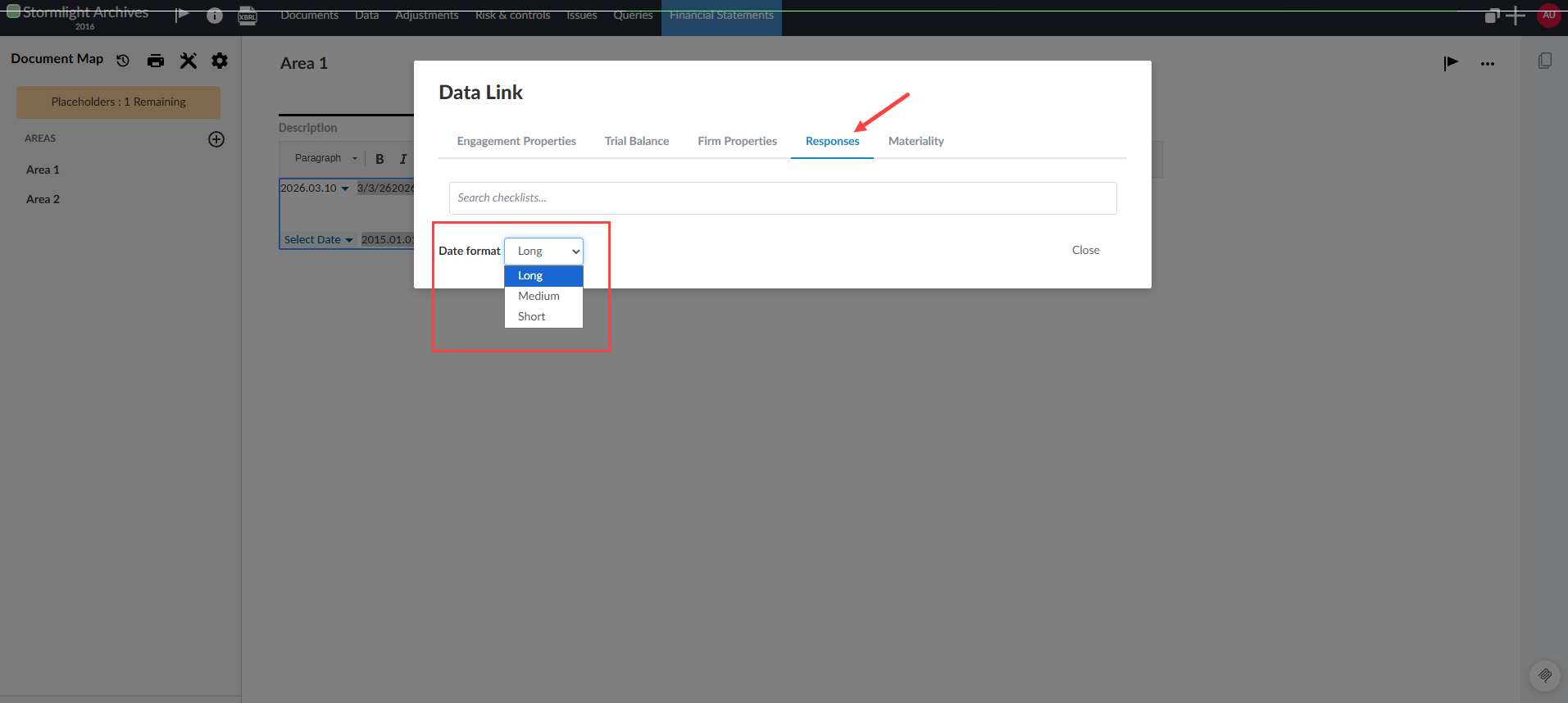
With this update, date placeholders and data-linked checklists responses include a date format selector (Long, Medium, Short). All date types render using the corresponding format defined in Product Settings | Dates.
This ensures consistent date formatting across templates, financial statements, letters, and other deliverables, while giving authors and engagement teams greater control over presentation.
-
Existing date placeholders remain Long unless you edit them and select a different date type.
-
Existing checklist data links remain Medium unless you remove and reinsert them with a different date type.
The date format selector from a date placeholder:
The date format selector from a data-linked checklist response:
To learn more about customizing the text in financial statements, refer to Customize text in the financial statements.
Control audit report date backdating
#firmauthor #enterpriseauthor #enduser
Note: If enabled, this feature applies to new engagements.
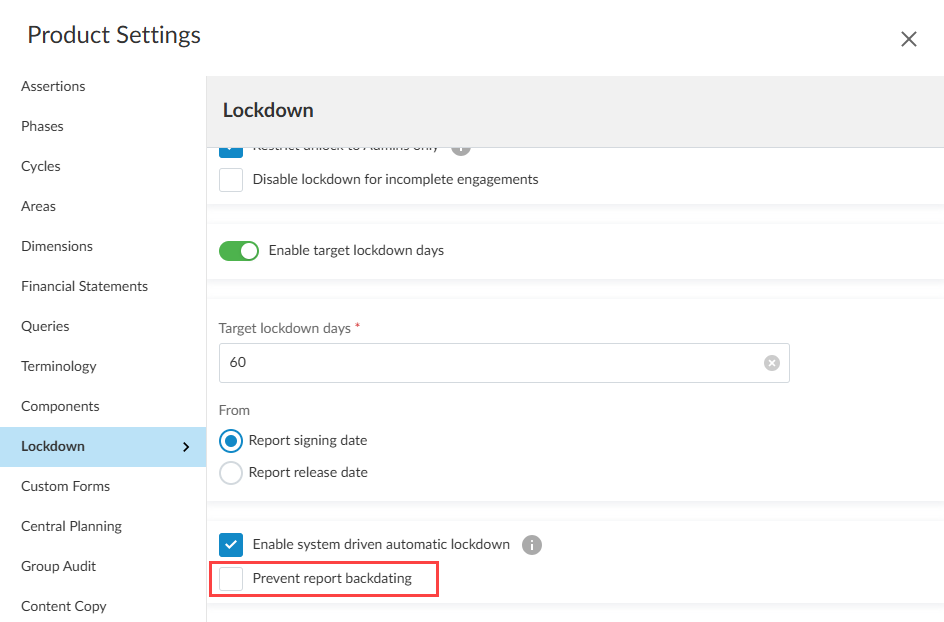
You can now control whether users are allowed to enter an audit report date that is earlier than the current date. A new product setting in Lockdown lets you enable or disable backdating validation so it matches your firm’s policies. This feature is disabled by default.
To learn more about locking down an engagement, refer to Lockdown the engagement.
Cloud Connector Excel files are included as static copies in reference downloads
#firmauthor #enterpriseauthor #enduser
Note: If enabled, this feature applies to new and existing engagements.
When you create a download reference copy (DRC) for an engagement, a static copy of related Cloud Connector Excel files will be included in the downloaded ZIP file. The copy replaces dynamic content from connector data links with static values. This feature creates an archived version of your Excel files and reduces the risk that the DRC contains Excel files with nonfunctional Cloud Connector formulas.
For more information about Cloud Connector, refer to Get Started with Cloud Connector.
New in Caseware Cloud Engagements 2026-03
Welcome to Cloud Engagements 2026-03! This update introduces additional lockdown options, enhanced carry forward features and more.
On this page, you can view the new features included in this release that apply to both authors and end users.
To learn more about the Caseware Cloud Engagements platform, refer to What is Caseware Cloud Engagements?
Add timestamp to draft watermark on PDF
#firmauthor #enduser
Note: If enabled, this feature applies to new and existing engagements.
You can now include a timestamp with the draft watermark when you print financial statements to PDF. You can clearly see when a draft set of financial statements was produced, which is especially useful if you generate multiple drafts in one day. The timestamp follows the regional settings while the date will now follow the short date format defined in the engagement’s Product Settings.
When you turn on Apply watermark for financial statements, a new timestamp toggle is available.
The timestamp appears consistently in:
-
Print preview
-
Download PDF (WMK)
-
Download as PDF/A (WMK)
Watermark settings, including the timestamp option, carry forward to future periods.
The feature behavior aligns with what firms are used to in desktop financials, easing transition and training.
The Apply watermark and timestamp toggle in Print Settings:
To learn more about print options for the financial statements, refer to Set up print options in the financial statements.
Carry forward includes issues flagged for consideration in the next year
#enduser
Note: If enabled, this feature applies to new and existing engagements.
When you carry forward issues, items raised in the prior-year risk assessment to be considered in the next year remain available in the current year. These items are flagged as Consideration for next year. This feature helps engagement teams maintain continuity across periods without manual entry.
Authors no longer need to add custom logic to preserve issues for risk assessment across years now that flagged issues carry forward automatically.
To learn more about carry forward features, refer to Carry forward an engagement.
Lockdown date aligns with product settings
#firmauthor #enterpriseauthor #enduser
Note: If enabled, this feature applies to new and existing engagements.
The automatic lockdown time for an engagement now aligns with the lockdown date set in the Product Settings and occurs at 11:59 p.m. on that day. The time is based on the time zone of the user who sets the date. The lockdown date is determined by the number of days configured in the Product Settings.
This change reduces confusion about when an engagement becomes read-only.
To learn more about lockdown options, refer to Lockdown the engagement.
Expanded date format options for date placeholders and data‑linked checklist dates
#firmauthor #enterpriseauthor #enduser
Note: If enabled, this feature applies to new and existing engagements.
You now have more date format options for date placeholders and data‑linked checklist dates.
Previously, date placeholders only supported the Long date type, and checklist Date responses inserted using Data Link (fx) always displayed in the Medium date type.
With this update, date placeholders and data-linked checklists responses include a date format selector (Long, Medium, Short). All date types render using the corresponding format defined in Product Settings | Dates.
This ensures consistent date formatting across templates, financial statements, letters, and other deliverables, while giving authors and engagement teams greater control over presentation.
-
Existing date placeholders remain Long unless you edit them and select a different date type.
-
Existing checklist data links remain Medium unless you remove and reinsert them with a different date type.
The date format selector from a date placeholder:
The date format selector from a data-linked checklist response:
To learn more about customizing the text in financial statements, refer to Customize text in the financial statements.
Control audit report date backdating
#firmauthor #enterpriseauthor #enduser
Note: If enabled, this feature applies to new engagements.
You can now control whether users are allowed to enter an audit report date that is earlier than the current date. A new product setting in Lockdown lets you enable or disable backdating validation so it matches your firm’s policies. This feature is disabled by default.
To learn more about locking down an engagement, refer to Lockdown the engagement.
Cloud Connector Excel files are included as static copies in reference downloads
#firmauthor #enterpriseauthor #enduser
Note: If enabled, this feature applies to new and existing engagements.
When you create a download reference copy (DRC) for an engagement, a static copy of related Cloud Connector Excel files will be included in the downloaded ZIP file. The copy replaces dynamic content from connector data links with static values. This feature creates an archived version of your Excel files and reduces the risk that the DRC contains Excel files with nonfunctional Cloud Connector formulas.
For more information about Cloud Connector, refer to Get Started with Cloud Connector.
