
Troubleshooting for Cloud Connector
This section outlines possible solutions for common issues users may encounter while using Caseware Cloud Connector.
Cloud Connector pane is blank
There are several reasons why the contents of the Cloud Connector pane may not display:
-
Page loading time
You may occasionally need to wait longer than usual for the page to load.
-
When new updates are released for Cloud Connector, the add-in does not always immediately update. Complete the following steps to resolve the issue:
-
From the Home toolbar of your Excel document, select Add-ins | More Add-ins | My Add-ins.
-
In the dialog, select Refresh.
-
Close and reopen Excel.
-
-
A known Excel bug that prevents the pane from loading
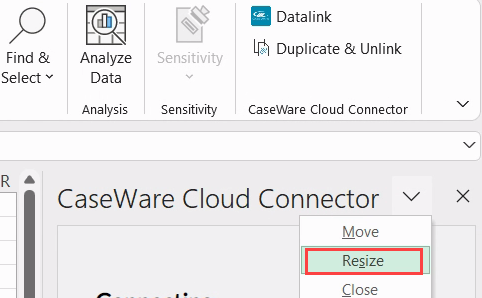
If the pane still does not load, select the Cloud Connector drop-down and select Resize.
-
A runtime error that prevents the pane from loading
If the previous troubleshooting tips don’t resolve the issue, complete the following steps before contacting our support team.
- Right-click on the pane and select Inspect. The developer tools window opens.
- Select the Console tab at the top of the window.
- Take a screenshot of the Console tab contents and send it to our support team to help identify and resolve the issue.
Invalid firm message
If you receive an invalid firm message, you may have the wrong version of the Caseware Cloud Connector add-in installed.
To confirm which version of the add-in is installed:
-
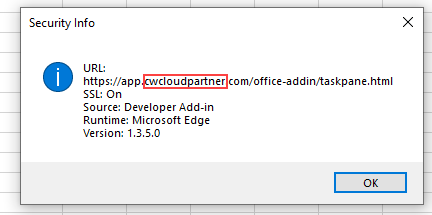
Select the drop-down at the top of the Cloud Connector pane and select Security Info.
-
If the URL contains “cwcloudpartner”, you have the incorrect version installed.
To uninstall the add-in:
-
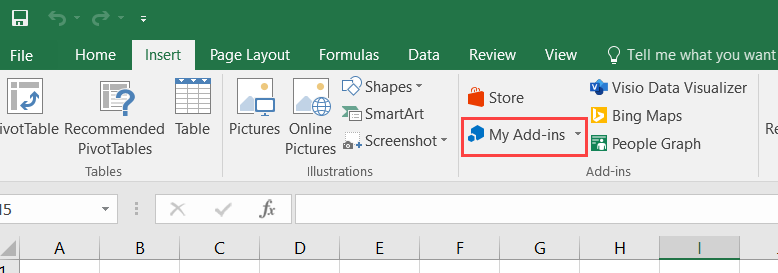
On the Excel ribbon, select My Add-ins from the Insert tab.
-
Select Caseware Cloud Connector, then Remove.
To re-install the add-in, see Get started with Caseware Cloud Connector.
Multiple versions of Cloud Connector installed
If you have multiple versions of Caseware Cloud Connector installed, Cloud Connector will not work as expected.
To confirm how many versions of Cloud Connector you have installed, select My Add-ins from the Insert tab.
If you have multiple Cloud Connector add-ins installed, uninstall the add-ins.
To uninstall the add-in:
-
Select My Add-ins from the Insert tab.
-
Select Caseware Cloud Connector, then Remove.
After you uninstall the add-ins, copy your sheets to a new Excel workbook and reupload it to your engagement file to replace the old file. You can then re-install the correct version of Cloud Connector. For more information, see Get started with Caseware Cloud Connector.
Invalid firm ID message
In some environments, users may receive an Invalid Firm ID error or login-related error when opening Cloud Connector. This has been observed primarily with SSO-enabled firms and may occur when the user:
-
Opens an engagement file,
-
Works in Excel for several minutes,
-
Then opens the Cloud Connector pane
To troubleshoot this error:
-
Close the engagement file.
-
Reopen the file your engagement in Caseware Cloud.
-
Open Cloud Connector immediately after the file opens (within approximately one minute).
If opened promptly, Cloud Connector should authenticate automatically and bypass the login error.
Additional troubleshooting steps:
If the issue persists, try one of the following:
-
Clear browser cookies, specifically in Microsoft Edge:
-
Select Settings | Privacy, search, and services | Clear browsing data
-
Check Cookies and other site data
-
Select Clear now
-
-
Collect console logs from the Cloud Connector panel to share with Caseware for further investigation:
-
Right-click inside the Cloud Connector panel
-
Select Inspect
-
Select the Console tab
-
Reproduce the issue to generate logs
-
Copy or save the console output as needed.
-
-
See General troubleshooting for more options.
Note: This issue may appear intermittently and may resolve without a permanent change.
General troubleshooting
For general issues that are not covered in the previous sections, try clearing your cache and re-installing the add-in.
To uninstall the add-in:
-
Clear your Excel cache. For more information, see Clear the Office cache.
-
On the Excel ribbon, select My Add-ins from the Insert tab.
-
Select Caseware Cloud Connector, then Remove.
-
Re-install the latest version of Cloud Connector. For more information, see Get started with Caseware Cloud Connector.
