
Manage the firm template
A new engagement is created based on a template. Templates are created and managed by authors.
Firm authors are staff members with the Settings Admin role or similar which allows them to customize the default product content to meet specific firm needs. For example, add the firm logo. To learn more about roles, see Built-in roles and Assign security roles.
Firm customizations include adding content and modifying or suppressing the default content.
Concepts and workflow
Before you begin, review the concepts and workflow of template management.
-
Product template - the template that contains the default content for your product.
-
Draft - the template you're currently customizing for your firm (the work in progress template).
-
Archived template - an archived template is automatically created when a draft is published. To maintain a record of all previously used templates, archived templates cannot be deleted.
-
Firm template - the most recently published template (the template that's currently used by your firm to create engagements).
The following figure shows the general workflow for managing the firm template.
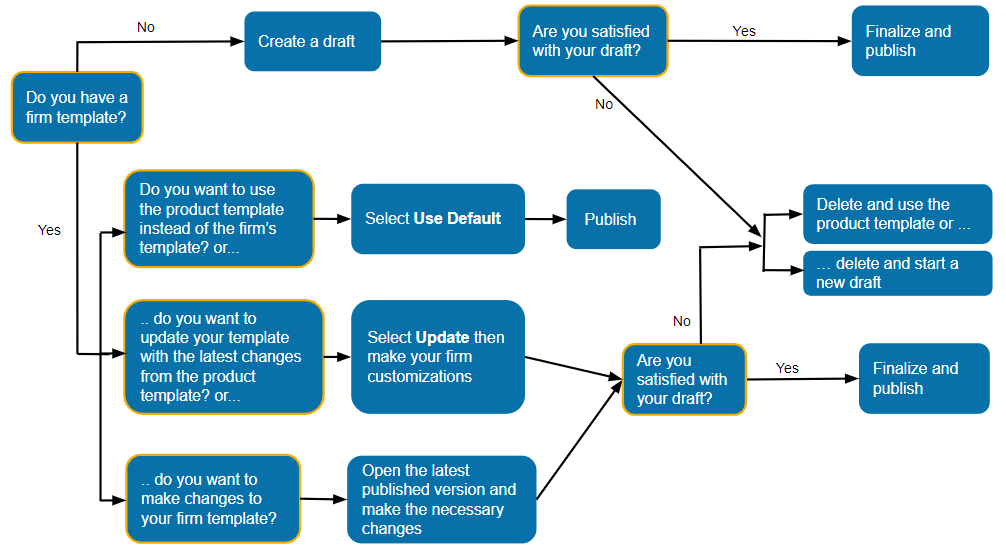
If you don't have a firm template, you need to create a draft, make your firm customizations, then review and publish.
If you already have a firm template, you can:
-
revert to the product template instead of the firm template, or
-
update your template with the latest changes from the product template.
If you're not satisfied with the draft you're working on, you can delete the draft and either:
Practice set
-
To start firm authoring, select Cloud menu (
 ) | Settings.
 -
Under OnPoint PCR, select Manage Template Primary.
The first time you open this page, you will see a Create Draft button.
Notice that the bar on top of the screen is blue, indicating that your are in firm authoring mode. However, as you recall from our user training, the bar is black in an engagement file.
Profile settings and custom terminology
Before we dive into firm authoring, we have to populate a few areas from the Cloud menu, such as your profile and the custom terminology pertaining to the US market.
Practice set
-
Select Cloud menu (
) | Settings. -
Under Organization, select Profile.
-
Fill in the Profile, for example with your firm information, then select Save.
-
From Customization | Terminology, enter the state in the Province field, the zip code in the Postal Code field, and select Save.
Create a draft
If you don't have a firm template or a draft, then your starting point is to create a draft.
To create a draft:
-
Ensure that you have the Settings Admin role or similar. For more information, see Built-in roles and Assign security roles.
-
From the Cloud menu (
), select Settings ( ) | <your product name> | Manage Template.
 -
Select Create Draft.
A draft template opens in a new tab. Make sure that this tab is not blocked by your pop-up blocker.
You can close your draft at any time and continue working on it later. Once you close the draft, the options available to you on the Manage Template page are Open Draft, Delete Draft and Publish Draft.
To continue working on an existing draft, select Open Draft. Select Publish Draft to apply the changes to new engagements.
If you're not satisfied with your draft, select Delete Draft to delete it and start a new one.
Use the product template
If you don't want to customize a template for your firm, you can set your firm template to use the product template. The product template contains the default content for your product.
Tip: To view information about your current product version, select Information ( ) | About.
The advantage of using the product template is that you don't need to manually update the firm template whenever there are new product updates. To learn more, see Update the firm template.
To use the product template:
-
Ensure that you have the Settings Admin role or similar. For more information, see Built-in roles and Assign security roles.
-
From the Cloud menu (
), select Settings () | <your product name> | Manage Template. -
Select Use Default.
The current template is archived and your firm now uses the product template. The option now available to you on the Manage Template page is Create Draft.
If you want to customize the product template to meet specific firm requirements, select Create Draft.
Publish a draft
After you customize your draft template, you can review and publish it. When you publish a draft, it becomes the current firm template and applies to new engagements.
To publish a draft:
-
Ensure that you have the Settings Admin role or similar. For more information, see Built-in roles and Assign security roles.
-
From the Cloud menu (
), select Settings () | <your product name> | Manage Template. -
Select Publish Template.
The published template is automatically added to the archived templates list. The template version and publish date display in the list.
Note: Once a template is published, it cannot be deleted. You can however revert to an older version.
The options available to you on the Manage Template page are Use Default and Create Draft.
Select Use Default if you want to use the product template instead of having a custom firm template.
Select Create Draft if you want to start a new draft then, select Open Draft to start customizing it.
Edit the firm template
You can make changes to the firm template if needed.
To edit the firm template:
-
Ensure that you have the Settings Admin role or similar. For more information, see Built-in roles and Assign security roles.
-
From the Cloud menu (
), select Settings () | <your product name> | Manage Template. -
Select Create Draft.
If you already have an existing draft, you will not see this option.
-
Select Open Draft.
The template opens in draft mode. You can now make changes as needed.
-
Once you're done, return to the Cloud menu (
) and select Settings () | <your product name> | Manage Template. -
Select Publish Template to have the changes applied to newly added engagements.
Update the firm template
Once you receive notification of updates to the product template, you need to manually update your firm template with the latest changes from the product template.
Note: The Update button is only available in the page if there are new updates to the product template that you have not applied to your template yet. Otherwise, it does not display in the page.
To update the firm template:
-
Ensure that you have the Settings Admin role or similar. For more information, see Built-in roles and Assign security roles.
-
From the Cloud menu (
), select Settings () | <your product name> | Manage Template. -
Select Update.
The available options on the Manage Template page are Open Draft, Delete Draft and Publish Draft.
Once you're done, select Publish Draft to apply the changes to new engagements.
Create a draft using a previous template version
You can create a draft using a previous version of your template.
To create a draft using a previous template version:
-
Ensure that you have the Settings Admin role or similar. For more information, see Built-in roles and Assign security roles.
-
From the Cloud menu (
), select Settings () | <your product name> | Manage Template. -
Go to the archived templates list.
-
Open an archived template to create a draft based on that template.
The new draft opens.
-
Make changes as necessary.
-
From the Cloud menu (
) , select Settings () | <your product name> | Manage Template. -
Select Publish Template to have the changes applied to new engagements.
The published template is added to the archive and a record of it displays in the archived templates list.
Revert to a previous template version
You can revert to a previous version of your template.
To revert to a previous template version:
-
Ensure that you have the Settings Admin role or similar. For more information, see Built-in roles and Assign security roles.
-
From the Cloud menu (
), select Settings () | <your product name> | Manage Template. -
Go to the archived templates list.
-
Open an archived template to create a draft based on that template.
-
From the Cloud menu (
), select Settings () | <your product name> | Manage Template. -
Select Publish Template.
The published template is added to the archive and a record of it displays in the archived templates list.
Notice that the record of the old template still displays in the archived templates list. This is because, in this step you have not re-published the old template, you have published the draft that was created based on that old template.
The new draft opens.
Note: If you revert to a version that's older than the most recent product template, the Update button becomes available on the page once you publish it.
As a template author, it is important for you to know the exact version of your OnPoint product, since this could affect the type of content your users have in their product. If as a firm, you are facing issues, there is a possibility that the issue has been fixed in the latest release. In fact, when you contact our support team, the first thing they suggest might be to update your release via the update button as we previously discussed. By using the latest release version, you also reduce your work as a firm template author since the new content may have also resolved any content deficiencies which may have existed in the product.
In the draft template, select Information ( ) , then About to view information about your version of
Instructor Note: The following tasks are intended to clarify the firm authoring workflow. You may or may not choose to demonstrate these tasks to students.
You can delete a draft if you decide to use the product template instead or if you're not satisfied with your current draft.
To delete a draft:
-
Ensure that you have the Settings Admin role or similar. For more information, see Built-in roles and Assign security roles.
-
From the Cloud menu (
), select Settings () | <your product name> | Manage Template. -
Select Delete Draft.
The options available to you on the Manage Template page are Create Draft and Use Default.
If you want to start a new draft, select Create Draft.
If you want to use the product template instead, select Use Default.
Customize display options, formats and settings
In the Product Settings window, you can change the default product settings for display options and formats. You can also enable and disable features to better suit the needs of your firm.
To open the Product Settings, select the Information icon () at the top menu, then choose Settings.
Add a currency
You can add a currency to your product to support additional currencies:
-
Go to Format | Currency, then select Add currency.
-
Enter the currency name in the text field to filter the list of currencies.
-
Select the desired currency to add it to your product.
You can also filter the list using the three-letter currency code from ISO 4217.
You can also remove a currency from your product by selecting ( ).
).
Customize the date format
Go to Format | Dates and choose formats for long, short and medium dates by selecting them from the drop-down lists. The formats you specify apply to dates in checklists, queries, trial balance, date field placeholders, engagement properties and formulas in text areas.
Customize the number settings
At Format | Numbers, you can customize the following settings:
| Setting | Description |
| Negative number format | How negative numbers display in your product:
|
| Decimal symbol | Whether to use a period (.) or a comma (,) as the decimal symbol. |
| Decimals | How many decimal points your balances display. |
| Digit grouping symbol | Whether to use a period (.) or a comma (,) as your digit grouping symbol. |
| Digit grouping | How many digits are grouped together between digit grouping symbols. |
Customize fonts and headings
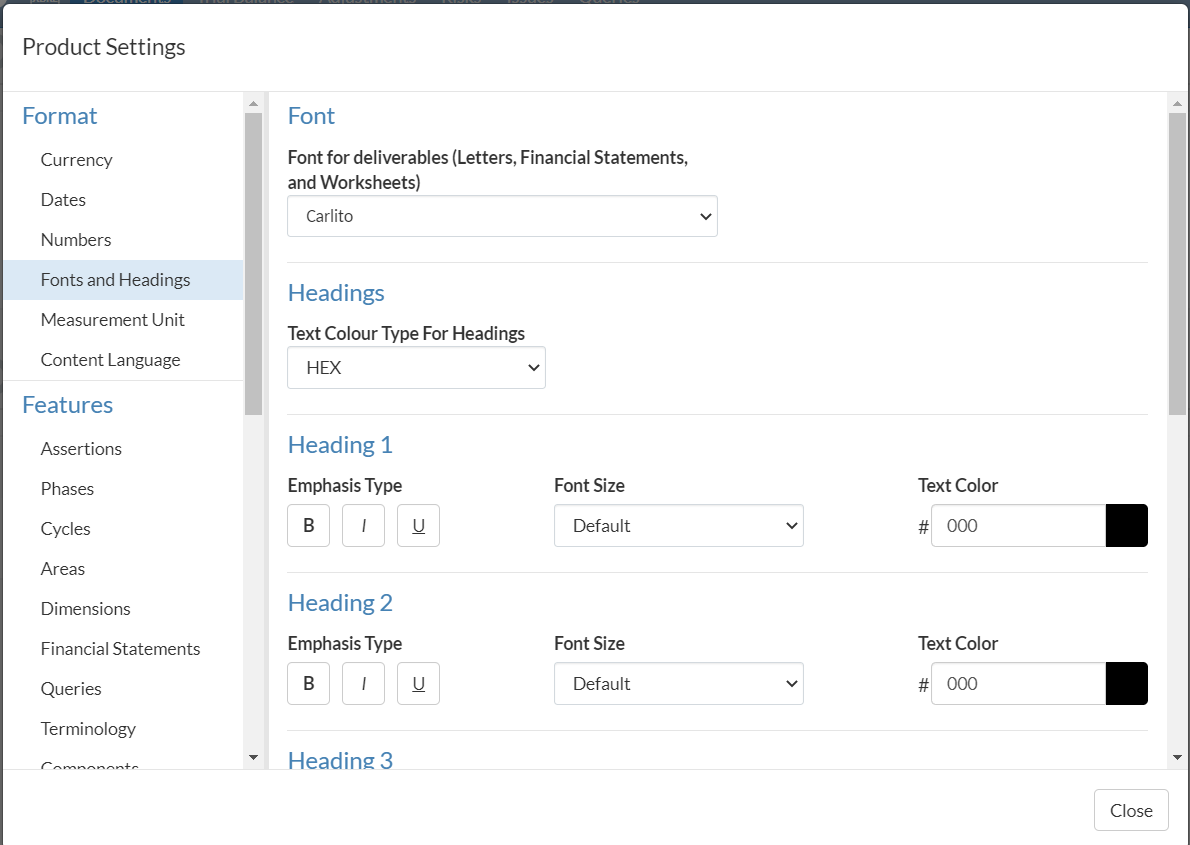
You can change the format of the Fonts and Headings for deliverables in your engagements such as letters, financial statements and worksheets to match the firm's style preferences and identity. This is done from your active template. For more information on how to access and manage your template, refer to: Manage the firm template.
To start, select the Information icon ( ) at the top menu, then choose Settings. Select Format | Fonts and Headings from the Product Settings dialog that opens.
Font
Select the font for the text in your deliverables from the dropdown.
Headings
You can format headings and paragraphs.
To set the desired formatting options for headings and paragraphs:
-
Select the desired color code from the drop-down. Two options are available:
-
Hex
-
RGB
-
-
For paragraphs and each heading (Heading 1 to Heading 6):
-
Select the desired emphasis type (bold, italics or underlined text)
-
Set the desired font size
-
Set the desired text color.
The default font size for each heading is as follows:
-
Heading 1 - 27pt
-
Heading 2 - 22.5pt
-
Heading 3 - 18pt
-
Heading 4 - 13.5pt
-
Heading 5 - 10.5pt
-
Heading 6 - 9pt
-
-
Set the desired text color.
-
Customize the unit of measurement
Choose the preferred unit of measurement that you want to use across your product from the list of units at Format | Measurement Unit.
The measurement unit you select here apply globally to your Cloud app whenever a measurement unit is used, such as print settings.
Edit a checklist
Now, let's edit various content in the firm template. In the next chapters, we will look at editing a checklist, a query and the financial statements.
Note: We recommend that you turn on the detailed view by default since it will show you document sign-offs right in the document manager.
Practice set
-
Enable the Detailed View.


-
Select More actions (
 ) | Hidden Items.
Once you enable Hidden Items, you will notice that a large number of documents display on the page. This is because this product is built off a visibility logic concept, where only relevant documents and content are available (visible).
Visibility settings provide built-in automation so that only the relevant documents or content are available in your engagement file. This is achieved by setting up visibility conditions for various engagement items. The application evaluates the conditions and if the conditions are met, some items are visible (available) in the engagement file. Otherwise, they're hidden (not available).
However, firm authors can view every document which comes by default using the Hidden Items option. An important thing to note here is that you cannot delete the default documents which come with the product. When a new release is out, the default product documents and content are automatically updated.
All the default documents have toggles to allow you to suppress a document so it's not available in the product if needed. A use case for this would be a firm that doesn't want to use our built-in query system. They would simply disable the query documents in the product.
Instructor Note: Demonstrate the following:
To suppress a document:
-
Open the firm template.
-
Go to the Documents page.
-
Select the document that you want to suppress.
-
Select Suppress (
 ).
).
See Manage the firm template for more information.
-
-
Select document 1-110 Engagement Acceptance, then select Edit (
 ).
). You will notice the toggle here as well where you can turn off individual procedures so they're not visible in the checklist but you cannot edit or delete them.
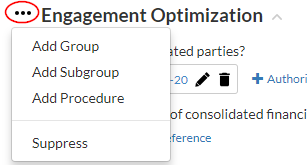
In document 1-110, you will notice that you can add procedures in two ways. One way is to create a procedure directly within a group; another is to create your own group and then create a procedure. In the example below, Engagement Optimization is the group. Select the ellipsis to see the add procedure option.
An authoritative reference simply references the procedure to any external links available on the web. These would include items such as accounting standards and industry related websites.
Practice set
-
Go to Related Parties and similar relationships, then select More actions (
) |Add Procedure.Tip: Hidden Items must be enabled to see this procedure.
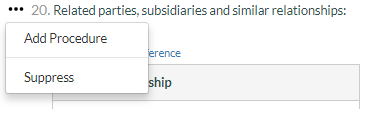
A new procedure displays:

There is light bulb icon to the right. Selecting it allows you to enter any procedure-specific guidance. The Up/Down arrow is to allow you to move the procedure above or below its existing location.
-
Select New Procedure.
The title splits into two boxes.
-
In the Summary box, type in
Difference in Financial Framework.
-
In the New Procedure box, type in
Do any of the related parties or subsidiaries listed above require different financial framework from the one identified above under Applicable financial reporting framework?
In the previous practice set, we created a new question. However, we did not create an area for a user to answer that question. In this practice set, we are going to do just that.
Practice set
-
Beside the Difference in Financial Framework procedure, select More actions (
) | Settings. -
In the Procedure Settings dialog, select the Override the checklist settings checkbox.
A number of options display.
| Allow sign offs | Select to add a sign off to this procedure. |
| Allow input notes in procedures | Select to add a text box below the completion response where users can enter notes. Selecting this option will enable authors to add a note placeholder.  |
| Allow multiple rows | Select to create an Add row option at the bottom of the response. This enables users to enter more information for the procedure. Note: If your procedure has more than one response, selecting this setting will display your responses in a table beneath the procedure. The response placeholder labels are displayed in the header row. |
| Show responses beneath procedure | Displays the responses below the procedure. |


-
Select from the following options:
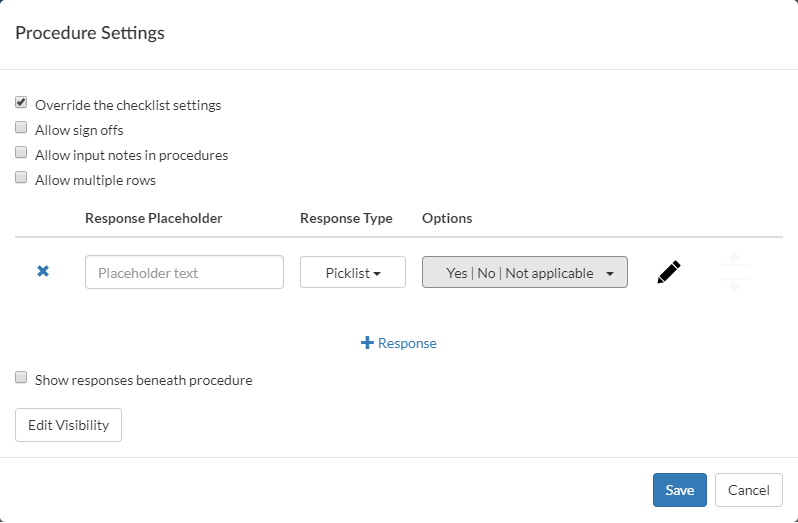
At this point, we are going to focus on creating a response set. Let's look at some of the response types available to users.
| Response type | Description |
| Manual | An input text field where users can enter a custom response. |
| Picklist | A drop-down menu where users can select one response from a list of responses. You can customize the list of responses to meet your needs. The default responses are Yes, No, and Not applicable. |
| Multi-Picklist | A drop-down box where users can select multiple responses from a list of responses. The default responses include Yes, No, and Not applicable. |
| Date | A date picker field with an inline calendar where users can select a date. |
| Entity Information | A date picker field with an inline calendar where users can select a date. |
| Contact Information | A field that displays information about one of the client contacts. Contact information is linked directly to the client's user profile on Caseware Cloud. |
-
Under Response Placeholder, leave the Placeholder text as is.
-
For Response Type, choose Picklist.
-
Select the Edit button beside options to remove the "Not applicable" Option.

-
Select Save. The following displays.

Create a procedure for visibility settings
Earlier in the training, we learned that the OnPoint product only shows information which relates to the engagement based on the choices selected by the users. This is done through our visibility settings which have allowed the primary authors of this product, AICPA, to create visibility logic for hundreds of items. The same can be done by firm authors as well, however only for content that they have created, not AICPA content.
What are visibility settings?
Visibility settings provide built-in automation so that only the relevant documents or content are available in your engagement file. This is achieved by setting up visibility conditions for various engagement items.
The application evaluates the conditions and if the conditions are met, some items are visible (available) in the engagement file. Otherwise, they're hidden (not available).
Here are some use-cases:
-
Hide documents that are not relevant to the user until they have defined the scope of the engagement.
-
Make a text area in a document visible only if the user provides a specific response to a procedure. This is useful when you want to customize content of letters, memos, and other documents based on information collected from the trial balance or from various forms and checklists.
To set up visibility, you need to specify:
-
the condition type and its parameters
-
the visibility logic
Parameters point to where the system fetches information (values) to evaluate the condition. Each condition type has a different set of parameters.
Define the visibility action (whether the item hides or shows) when conditions are met. Also, if you've added more than one condition, you need to specify whether all the conditions or at least one condition must be true for the visibility action to apply.
Practice set
In the previous practice set, we created question a question about Difference in Framework. Now, we are going to add visibility settings to a procedure.
-
Beside the Difference in Financial Framework procedure, select More actions (
) |Add Procedure. -
Name the new procedure as follows:

-
Select More actions (
) | Settings beside the Financial Framework Details procedure. -
In the Procedure Settings dialog, select the Override the checklist settings checkbox.
-
Select + Response to add a second response row.
-
In the first Placeholder text field under Response Placeholder, enter "Name, Relationship" and choose Manual for the Response Type.
-
In the second Placeholder text field under Response Placeholder, enter "Financial Framework" and choose Manual for the Response Type.
-
Select Save.
Set visibility to procedures
The concept of visibility settings once again is to tie the visibility of an item to the response condition of another item.
The following table describes the available visibility conditions:
| Condition | Parameters | Example |
| RMM (Risk of Material Misstatement) | Select an assertion type, a group from the trial balance and one of the following conditions:
If the new risk module is enabled in your product, a difference set of parameters are available for this condition:
Note that the values in the RMM scales list depend on your product setup. | If Completeness for Cash has No RMM, then show this item. Or, if the new risk module is enabled in your product: If Accuracy for Inventory has RMM less than Medium, then hide this item.
|
| Financial Grouping | Select a group from the trial balance, specify the year (current or prior) and one of the following balance values:
| If the balance for the Short term investment account for the Current year is material, then show this item |
| Response | Select a source document, a procedure in the document and a response for the procedure | In the 200 Optimizer document, if the response to What is the type of engagement as defined under SSARS21? procedure is Compilation, then hide this item |
| Consolidation | Specify whether the engagement is Consolidated or Non-consolidated | If the engagement is Consolidated, then show this item |
| Scaling/Rounding | Select a rounding scale from the drop-down. | If the rounding is in Millions, then display this item. |
| Reporting period | Select the reporting period:
| If the reporting period is Annual, the show this item |
| Date | Select the nature of the date:
Select the period type options for fiscal year and interim periods within a fiscal year:
Select the mathematical operations used to compare and evaluate (<,>, <=,>=) Select the date | This item shows if effective date for the year start date is after November 30-2019. |
| Organization type | Select country and select organization type | If the entity type is Canadian Private Corporation, then show this item |
| Language | Select a content language from the drop-down. | If the content language is French, then show this item. Note that the content language means the language currently selected in the Engagement Properties popup up. |
| Group | Add the conditions in this group Note: All the above condition types are available for you to set up. | This item shows if the engagement type is Review and the entity type is Canadian Private Corporation or if the year star date is after October-21-2019 |
| Form Value | You can include one or more forms in the condition setup. Select the form name, a field in the selected form and a value for the selected field. The value options for a selected field depend on the field type. For example, numeric fields have logical operators and numerical values, while date fields have a calendar icon for date selection. Note: This condition is only available if you have custom forms in your product. For example, Tax forms. | If the field T2S8 in S8 - Capital cost allowance (CCA) form is > 10 or the field T3S8 in S8 - Capital cost allowance (CCA) form is > 10, then show this item. |
Practice set
-
Beside the Financial Framework Details procedure, select More actions (
) | Settings. -
Select Edit Visibility.
-
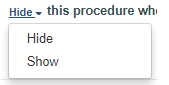
Change the option from Hide to Show.
-
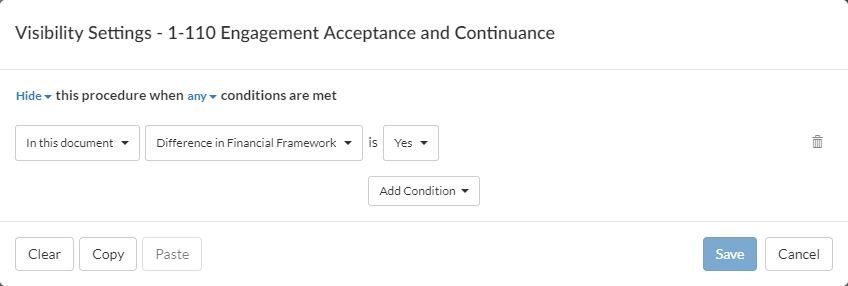
Select Add Condition | Response condition.
-
Under In this document, select document 1-110.
-
Under this other procedure, select Difference in Financial Framework from under Engagement Optimization.
-
Under answered, select Yes.
-
Select Save, and then Save again.
Now, we are going to perform the same task, with the procedure we created earlier called "Difference in Financial Framework".
To set visibility on the Difference in Financial Framework procedure:
- Beside the Difference in Financial Framework procedure, select More actions () | Settings.
-
Select Edit Visibility.
-
Change the option from Hide to Show.
-
Select Add Condition | Response condition.
-
Under In this document, select document 1-110.
-
Under this other procedure, select Are there related parties? from under Engagement Optimization.
-
Under answered, select Yes.
-
Select Save, and then Save again.
You can't add or change visibility settings for the default documents or content that comes with your product. However, you can suppress it so it doesn't show in the engagement.
To suppress content in a checklist, query, letter or memo:
-
Open the firm template.
-
Open the document where you want to suppress content.
-
text fields, Table of Contents and page breaks in letters and memos.
-
procedures, groups and subgroups in checklists.
-
queries and groups in query documents.
-
Select Edit (
 ).
). -
Select Suppress (
) next to the item you want to suppress.
See Manage the firm template for more information.
Content can be:
Edit a query
Creating a query is a simple process where you select the plus sign and add a query. The reason we would like to focus on editing a query is because we have queries built into the product at various stages. As a firm author, you may want to simply add more queries to an existing query document to get more out of the same document. This will ensure that your client does not get bombarded by multiple queries and is able to answer all the relevant information from the existing query system. In this practice set, we will learn how to create a new query in an existing document and how to link a client response in a query document to an existing checklist procedure so that when your user answers a query, a response automatically shows up on a procedure within your file.
You will notice that there are duplicate documents with one of them having a slightly different name with the letter "t" added to the name. Documents which do not have the letter "t" will automatically be added to a file when a new file is created. Documents which do have the letter "t" serve a library functionality. In the event that a user accidentally deletes the existing document, they have the option to re-add that document using the available template version. An example of this is the query documents. For firm authors, we recommend you make duplicate changes in both versions.
Practice set
Note: Leave all queries unanswered. Any items answered in the firm template automatically display as answered when a new engagement file is created from the template.
- Ensure the Hidden Items option is enabled.

-
Open the 1-200t Engagement Letter (Query to Client) document and toggle the edit view on.
-
Select + Group and name the New groupClient Information.
-
Select + Query.
-
In the query Summary, type Principal owner(s): and Please input information about principal owners below. in the New Query placeholder.

-
Beside the new Principal owner(s) query, select More actions (
) | Settings. -
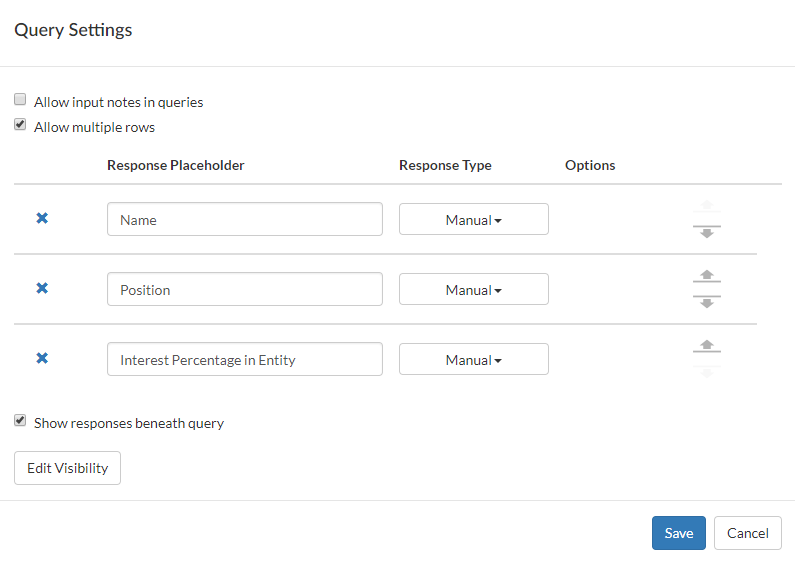
Select Allow multiple rows and Show responses beneath procedures.
-
Complete the fields as shown below:
-
Select Edit Visibility.
-
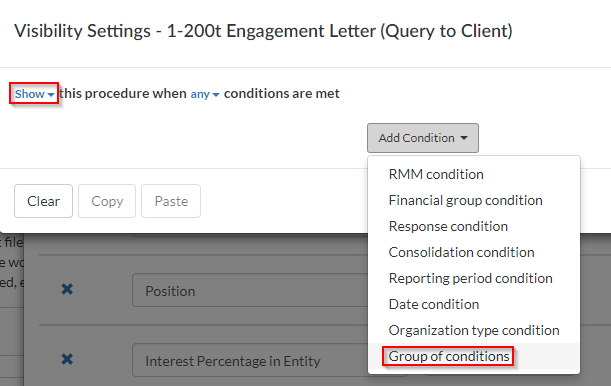
Show a condition based on a Group of conditions:
-
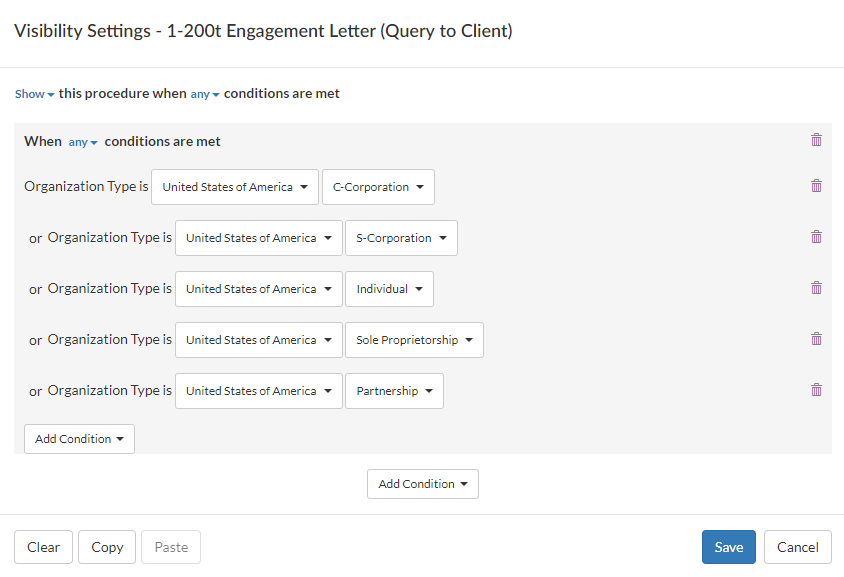
Set the Visibility Settings as follows:
-
Select Save, and then Save again.
Now, we need to link our procedure to an existing checklist so that the client response shows up in the procedure of our choice once answered by the client.
To link the procedure to an existing checklist:
- Enable Hidden Items.

-
From beside the Principal owner(s) query, select More actions (
) | Link to Checklist.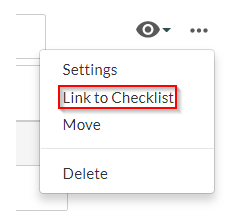
-
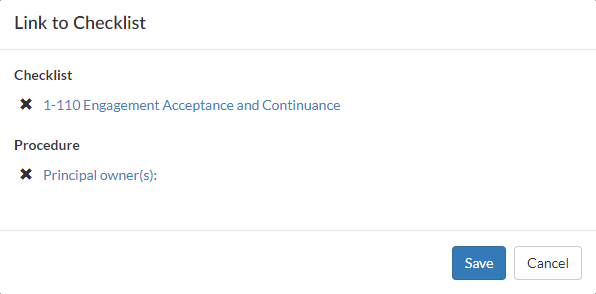
Select document 1-110 Engagement Acceptance and Continuance.
-
Under Procedure, select Principal owners.
-
Select Save.
-
From beside the Client Information query, select More actions (
) | Move. -
Select
 beside the top spot to move the Client Information group there.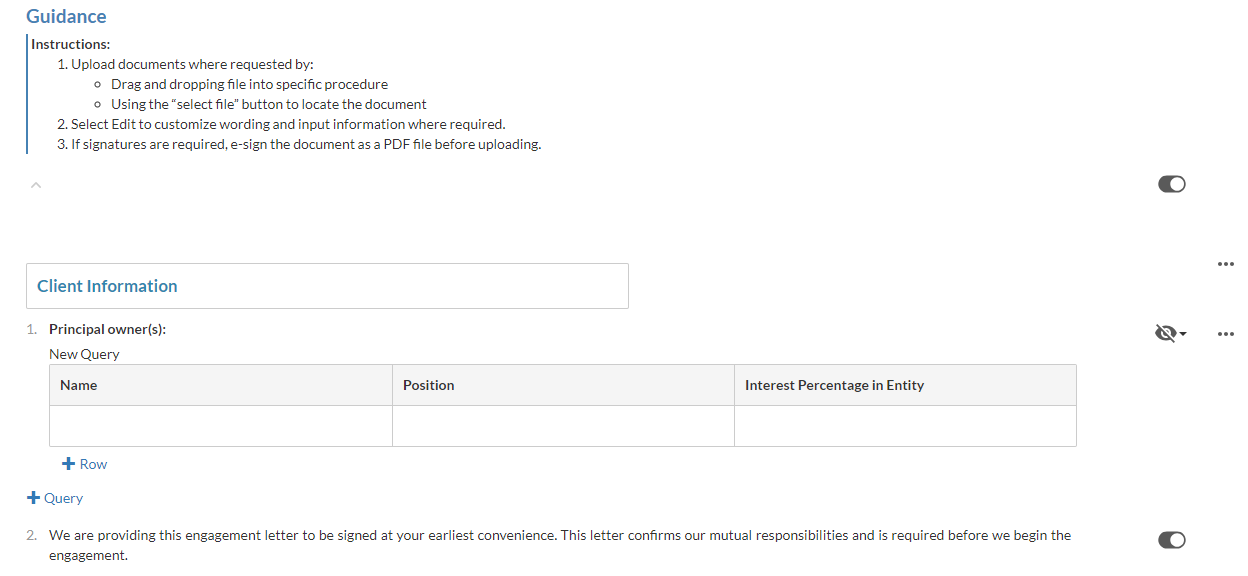
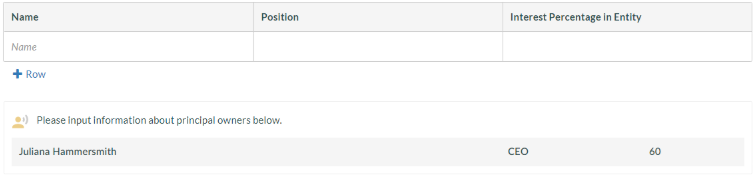
Now when your user receives a query, they will be able to fill out ownership information and sign the engagement letter from the same query. The following figure shows the result of a query in document 1-110 which the staff member simply can copy and paste into procedure 15.
Customize print settings in financial statements areas
Areas help organize your financial statement content by grouping similar or related information. You may need to change the default print settings for the balance sheet and income statement areas. Since firm authors are not able to change the default content that comes with the product, we will be looking at copying dynamic tables.
Practice set
-
Ensure the Hidden Items option is enabled.
-
Open document 3-150 Financial Statements and Report.
-
Select Balance Sheet from the Document Map.
-
Select the table, then select More actions (
 ) | Copy Dynamic Table.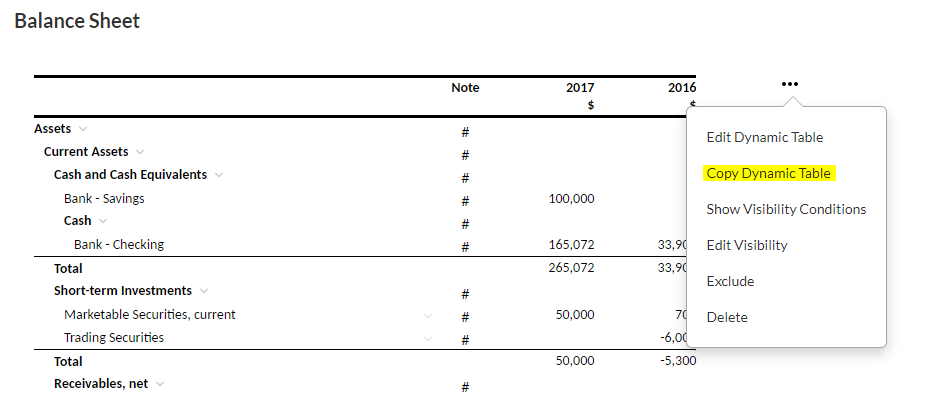
-
Select where you want to add the copied table, then select Add (
 ) | Paste Copied Dynamic Table.
-
Select More actions (
) | Edit Print Settings.Firm authors have the ability to add custom Headers/Footers as well as page formatting for their financial statements. Firm authors may choose to have their financials display in landscape format.
-
Select Income Statement from the Document Map, then select table. Select More actions (
) | Copy Dynamic Table.It's important to note here that you can keep copying and pasting as many default dynamic tables as you need in the financial statements.
Select Add (
) | Paste Copied Dynamic Table where you want to insert the pasted table. Select More actions () | Edit Print Settings and set the Income Statement area to print in landscape layout.
The rest of the printed report will print in portrait layout.
Create a text section in the financial statements
There are cases where the accountant may want to add supplementary information to an engagement for a specific industry or client where it is not required by the standards but adds value to the overall financial reporting. In OnPoint, this can be done through several features which when combined can help us create supplementary information. For the first part, we need to create a text section.
Practice set
-
Ensure the Hidden Items option is enabled.
-
Open document 3-150 Financial Statements and Report, then go to the Document Map.
-
Select Add (
 ) | New Area.
The new area is appended to the document map and displays on the page with a default title New Area. You can select the default title to change it.
-
In the new area, select Add (
 ) | Text Section.
 -
Select the text field and center its alignment (
 ).
). -
Select Insert Text Placeholder.
The Text Placeholder dialog displays.
-
Enter Insert Client Operating Name at Label and select Save.
-
On the next line, type Supplementary Information.
-
On the next line, type Consolidated Schedules of General and Admin Expense.
-
On the next line, type For the Years Ended.
-
On the same line as Step 8, select Insert Formula (fx) and choose Current year from the Data Link dialog. Type and, select Insert Formula (fx) and choose Prior year.

-
Create a dynamic table in the financial statements
As we saw earlier, users have the ability to copy dynamic tables. In this practice set, we will create our own dynamic table. Dynamic tables are used for the majority of the content which shows up in the financial statements including but not limited to balance sheet, income statement, and statement of retained earnings.
Practice set
-
Select Add (
) | New Area.The new area is appended to the document map and displays on the page with a default title New Area. You can select the default title to change it.
-
In the new area, select Add (
) | Dynamic Table.An empty table displays in the page.
-
Select the table, then select More actions (
) | Edit Dynamic Table.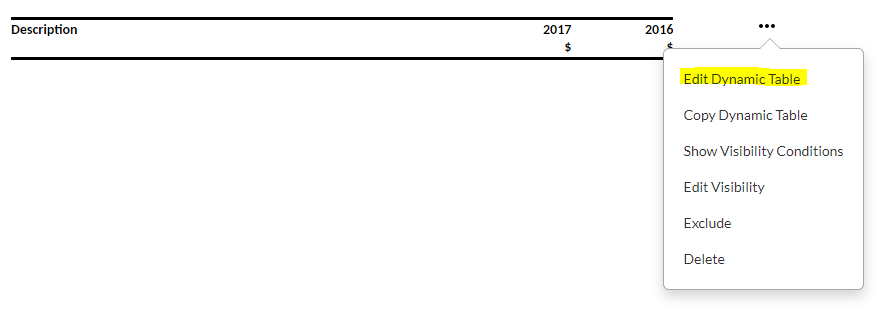
Table opens in edit mode.
-
Select Add row (
), then choose Trial balance data.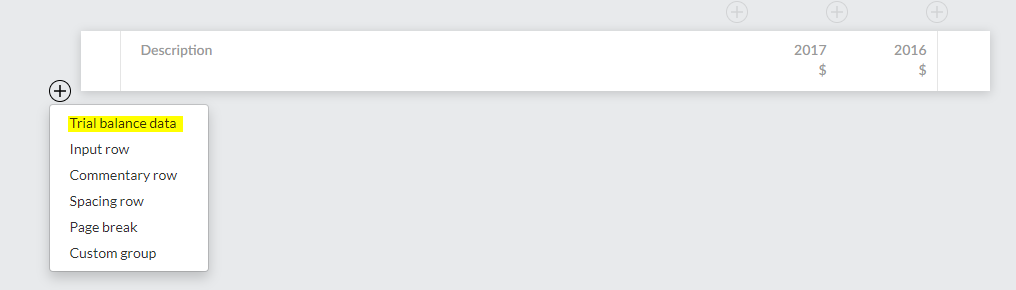
-
Start typing Selling …Selling, General and Administrative Expense appears as you type. Select it to populate the row.

Notice how the prior year and current year columns are added in the table by default.
-
Select Add column (
 ), then choose Percent variance for the Type.
 -
Select the text field at Heading to open the Data Link dialog.
-
Enter Percent Variance at Output to change the default column header.
-
Select Done to close the column settings.
-
Select Add column (
), then choose Input for the Type.
-
Select the text field at Heading to open the Data Link dialog. Enter Comments at Output to change the default column header, then select Save.
-
Choose Text for the Format, and choose Medium for the Width.
-
Select Done to close the column settings.
Create a page break in the financial statements
Similar to Caseware desktop products, page breaks in OnPoint are used to create a blank space between content in the financial statements. An example of this would be to insert a page break somewhere in the document if the Income Statement has a current year balance.
Practice set
-
Select Add (
) | New Area.The new area is appended to the document map and displays on the page with a default title New Area. You can select the default title to change it.
-
In the new area, select Add (
) | Page Break. -
Select the page break, then select More actions (
) | Edit Visibility.
-
In the Visibility Settings, choose to show this page based on a Financial group condition where Income statement has a Current year balance.


-
Select Save.
Add the firm letterhead to the financial statements
It is common practice for firms to print their financial statements on a company letter-head since this is the final product which they provide to a client in many engagements.
Firm authors can add a logo or a letterhead in the firm template. Once they add the logo, it automatically replaces the logo placeholders in the deliverables. Once they add the letterhead, it automatically displays in the PDF copy (print copy) of the deliverables.
Practice set
Let's add a letterhead.
-
Go to the Cloud menu (
), select Settings () | <your product name> | Letterhead/Logo. -
At Letterhead, drag and drop the file or select the file upload box to browse and add your firm letterhead.
-
At Logo, drag and drop the file or select the file upload box to browse and add your firm logo.
Note that in order to ensure letterheads display correctly in printed documents, the letterhead you add in the firm template must be the correct size.
To determine the appropriate size for your letterhead in pixels, multiply the desired size in inches by 96. For example, if you are printing your documents on letter size paper, with a width of 8.5 inches, you can multiply 8.5 by 96 to determine the width the letterhead must be to fill the full width of the page. In this case, the letterhead would need to be 816 pixels wide.
You can select REMOVE to remove the added logo or letterhead and upload another one.
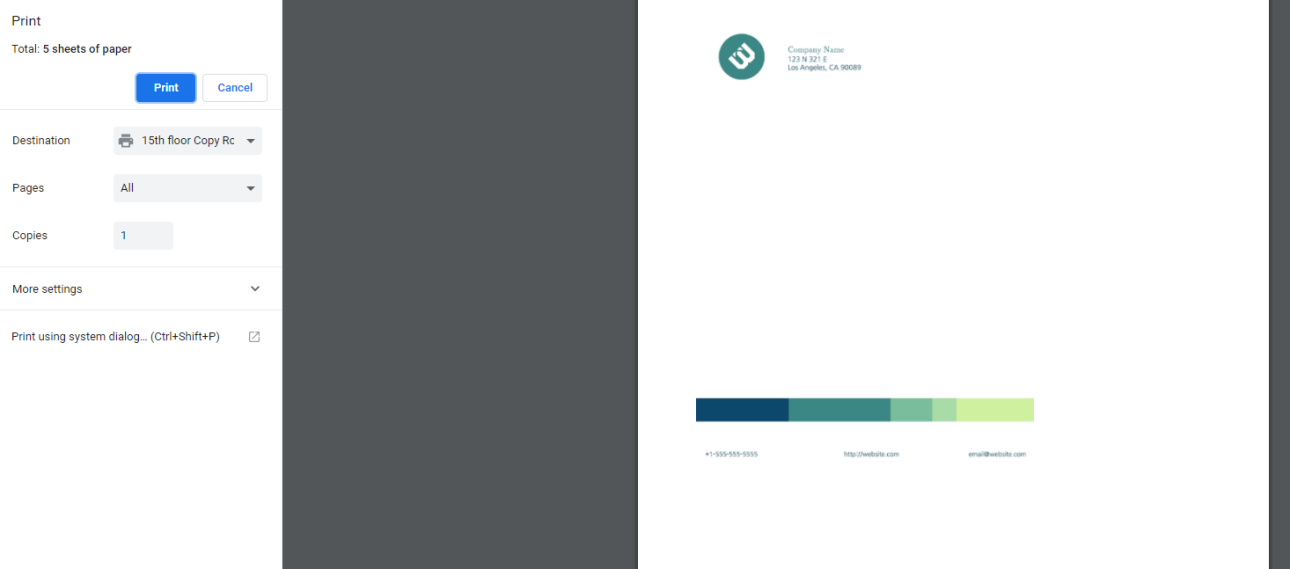
If you open the 3-150 Financial Statements and Report document and select Print ( ) at the Document Map, you'll find the letterhead in the PDF print copy.
Note: Make sure the Letterhead option in the document print settings is enabled.
In this example, we've set the letterhead to appear on the first page only in the document print options.
Instructor Note: You may or may not choose to demonstrate the following procedure.
To set up print options:
-
Go to the Document Map, then select Settings (
 ) | Document Print Settings.
You can only access this option for the content that you add in the financial statements - not the predefined content. To learn more, see Add content areas in the financial statements.
Note: For the predefined content in the document, you can only access the print settings if you are customizing the firm template. To access the firm template, you must have the Settings Admin role or similar. See Manage the firm template for more information.
-
If you want to have different settings for notes, go to the Document Map and select Settings (
) | Notes Print SettingsIf you want to have different settings for an area, go to the desired area in the document and select More actions (
) | Edit Print Settings.If you want to have different settings for a specific page, go to the page break for that page and select More actions (
) | Print Settings. -
Specify the preferred settings for Letterhead, Page Size and Margins.
Note that letterheads in financial statements are not affected by page margins and are not displayed inline with the text. You must manually adjust the page margins to ensure the document content does not overlap with the letterhead.
To determine the appropriate size for the page margins in inches, divide the pixel size of your letterhead by 96. For example, if your letterhead is 100px tall, you can divide 100 by 96 to determine the size of your top margin. In this case, the margin should be at least 1.04 inches to ensure the letterhead does not overlap with your document content.
If your letterhead is only displayed on the first page of your document, you can add a page break to set different margins for the other pages.
-
Under Dynamic Tables, select the Display column headings on subsequent pages option if you want dynamic tables to repeat the column headings on subsequent pages.
-
Under Keep Together, select the Keep notes headings with paragraphs and keep paragraphs together option if you want to ensure that note headings are not printed on separate pages from the note content and that paragraphs are not split across multiple pages.
Note that paragraphs that are longer than a page will still be split.
-
Select Apply watermark to apply a watermark in the document.
You can enter the watermark content in the associated text field.
-
Select Landscape to change the page orientation.
The default is Portrait.
-
Clear the Include in page numbering check box if you want page numbering to start after the Table of Contents page.
-
Under Page Numbering, select Start page at and enter a page number in the text field if you want to start page numbering at a custom page number.
By default, page numbering starts at 1 for the financial statements and an individual area’s page numbers are continued from the previous area. You can restart the page numbering multiple times throughout the financial statements by modifying the print settings for individual areas.
-
In the Notes Print Settings:
-
Select Hide sub-level headings with only one note if you want to automatically hide sub-level headings for notes when there are no subsequent notes in the group.
For example, if note 1 includes a subnote 1.a and there is no 1.b, 1.c notes, etc., then the note heading of subnote 1.a does not display in the PDF output. Only the content of that note displays.
-
Select Enable continued header text if you want to enter a custom suffix for headers for notes that span multiple pages.
For example, if you enter the suffix “continued”, a note with the header “Significant accounting policies” will display as “Significant accounting policies continued” on subsequent pages.
-
