
New in Caseware Cloud Engagements 2026-01
Welcome to Cloud Engagements 2026-01! This update introduces enhanced permission controls in engagements, subtotal improvements in dimension and consolidated views and more.
On this page, you can view the new features included in this release that apply to both authors and end users.
To learn more about the Caseware Cloud Engagements platform, refer to What is Caseware Cloud Engagements?
Engagement level permissions for more granular control
#enterpriseauthors #firmauthors
Note: If enabled, this feature applies to new and existing engagements.
You can now apply engagement-level permissions to control whether groups or individual users can:
-
Lock or unlock an engagement.
-
Remove signoffs performed by other users.
-
Delete review notes created by other users.
These advanced permissions can be defined within staff groups or individual user settings and applied per app by any staff member with the Admin role.
This feature helps authors align engagement access with internal policies and reduce the risk of unintended changes to engagement status, signoffs or review notes.

To learn more about permissions, refer to Permissions.
Insert entity and dimension IDs into Excel
#endusers
You can now insert entity and dimension identifiers directly into Excel from the right pane of your Cloud Connector Excel add-on. This lets you add static values such as entity name, entity ID, dimension name, dimension category ID and dimension ID without manually copying values from Caseware Cloud.
Inserted values are static and do not change if the source entity or dimension name changes later in Cloud. This supports more reliable reporting structures, especially for engagements that use many entities, deep hierarchies or multiple dimensions. In addition, inserted identifiers are engagement-specific. They don’t automatically remap when an Excel file is reused in another engagement.
The insertion behavior matches existing Cloud Connector insertion behavior, including how the sheet adjusts when there is limited space.

To learn more about Cloud Connector, refer to Get started with Cloud Connector.
Export financial statements and other deliverables to Microsoft Word
#endusers #firmauthors #enterpriseauthors
You can now export financial statements and other deliverables from Caseware Cloud to Microsoft Word (.docx). You can start the export from the Print menu and see notifications when the export completes or fails.
The option is available in the same dropdown as Download PDF:

Download as DOCX is also available while the above documents are viewed in Print preview mode:

To learn more about exporting the financial statements, refer to Print the financial statements.
Dynamic totals in dimensions and consolidated views
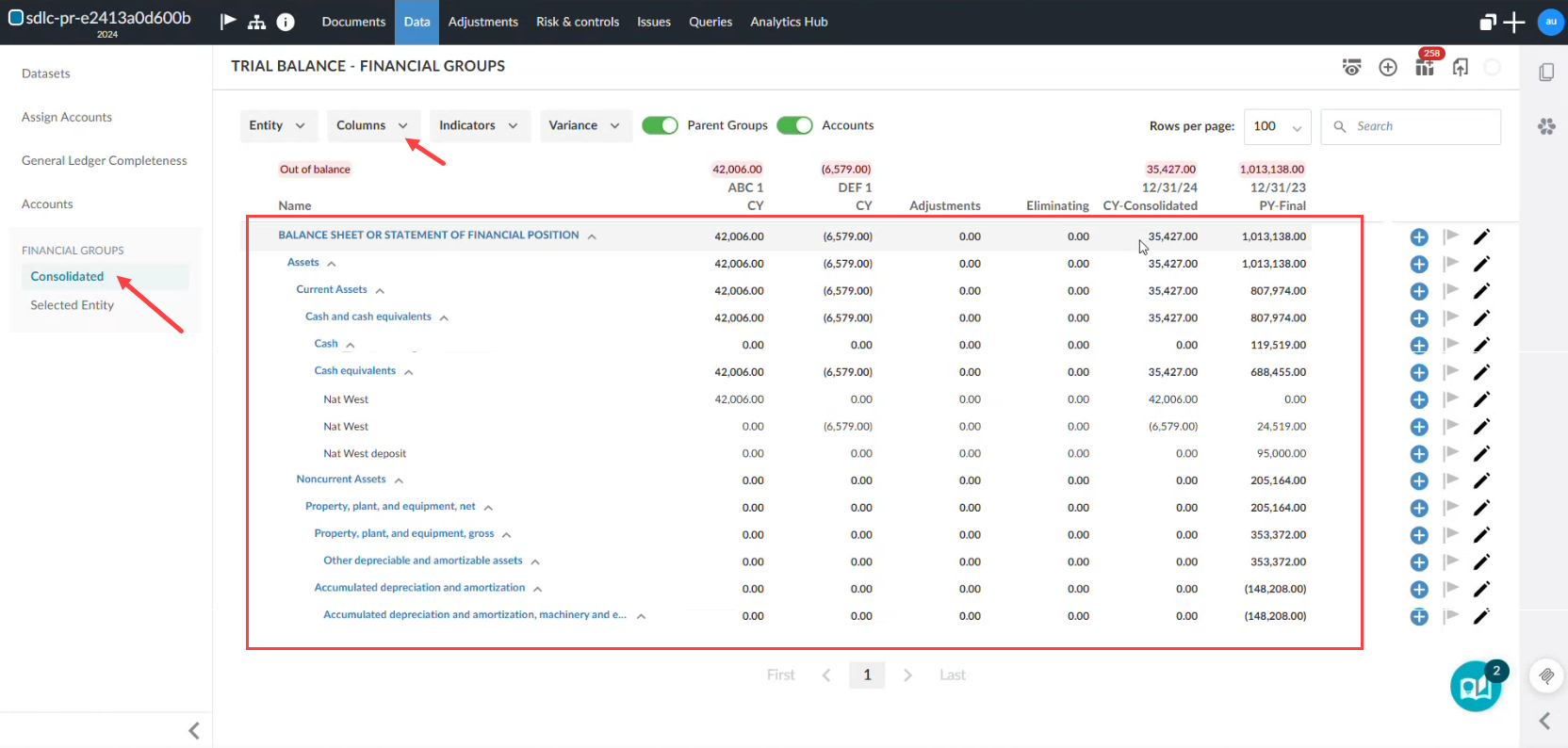
You can now produce dynamic totals on the Data page that automatically update when you hide or filter columns in dimension or consolidated views. This helps ensure the balances and totals match the data that is visible.
An example of totals in dimension view:

An example of totals in consolidated view:
To learn more about viewing data, refer to View data for consolidated engagements on the Data page and View dimensions on the Data page.
New in Caseware Cloud Engagements 2026-01
Welcome to Cloud Engagements 2026-01! This update introduces enhanced permission controls in engagements, subtotal improvements in dimension and consolidated views and more.
On this page, you can view the new features included in this release that apply to both authors and end users.
To learn more about the Caseware Cloud Engagements platform, refer to What is Caseware Cloud Engagements?
Engagement level permissions for more granular control
#enterpriseauthors #firmauthors
Note: If enabled, this feature applies to new and existing engagements.
You can now apply engagement-level permissions to control whether groups or individual users can:
-
Lock or unlock an engagement.
-
Remove signoffs performed by other users.
-
Delete review notes created by other users.
These advanced permissions can be defined within staff groups or individual user settings and applied per app by any staff member with the Admin role.
This feature helps authors align engagement access with internal policies and reduce the risk of unintended changes to engagement status, signoffs or review notes.
To learn more about permissions, refer to Permissions.
Insert entity and dimension IDs into Excel
#endusers
You can now insert entity and dimension identifiers directly into Excel from the right pane of your Cloud Connector Excel add-on. This lets you add static values such as entity name, entity ID, dimension name, dimension category ID and dimension ID without manually copying values from Caseware Cloud.
Inserted values are static and do not change if the source entity or dimension name changes later in Cloud. This supports more reliable reporting structures, especially for engagements that use many entities, deep hierarchies or multiple dimensions. In addition, inserted identifiers are engagement-specific. They don’t automatically remap when an Excel file is reused in another engagement.
The insertion behavior matches existing Cloud Connector insertion behavior, including how the sheet adjusts when there is limited space.
To learn more about Cloud Connector, refer to Get started with Cloud Connector.
Export financial statements and other deliverables to Microsoft Word
#endusers #firmauthors #enterpriseauthors
You can now export financial statements and other deliverables from Caseware Cloud to Microsoft Word (.docx). You can start the export from the Print menu and see notifications when the export completes or fails.
The option is available in the same dropdown as Download PDF:
Download as DOCX is also available while the above documents are viewed in Print preview mode:
To learn more about exporting the financial statements, refer to Print the financial statements.
Dynamic totals in dimensions and consolidated views
You can now produce dynamic totals on the Data page that automatically update when you hide or filter columns in dimension or consolidated views. This helps ensure the balances and totals match the data that is visible.
An example of totals in dimension view:
An example of totals in consolidated view:
To learn more about viewing data, refer to View data for consolidated engagements on the Data page and View dimensions on the Data page.
