Customize border style options for dynamic tables
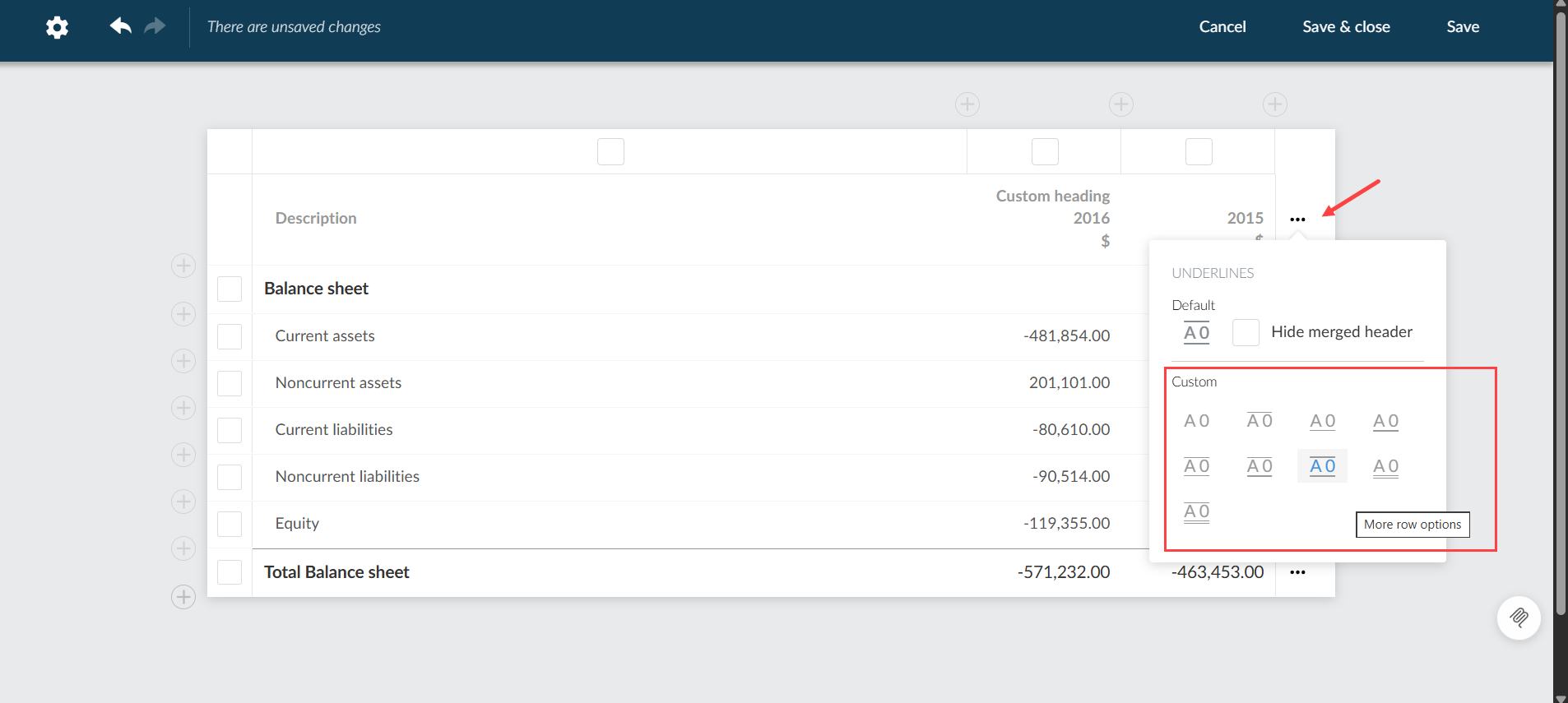
Customize header border styles for individual dynamic tables
You can select and customize the header border styles for individual tables within the Edit dynamic table dialog box.
To customize header border styles for individual dynamic tables:
-
Click the More actions icon [.png) ] from a dynamic table in your financial statement,
] from a dynamic table in your financial statement,
-
Click Edit dynamic table. The Edit dynamic table dialog box will open.
-
Click the More actions [] beside the headers.
-
Select a border style under the Custom heading.
-
Click Save and Close.
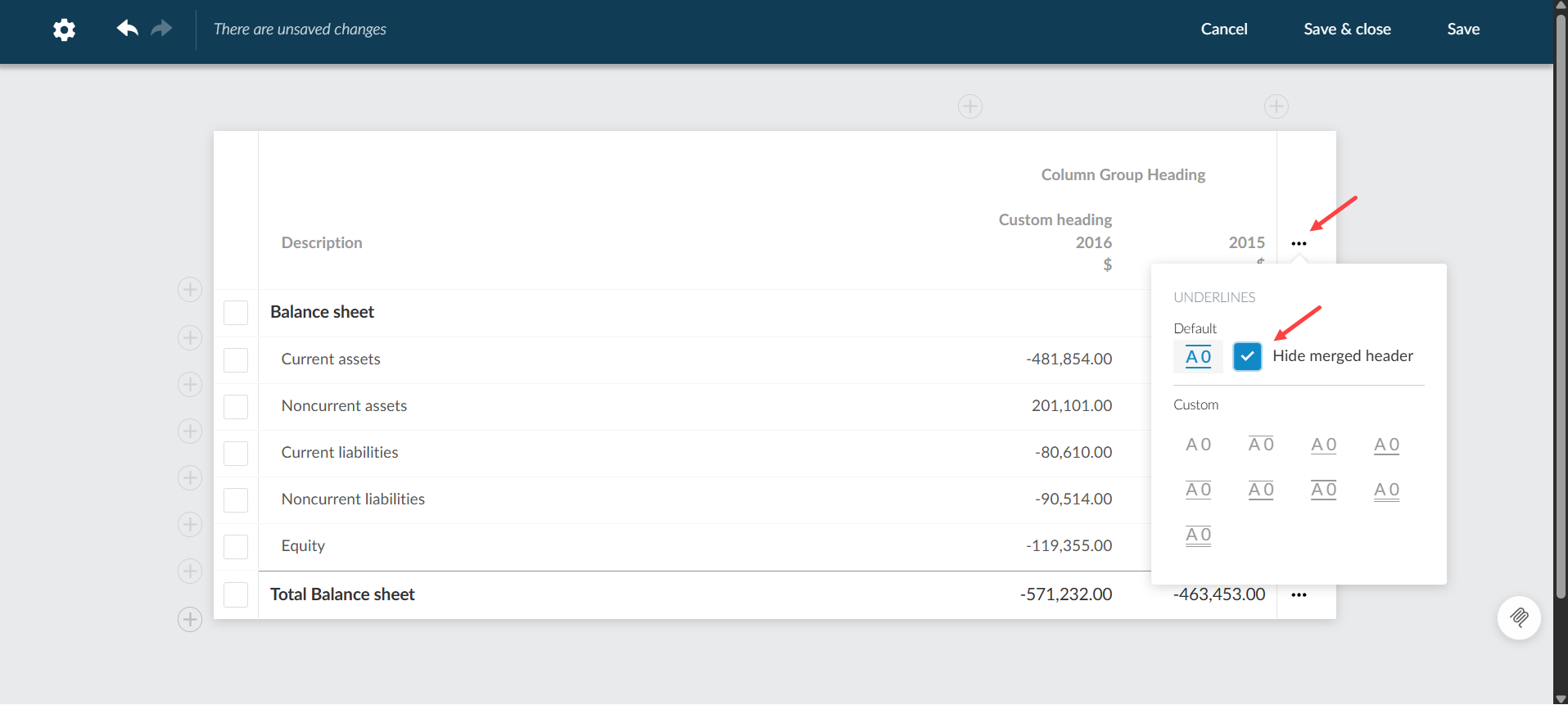
Show or hide underlines in merged header
You can show or hide the underline for merged headers in individual dynamic tables.
To show / hide underlines in merged header:
-
Click the More actions icon [] from a dynamic table in your financial statement,
-
Click Edit dynamic table. The Edit dynamic table dialog box will open.
-
Click the More actions icon [] beside the headers.
-
Click the Hide merged header checkbox.
-
Click Save and Close.
-
When checked, the merged header underline is hidden for the selected table.
-
When unchecked, the underline follows the document’s table border setting.
-
Settings are retained when engagements are carried forward.
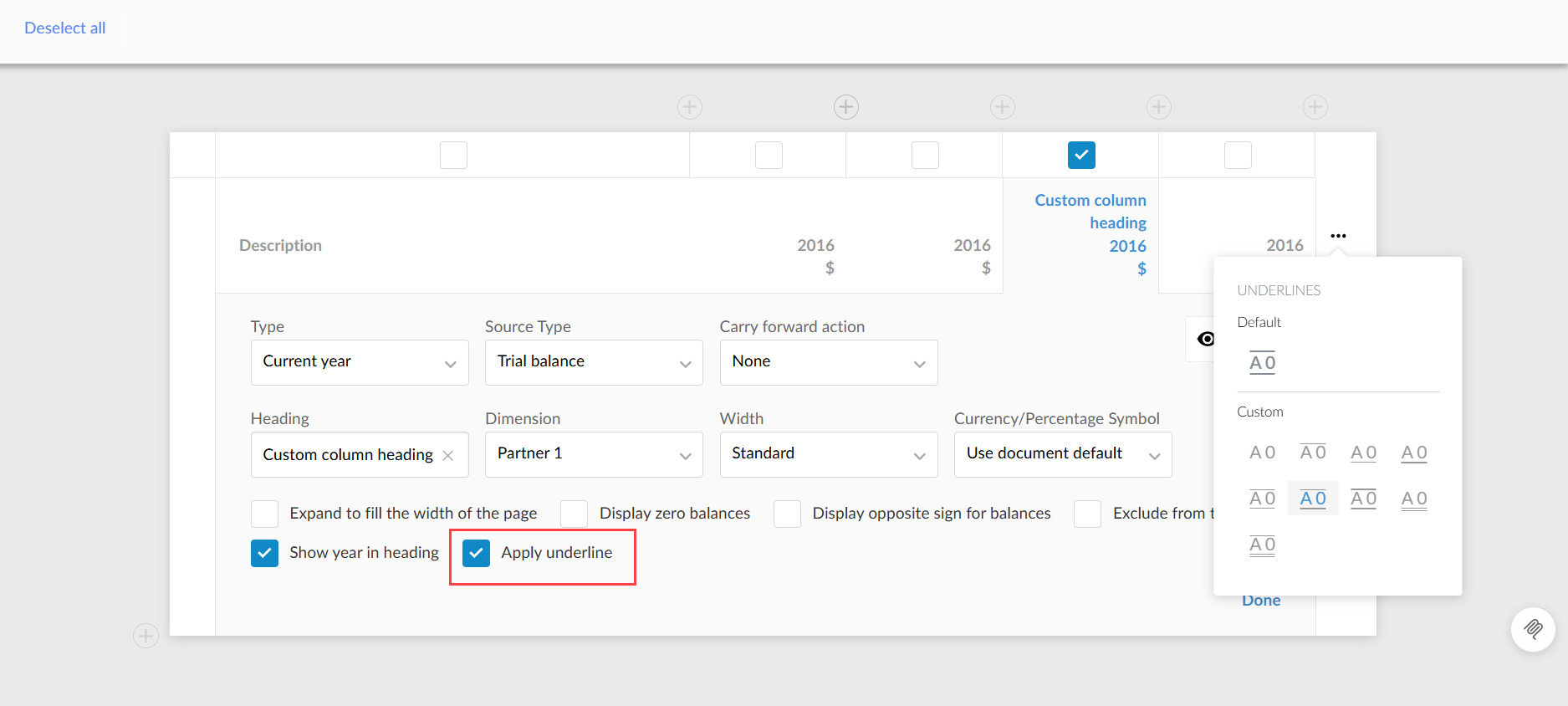
Enable / disable underline and overline options in dynamic tables
You can now enable or disable underlines and overlines for individual columns in dynamic tables. This feature appears as a new checkbox in the Edit Dynamic Table dialog box.
To enable / disable underlines and overlines in individual columns:
-
Click the More actions icon [] from a dynamic table in your financial statement,
-
Click Edit dynamic table. The Edit dynamic table dialog box will open.
-
Click the column that you wish to customize to open more options for that column.
-
Click the Apply underline checkbox.
-
Click Save and Close.
-
The checkbox is checked by default, displaying underlines and overlines on relevant rows.
-
Unchecking the box removes underlines and overlines from the entire column for rows such as Total, Grand Total, or Final Rows.
-
The setting is retained when tables are carried forward, copied, or when a page break occurs.
The checkbox for enabling or disabling the underline in the header column: