Embed a PDF in the financial statements
You can add embedded PDF areas in the financial statements. This allows you to add and preview any PDF documents that need to be included with the financial statements before you print the statements and generate the PDF.
Note that,
-
You can add multiple embedded PDF areas to the financial statements
-
Only one PDF can be uploaded to each embedded PDF area
-
Once you embed a PDF, you can include it in the table of contents for the financial statements
To embed a PDF in the financial statements:
-
Go to the Document Map, then select Add ( ) | Embedded PDF.
A new embedded PDF area is added in the document map and displays on the page with a default title: Embedded PDF. Select the default title to change it.
-
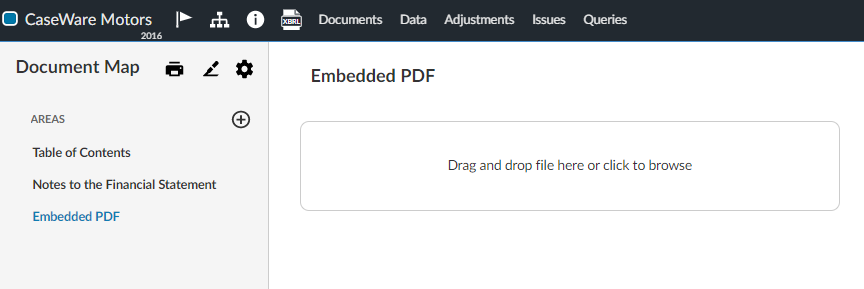
Select the box to browse for the PDF file or drag and drop the file to embed it.
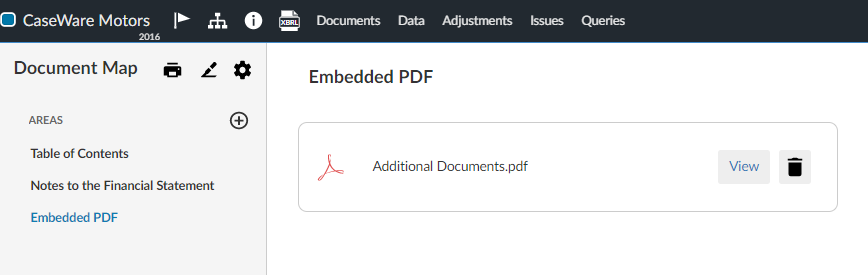
Once the PDF is embedded, you can select View to view the file or Delete ( ) to remove it from the financial statements.