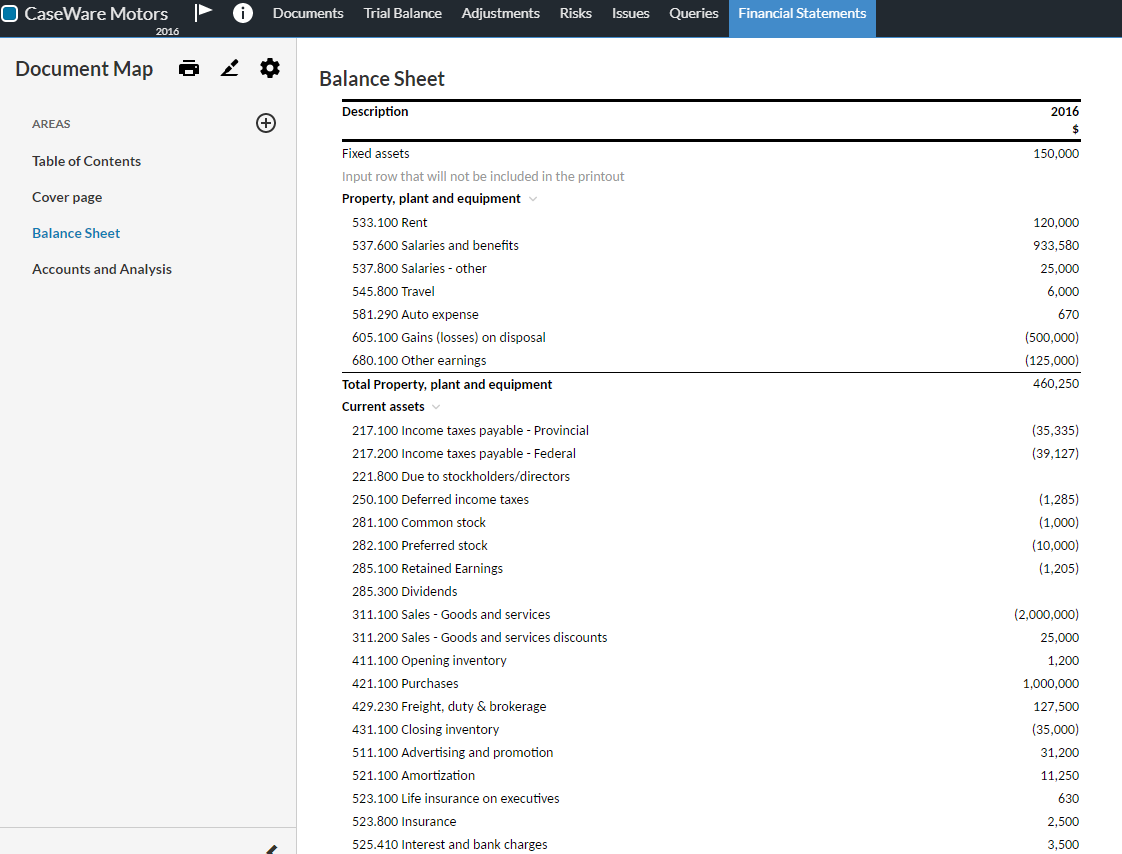
Select the table.
Select More actions ( ), then choose Edit Dynamic Table.
The table opens in edit mode.
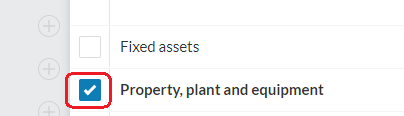
Using the check boxes on the left side, select the desired row.
Select the eye icon ( ).
).
A drop-down opens showing the available display options for the selected row.
Apply the default behavior is selected by default.
Note: If the row is an input row or a group row, the Always hide this row option is available in the list - otherwise, only Apply default behavior and Always display this row are available.
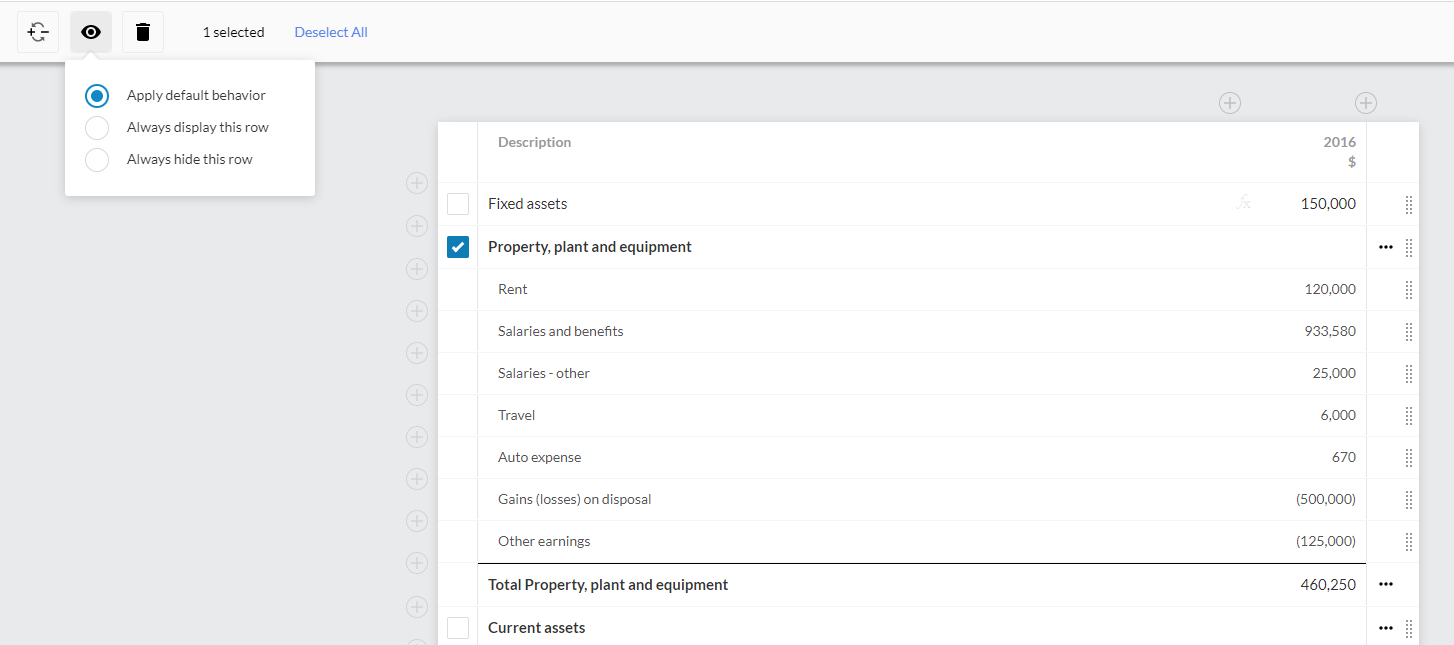
Select the desired display option.
Tip: If you don't want to change the current display option, clear the row check box.
Select SAVE or SAVE&CLOSE.