Author content and deliverables in multiple languages
Authoring content and deliverables in multiple languages helps support product offerings in regions and markets where multilingual capabilities are required.
For firm or enterprise authors, multilingual support enables the flexibility to switch the language of content and deliverables directly within the engagement file. This allows for efficient content creation and updates.
Recommendations for multilingual implementation
To set up translated versions of note disclosures, letters, query questions or checklist procedures you can create multiple versions in different languages. For detailed instructions, see Use case: A template with French and English language support.
Notes:
-
Manual translation required: Multilingual capabilities do not automatically translate content. You must provide translations for all supported languages.
-
Language deletion: Removing a language from the template settings does not delete any translated content already added.
-
Carry forward behavior: The selected content language is carried forward to the next period’s file.
-
Language management:
-
Firm authors cannot add or delete languages.
-
Firm-level content language changes are preserved during updates from the product template.
-
Caseware language settings will override the firm or enterprise template once you update the template.
Select available languages for an engagement
Caseware can set which languages and how many languages are available for documentation within an engagement. As an enterprise or firm author, you can select which languages to include based on the available languages set by the Caseware.
To select languages for an engagement:
-
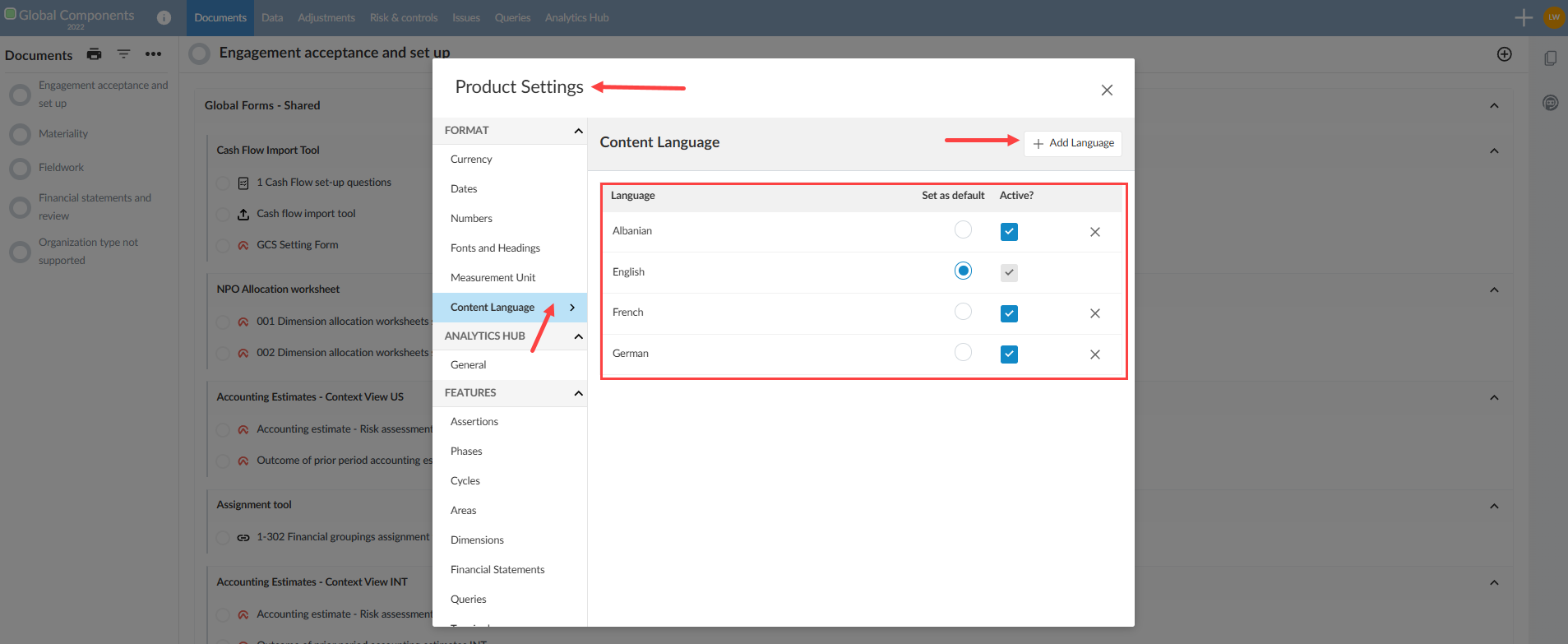
From the product template, click the [ ] Information button at the top of the screen.
-
Click the Settings option to open Product Settings.
-
Click Content language under the Format section
-
In the table, you can select or deselect languages for availability in your engagements.
-
You can also set one language as your default language.
Add content in another language
The following instructions on how to add content in another language use the French language as an example of this feature.
Letters/memos
To add and select a French version for the letter or memo content:
Checklists and queries
Add a language version of each procedure and query question. The French language is used as an example of this feature.
To author checklist procedures in French:
To author the French query questions:
Financial statements
To provide content in another language, set the template’s content language to your desired option. Then, update the text sections, headers, and footers by replacing the existing content with the new language version. The French language is used as an example of this feature.
Note: Trial balance groups automatically display in French once you switch the content language.
To author financial statements in French using visibility logic:
Use case: A product with French and English
If multiple languages are supported in your product, you can author the content and deliverables (and make changes to existing ones) in more than one language. This topic describes a use-case for authoring French content and deliverables in a firm template or an engagement file. You can use this use-case as a reference.
Notes:
-
Authoring in multiple languages can be done by firm authors in the firm template or staff members in an engagement file.
-
You must repeat the steps listed in this use-case for each language that you need to author content and deliverables for.
Assumption: English content and deliverables have already been added and authored in the template.
Before you start
-
Ensure the language (or languages) that you need to author in are active. For detailed instructions, see Content language.
-
Ensure you have the translated content for all the languages that you need to author in. The application does not automatically translate text.
-
Switch the Content language of the template to the language you want to author in (in this use-case, switch to French)
Note: On carry forward, the selected language in the current period file is carried over to the next period's file.
Select content in another language
To input or edit translated content in any of the above areas, follow these steps:
-
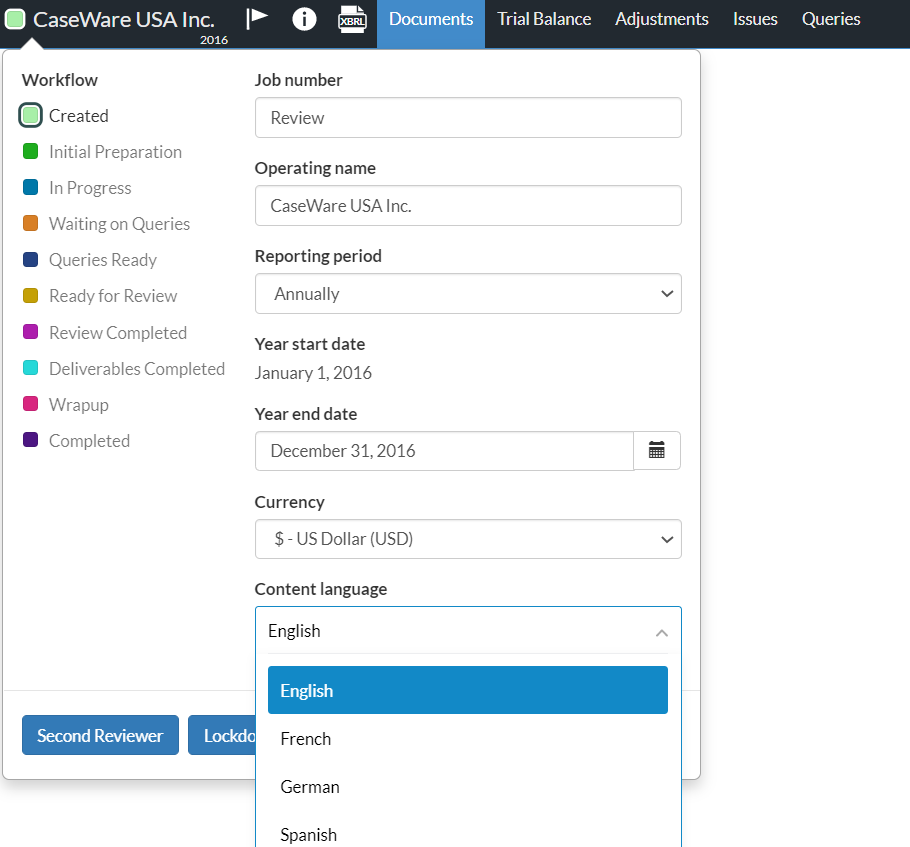
Click the top-left corner of the engagement to open the Entity dialog box.
-
Under Content Language, select a preferred language from the drop-down menu.
-
Go to the Documents page to access the relevant form or checklist.
-
Open the form (Materiality or Summary of Misstatement) or a checklist, depending on what you want to update.
-
Click into an editable field to add or edit content in the selected language.
-
Click the checkmark beside the field to save the content.
-
Repeat if you require the same content in other languages.
-
For checklists, you can click editable fields from both the Procedure and Guidance tab.
-
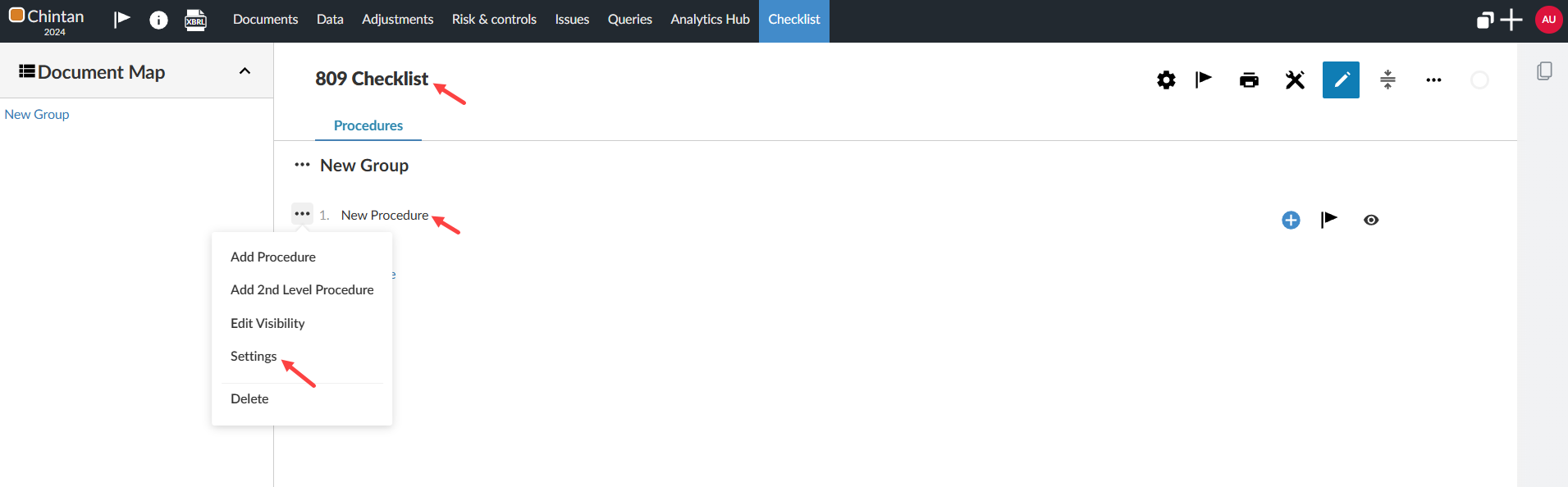
For the Checklist Procedure settings: Click the Edit icon [ ].
].
-
Select the Checklist Settings icon [ ].
].
-
Add or edit content in the selected language in an editable fields.
-
Click Save.
-
Repeat if you require the same content in other languages.
Changing languages from the Entity dialog box:
Multilingual capabilities for Materiality form
As a firm, enterprise or primary author, you have multilingual capabilities in editable fields in the Materiality form. You can select a default language for your engagements and have the additional flexibility to change the language within editable fields.
Editable fields that include multilingual capabilities include:
-
Document and Sections Guidance
-
Sections Titles
-
Tables Headings
-
Overall Materiality - Benchmarks Input fields in Tables (Custom formulas / Other)
-
Performance Materiality & Trivial - % description
-
Conclusion procedures (including conclusion for Group component allocation)
To switch languages in an engagement
-
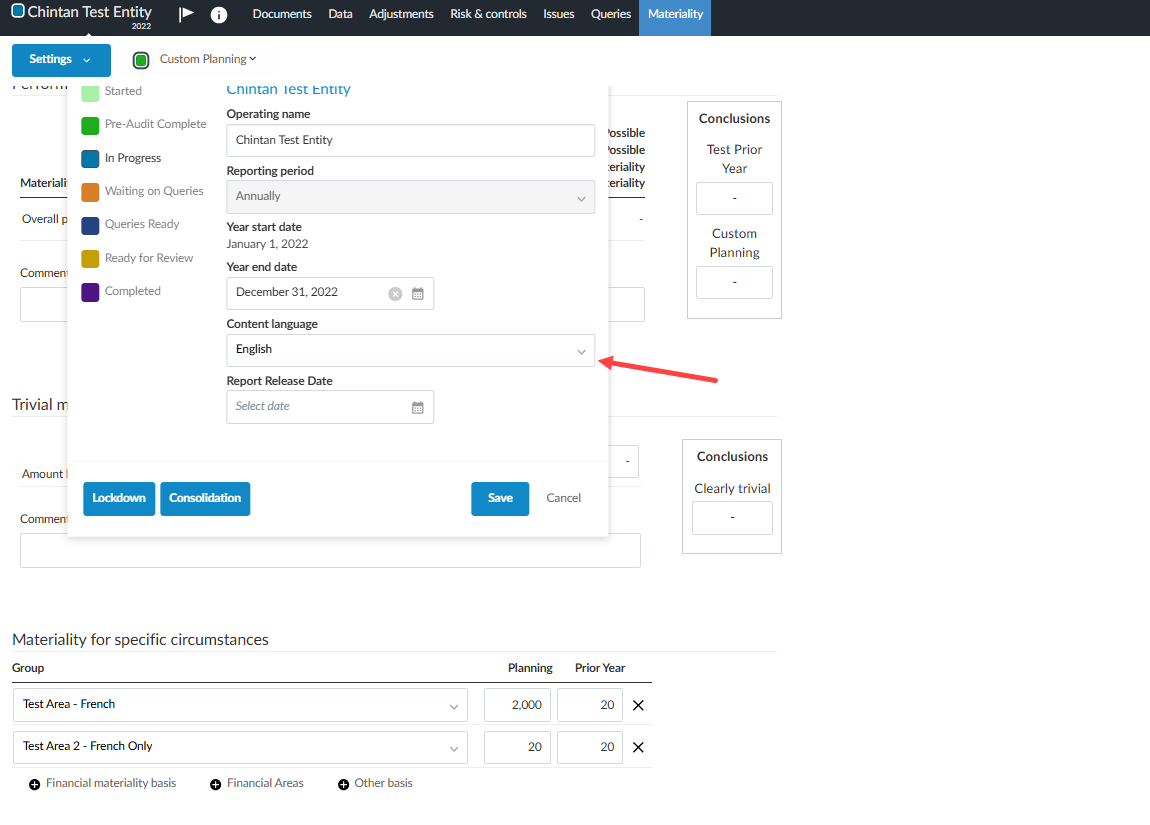
Click the top-left corner of an engagement, to open the Entity dialog box.
-
Click the drop-down menu under Content Language
-
Select the language you wish to use,
-
Open the Materiality form under the Documents page
-
Edit or add content in the language that you selected in the editable fields.
-
Click the checkmark beside the field to save the content.
-
Repeat if you require the same content in other languages.
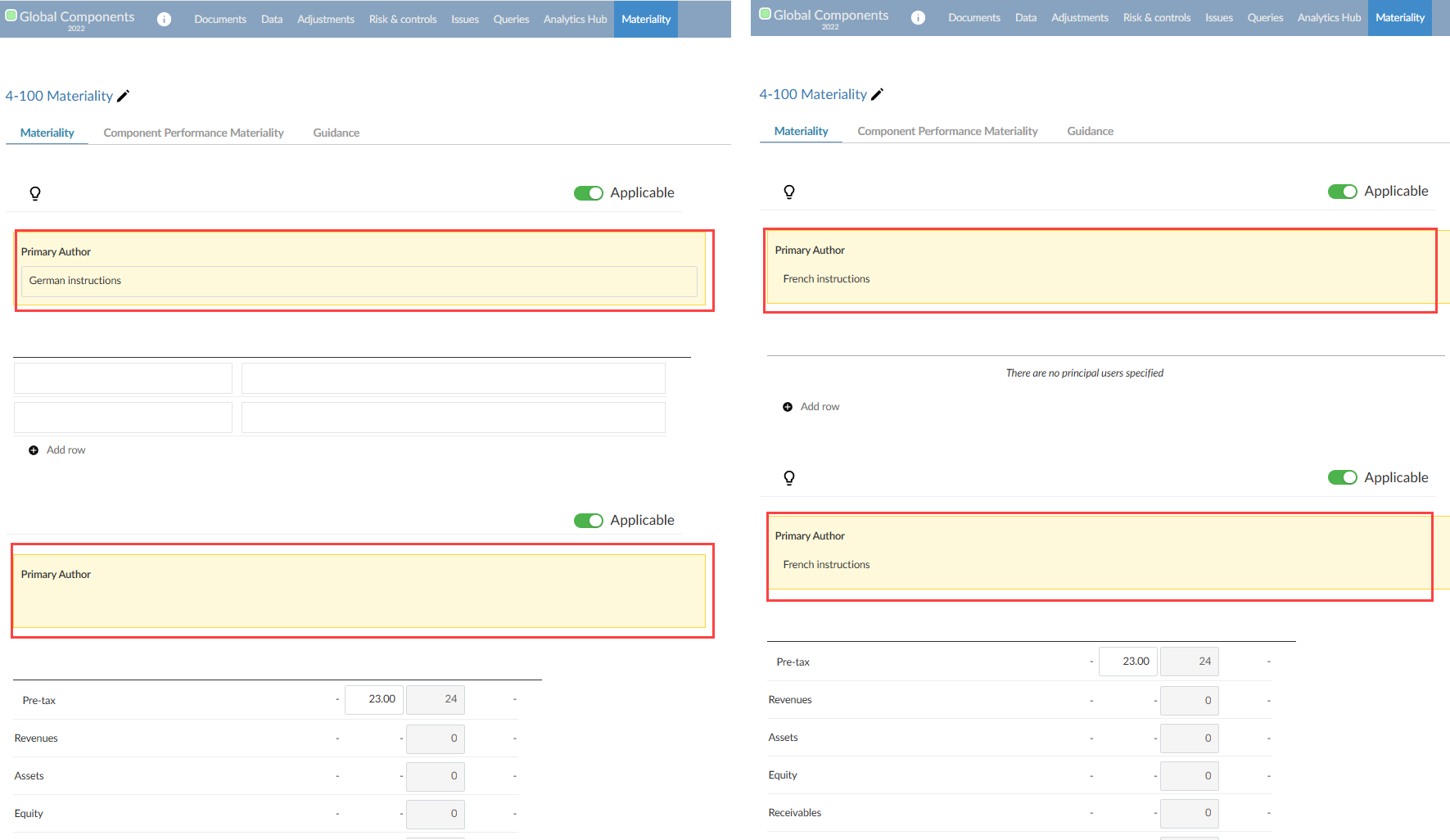
A mock example of French and German instructions
Multilingual capabilities for the Summary of Misstatement
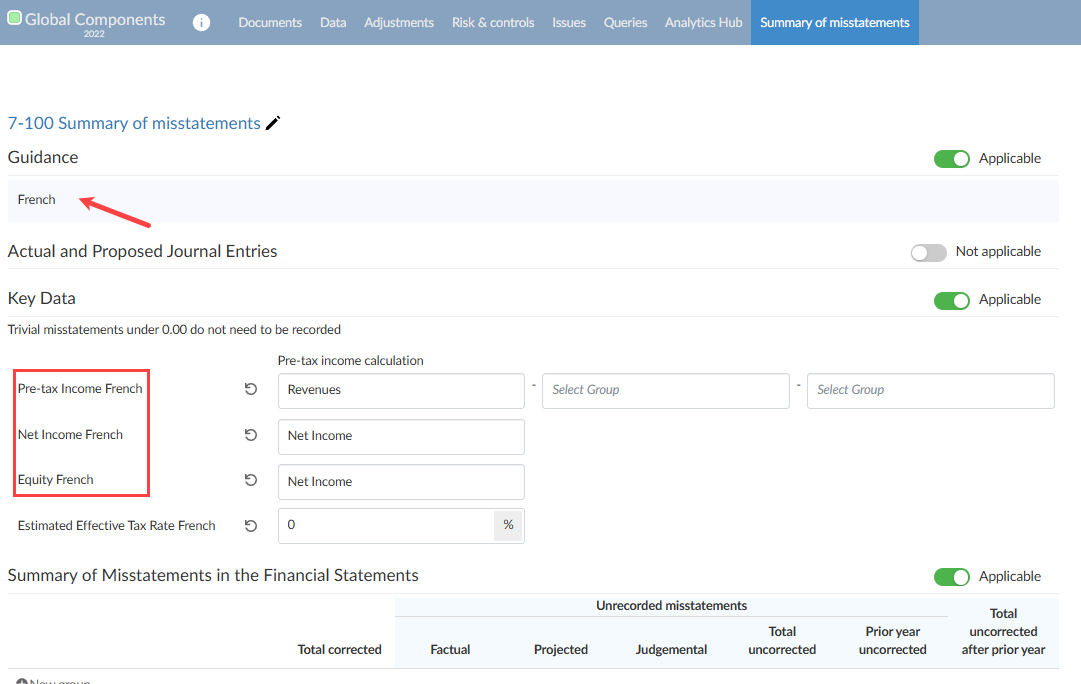
Similar to the Materiality form, authors can use multilingual capabilities in the Summary of misstatements document, specifically the Guidance and Key Data (input) fields.
A mock French example of the Summary of misstatements
Multilingual capabilities for Checklists
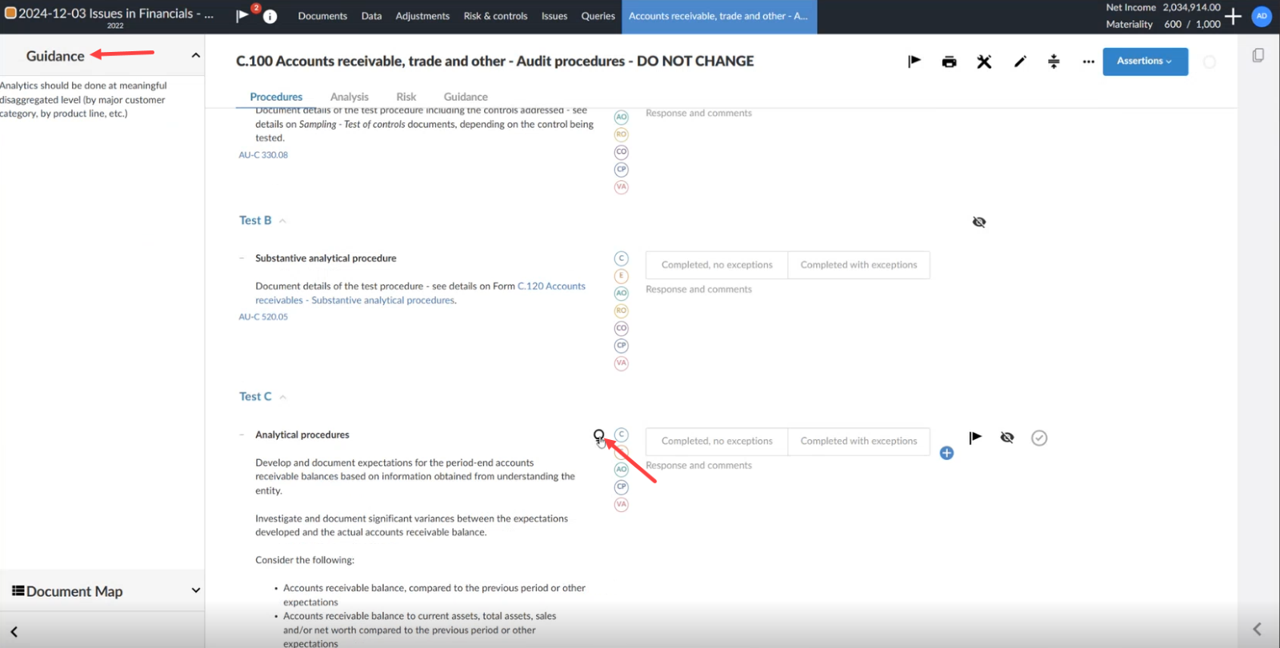
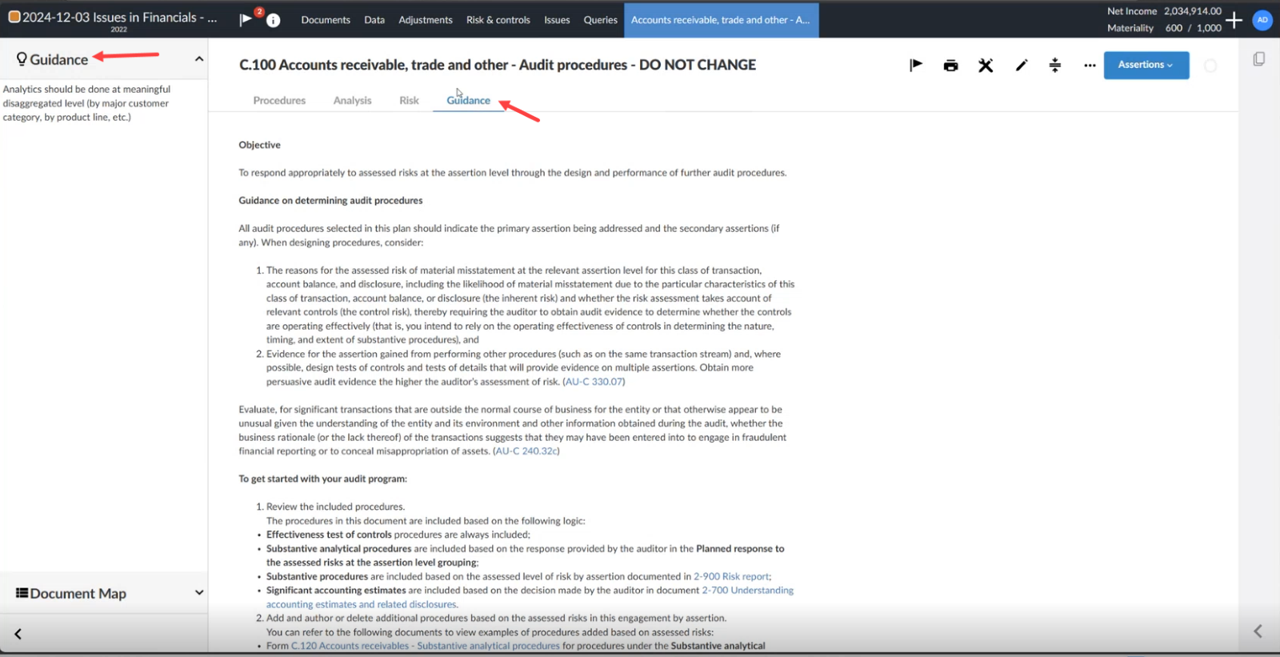
As a firm or enterprise author, you have multilingual capabilities in the editable fields of checklists that are authored by you. This includes editable fields in the following areas within your checklist:
Within the Procedures tab:
From the Guidance tab:
Within the Checklist Settings:
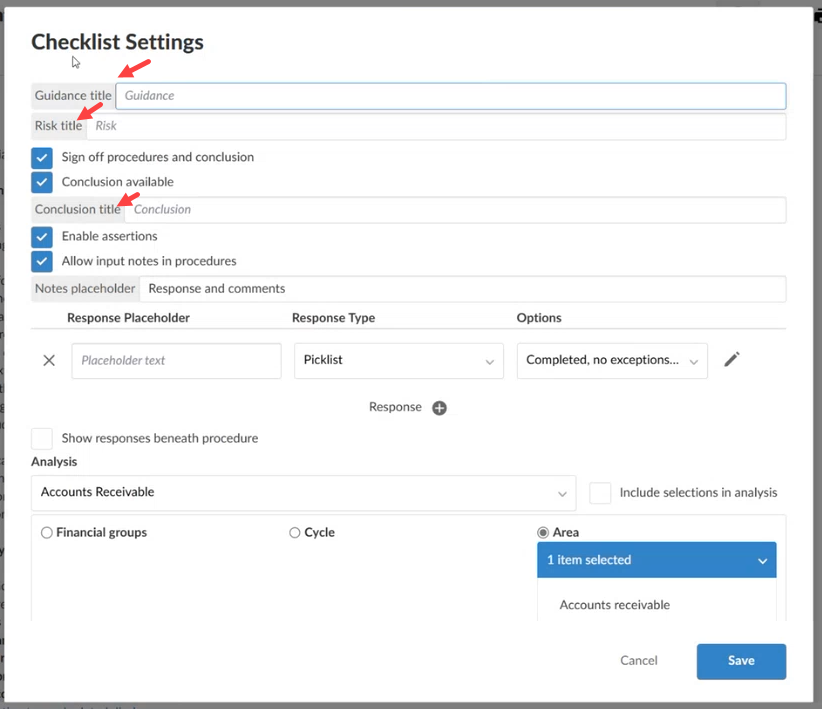
In addition, this feature extends to settings for procedures within the checklist.
Rename assertions, phases, areas, dimensions and components
Product settings such as assertion descriptions, phases, areas, dimensions and components can be renamed within your template to suit multilingual requirements. Edit permissions vary depending on your authoring role. The table below illustrates the different access permissions between an enterprise and firm author.
| Product setting permissions |
Network authors |
Firm authors |
| Assertion names |
-
Can modify existing.
-
Can add.
|
|
| Phases |
-
Can modify existing.
-
Can add.
|
|
| Areas |
|
|
| Dimensions |
|
-
Can modify existing.
-
Can add.
|
| Component |
|
|
To start, select the Information icon ( ) at the top menu, then choose Settings. The Product Settings dialog opens.
To rename assertions, phases, areas, dimensions and components:
-
Go to the appropriate tab.
-
Rename each item in the tab:
-
In the Assertions tab, enter the French abbreviation and full name of each assertion.
-
In the Phases and Areas tabs, enter the French name of each phase, cycle and area.
-
Note: The Areas tabs are only available in your product if they have been enabled by Caseware.
-
In the Dimensions tab, enter the French name of each dimension category and dimension
-
In the Components tab, enter the French name of each component category, component name and component ID.
Rename folders, subfolders, documents and placeholders
Multilingual capabilities for custom analytic tests
You can author custom analytic tests in multiple languages. When you copy a default analytic test, the system automatically creates versions for each language configured in Product settings | Content language.
To author custom analytics in multiple languages:
-
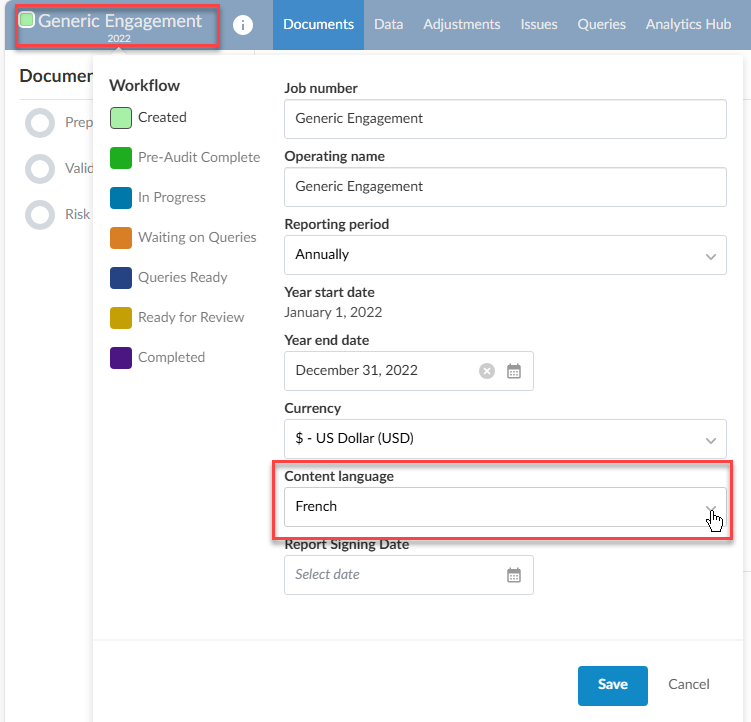
In the product template, select the Engagement name in the top left to make the Engagement properties dialog appear.
-
In Content language, select the language for which you are translating labels in the customized analytic test.
-
Go to Analytics Hub and select a default test.
-
Select the Copy icon ( ) to create a custom version of the analytic test. Refer to Customize analytic tests for more information.
- In the newly copied analytic test, edit the name, description, purpose and parameter names for each language version.
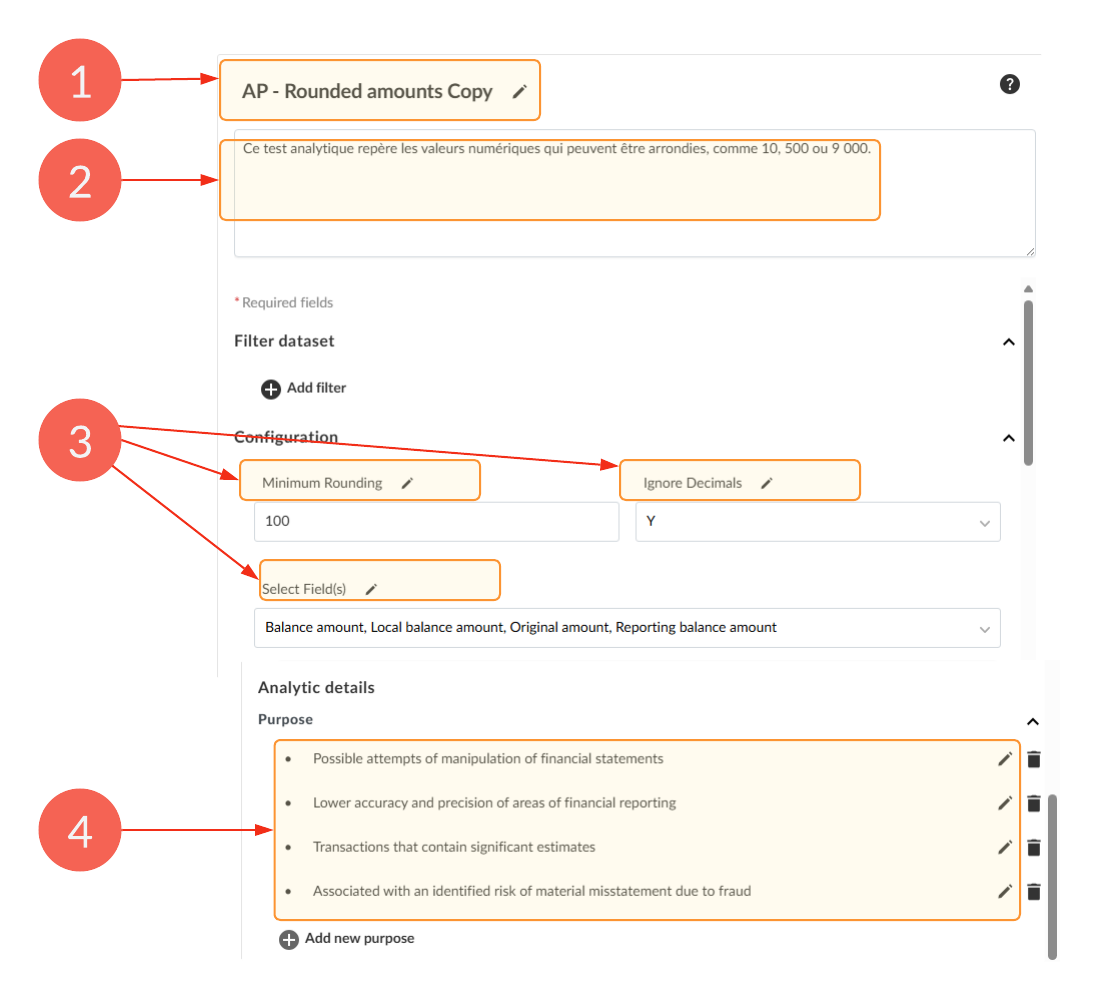
| Element |
Description |
| 1 |
Name of the analytic test |
| 2 |
Description of the analytic test |
| 3 |
Parameter names |
| 4 |
Purpose |
-
Save changes per language. You can only edit one language at a time.
Note:
-
Default analytic tests provided by Caseware are pretranslated.
-
Translations for custom analytics are not automatic. You must provide the localized content.
-
If a translation is missing, the system displays the default language (typically English).