Assign components to items in your template
Components help you set up a market-driven, region-driven or product-driven visibility logic for content. For example, if the entity operates within the Agriculture industry, then display content that is relevant to agriculture. To learn more, see Define components.
If you associate multiple components to content and define visibility settings for each one of the components, then the visibility logic varies based on whether the assigned components belong to the same category or different categories:
-
If the assigned components belong to the same category, the content is visible if at least one component is visible - otherwise content is hidden
-
If the assigned components belong to different categories, the content is visible if at least one component from each category is visible - otherwise, the content is hidden
Note that:
-
An item that has both item visibility settings and components assigned to it will only be visible if both the item visibility settings and component visibility evaluate to visible.
-
If an item is hidden due to item visibility settings, end users can still view the item by selecting the Show hidden checkbox.
-
If an item is hidden due to component visibility, end users can only view the item by selecting the Show hidden checkbox if the Occlude option for the component is not selected in the product settings.
Assign components to a document
You can assign components to an entire document.
To assign components to a document:
-
On the Documents page, select More actions ( ) | Assign Components for the document to display the Assign Components dialog.
-
Select Add ( ).
).
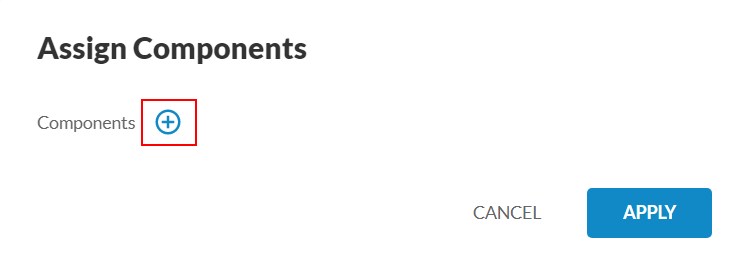
-
Select the components you want to assign from the drop-down.
-
Once you're done, select APPLY.
Assign components to an item in a document
You can assign components to the following items within documents:
To assign components to an item in a document:
-
Navigate to the item that you want to assign components to.
-
Select More actions () | Assign Components to display the Assign Components dialog.
-
Select Add ().
-
Select the components you want to assign from the drop-down.
-
Once you're done, select APPLY.