), then choose one of the following content types:
Areas help organize your financial statement content by grouping similar or related information.
To add content to the new area, select Add (), then choose one of the following content types:
Text Section
Dynamic Table
Analysis
Page Break
When you add a content type, the content type appears in the area with a default title. For example, dynamic tables have Dynamic Table as the default title. You can edit this title to customize it and make it easier to navigate the financial statements.
You can add more than one content type in an area. You can also drag and drop the new area to change its location in the document, see Rearrange areas in the financial statements.
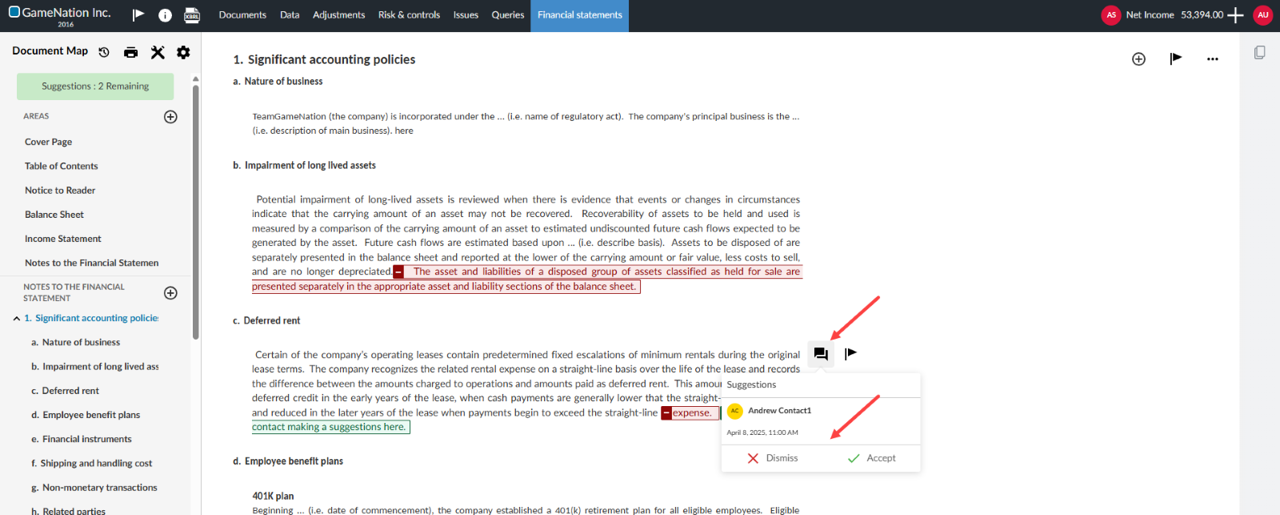
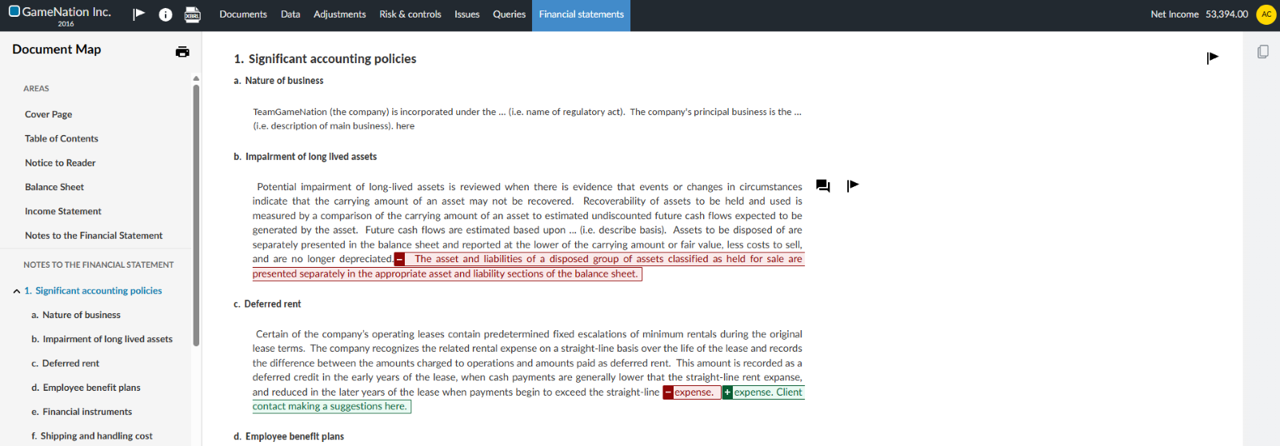
Your client contacts can now add suggested edits to text areas within documents. A suggestion button is now available to client contacts in the text section.
You will have the option to accept or dismiss suggestions from a Discussions icon [
This feature is available on all engagements for client contacts who have the Contact-Viewer permission for an engagement.
Note: Only the staff user can accept or dismiss suggestions
Client contact view
Staff view