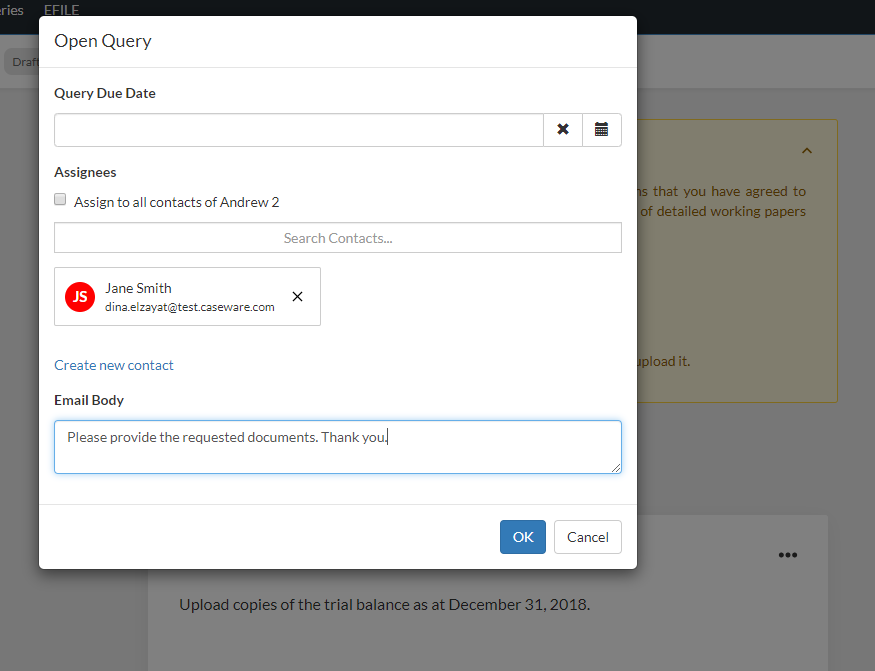
After you have reviewed the query content and made any necessary changes, you can send the document to contacts. Once you send it, you are automatically subscribed to email notifications about the query.
To send the query to contacts:
Notice how the left navigation pane now displays filtering options for query questions so you can easily locate and track client responses.
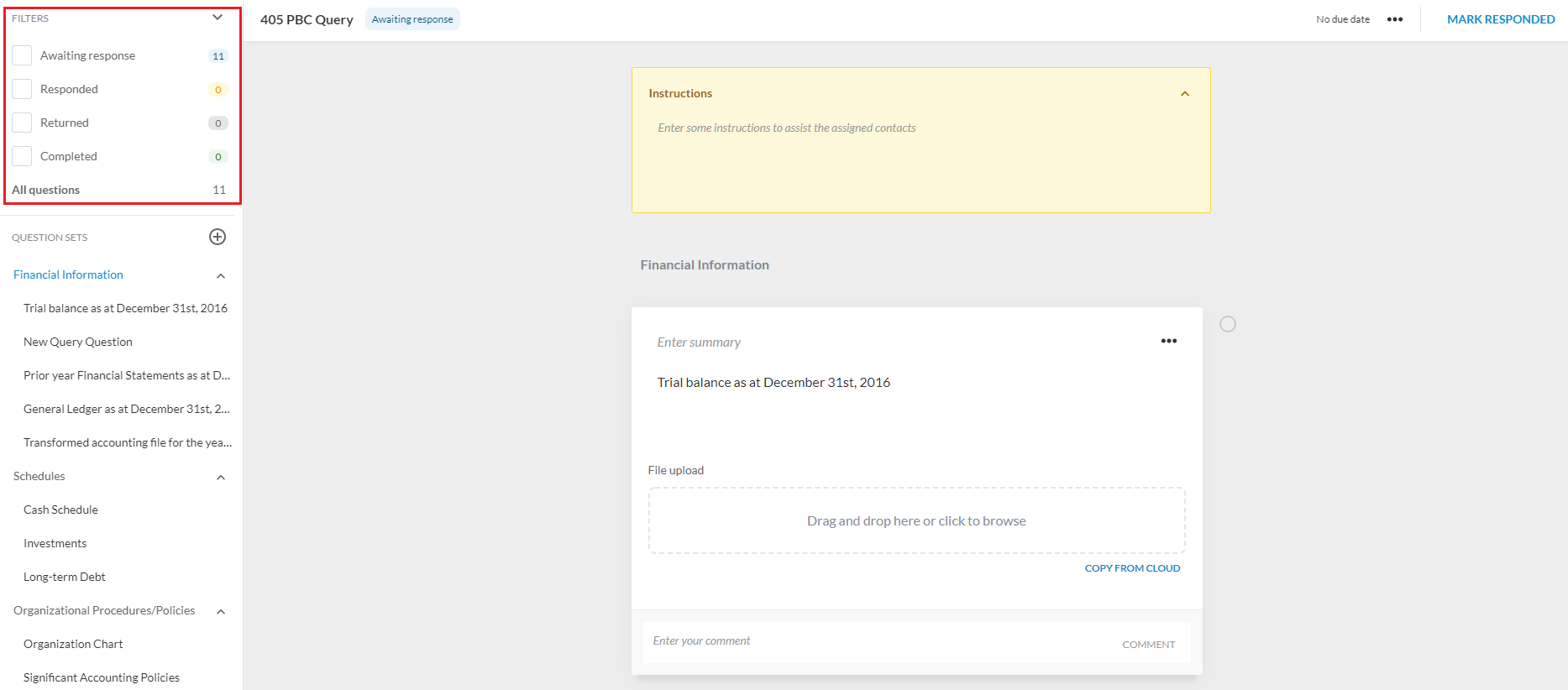
The query question history is also updated in the comments field of each question to indicate both the timestamp and the staff member responsible for sending the query.
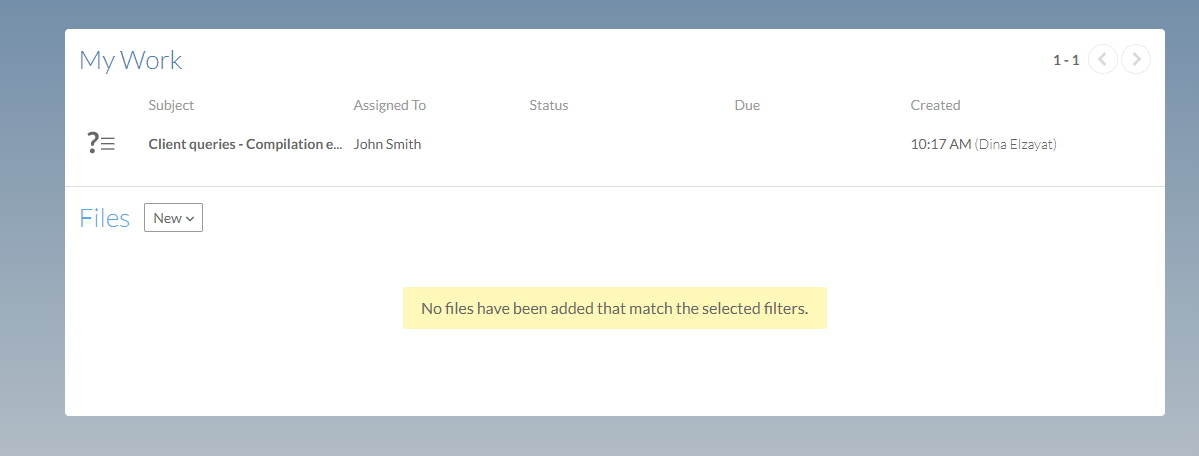
A notification email is sent to the assigned contacts. Once the contacts sign in to Cloud, they can view the query in the My Work section.