
Note: Trial balance data cannot be merged within a single accounting period. When importing a new trial balance that contains account numbers already present in the existing data for the same period, the new balance amounts will completely replace the existing balance amounts. Any account numbers not previously in the system will be added as new accounts
For every row of data you import into Caseware Cloud, a unique identifier is created automatically using the values of one or more fields present in the data row. Where the data source is either a CSV or Excel file, data conflicts may be detected after you assign fields from incoming data to Caseware fields. See the scenarios below and how to resolve data conflicts in each. For more information on importing general ledger data from CSV or Excel files, see Import the client's data from a CSV or Excel file.
See Understand subledger datasets for more information on how unique identifiers are formed in subledger datasets.
See Understand the General ledger dataset for more information on how unique identifiers are formed in the General ledger dataset.
Data conflicts occur within a CSV or Excel file if more than one data row has the same unique identifier:
To resolve data conflicts in the same import file:
 ).
).If there is already a row in the dataset that has the same unique identifier as a row you are trying to import, a data conflict arises. Quick reference to conflicts by dataset type lists the fields that cause data conflicts if their values are the same in the file you are importing and in the existing dataset. In addition, data conflicts only ever arise in the same dataset type. For example, there will never be any data conflicts found between a newly imported general ledger dataset and an existing subledger dataset.
In this scenario, a warning icon and a Resolve conflicts button appear in the Uploaded files section on the Datasets tab on the Data page.
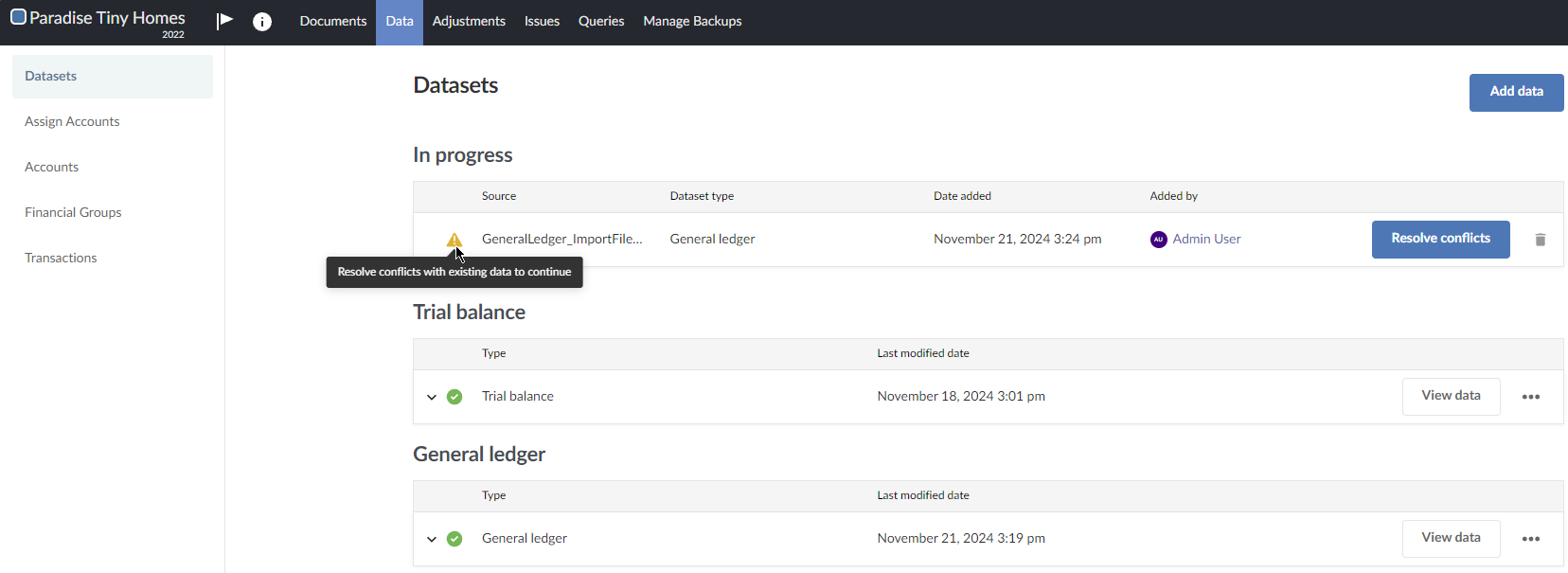
To resolve a data import conflict between the incoming file and an existing dataset:
) and import a different file, or click Resolve conflicts to use one of the data conflict resolution options. If you click Resolve conflicts, continue to the next step.Click this link to download a CSV file of the data rows where conflicts have occurred. Analyze the file and then proceed with one of these options:
Delete the data source you just imported, fix the import file by removing the data rows with unique identifiers that are the same as in the existing dataset and reimport the file.
When you choose to resolve data import conflicts using data from a newly imported file, and then later delete that file, the conflicting data rows are removed from the dataset completely.
The following case can happen depending on the degree of overlap between the newly imported file that was deleted and existing data rows in the dataset.
In this case, a data file is imported into a dataset.
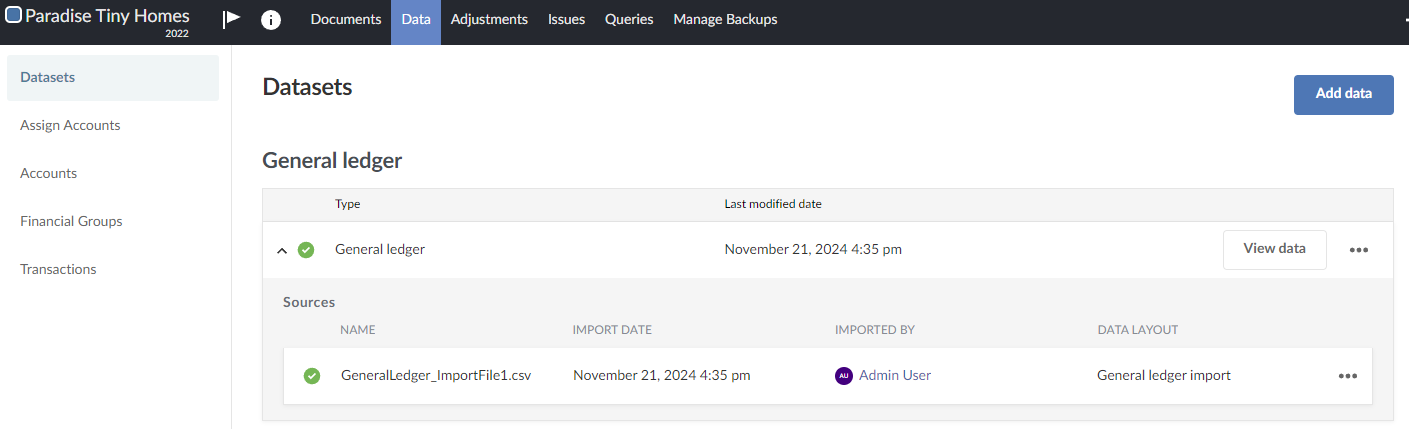
A second file including all the same data rows in the first file as well as some new data is imported into the same dataset. A data conflict is detected because some data rows in the dataset and in the incoming second import file have the same unique identifiers.
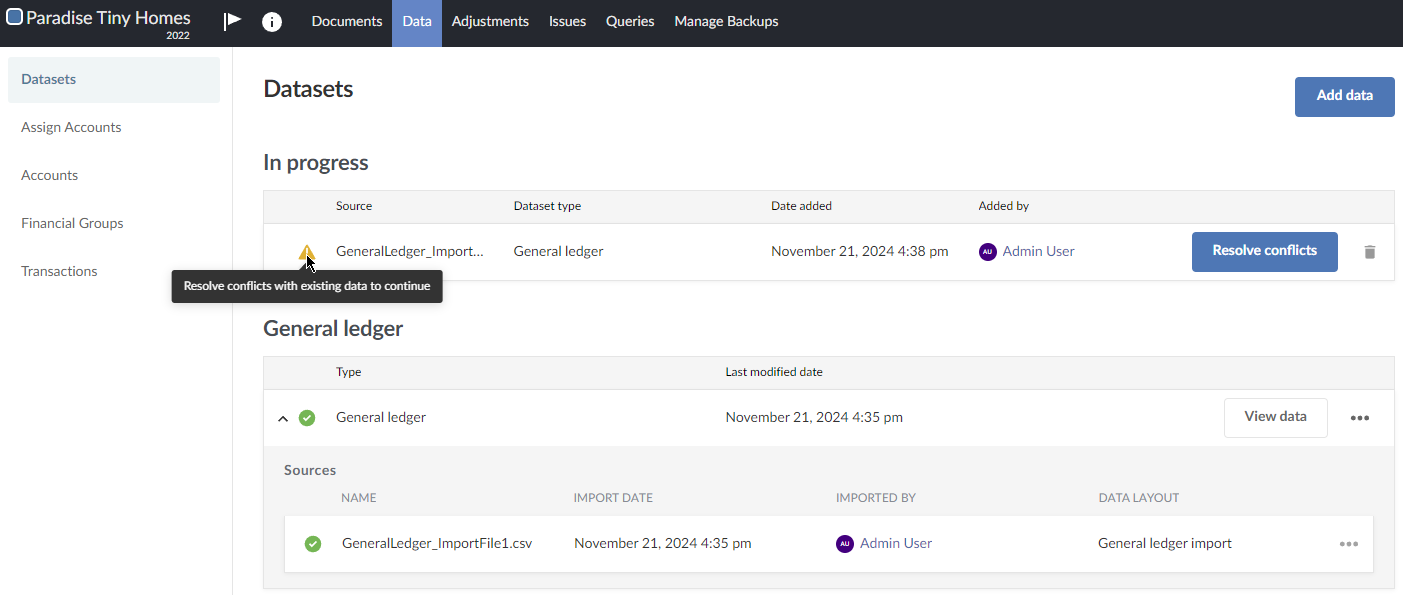
The user opts to click Resolve conflicts, and then selects the Resolve conflicts using data from <data import file name> option.
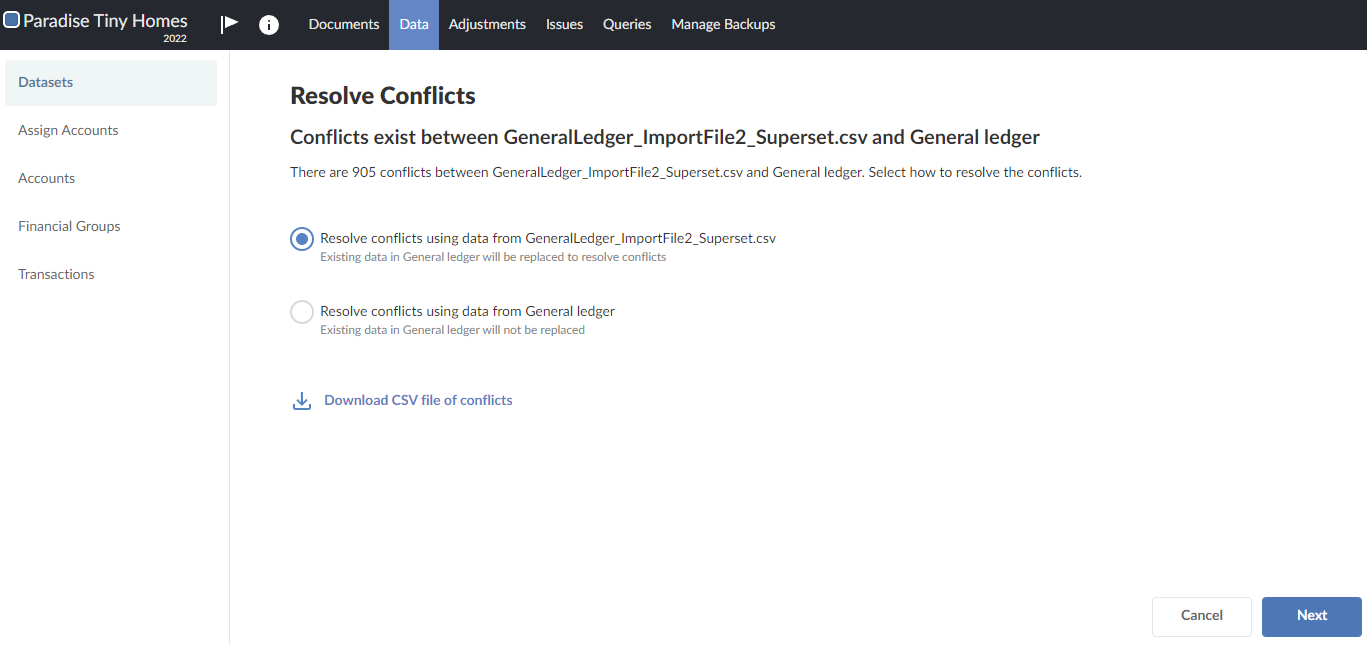
The data from the newly imported file overwrites the previously imported file. The resulting dataset now only contains the data in the newly imported file (GeneralLedger_ImportFile2_Superset.csv).
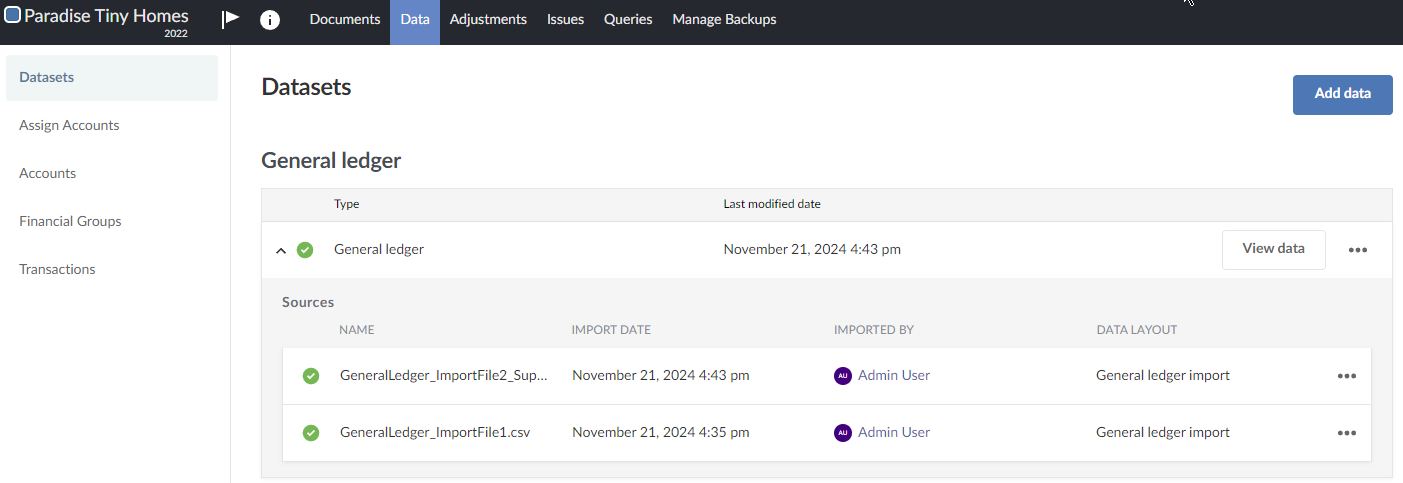
However, the newly imported file, GeneralLedger_ImportFile2_Superset.csv, is deleted by mistake.
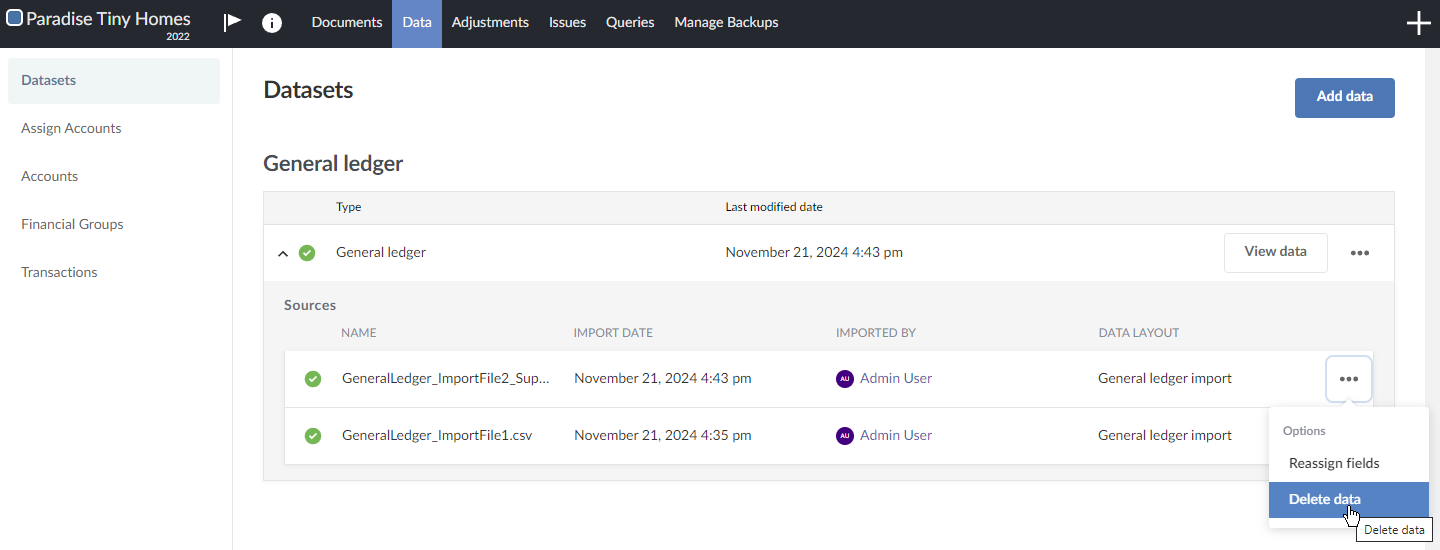
This results in an empty dataset. On the Datasets page, notice only the first file that was imported is listed, which in this example is GeneralLedger_ImportFile1.csv. If you export the dataset, you are prompted with a warning.
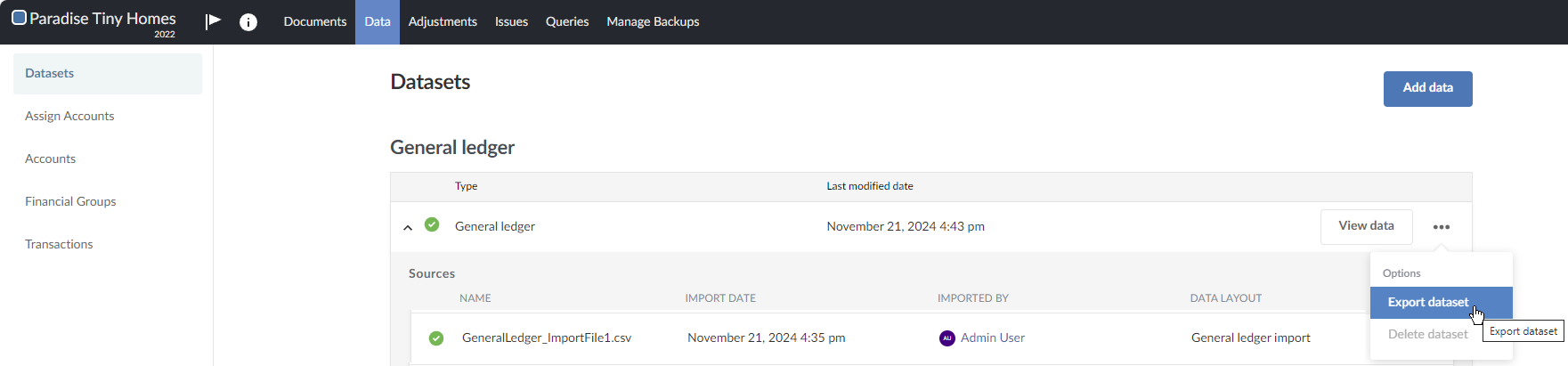
How you resolve the empty dataset depends on what you want to achieve:
GeneralLedger_ImportFile1.csv. GeneralLedger_ImportFile2_Superset.csv.GeneralLedger_ImportFile1.csv. | Dataset type | Conflicts occur where this field has the same value in two or more data rows |
|---|---|
| General ledger | Entry ID (entry_id) - Line Number (line_number) |
| Accounts payable—invoices | Transaction ID (ap_invoice_transaction_id) |
| Accounts payable—payments made | Transaction ID (ap_payment_made_transaction_id) |
| Accounts payable—suppliers | Supplier ID
(ap_supplier_supplier_account_id)
|
| Accounts payable—open balances | Transaction ID
(ap_open_balance_transaction_id)
|
| Accounts payable—invoices | Transaction ID
(ap_invoice_transaction_id)
|
| Accounts receivable—cash received | Transaction ID
(ar_cash_received_transaction_id)
|
| Accounts receivable—customers | Customer Account ID (ar_customer_customer_account_id) |
| Accounts receivable—open balance | Transaction ID (ar_open_balance_transaction_id) |
| Inventory transactions | Transaction ID
(inventory_transaction_transaction_id)
|
| Inventory on hand | Transaction ID
(inventory_on_hand_transaction_id)
|
* In the Quick reference to data conflicts by dataset type table, it is assumed you have assigned a field in the import file to the Caseware field indicated. By default this field is the primary key for the dataset and its value is used to autogenerate the unique identifier for each data row. Where you do not assign a field to the field designated as the primary key for the dataset, other fields designated as alternate primary keys are used to autogenerate a unique identifier. See field descriptions for the dataset type in question for more information: Understand the general ledger dataset or Understand subledger datasets.