
Group audit
Note: This feature may not be available in your product.
The group audit feature streamlines the use of common work areas within a group audit. This includes the ability to:
-
Identify common work areas for various group audit components.
-
Share common work areas with component auditors
Users can share or assign common work areas, such as Risks, during a group audit within the same engagement.
This feature reduces manual data entry and inconsistencies in a group audit by enabling the group auditor to consolidate and track the work through Caseware Cloud.
Definitions
component / component auditor – A business unit whose audit an auditor or group of auditors is responsible for, or a group of auditors involved in a group audit.
work area – A common work area that auditors will use to complete an audit such as Risks, Controls, Documents, and Materiality.
group auditor – The lead auditor in a group audit and has the highest visibility and control over the group audit management.
group hierarchy – A table view of the group audit work categorized as parent and child components.
Group auditor workflow
The following demonstrates the workflow from the group auditor’s perspective.
Planning
Create a group audit engagement
-
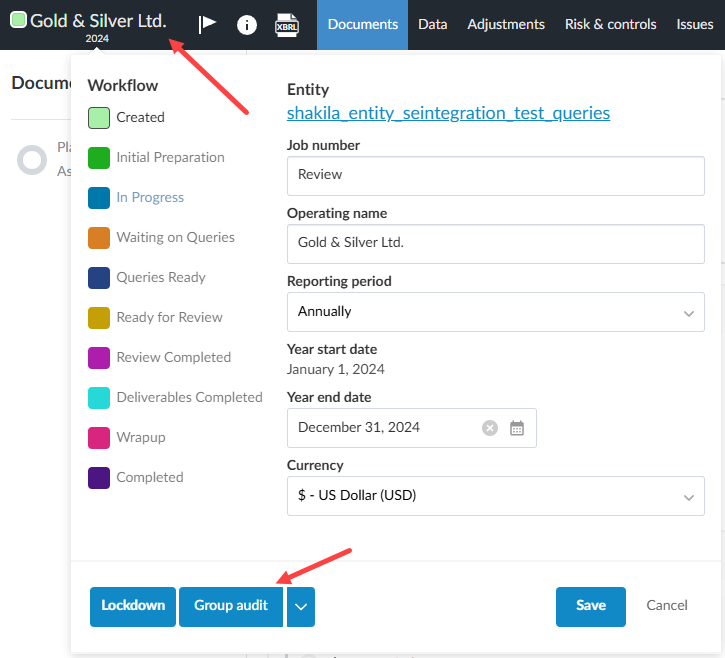
Click your entity name in the top left corner of the screen to open the Entity dialog box within a single engagement.
-
Click the dropdown menu beside the Lockdown button.
-
Click Group Audit. The Group Hierarchy page will become available, listing your entity name.
Note: the dropdown menu may vary slightly depending on your Caseware Cloud application.
Create a group hierarchy
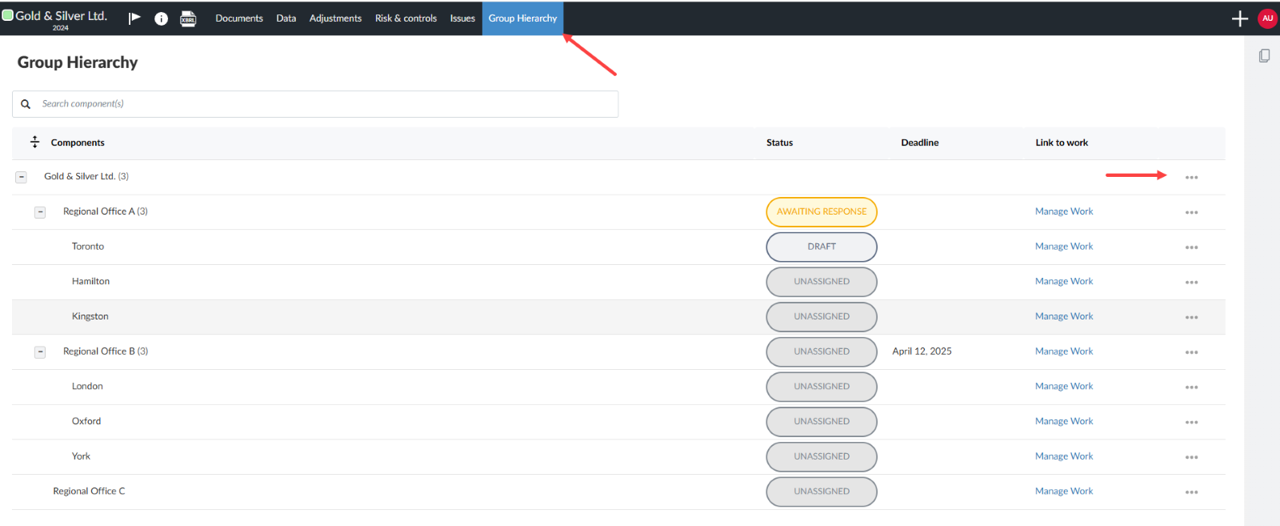
Populate your group with components according to their category (parent) and subcategory (child)
-
Click the More actions icon [
 ] and click the Add component button in the dialog box.
 -
Fill in the Component name.
-
More than one component can be added at one time.
-
Each component will have the same ability to add subcategories for that component (child components).
-
Deadlines can be set for when the work for the component needs to be completed.
-
Component names and deadlines can be edited from the Group Hierarchy main page by clicking on their fields.
Import data
-
Import group audit data is similar to importing into a single engagement. To learn more, refer to Import and manage data.
-
Data can be imported exclusively into a component either from the group audit or component level.
-
You can view datasets by component from the Data page at the group audit level.
-
Determine group audit work
-
Add and define document requirements for the engagement.
-
Add and define risks and controls.
-
Click the Risk and controls page.
-
Click either the Risk or Controls subpage.
-
Click NEW RISK or NEW CONTROL, depending on which you selected.
-
Fill in the fields as it relates to your risk or control.
-
Click Save.
-
Assign work to component auditors
-
Assign work to each component.
-
Select the Group Hierarchy page.
-
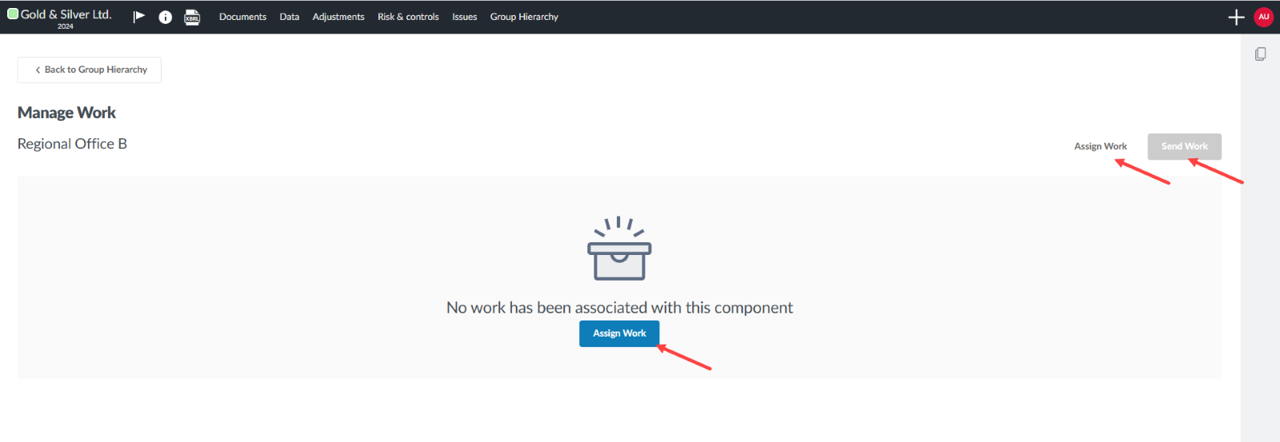
Click the Manage Work link in the component row.
-
Click Assign Work.
-
-
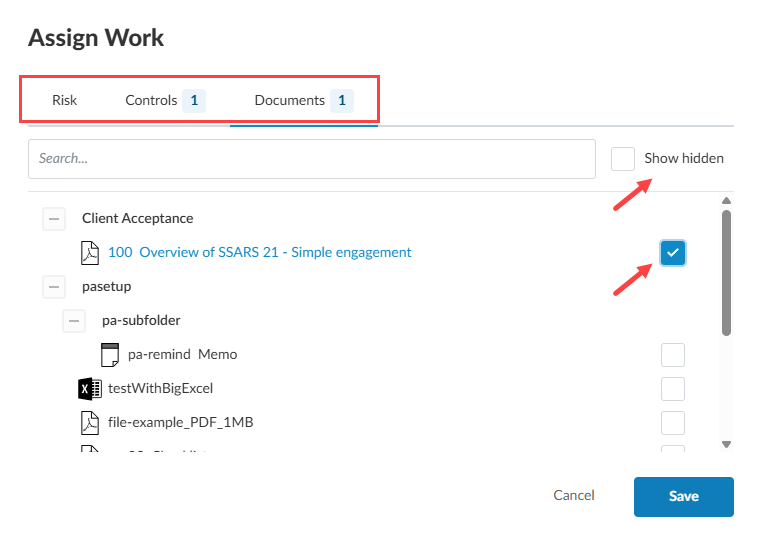
Select the work areas, such as Risk or Documents, to be assigned to that component.
-
You can select Show hidden to add items initially hidden from the work area.
-
You can assign a checklist to a component, which will include all child tasks. You can also expand the work area and assign or exclude individual child tasks to the component assignment.
-
You can have more than one component working within the same work area.
-
Click Save.
-
The Manage Work window will open allowing you to manage the number of assignments for that component according to work area.
-
Click Send Work to confirm the assignment. This will create a copy of the assigned work and send it to a workspace within the engagement.
-
The Manage Work window will show the status of the assignments to that component.
-
Assigned status – means the work area is assigned to the component but not sent.
-
Sent status – means the work area is assigned and sent.
-
-
You can assign additional work after sending. This will change the assignment status to Assigned and will need to be resent to activate the assignment.
The Group Hierarchy tab automatically updates component status when these conditions are triggered:
-
Unassigned – component has no work areas assigned to it.
-
Draft – component has work assigned to it that has not been sent.
-
Awaiting response – component has work assigned and sent to it that requires its response.
-
Pending review – component has prepared the assigned work for you to review.
-
Completed – component work is complete.
Fieldwork
Review work from component level
The group auditor reviews and signs off on assigned work from the component level.
The component is ready for review when the component auditor has changed its status to Pending review. This will be visible to the group auditor from the Group Hierarchy page.
-
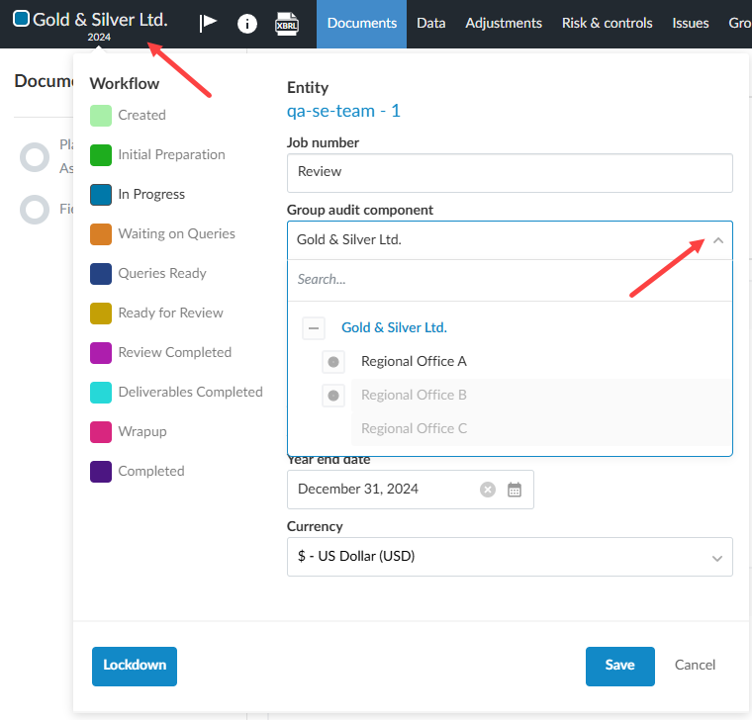
Open the component of the engagement by clicking the top left corner with the entity name.
-
Click the desired component from the Group audit component dropdown menu.
-
Click Save. The selected component level will open. The entity name in the top left corner will update to the current level of the engagement that you are in.
-
You can see all the assigned work to that component.
-
Interview questions will carry forward any dependencies and requirements as you work within a given checklist.
-
You can use the Review tools icon (
 ) to see what the component auditor has amended in the original work assignment.
-
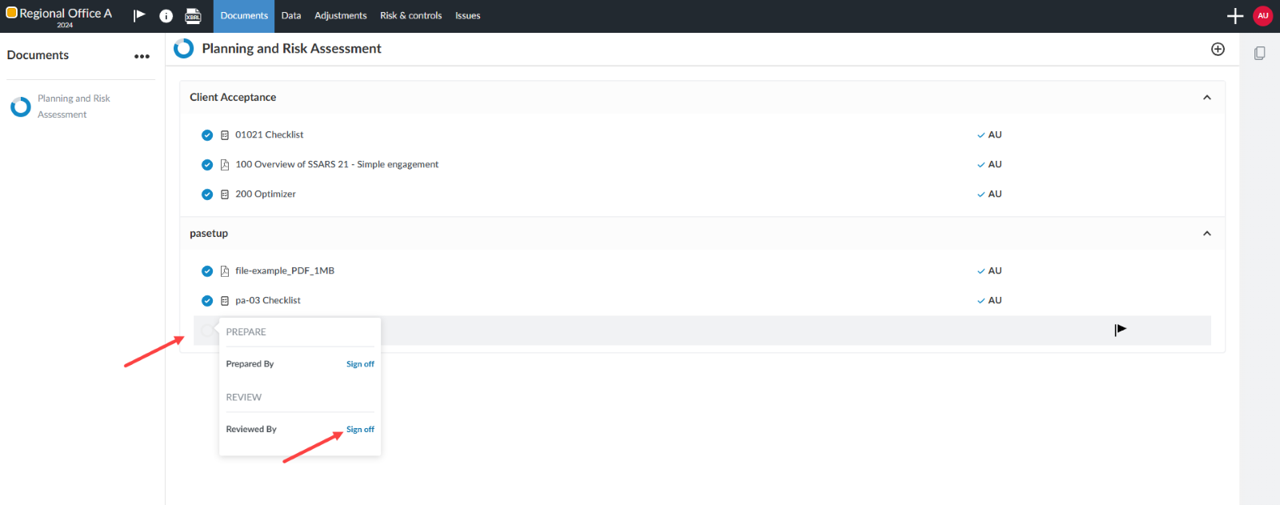
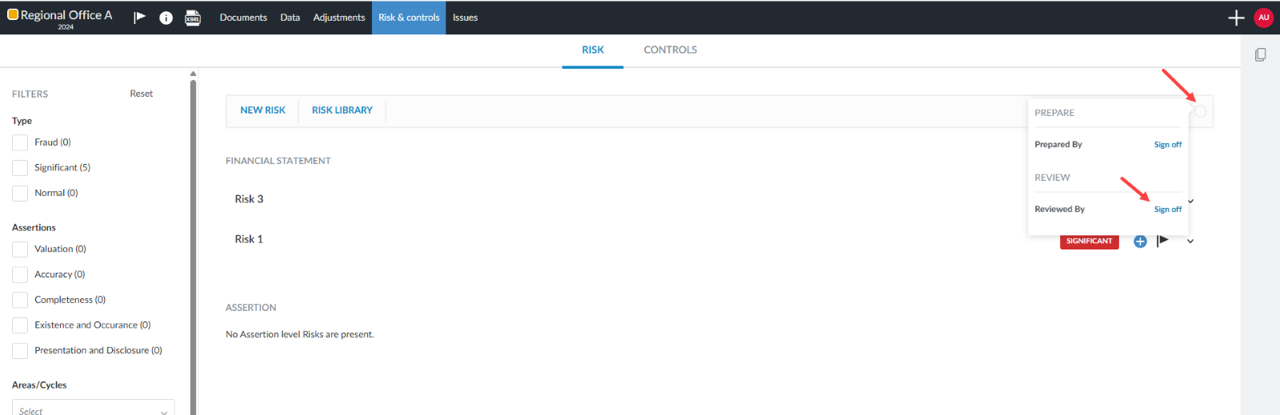
Once reviewed, sign off on each task as Reviewed by.
Sign off area in Documents
Sign off area in Risk & controls
-
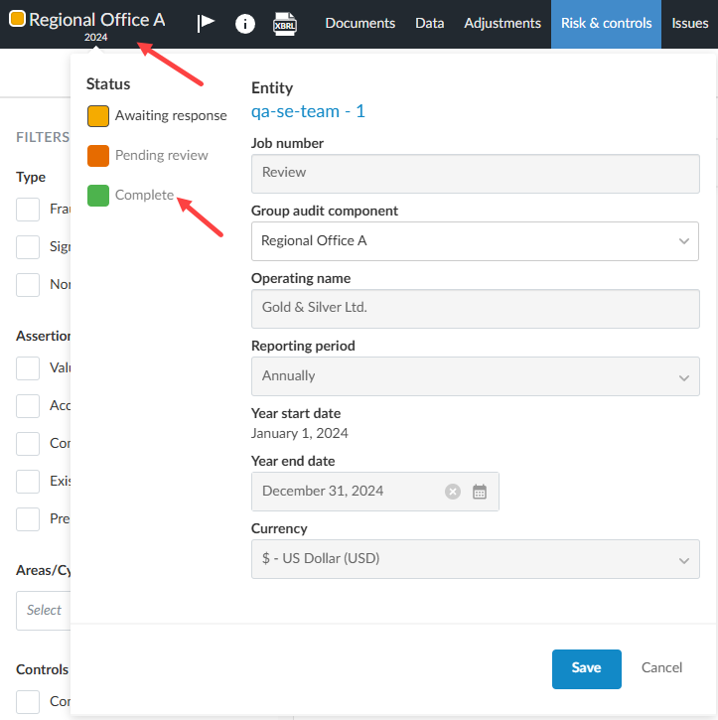
Change the status of the component to Complete.
-
Click the top left corner to open the entity dialog box and select the Complete status checkbox when work is reviewed and deemed complete by the group auditor.
-
Click Save.
-
Review the group audit
Ensure you are in the group audit level of the engagement by selecting your entity name from the top left corner of the screen and selecting your entity name from the Group audit component dropdown list. It will be the highest level of the group audit.
From the Group Hierarchy page, you can view the status of the group audit components and those pending your review.
-
Review Risks
-
Click the Risk & controls page from the top menu and click the Risk subpage.
-
Click the Group audit component drop-down menu on the left-side of the window to select one or multiple components for review. All the risks for the selected component(s) will display in the right-side window.
-
Select a Risk in the right-side screen to expand details on the work done on that risk.
-
Add an audit response as needed in the Conclusion field.
-
-
Review Controls
-
From the Risk & controls page, click the Controls subpage.
-
Select a Control and expand the details for that Control by clicking the link of the component name.
-
Add an audit response as needed in the Conclusion field.
-
-
Review Documents
-
Documents prepared by a component need to be reviewed from the component level, as per the above section Review work from component level.
-
Sign off and complete.
-
Sign off areas are in the same areas as noted in the component.
-
Note: Risks that are identified at the component level need to be noted in the group audit level and assigned to the component(s).
Component auditor workflow
Note: This section assumes the role of the component auditor.
The component auditor is an auditor or group of auditors from a business unit assigned work within a group audit engagement. In Caseware Cloud the components are situated under the group audit entity to which the group auditor can assign work to the component auditor(s).
Fieldwork
Once assigned work has been sent, you will be able to open the component within the group audit and begin work. The name of the active component will be visible in the top left corner. If a deadline has been set for this component by the group auditor, this will also be displayed in the top left corner.
-
Review and prepare work assigned in the Documents page.
-
You can add new procedures to checklists as needed.
-
You cannot remove procedures set by the group auditor.
-
-
Review and prepare work assigned in the Risk subpage
-
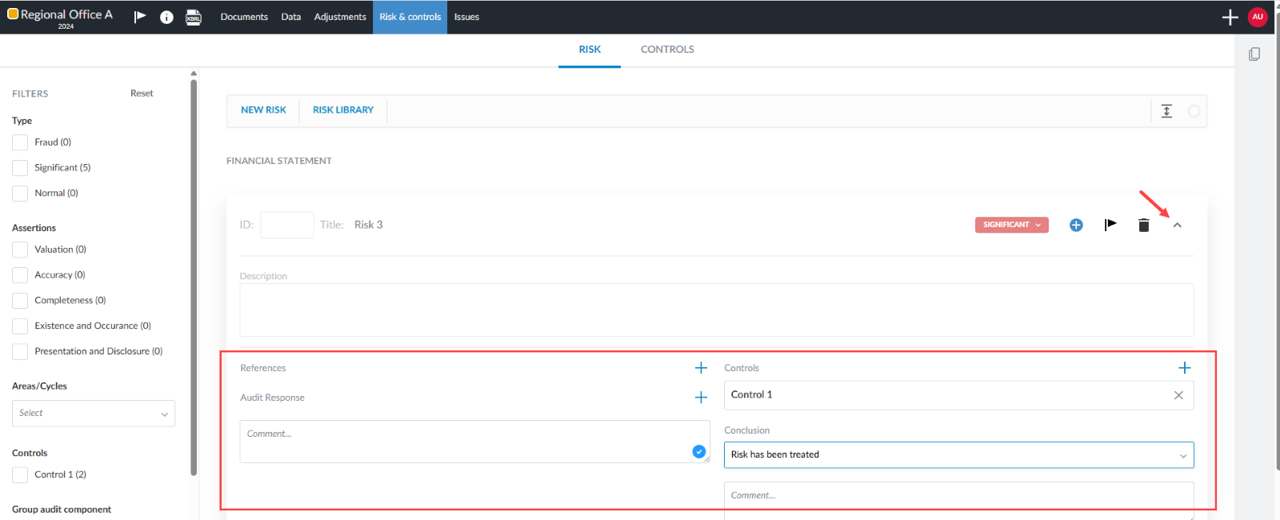
From the Risk subpage under Risk & controls, expand the details of the Risk that you want to work on.
-
Complete your assessment in the Audit Response area.
-
From the Risk or Controls page, you can reference documents prepared from the Documents page within their related Risk or Controls assessment.
-
You can respond to the work assigned but you cannot edit the description of the assigned work. This can only be changed from the group audit level.
-
Risks that are identified at the component level need to be noted and assigned from the group audit level.
-
-
Review and prepare work assigned in the Controls subpage
-
From the Controls subpage under Risk & controls, expand the details of the Control that you want to work on.
-
Complete the Controls assessment.
-
-
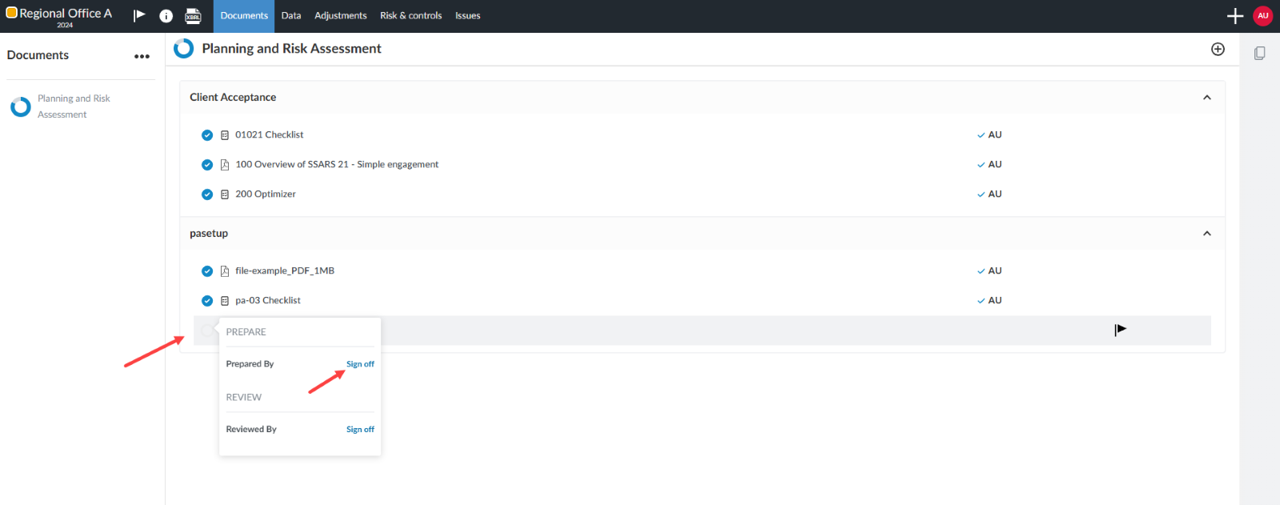
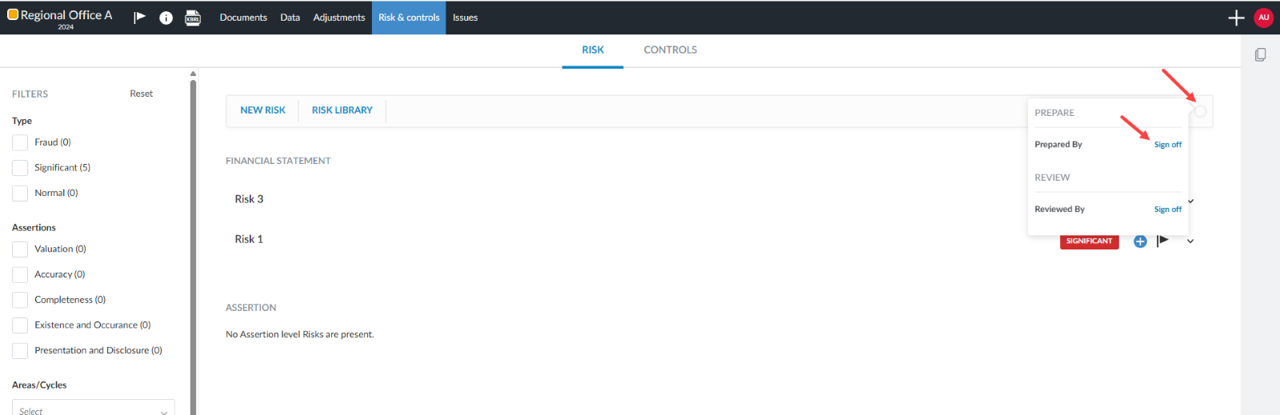
Sign off on completed work.
Sign off area in Documents
Sign off area in Risk & controls
-
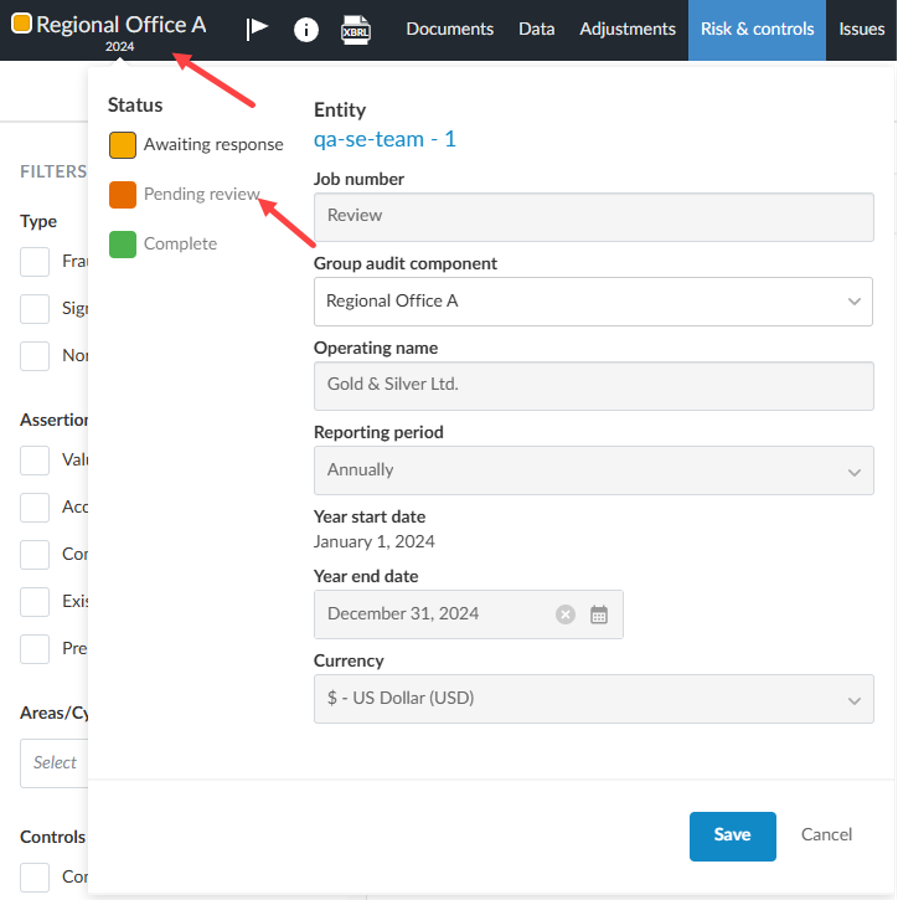
Change the status of the component to Pending review.
-
Click the top left corner to open the entity name dialog box, in the top left corner of the screen, and click the Pending review status checkbox when work is ready for the group auditor’s review.
-
Click Save.
-
Component performance materiality for group audit components
Note: Group audit may not be available on your product.
You can assess the performance materiality of a component within a group audit. Performance materiality is more specific than materiality and helps auditors identify areas that require more attention during the audit process. It reduces the risk that the aggregate of uncorrected and undetected misstatements exceeds the materiality level for the financial statements, as set by the group auditor.
How to manage component performance materiality
An engagement must be set as a group audit before the component performance materiality feature will become available.
-
Click the Documents page of your group audit engagement.
-
Click the Materiality tab in the left-side menu.
-
Click the Materiality form.
-
Click the Component Performance Materiality subtab.
The group auditor can add performance materiality thresholds for its components as well as provide reasoning for any of the following that should apply:
-
Extent of disaggregation
-
Basis for calculation
-
Reasoning for performance materiality and clearly trivial threshold
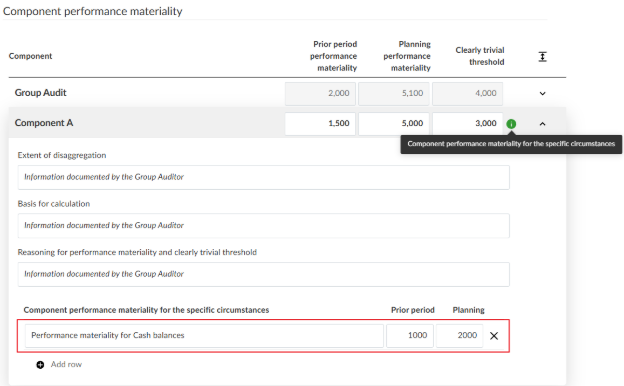
The component auditor can also add additional rows to the card to document component performance materiality for specific circumstances.
The group auditor can also document the Clearly trivial amounts for each of the components.
Conditional warnings
-
A red indicator icon [
 ] will show if the component materiality value exceeds the determined group value.
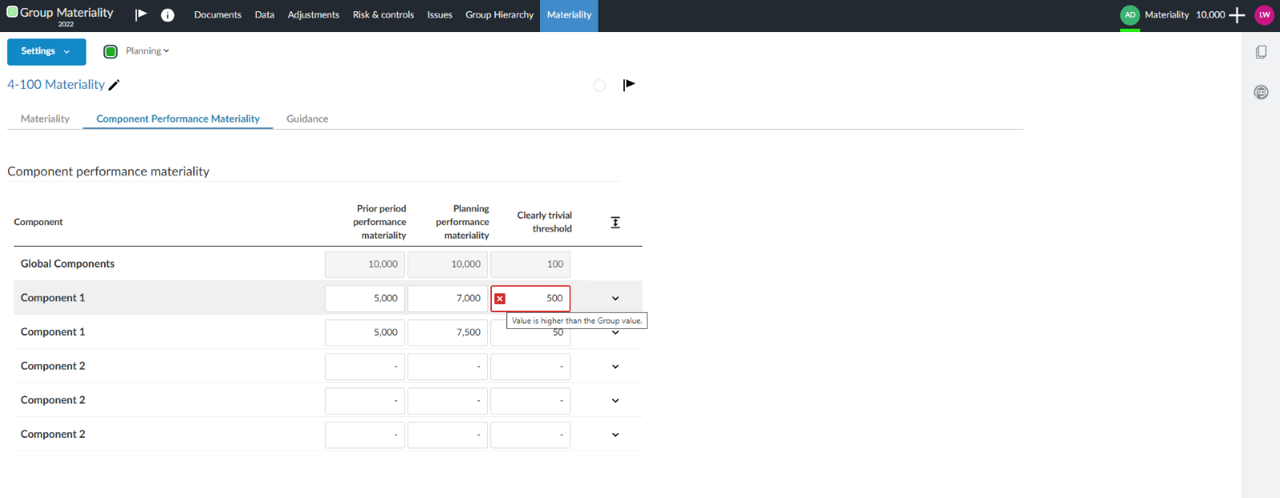
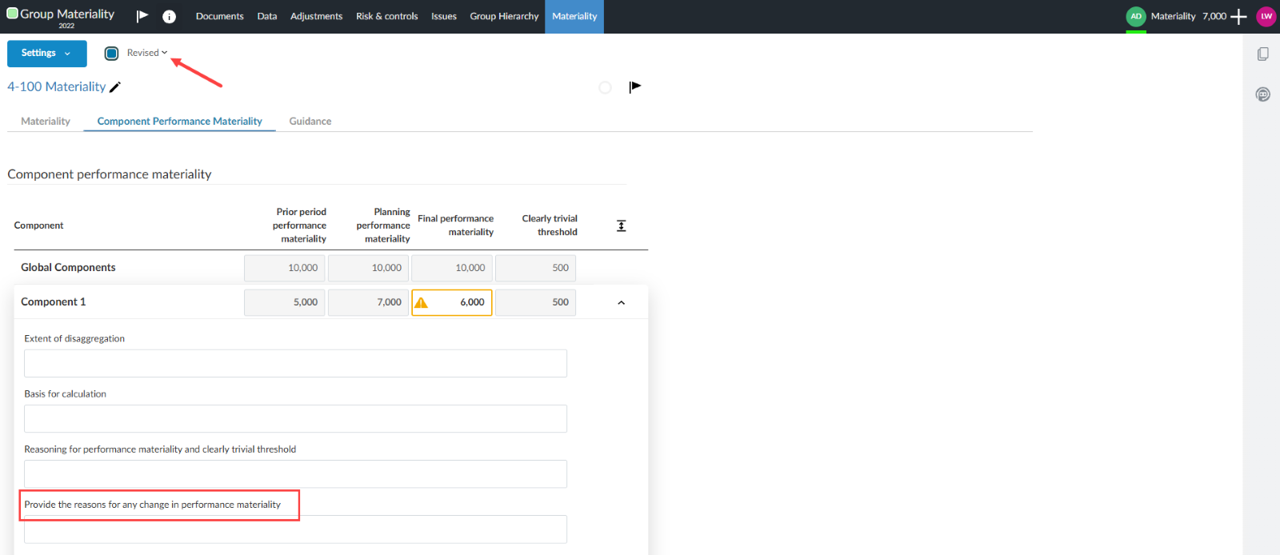
A yellow indicator icon [ ] will show if the component’s final performance materiality value differs from that of the planning performance materiality. To see the final performance materiality, you will need to be in the Revised mode of the Materiality form. The yellow indicator can be cleared if you provide the reasons for any change in performance materiality.
A green indicator icon [ ] will show if there is a specific performance materiality documented for a component. This helps users quickly identify components with performance materiality for specific circumstances without expanding each card.
To learn more about group audit, refer to Group audit workflow.
