
Get started with Caseware Extractly - Firm Administrator
To get started, sign in to your firm’s Extractly site, using the link received in an activation email from Extractly. As a Firm Administrator, you’ll need to complete the following tasks before your team can begin using Extractly:
Activate the Firm Admin account
Activating your Firm Admin account is the starting point to set up Extractly for your firm.
To activate your Firm Admin account:
-
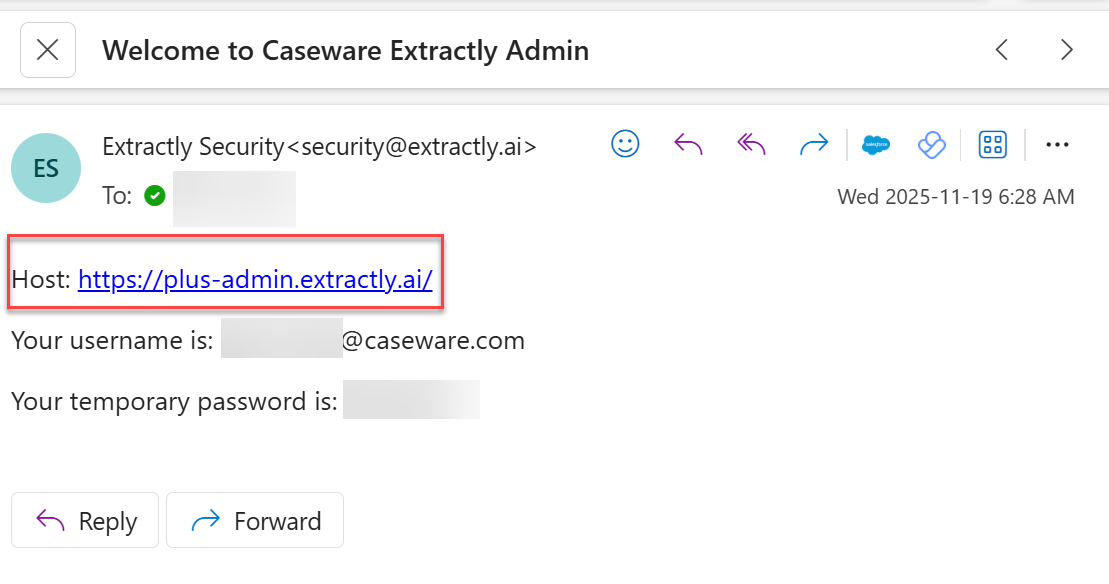
As the designated Firm Admin, you receive an activation email from Extractly containing a link to the Extractly admin portal.
-
In the email, select the admin portal activation link in Host.
-
In Email, provide your company email and in Password, provide the temporary password from the email.
-
Change your password to something secure when prompted.
-
Select Sign in.

Notes:
- If you have not received an activation email, check spam or contact support.
- Only one Firm Admin is provisioned initially.
Install Extractly for your firm
You can deploy Extractly to all users in your firm through the Microsoft 365 Admin Center. Or staff users can add Extractly to their own Excel environment from the Office Add-ins Store. To learn more, see Get started – Staff. Choose the option that best fits your organization’s needs.
To install Extractly for your firm:
-
Sign in to the Microsoft 365 Admin Center at
https://admin.microsoft.com/. -
Go to Settings | Integrated apps.
-
Deploy the Extractly add-in. See Deploy an Office Add-in using the admin center for more information.
Note: Users may need to restart Excel to see Extractly in the ribbon.
Add and manage users
As a firm admin, you manage user access in Extractly by configuring Entra ID integration with your organization’s Tenant ID, then using the admin portal to add users, assign roles, and control permissions as needed.
Configure Microsoft Entra ID integration
-
Ensure Tenant ID authentication is configured.
-
Set up Extractly to integrate with your organization’s Entra ID (Microsoft identity provider) using your Tenant ID: On the Users tab, in the Firm details section, locate the SSO button and select it.
-

-
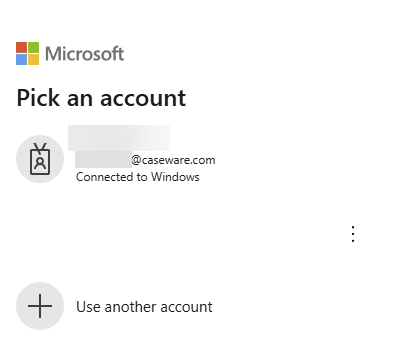
Select your Microsoft account.
-
Users log in with organizational credentials.
-
Staff members access Extractly using their existing company user names and passwords.
-
Users are auto-added to the user list in the Extractly admin portal.
-
Upon first login, users are automatically listed in the List of users section.
-
-
Assign roles as needed in the Extractly admin portal
-
Review the user list and assign appropriate roles and permissions directly within the portal.
Set up a firm admin user
Firm admin users can add and manage Extractly users and view usage analytics.
To add a firm admin user:
-
Go to Users.
-
Scroll down to the List of admins section and select ADD FIRM ADMIN.

-
In Email address, specify the user’s email.
-
In Firm ID, specify the firm name your organization has been assigned by Caseware. See the example below:
https://<region>.casewarecloud.com/<FirmName>/e/eng/<engagement-ID>/index.jsp#
-
In Roles, select
FIRMADMIN. -
Select ADD.
Set up a staff user
Staff users are non-admin users at your firm. They have access to Extractly features but cannot add or remove users.
To add a staff user:
- Go to Users.
- Scroll down to the List of users section and select ADD USER.
- In Email Address, specify the user’s email.
- In Firm ID, specify the firm name your organization has been assigned by Caseware. See the example below:
https://<region>.casewarecloud.com/<FirmName>/e/eng/<engagement-ID>/index.jsp#
-
In Roles, select FIRMUSER.
-
Select ADD.

Remove a user
- Go to Users.
- Scroll down to List of users.
- Use the Email filter to find the user you want to remove.
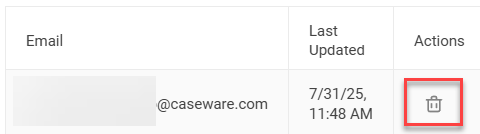
- In the Actions column, select the Delete icon.
Configure firm settings
Firm settings in Extractly lets firm admins manage options like document save locations and features such as fuzzy matching.
Set the default document save location
To set the default document save location:
-
Go to theFirm settings section and select EDIT FIRM SETTINGS.
-
Select the default save location.
-
Select Save.
Monitor Extractly analytics and usage
As a Firm Admin, you can monitor key metrics to track Extractly’s usage and performance:
-
Files processed: The total number of files successfully handled by Extractly.
-
Files failed: The number of files that encountered errors during processing.
-
Pages processed: The total number of individual pages extracted and analyzed from uploaded files.
These analytics help you assess system activity, identify issues and optimize Extractly’s usage for your organization.
To view analytics:
-
Go to Users.
-
Scroll down to User analytics.
Export analytics
To export analytics:
- Go to Users.
- Scroll down to User analytics.
- Select a month.
- Select EXPORT. An Excel file is downloaded to your computer.

